



4 hours ago
“Allowed memory size exhausted” means a PHP allocation hit the applicable memory limit. Confirm the fatal error and the website's active PHP settings before raising a limit: the real cause may be a large batch, a plugin, an image operation or inefficient code.
This guide focuses on diagnosis and verification. The separate upload-and-memory-settings guide explains basic setting changes; an upload-size limit is not the same as the amount of memory an application needs while processing a request.
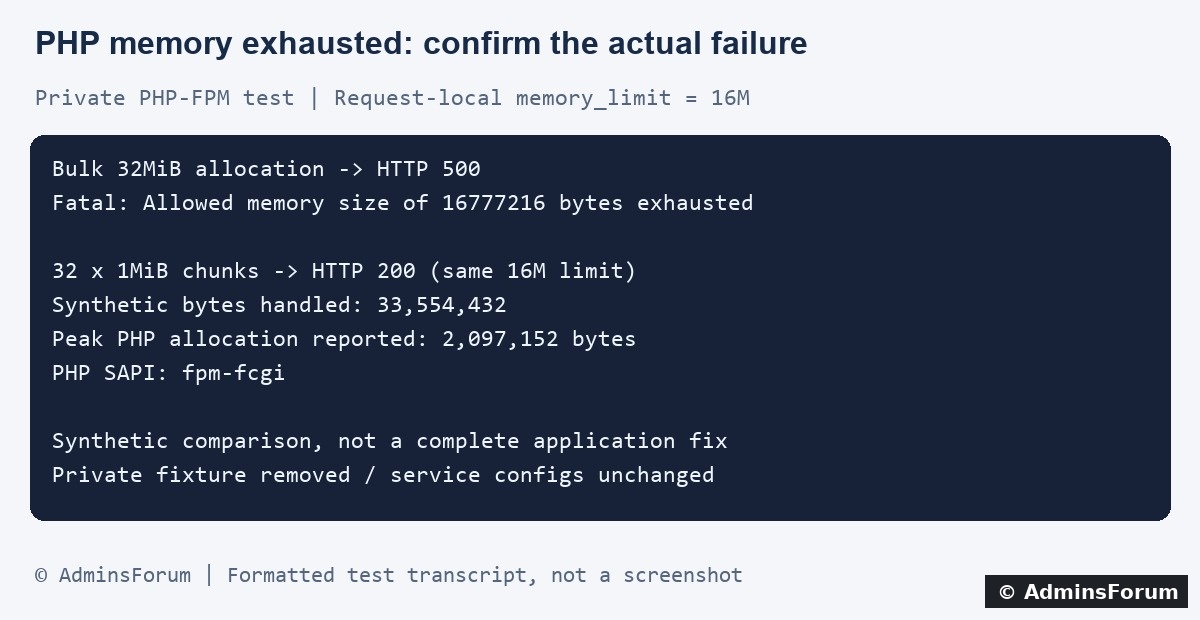
Original AdminsForum private lab evidence, formatted as a transcript rather than a screenshot.
1. Find the matching fatal error
Record the failing action, URL path and time with timezone. Was it an import, export, image conversion, admin page or ordinary visit? Repeat only a safe action; an operation can have side effects before it fails.
In aaPanel open Website → PHP Project, locate the site and select Log → Error log. Match the entry with the access log. On our lab the website error file is:
Use your own configured domain and path. If PHP sends errors elsewhere, inspect the active PHP error-log destination and application logs too. Keep display_errors off on a public site; diagnose from private logs rather than exposing paths and stack traces to visitors.
Our isolated PHP-FPM request produced:
The allowed amount was 16 MiB. The attempted allocation is the size of a particular allocation attempt, not the application's total memory requirement. Do not add the two numbers and assume that is a reliable production setting.
2. Check the PHP version and settings used by the website
Confirm the site's selected PHP version in aaPanel first. The PHP executable used in SSH or a scheduled job can load different settings from PHP-FPM. Editing a CLI configuration does not prove the website changed.
In a private diagnostic context within the relevant application request, useful values include:
These are diagnostic expressions, not a complete public endpoint to upload. Prefer temporary protected diagnostics or private application logging, and remove them when finished. A full phpinfo page reveals much more information than this investigation needs.
Check for application overrides, per-directory configuration and PHP-FPM pool settings. If a pool administrator has locked a setting, an application-level change may not take effect. Verify the final value in the failing execution context rather than assuming a saved panel value wins.
3. What our private PHP-FPM test showed
We used a harmless PHP fixture outside the public website root and a separate loopback-only Nginx endpoint. The script applied and checked a request-local 16M memory limit; no shared php.ini or PHP-FPM pool setting was changed.
The PHP fixture was removed, the private listener stopped and its PID file disappeared. Hash checks confirmed the main Nginx configuration, PHP-FPM pool configuration and php.ini were unchanged. The normal HTTPS site returned 200 afterward.
4. Investigate why this request needs so much memory
5. Distinguish PHP exhaustion from a server OOM event
A PHP memory fatal is not proof that the entire VPS ran out of RAM. An operating-system or container memory kill is a different event and needs system-level evidence. Check the incident time against available memory, swap activity and system or service logs.
PHP's own peak-allocation report is not the complete operating-system memory footprint of a worker. Extensions, shared allocations and other process overhead can make a worker's footprint larger. Do not size PHP-FPM concurrency using memory_limit alone.
6. When a finite limit increase is justified
Sometimes a legitimate operation needs more memory after application checks. Back up the relevant configuration, record the old value and scope, and review available headroom with the database and other services running.
In aaPanel open the installed PHP version used by the site, then locate its configuration or limit settings. Panel labels vary. Determine whether the change affects every site on that PHP version or only the intended application. Apply the smallest measured finite change through the supported panel workflow and reload the relevant service if required.
Avoid memory_limit=-1 as a blanket repair. Increasing per-request allowances alongside many PHP workers can increase aggregate pressure; multiplying a limit by worker count is only a rough risk check, not an accurate RAM forecast.
PHP 8.5 also has a startup-level max_memory_limit setting that can cap memory_limit. If an intended change is capped or rejected, investigate the effective configuration and warning rather than repeatedly increasing the requested number.
7. Verify success and keep rollback information
Repeat the same safe action with representative data. Confirm the application result is correct, the request finishes and no new matching fatal appears. Compare peak allocation, response time and server memory under an appropriate workload. A 200 response alone does not prove an import completed correctly.
If a configuration change was used, verify the effective value in the website's PHP context. Restore the recorded value if it causes pressure or does not solve the problem. Remove diagnostic code and keep errors logged privately.
When requesting support
Share the PHP version, active limit, action, approximate input size, recent changes and a short redacted fatal-error excerpt. Do not post credentials, customer data or full configuration dumps.
Related guides
Change PHP upload and memory settings
Trace PHP HTTP 500 errors in logs
Size PHP-FPM workers using measurements
Technical references
PHP memory-limit directives
PHP allocation measurements and their limits
PHP peak-allocation function
Read the effective PHP configuration value
This guide focuses on diagnosis and verification. The separate upload-and-memory-settings guide explains basic setting changes; an upload-size limit is not the same as the amount of memory an application needs while processing a request.
Original AdminsForum private lab evidence, formatted as a transcript rather than a screenshot.
1. Find the matching fatal error
Record the failing action, URL path and time with timezone. Was it an import, export, image conversion, admin page or ordinary visit? Repeat only a safe action; an operation can have side effects before it fails.
In aaPanel open Website → PHP Project, locate the site and select Log → Error log. Match the entry with the access log. On our lab the website error file is:
Code:
/www/wwwlogs/adminslab.com.error.logOur isolated PHP-FPM request produced:
Code:
PHP Fatal error: Allowed memory size of 16777216 bytes exhausted
(tried to allocate 33554464 bytes)2. Check the PHP version and settings used by the website
Confirm the site's selected PHP version in aaPanel first. The PHP executable used in SSH or a scheduled job can load different settings from PHP-FPM. Editing a CLI configuration does not prove the website changed.
In a private diagnostic context within the relevant application request, useful values include:
Code:
PHP_VERSION
PHP_SAPI
php_ini_loaded_file()
ini_get('memory_limit')
memory_get_peak_usage(true)Check for application overrides, per-directory configuration and PHP-FPM pool settings. If a pool administrator has locked a setting, an application-level change may not take effect. Verify the final value in the failing execution context rather than assuming a saved panel value wins.
3. What our private PHP-FPM test showed
We used a harmless PHP fixture outside the public website root and a separate loopback-only Nginx endpoint. The script applied and checked a request-local 16M memory limit; no shared php.ini or PHP-FPM pool setting was changed.
- A bulk attempt to create a 32 MiB string returned HTTP 500. The private Nginx error log captured the PHP memory fatal error.
- A second request created and discarded thirty-two 1 MiB strings, one at a time. It counted 33,554,432 synthetic bytes and returned HTTP 200 under the same 16M limit.
- The successful request identified its SAPI as fpm-fcgi and reported a peak PHP allocation of 2,097,152 bytes. No new matching memory fatal appeared after it.
The PHP fixture was removed, the private listener stopped and its PID file disappeared. Hash checks confirmed the main Nginx configuration, PHP-FPM pool configuration and php.ini were unchanged. The normal HTTPS site returned 200 afterward.
4. Investigate why this request needs so much memory
- Imports and exports: check whether the application loads a whole file or result set into an array. Supported batching or streaming may reduce peak allocation; maintain correct validation, transaction handling and resumability.
- Image processing: compressed file size does not describe the memory needed for decoded pixels and transformations. Review image dimensions, format, library and concurrent jobs.
- Plugins or recent changes: compare the incident with deployment history and a controlled staging reproduction. Do not disable unrelated production features randomly.
- Database results: inspect how many rows and columns the application fetches and retains. A faster SQL query can still return an excessively large result.
- Repeated growth: check code that accumulates arrays, cached objects or repeated copies. The line reporting failure is where the next allocation failed, not necessarily where all earlier memory was consumed.
5. Distinguish PHP exhaustion from a server OOM event
A PHP memory fatal is not proof that the entire VPS ran out of RAM. An operating-system or container memory kill is a different event and needs system-level evidence. Check the incident time against available memory, swap activity and system or service logs.
PHP's own peak-allocation report is not the complete operating-system memory footprint of a worker. Extensions, shared allocations and other process overhead can make a worker's footprint larger. Do not size PHP-FPM concurrency using memory_limit alone.
6. When a finite limit increase is justified
Sometimes a legitimate operation needs more memory after application checks. Back up the relevant configuration, record the old value and scope, and review available headroom with the database and other services running.
In aaPanel open the installed PHP version used by the site, then locate its configuration or limit settings. Panel labels vary. Determine whether the change affects every site on that PHP version or only the intended application. Apply the smallest measured finite change through the supported panel workflow and reload the relevant service if required.
Avoid memory_limit=-1 as a blanket repair. Increasing per-request allowances alongside many PHP workers can increase aggregate pressure; multiplying a limit by worker count is only a rough risk check, not an accurate RAM forecast.
PHP 8.5 also has a startup-level max_memory_limit setting that can cap memory_limit. If an intended change is capped or rejected, investigate the effective configuration and warning rather than repeatedly increasing the requested number.
7. Verify success and keep rollback information
Repeat the same safe action with representative data. Confirm the application result is correct, the request finishes and no new matching fatal appears. Compare peak allocation, response time and server memory under an appropriate workload. A 200 response alone does not prove an import completed correctly.
If a configuration change was used, verify the effective value in the website's PHP context. Restore the recorded value if it causes pressure or does not solve the problem. Remove diagnostic code and keep errors logged privately.
When requesting support
Share the PHP version, active limit, action, approximate input size, recent changes and a short redacted fatal-error excerpt. Do not post credentials, customer data or full configuration dumps.
Related guides
Change PHP upload and memory settings
Trace PHP HTTP 500 errors in logs
Size PHP-FPM workers using measurements
Technical references
PHP memory-limit directives
PHP allocation measurements and their limits
PHP peak-allocation function
Read the effective PHP configuration value