



Yesterday, 01:18 PM
A 403 Forbidden response means the request was denied, but it does not identify the rule or permission responsible. Read the matching error before changing file ownership, enabling directory listings or disabling security controls.
Tested: aaPanel Free 8.0.7, Ubuntu 22.04.5 and Nginx 1.30.5. We created one temporary public-text fixture, withheld file access to reproduce a permission-related 403, then permitted group read on that file and verified HTTP 200. It was removed afterwards. No application directory, access rule or global service setting was changed.
1. Identify the request and the layer denying it
Record hostname/path, time/timezone, status, request method, client context and recent changes. Check whether one file, a directory URL, all website pages or only an authenticated action is denied.
Cloudflare/WAF, Nginx and the application can each deny a request. A status or response logo is a clue, not proof of the source. A browser login failure may need account/application evidence rather than filesystem permissions.
For a harmless GET you control:
Replace the hostname/path; use curl.exe and NUL on Windows. Keep certificate validation enabled. Do not test protected data by bypassing an access policy merely to get a successful response.
2. Match the website's access and error logs
In our aaPanel interface: Website → PHP Project → the exact site's Log button → Access log / Error log. Confirm the source path and use Refresh. Read the website log guide for detailed searching and timestamp checks.
Our test request appeared as 403 in the access log. The corresponding Nginx error named the temporary text file and reported:
This supported a filesystem-access diagnosis for that static file. It was different from a missing file (404) or an undefined PHP function (500).
3. Inspect the exact file and its parent directories
Before a repair, record permissions, owner and group:
Use the actual path from the matching error. namei displays path components so you can inspect parent-directory traversal as well as the final file. Availability depends on your Linux tools.
A server needs appropriate read access to a served static file and search/traverse access to its parent directories. An unreadable file and a non-traversable parent require different targeted changes. ACLs and platform security controls can also affect access; mode bits alone do not explain every denial.
Our fixture's parents were traversable, and the denied file had mode 000 with owner root and group www. No parent permissions were changed during the test.
4. Confirm the process that needs access
Our Nginx master ran as root, but its workers ran as www:www. The worker identity is the relevant one for this static request; an administrator being able to read the file does not prove the web worker can.
A useful check that avoids full process arguments is:
Inspect the Nginx rows. Do not assume that every panel uses www: different services and PHP pools can run under different users. Ownership should follow your deployment model, not a blanket command copied from another server.
5. Apply the smallest justified permission change
For our existing fixture ownership root:www, mode 640 gave the owner read/write, the group read and others no access. Because the workers used group www, this permitted the intended static response without allowing them to write to the file.
Our one-file repair was equivalent to:
That path was our disposable text fixture. Before adapting the command, verify the intended owner/group and runtime identity, record the original mode and select only the affected file. It does not change ownership or grant a different group access.
This was a file-specific lab example, not a universal website permission preset. Other deployments may use another group or access model. A directory needs traversal permissions, so do not apply file mode 640 recursively to directories.
The existing guide Set File Permissions and Ownership in aaPanel covers the panel controls. Preserve the original mode/owner/group so a real repair can be reversed. Do not recursively apply chmod 777 or give a runtime write access to all application code just to eliminate a 403.
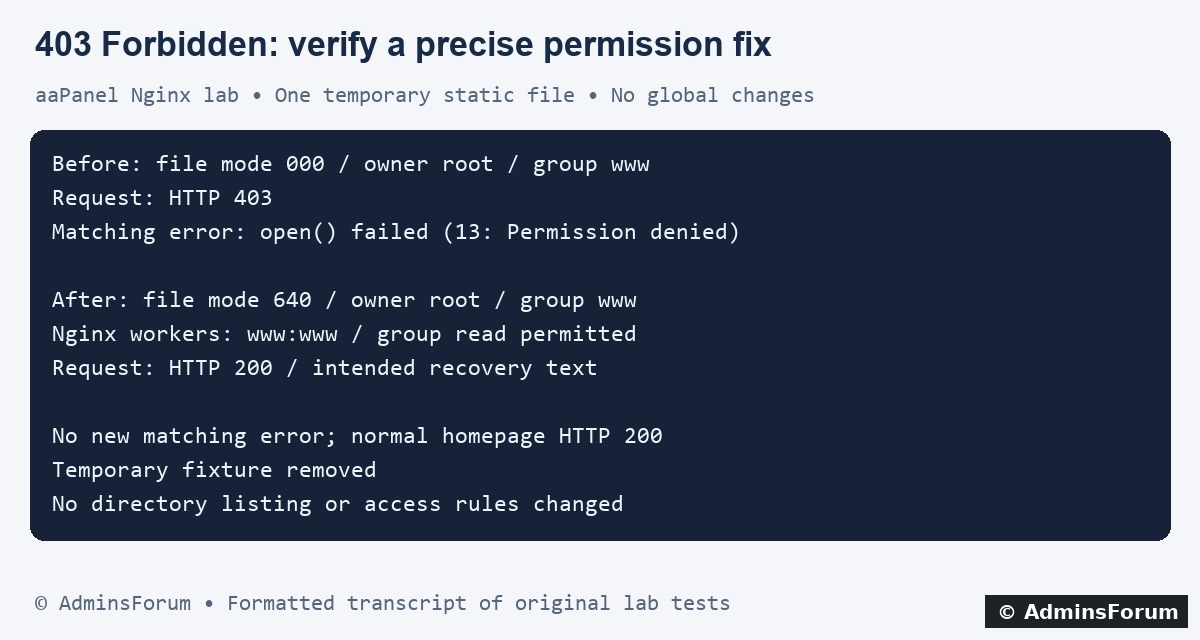
AdminsForum formatted transcript of the original experiment, not a panel screenshot.
6. Verify the response and new log evidence
After the targeted file change, the same URL returned HTTP 200 with the expected text. The access log recorded 200, no new error entry matched that file, and the normal homepage also returned 200.
No Nginx reload or restart was needed for this filesystem-mode change. If you instead edit a server configuration, validate it and use the supported reload procedure before testing its behavior.
We removed the temporary fixture after verification. The deliberately inaccessible file should not be left as a public test URL. Existing application files and permissions remained untouched.
7. Distinguish other 403 causes
The following are investigation examples, not failures induced in this test:
8. Be careful with proxy addresses
An IP-based access rule may see a CDN/proxy address rather than the visitor address unless trusted real-IP handling is configured correctly. Do not trust arbitrary forwarded headers or whitelist large address ranges without understanding the effective client identity.
Our test used loopback and a local HTTPS request with the correct hostname and certificate validation. It did not audit CDN rules or demonstrate all remote client conditions.
9. Retain a rollback and share a small safe excerpt
Keep the affected file's original ownership/mode and a backup before a real deployment repair. Retest the denied path, a normal page and relevant authenticated behavior. A new 200 alone is not a success if it accidentally makes protected content public.
For support, include versions, time/timezone, path, status, recent change and the redacted matching message. Remove tokens, visitor IPs, private contact details and unrelated requests. Logs are evidence to interpret, not instructions to execute.
References: GNU file-mode structure, Nginx access rules and Nginx directory listings.
Tested: aaPanel Free 8.0.7, Ubuntu 22.04.5 and Nginx 1.30.5. We created one temporary public-text fixture, withheld file access to reproduce a permission-related 403, then permitted group read on that file and verified HTTP 200. It was removed afterwards. No application directory, access rule or global service setting was changed.
1. Identify the request and the layer denying it
Record hostname/path, time/timezone, status, request method, client context and recent changes. Check whether one file, a directory URL, all website pages or only an authenticated action is denied.
Cloudflare/WAF, Nginx and the application can each deny a request. A status or response logo is a clue, not proof of the source. A browser login failure may need account/application evidence rather than filesystem permissions.
For a harmless GET you control:
Code:
curl -sS --max-time 15 -D - -o /dev/null https://example.com/affected-path2. Match the website's access and error logs
In our aaPanel interface: Website → PHP Project → the exact site's Log button → Access log / Error log. Confirm the source path and use Refresh. Read the website log guide for detailed searching and timestamp checks.
Our test request appeared as 403 in the access log. The corresponding Nginx error named the temporary text file and reported:
Code:
open() ... failed (13: Permission denied)3. Inspect the exact file and its parent directories
Before a repair, record permissions, owner and group:
Code:
ls -l /path/to/affected-file
namei -l /path/to/affected-fileA server needs appropriate read access to a served static file and search/traverse access to its parent directories. An unreadable file and a non-traversable parent require different targeted changes. ACLs and platform security controls can also affect access; mode bits alone do not explain every denial.
Our fixture's parents were traversable, and the denied file had mode 000 with owner root and group www. No parent permissions were changed during the test.
4. Confirm the process that needs access
Our Nginx master ran as root, but its workers ran as www:www. The worker identity is the relevant one for this static request; an administrator being able to read the file does not prove the web worker can.
A useful check that avoids full process arguments is:
Code:
ps -eo user,group,comm5. Apply the smallest justified permission change
For our existing fixture ownership root:www, mode 640 gave the owner read/write, the group read and others no access. Because the workers used group www, this permitted the intended static response without allowing them to write to the file.
Our one-file repair was equivalent to:
Code:
chmod 640 /www/wwwroot/adminslab.com/af-http403-lab-20261014.txtThis was a file-specific lab example, not a universal website permission preset. Other deployments may use another group or access model. A directory needs traversal permissions, so do not apply file mode 640 recursively to directories.
The existing guide Set File Permissions and Ownership in aaPanel covers the panel controls. Preserve the original mode/owner/group so a real repair can be reversed. Do not recursively apply chmod 777 or give a runtime write access to all application code just to eliminate a 403.
AdminsForum formatted transcript of the original experiment, not a panel screenshot.
6. Verify the response and new log evidence
After the targeted file change, the same URL returned HTTP 200 with the expected text. The access log recorded 200, no new error entry matched that file, and the normal homepage also returned 200.
No Nginx reload or restart was needed for this filesystem-mode change. If you instead edit a server configuration, validate it and use the supported reload procedure before testing its behavior.
We removed the temporary fixture after verification. The deliberately inaccessible file should not be left as a public test URL. Existing application files and permissions remained untouched.
7. Distinguish other 403 causes
The following are investigation examples, not failures induced in this test:
- Directory URL denied: inspect the intended default document, running/document root and directory-index configuration. A missing expected index is not a reason to expose a directory listing of website files.
- Access-rule denial: inspect the matching Nginx location and ordered allow/deny rules, or the applicable panel access restriction. Confirm whether the denial is intentional before changing it.
- WAF/CDN denial: inspect the corresponding security event and request context. Resolve a verified false positive narrowly; do not disable the whole firewall or WAF as a shortcut.
- Application denial: inspect account role, authentication/session state, CSRF checks and the application logger. A filesystem chmod will not correct an authorization decision.
- Permission denied despite apparently suitable modes: inspect the process identity, parent traversal, ACLs and security-policy evidence. Do not disable the system's protection without establishing the cause.
8. Be careful with proxy addresses
An IP-based access rule may see a CDN/proxy address rather than the visitor address unless trusted real-IP handling is configured correctly. Do not trust arbitrary forwarded headers or whitelist large address ranges without understanding the effective client identity.
Our test used loopback and a local HTTPS request with the correct hostname and certificate validation. It did not audit CDN rules or demonstrate all remote client conditions.
9. Retain a rollback and share a small safe excerpt
Keep the affected file's original ownership/mode and a backup before a real deployment repair. Retest the denied path, a normal page and relevant authenticated behavior. A new 200 alone is not a success if it accidentally makes protected content public.
For support, include versions, time/timezone, path, status, recent change and the redacted matching message. Remove tokens, visitor IPs, private contact details and unrelated requests. Logs are evidence to interpret, not instructions to execute.
References: GNU file-mode structure, Nginx access rules and Nginx directory listings.