



10-13-2026, 03:37 AM
Quick answer
Install the official Redis Object Cache plugin, configure its connection before enabling it and verify the cache really persists. Our lab uses Redis 7.4.11 on localhost, database 15 and the prefix af_wp_lab:. The plugin connects through Predis; a PhpRedis extension was not required for this tested free-plugin setup.
What this cache does
A persistent object cache stores WordPress objects between requests and can reduce repeated database work. It differs from HTML page caching and PHP OPcache. Enabling Redis does not by itself configure a CDN, LiteSpeed page cache or every website on the server.
1. Check Redis before changing WordPress
In aaPanel App Store, locate Redis. Install the official package if absent; if installed, open its settings and check its service and configuration. Our lab already had Redis because the mail stack uses it. We did not reinstall it or change the mail service's database.
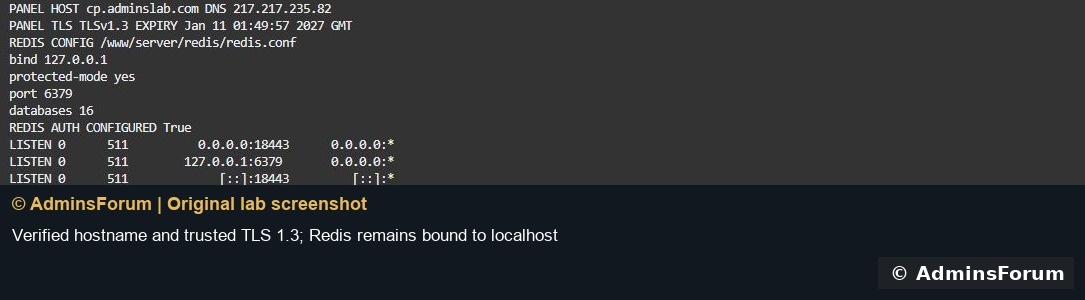
Our checks found bind 127.0.0.1, protected-mode yes, port 6379 and an existing authentication requirement. The active listener was localhost only. No public Redis firewall port was added.
Do not remove authentication to solve a WordPress connection error. Read the existing configuration privately and give the intended client the correct authorized configuration.
2. Choose an isolated cache namespace
Pick an unused Redis database and a unique prefix for the WordPress site. The lab had 16 logical databases, and database 15 was empty before use. We selected it without clearing anything. Do not assume database 15 is free on your server; check first.
A database number and prefix prevent accidental key collisions, but they are not a security boundary between mutually untrusted users. On a production server shared with mail or other applications, plan an appropriately restricted Redis identity or separate instance. Do not share an unrestricted administrator credential between unrelated users.
Avoid global cache flushes. Clearing all Redis data can remove mail filtering or other application state.
3. Install the correct WordPress plugin
In WordPress, open Plugins → Add Plugin and search for Redis Object Cache. Verify the author is Till Krüss, use Install Now and then Activate. Our installed version was 3.0.0. A similarly named cache plugin may have a different configuration or backend.
Activation alone does not mean persistence is enabled. Initially our plugin reported Redis unreachable because the server requires authentication; after the proper configuration and reload, it reported Reachable.
4. Configure wp-config.php privately
Back up wp-config.php outside the publicly served website before editing. Add the connection constants before the line that loads wp-settings.php. Our tested configuration was:
Replace the password placeholder privately and choose your own unused database/prefix. Do not paste the real secret into a public support request. The screenshot masks it.
Check PHP syntax before reloading the website. Our PHP 8.5 configuration lint passed. A typo in wp-config.php can break the whole site, so keep the backup ready.
5. Enable Object Cache
Open Settings → Redis. Confirm Redis says Reachable, then select Enable Object Cache. The plugin installs its object-cache drop-in and should report Connected.
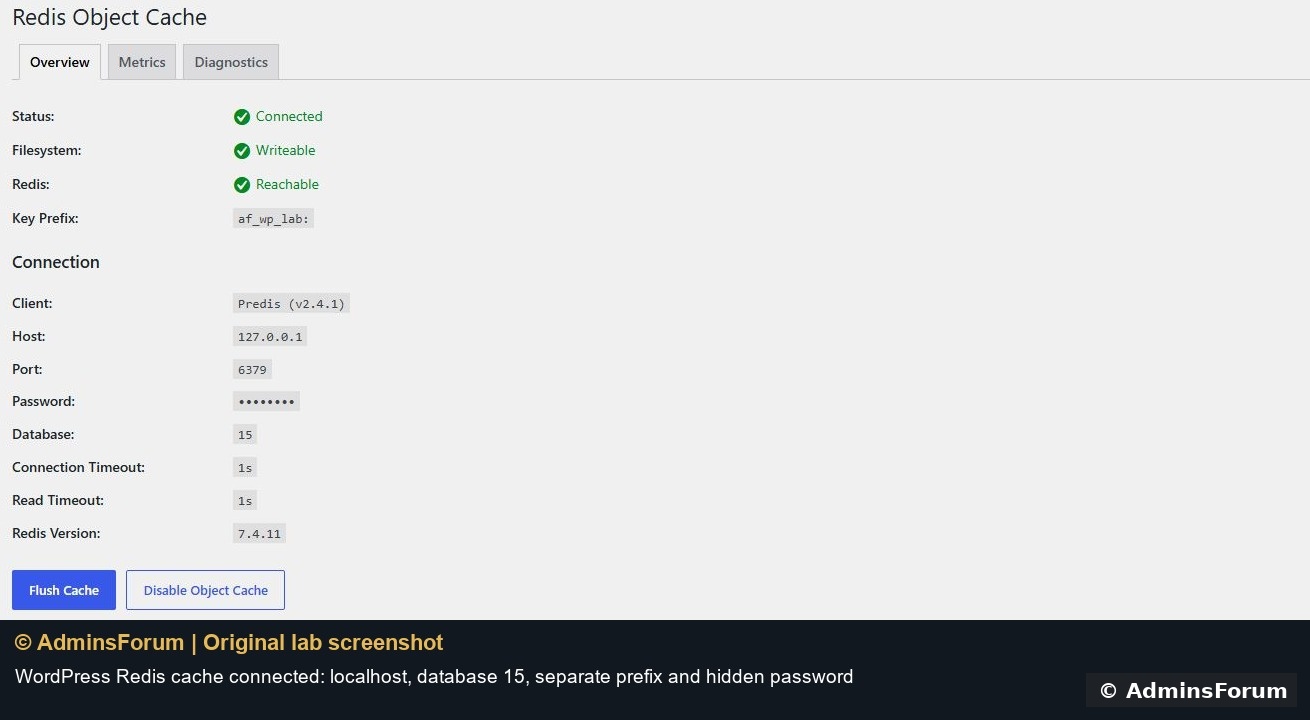
Our page showed Connected, a writable filesystem, host 127.0.0.1, port 6379, database 15, the separate prefix and Predis 2.4.1. The free plugin was connected even though the separate Pro promotion noted that PhpRedis was absent; that promotion is not the same as the free plugin's connection status.
If another plugin already manages an object-cache.php drop-in, resolve ownership before replacing it. Do not enable two competing persistent object-cache implementations at once.
6. Verify persistence, not just the status label
We loaded the same WordPress installation in two separate PHP processes. The first stored a temporary value through wp_cache_set. The second retrieved it through wp_cache_get and checked the content, then removed only that test key.

Both checks passed. Without persistence, a value stored only in the first process's memory would not survive into the second. We also reloaded the administration page successfully after enabling the cache.
This proves the tested connection and persistence. It is not a benchmark or a claim that every site will load a particular percentage faster. Measure your own workload after configuration.
Troubleshooting
Rollback
Use Disable Object Cache in the plugin before deactivating it, then check the site still loads. Keep the private wp-config.php backup. If WordPress cannot load at all, use your established file-management/recovery route to inspect the drop-in and restore the correct configuration. Do not stop a shared Redis server used by mail merely to disable one WordPress cache.
The tested lab cache remains enabled on its separate database/prefix. No other Redis database was flushed.
References: Redis Object Cache plugin and aaPanel Redis documentation. © AdminsForum.
Install the official Redis Object Cache plugin, configure its connection before enabling it and verify the cache really persists. Our lab uses Redis 7.4.11 on localhost, database 15 and the prefix af_wp_lab:. The plugin connects through Predis; a PhpRedis extension was not required for this tested free-plugin setup.
What this cache does
A persistent object cache stores WordPress objects between requests and can reduce repeated database work. It differs from HTML page caching and PHP OPcache. Enabling Redis does not by itself configure a CDN, LiteSpeed page cache or every website on the server.
1. Check Redis before changing WordPress
In aaPanel App Store, locate Redis. Install the official package if absent; if installed, open its settings and check its service and configuration. Our lab already had Redis because the mail stack uses it. We did not reinstall it or change the mail service's database.
Our checks found bind 127.0.0.1, protected-mode yes, port 6379 and an existing authentication requirement. The active listener was localhost only. No public Redis firewall port was added.
Do not remove authentication to solve a WordPress connection error. Read the existing configuration privately and give the intended client the correct authorized configuration.
2. Choose an isolated cache namespace
Pick an unused Redis database and a unique prefix for the WordPress site. The lab had 16 logical databases, and database 15 was empty before use. We selected it without clearing anything. Do not assume database 15 is free on your server; check first.
A database number and prefix prevent accidental key collisions, but they are not a security boundary between mutually untrusted users. On a production server shared with mail or other applications, plan an appropriately restricted Redis identity or separate instance. Do not share an unrestricted administrator credential between unrelated users.
Avoid global cache flushes. Clearing all Redis data can remove mail filtering or other application state.
3. Install the correct WordPress plugin
In WordPress, open Plugins → Add Plugin and search for Redis Object Cache. Verify the author is Till Krüss, use Install Now and then Activate. Our installed version was 3.0.0. A similarly named cache plugin may have a different configuration or backend.
Activation alone does not mean persistence is enabled. Initially our plugin reported Redis unreachable because the server requires authentication; after the proper configuration and reload, it reported Reachable.
4. Configure wp-config.php privately
Back up wp-config.php outside the publicly served website before editing. Add the connection constants before the line that loads wp-settings.php. Our tested configuration was:
Code:
define('WP_REDIS_HOST', '127.0.0.1');
define('WP_REDIS_PORT', 6379);
define('WP_REDIS_DATABASE', 15);
define('WP_REDIS_PREFIX', 'af_wp_lab:');
define('WP_REDIS_CLIENT', 'predis');
define('WP_REDIS_PASSWORD', 'YOUR_EXISTING_AUTHORIZED_REDIS_PASSWORD');Check PHP syntax before reloading the website. Our PHP 8.5 configuration lint passed. A typo in wp-config.php can break the whole site, so keep the backup ready.
5. Enable Object Cache
Open Settings → Redis. Confirm Redis says Reachable, then select Enable Object Cache. The plugin installs its object-cache drop-in and should report Connected.
Our page showed Connected, a writable filesystem, host 127.0.0.1, port 6379, database 15, the separate prefix and Predis 2.4.1. The free plugin was connected even though the separate Pro promotion noted that PhpRedis was absent; that promotion is not the same as the free plugin's connection status.
If another plugin already manages an object-cache.php drop-in, resolve ownership before replacing it. Do not enable two competing persistent object-cache implementations at once.
6. Verify persistence, not just the status label
We loaded the same WordPress installation in two separate PHP processes. The first stored a temporary value through wp_cache_set. The second retrieved it through wp_cache_get and checked the content, then removed only that test key.
Both checks passed. Without persistence, a value stored only in the first process's memory would not survive into the second. We also reloaded the administration page successfully after enabling the cache.
This proves the tested connection and persistence. It is not a benchmark or a claim that every site will load a particular percentage faster. Measure your own workload after configuration.
Troubleshooting
- NOAUTH: check the intended Redis credential in private configuration. Do not make the service unauthenticated.
- Connection refused: confirm Redis is running and the configured address/port match its listener. Keep a local-only setup local.
- Not enabled but Reachable: the connection works, but the persistent drop-in still needs enabling.
- Drop-in conflict: identify which cache plugin owns object-cache.php before modifying it.
- Unexpected cached data: confirm each site has a unique database/prefix and review the application's cache policy. Do not use FLUSHALL as a first response.
Rollback
Use Disable Object Cache in the plugin before deactivating it, then check the site still loads. Keep the private wp-config.php backup. If WordPress cannot load at all, use your established file-management/recovery route to inspect the drop-in and restore the correct configuration. Do not stop a shared Redis server used by mail merely to disable one WordPress cache.
The tested lab cache remains enabled on its separate database/prefix. No other Redis database was flushed.
References: Redis Object Cache plugin and aaPanel Redis documentation. © AdminsForum.