



10-16-2026, 06:23 PM
To edit and archive files in aaPanel, open Files, verify the full directory path, edit the intended text file and save it. Select the file, use Zip to create an archive, then extract into a different empty folder and verify the result before replacing anything important.
We tested this workflow on aaPanel 8.0.7 on 16 October 2026 with a disposable text file under /www/backup/af-file-manager-lab-20261016. We edited, compressed and extracted that file through the panel, then compared the source and extracted bytes through SSH. No website, mailbox or database file was overwritten.
1. Start in a separate lab directory
Use a small non-sensitive text file for your first attempt. Our fixture was source/notes.txt, initially containing:
The folder was prepared beforehand for this demonstration. It is outside the website document roots. Do not practice by editing wp-config.php, a live .env file, a certificate or a database data file.
Open Files in the left menu. Check the breadcrumb path, not just the folder's final name. In our interface, clicking the blank area of the path bar opened a full-path input. We entered /www/backup/af-file-manager-lab-20261016/source and pressed Enter. The listing showed notes.txt.
2. Open and edit the text file
Double-click notes.txt. The Online Text Editor displayed the full file path, text contents, encoding and line-ending information. Confirm the path before changing the content; similarly named files may exist in several sites.
We replaced the second line with Version: edited in aaPanel and clicked Save. The panel displayed Saved! and the editor showed History: 1.
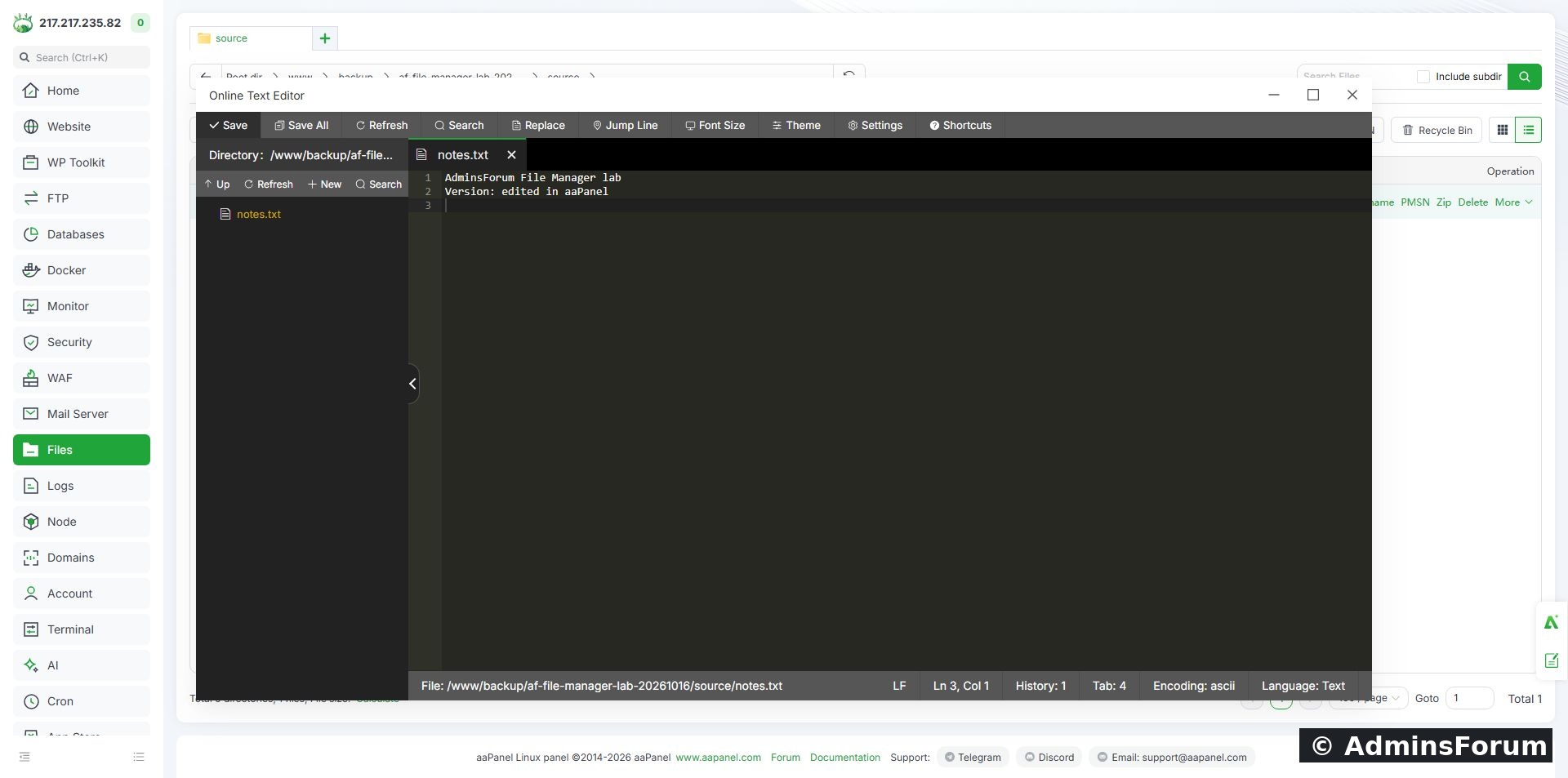
Actual editor after saving the harmless test change. The saved content is the version used for the archive below.
Use the editor for text files it supports. A successful save does not validate a PHP application's behavior or a web-server configuration. Back up a real configuration before editing, make one intended change and run the validation appropriate to that application. File history is useful, but it is not a substitute for an independent backup. We did not test a history restore in this workflow.
3. Select the file and create an archive
Close the editor with its Close control. Select notes.txt in the listing and choose Zip. Despite that button label, the compression dialog in our panel defaulted to tar.gz.
Review both fields:
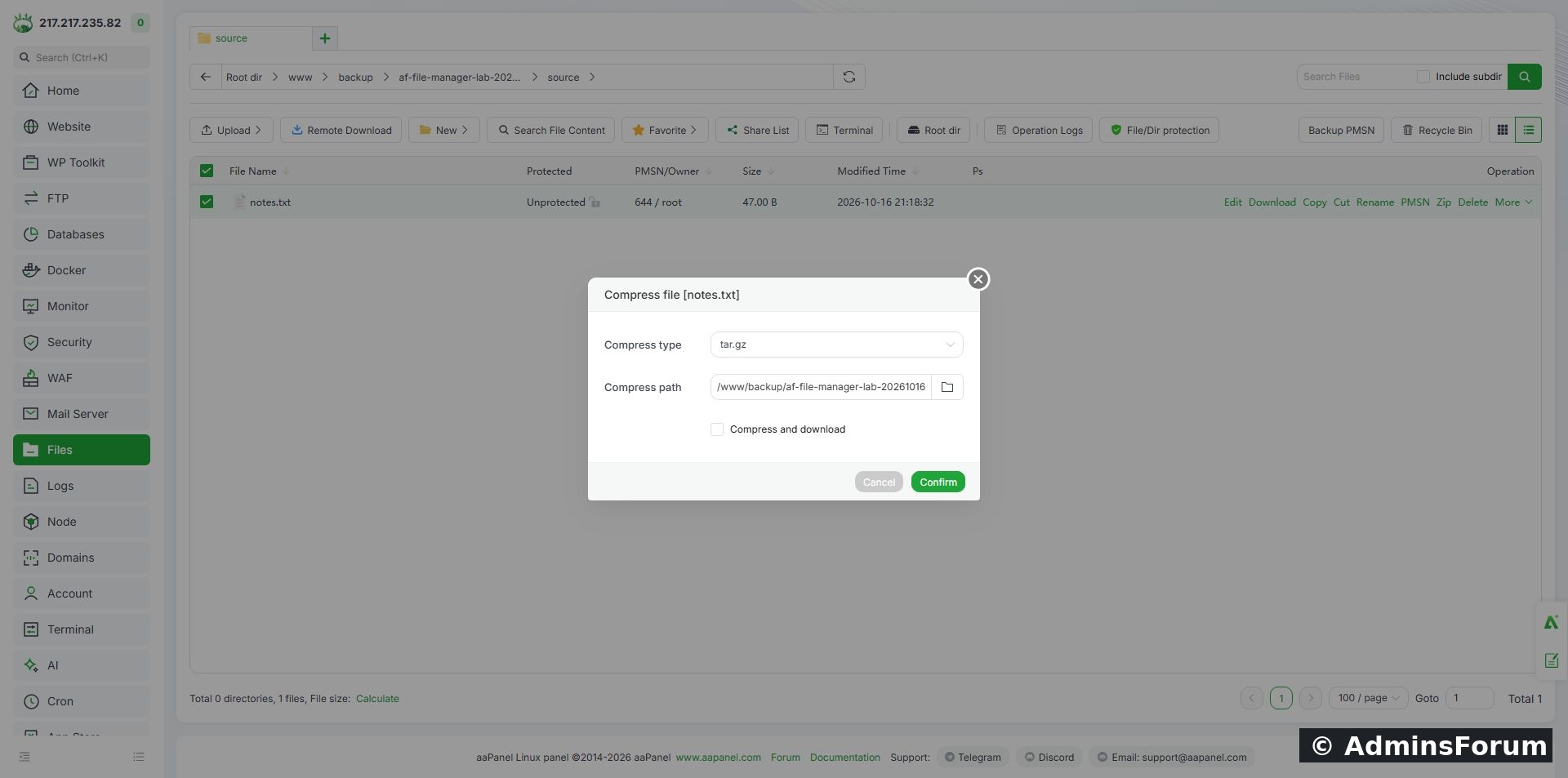
The compression dialog before confirmation. Only the disposable text file was selected.
Choose an archive location with enough available space. Do not put configuration backups containing secrets into a publicly served website directory. A compressed copy on the same disk also cannot protect you from losing that disk. For database backups, use an appropriate database dump procedure rather than compressing a live database directory.
4. Extract into a different folder
Double-click notes.txt.tar.gz to open its extraction dialog. Our selected archive also offered an Extract action in the listing.
The dialog initially suggested extracting back into the source directory and warned that same-name files would be overwritten. We changed Extract path to:
The archive was not password protected, so the password field stayed empty. We retained the displayed UTF-8 encoding and directory permission value of 755 for this controlled test. These were the dialog's settings, not a reason to recursively change permissions on an existing site.
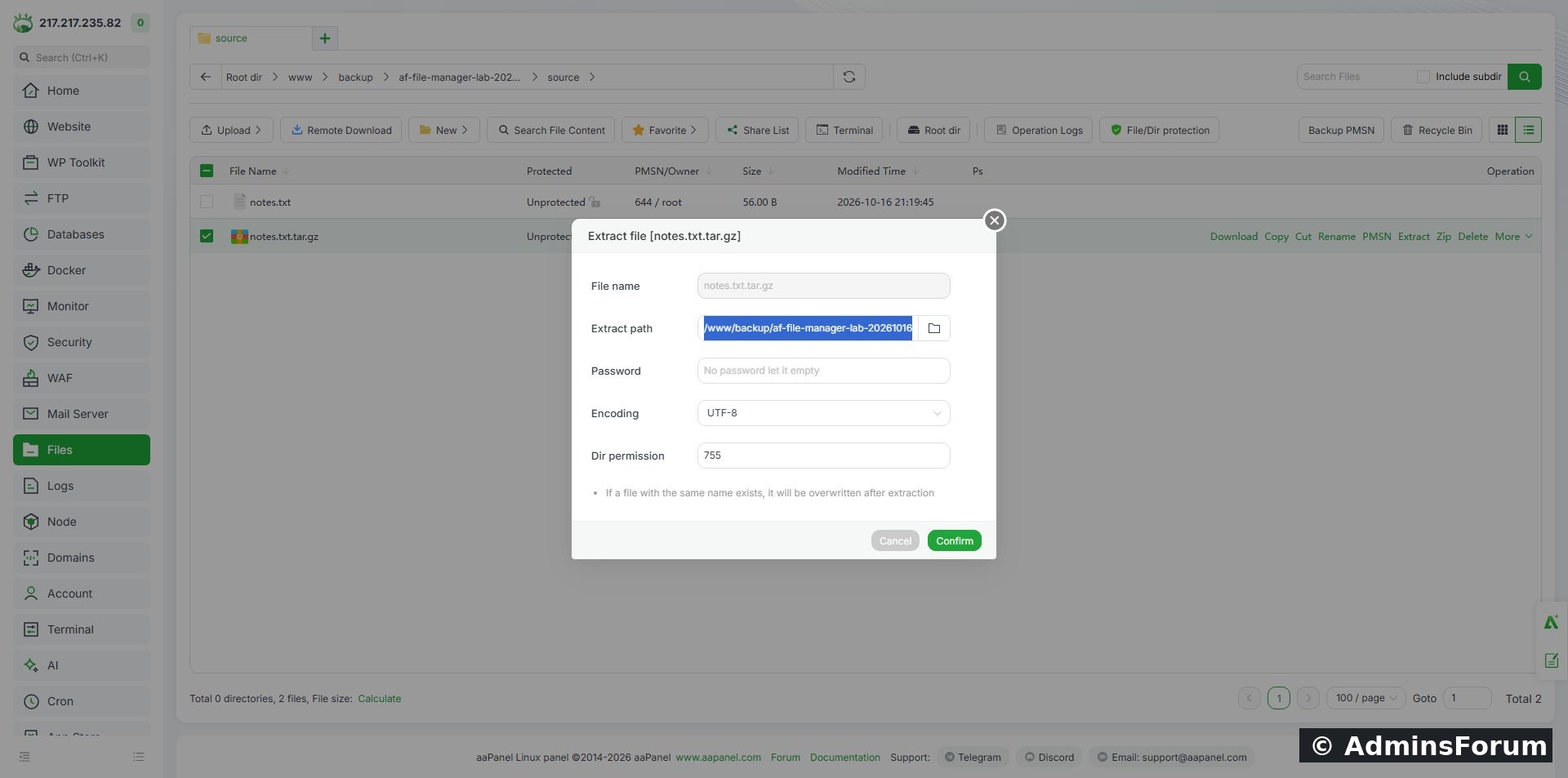
Actual extraction dialog with a separate destination. Check the overwrite warning before confirming an archive operation.
Click Confirm only after reviewing the destination. Our panel reported Uncompression succeeded! Extract archives you trust; inspect unfamiliar archives in an isolated location rather than directly over an application or system directory.
5. Verify the extracted file
Open the destination folder and inspect the file, not just the success message. Our independent SSH check found that the archive contained exactly one member, notes.txt, and that extracted/notes.txt matched source/notes.txt byte-for-byte.
The verified content was:
Both files were 56 bytes. Their SHA-256 hash was:
This proves the small file survived this compression/extraction test unchanged. It is not a full website, database or operating-system restore test.
6. Check ownership and permissions before using restored files
Our listing showed the original text fixture as 644/root and its archive as 644/www. Different owners can appear depending on how a file was created and which service performs an operation. Inspect the extracted files' ownership and the application's actual requirements before moving them into service.
Do not solve an access problem by applying 777 to an entire website. Check the exact path, account and operation that failed. Follow Set File Permissions and Ownership in aaPanel for the separate permissions workflow.
What if I saved the wrong content?
Stop making further changes. Confirm the path and available editor history or backup, then plan a controlled recovery. We observed a history entry after saving, but did not claim to test every recovery option. Do not empty the recycle bin or delete existing backups while investigating.
What if extraction succeeds but the website fails?
Check the directory structure, document root, ownership and application dependencies. An archive might include a parent folder, placing index.php one directory deeper than expected. Database content and environment settings may need separate restoration. Test an actual application action after deployment; file presence alone is insufficient.
Continue with Upload Website Files with aaPanel File Manager or Back Up and Restore Website Files.
Reference
aaPanel Files and online editor documentation. The screenshots and byte comparison above come from our own lab test.
We tested this workflow on aaPanel 8.0.7 on 16 October 2026 with a disposable text file under /www/backup/af-file-manager-lab-20261016. We edited, compressed and extracted that file through the panel, then compared the source and extracted bytes through SSH. No website, mailbox or database file was overwritten.
1. Start in a separate lab directory
Use a small non-sensitive text file for your first attempt. Our fixture was source/notes.txt, initially containing:
Code:
AdminsForum File Manager lab
Version: originalOpen Files in the left menu. Check the breadcrumb path, not just the folder's final name. In our interface, clicking the blank area of the path bar opened a full-path input. We entered /www/backup/af-file-manager-lab-20261016/source and pressed Enter. The listing showed notes.txt.
2. Open and edit the text file
Double-click notes.txt. The Online Text Editor displayed the full file path, text contents, encoding and line-ending information. Confirm the path before changing the content; similarly named files may exist in several sites.
We replaced the second line with Version: edited in aaPanel and clicked Save. The panel displayed Saved! and the editor showed History: 1.
Actual editor after saving the harmless test change. The saved content is the version used for the archive below.
Use the editor for text files it supports. A successful save does not validate a PHP application's behavior or a web-server configuration. Back up a real configuration before editing, make one intended change and run the validation appropriate to that application. File history is useful, but it is not a substitute for an independent backup. We did not test a history restore in this workflow.
3. Select the file and create an archive
Close the editor with its Close control. Select notes.txt in the listing and choose Zip. Despite that button label, the compression dialog in our panel defaulted to tar.gz.
Review both fields:
- Compress type: the format to create. We retained tar.gz for this test; we did not test every offered format.
- Compress path: the complete destination including the archive filename. Ours was /www/backup/af-file-manager-lab-20261016/source/notes.txt.tar.gz.
The compression dialog before confirmation. Only the disposable text file was selected.
Choose an archive location with enough available space. Do not put configuration backups containing secrets into a publicly served website directory. A compressed copy on the same disk also cannot protect you from losing that disk. For database backups, use an appropriate database dump procedure rather than compressing a live database directory.
4. Extract into a different folder
Double-click notes.txt.tar.gz to open its extraction dialog. Our selected archive also offered an Extract action in the listing.
The dialog initially suggested extracting back into the source directory and warned that same-name files would be overwritten. We changed Extract path to:
Code:
/www/backup/af-file-manager-lab-20261016/extractedActual extraction dialog with a separate destination. Check the overwrite warning before confirming an archive operation.
Click Confirm only after reviewing the destination. Our panel reported Uncompression succeeded! Extract archives you trust; inspect unfamiliar archives in an isolated location rather than directly over an application or system directory.
5. Verify the extracted file
Open the destination folder and inspect the file, not just the success message. Our independent SSH check found that the archive contained exactly one member, notes.txt, and that extracted/notes.txt matched source/notes.txt byte-for-byte.
The verified content was:
Code:
AdminsForum File Manager lab
Version: edited in aaPanelCode:
2181a065969d2bdc8885dbc5ce2fd626bfc19598dbf25da476abffbfe4494c776. Check ownership and permissions before using restored files
Our listing showed the original text fixture as 644/root and its archive as 644/www. Different owners can appear depending on how a file was created and which service performs an operation. Inspect the extracted files' ownership and the application's actual requirements before moving them into service.
Do not solve an access problem by applying 777 to an entire website. Check the exact path, account and operation that failed. Follow Set File Permissions and Ownership in aaPanel for the separate permissions workflow.
What if I saved the wrong content?
Stop making further changes. Confirm the path and available editor history or backup, then plan a controlled recovery. We observed a history entry after saving, but did not claim to test every recovery option. Do not empty the recycle bin or delete existing backups while investigating.
What if extraction succeeds but the website fails?
Check the directory structure, document root, ownership and application dependencies. An archive might include a parent folder, placing index.php one directory deeper than expected. Database content and environment settings may need separate restoration. Test an actual application action after deployment; file presence alone is insufficient.
Continue with Upload Website Files with aaPanel File Manager or Back Up and Restore Website Files.
Reference
aaPanel Files and online editor documentation. The screenshots and byte comparison above come from our own lab test.