



10-16-2026, 06:55 PM
aaPanel's Access URL cron task requests a website address on a schedule. Start with a harmless URL you control, use Test URL, execute the saved task once and inspect both the response and the website log. Then stop a disposable test schedule.
This walkthrough was tested on aaPanel 8.0.7 on 16 October 2026. We used an existing static lab page, not a payment callback, mail sender, database operation or private administrative endpoint. The task was manually executed and then stopped. Automatic daily execution was not tested in this lesson.
1. Choose a safe test URL
Our URL was https://learn.adminslab.com/ and the page contained the marker AF-SUBDOMAIN-20261016. An independent request returned HTTP 200 with that marker before we created the task. This static page has no login, no query token and no action that changes application data.
Use your own equivalent page. A request to an application URL can trigger real work. Do not copy an unknown URL, repeatedly call a third party or use a page that sends messages, changes orders or deletes records. Also avoid credentials and secret tokens in URL query strings because URLs can appear in logs.
If your actual goal is to execute PHP application maintenance locally, use an explicit PHP CLI cron command when the application supports it. Requesting a web page and running a local command are different execution paths.
2. Open Cron and select Access URL
Open Cron in the left menu. In Add Task, open Task type and select Access URL. The type menu may require scrolling. Our form then displayed Task name, Execute cycle, URL address, Test URL and User-Agent.
We entered:
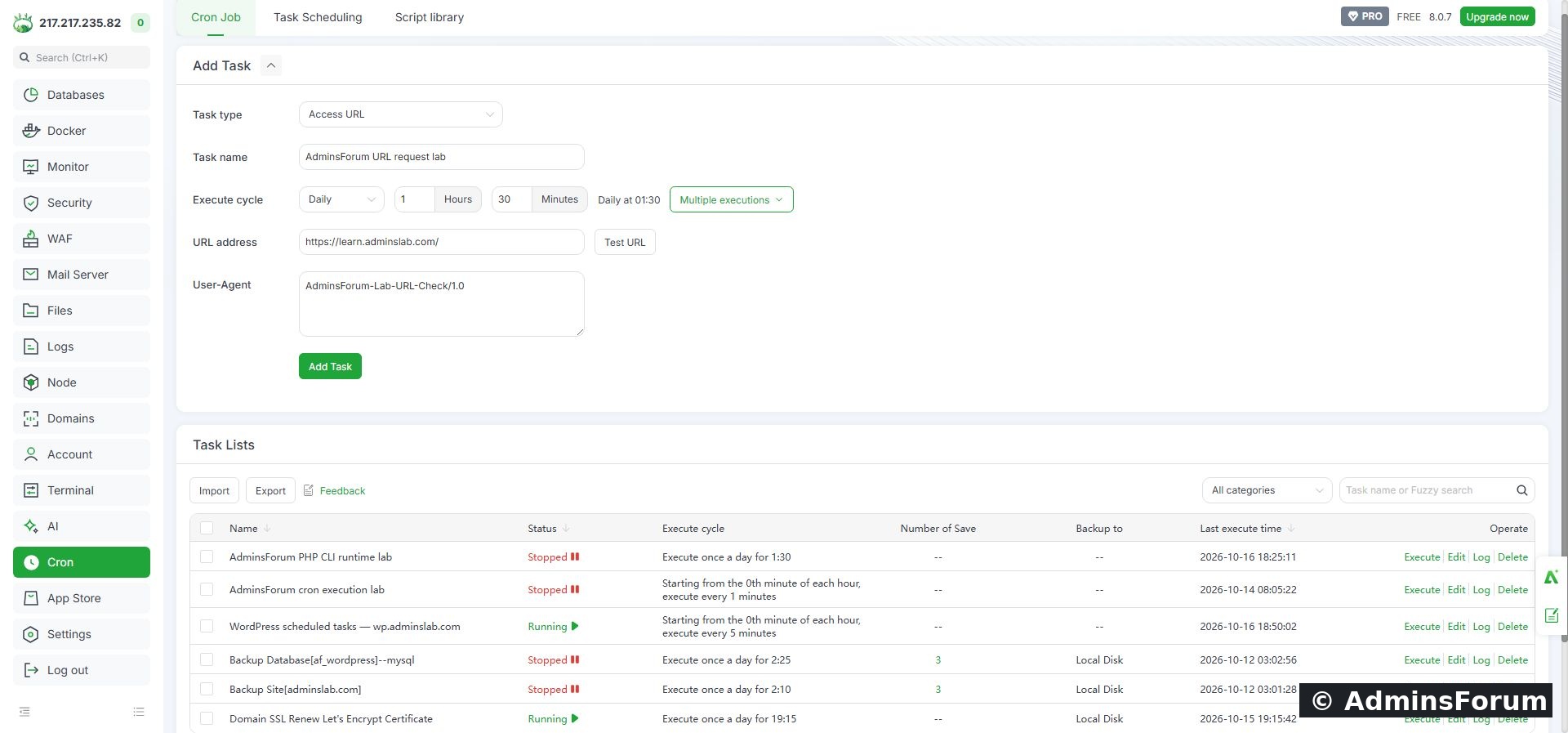
Actual Access URL form. The distinctive User-Agent lets us identify the saved task's request in our own access log.
For a production schedule, choose a frequency supported by the target application and allow for execution duration and load. A job that takes longer than its interval can overlap. Our test did not implement application locking or retry control, so it is not evidence that arbitrary application endpoints are safe to run repeatedly.
3. Use Test URL and read the returned content
Click Test URL. Our dialog showed a response time of 130 ms, status 200 and the static page's HTML containing the expected marker. The panel displayed escaped HTML text rather than rendering the website inside the dialog.
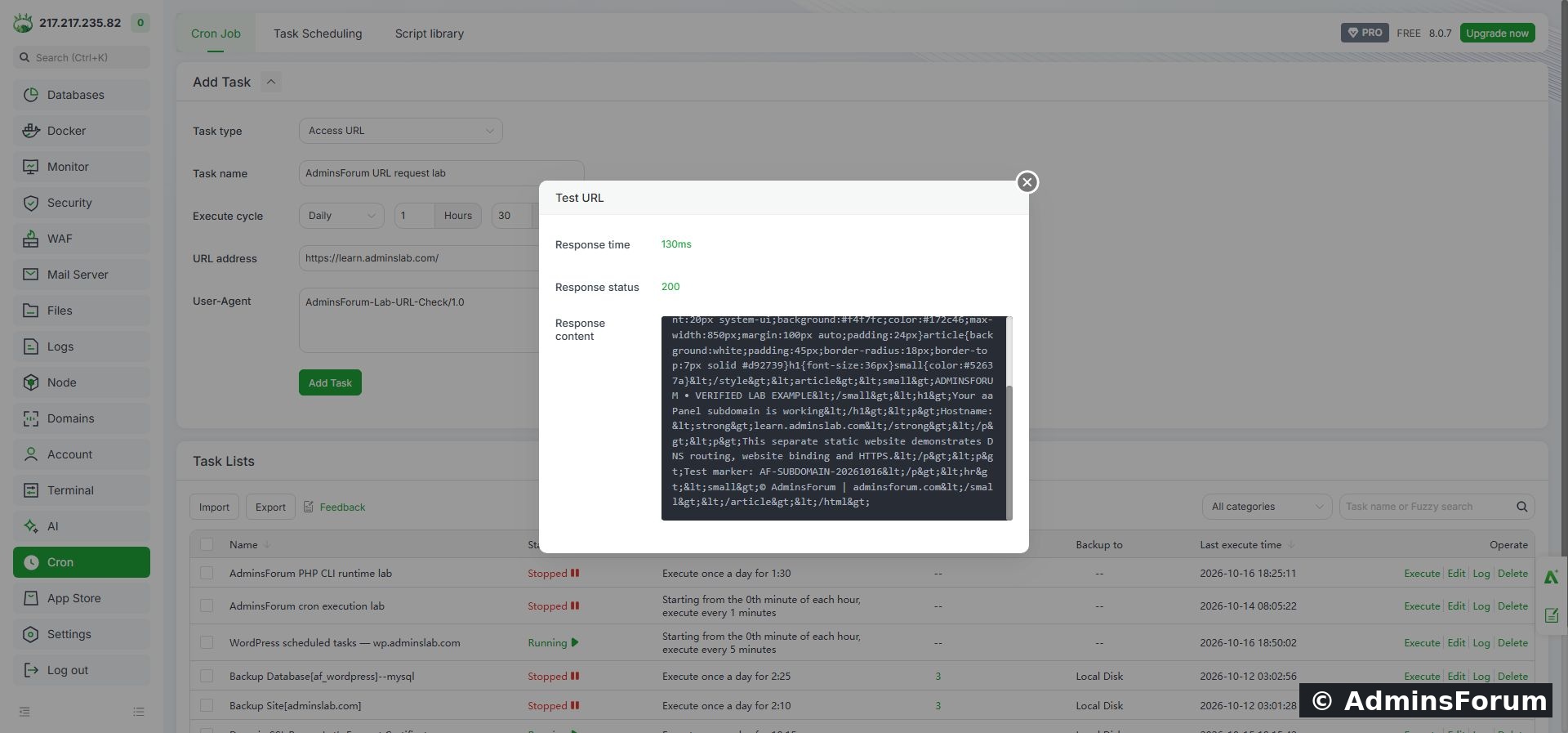
Actual URL test result. The 130 ms value is one observed request, not a speed benchmark or uptime history.
Check more than the status code: a login page or generic error can also return 200. Match content you expect from the intended destination. This test establishes the observed response; it is not a complete TLS audit, external uptime monitor or proof that background application work completed.
Close the response dialog using its X to return to the task form.
4. Add the task and execute it once
Click Add Task and wait until the exact task name appears in Task Lists. Use Execute on that row, read the confirmation and confirm only the intended harmless test.
Our manual execution opened the task log. It contained the expected HTML marker and a Successful footer timestamped 2026-10-16 18:52:57. The returned HTML was again shown as escaped text.
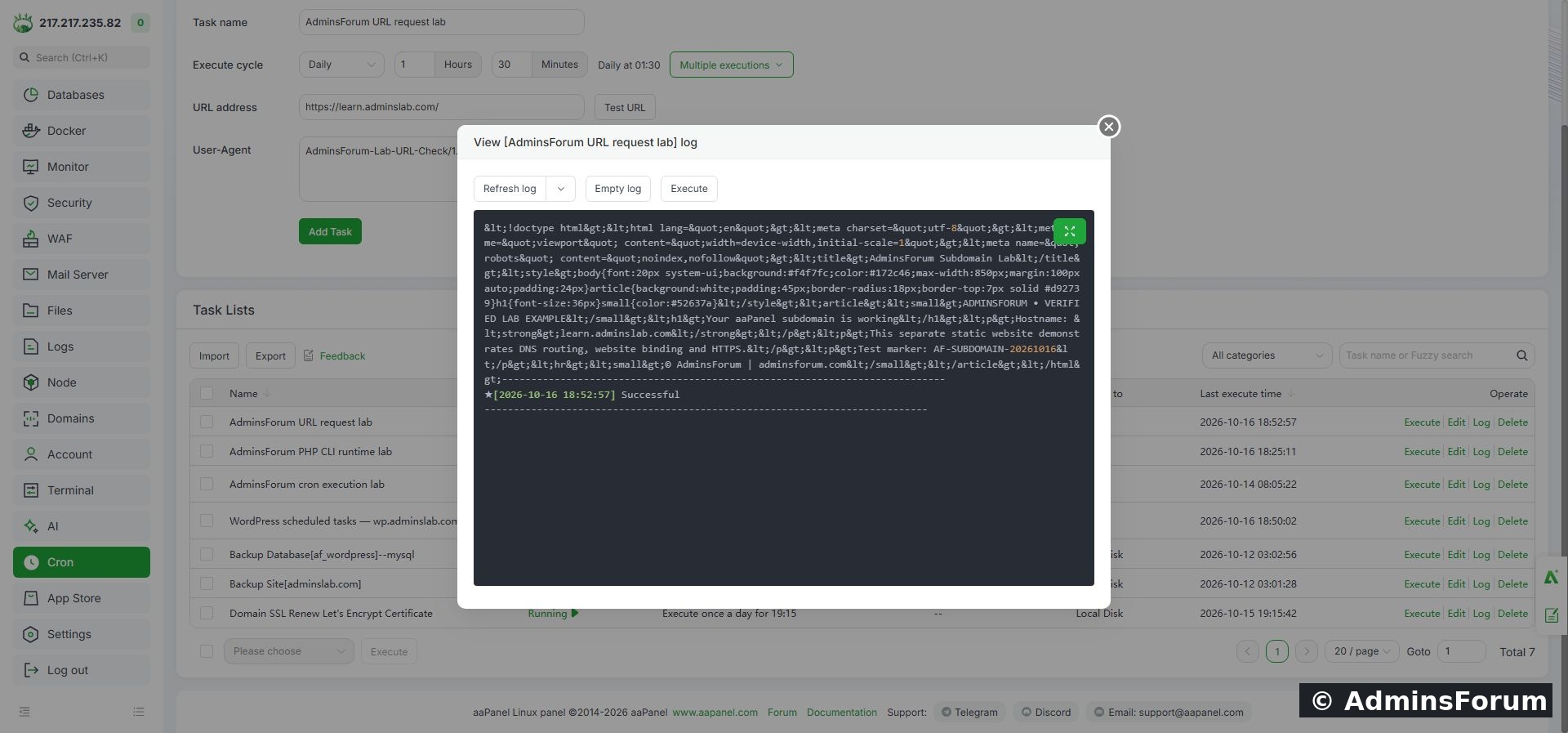
Actual manual execution log. Review the output and the target application's result rather than treating a footer as sufficient proof.
We checked our website's access log separately. At the same timestamp it recorded a GET request for /, HTTP status 200 and User-Agent AdminsForum-Lab-URL-Check/1.0. Together, the task output and target log confirmed that this saved task requested our intended static page.
That does not prove an unrelated application job finished. If your approved endpoint generates a report, for example, verify that report and any application error log separately. Review logs privately and redact personal data or authentication information before sharing them.
5. Stop the disposable schedule
Close the task log. In this task's Status cell, click Running and confirm deactivation. Wait until the exact row shows Stopped. Our last execution time remained 18:52:57 and the row showed Stopped.
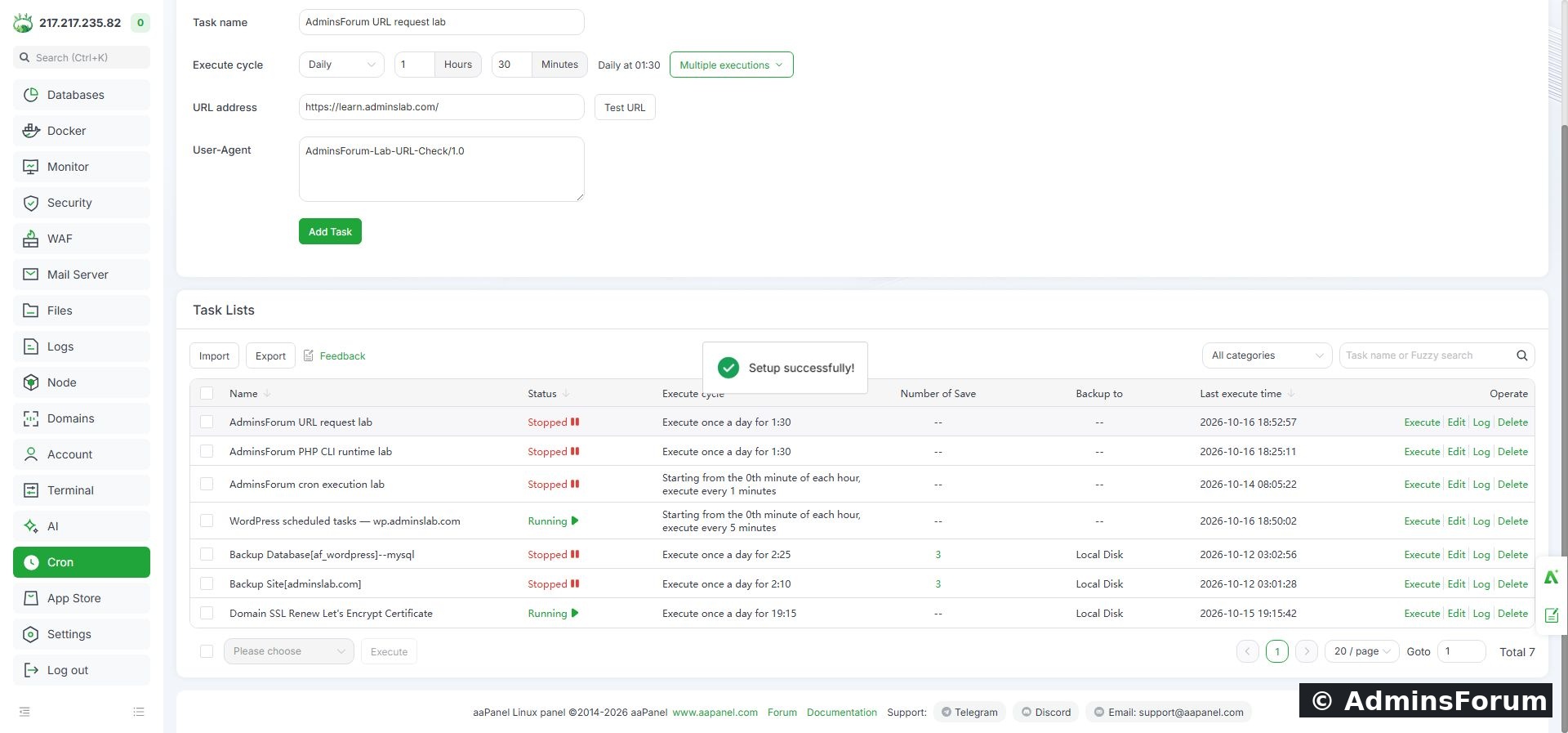
The URL request lab task is stopped. Existing WordPress and certificate-renewal tasks were left unchanged.
We retained this disabled task and its log for reference. We did not wait for a 01:30 automatic run or leave an unnecessary recurring request active.
If the response is unexpected
These branches are diagnostic guidance; this lesson did not intentionally reproduce failures. For script execution and log behavior, see Fix aaPanel Cron Jobs. The official aaPanel Cron documentation describes Access URL and its scheduling controls.
This walkthrough was tested on aaPanel 8.0.7 on 16 October 2026. We used an existing static lab page, not a payment callback, mail sender, database operation or private administrative endpoint. The task was manually executed and then stopped. Automatic daily execution was not tested in this lesson.
1. Choose a safe test URL
Our URL was https://learn.adminslab.com/ and the page contained the marker AF-SUBDOMAIN-20261016. An independent request returned HTTP 200 with that marker before we created the task. This static page has no login, no query token and no action that changes application data.
Use your own equivalent page. A request to an application URL can trigger real work. Do not copy an unknown URL, repeatedly call a third party or use a page that sends messages, changes orders or deletes records. Also avoid credentials and secret tokens in URL query strings because URLs can appear in logs.
If your actual goal is to execute PHP application maintenance locally, use an explicit PHP CLI cron command when the application supports it. Requesting a web page and running a local command are different execution paths.
2. Open Cron and select Access URL
Open Cron in the left menu. In Add Task, open Task type and select Access URL. The type menu may require scrolling. Our form then displayed Task name, Execute cycle, URL address, Test URL and User-Agent.
We entered:
- Task name: AdminsForum URL request lab.
- URL address: https://learn.adminslab.com/.
- User-Agent: AdminsForum-Lab-URL-Check/1.0.
- Execute cycle: Daily at 01:30, retained only while creating the disposable test.
Actual Access URL form. The distinctive User-Agent lets us identify the saved task's request in our own access log.
For a production schedule, choose a frequency supported by the target application and allow for execution duration and load. A job that takes longer than its interval can overlap. Our test did not implement application locking or retry control, so it is not evidence that arbitrary application endpoints are safe to run repeatedly.
3. Use Test URL and read the returned content
Click Test URL. Our dialog showed a response time of 130 ms, status 200 and the static page's HTML containing the expected marker. The panel displayed escaped HTML text rather than rendering the website inside the dialog.
Actual URL test result. The 130 ms value is one observed request, not a speed benchmark or uptime history.
Check more than the status code: a login page or generic error can also return 200. Match content you expect from the intended destination. This test establishes the observed response; it is not a complete TLS audit, external uptime monitor or proof that background application work completed.
Close the response dialog using its X to return to the task form.
4. Add the task and execute it once
Click Add Task and wait until the exact task name appears in Task Lists. Use Execute on that row, read the confirmation and confirm only the intended harmless test.
Our manual execution opened the task log. It contained the expected HTML marker and a Successful footer timestamped 2026-10-16 18:52:57. The returned HTML was again shown as escaped text.
Actual manual execution log. Review the output and the target application's result rather than treating a footer as sufficient proof.
We checked our website's access log separately. At the same timestamp it recorded a GET request for /, HTTP status 200 and User-Agent AdminsForum-Lab-URL-Check/1.0. Together, the task output and target log confirmed that this saved task requested our intended static page.
That does not prove an unrelated application job finished. If your approved endpoint generates a report, for example, verify that report and any application error log separately. Review logs privately and redact personal data or authentication information before sharing them.
5. Stop the disposable schedule
Close the task log. In this task's Status cell, click Running and confirm deactivation. Wait until the exact row shows Stopped. Our last execution time remained 18:52:57 and the row showed Stopped.
The URL request lab task is stopped. Existing WordPress and certificate-renewal tasks were left unchanged.
We retained this disabled task and its log for reference. We did not wait for a 01:30 automatic run or leave an unnecessary recurring request active.
If the response is unexpected
- Wrong content with 200: compare the hostname, URL path, redirects and expected marker; a status alone is insufficient.
- 403 or login page: review the application's approved access method. Do not disable security checks to make a test pass.
- 404: confirm the page or endpoint actually exists in the intended website.
- Connection or certificate failure: inspect DNS, service reachability and the hostname's certificate. Do not bypass certificate validation as a shortcut.
- Request arrives but business task fails: inspect that application's result and logs. HTTP delivery is only one stage.
These branches are diagnostic guidance; this lesson did not intentionally reproduce failures. For script execution and log behavior, see Fix aaPanel Cron Jobs. The official aaPanel Cron documentation describes Access URL and its scheduling controls.