



CloudPanel SSH, SFTP, FTP and File Manager: how to upload files
This guide covers every way to get files onto a CloudPanel site: the site user over SSH and SFTP, SSH keys, extra SSH and FTP users for developers, and the built-in File Manager, plus the one habit that prevents permission problems. Tested on CloudPanel 2.5.4, Ubuntu 24.04.
1. The site user: your main login
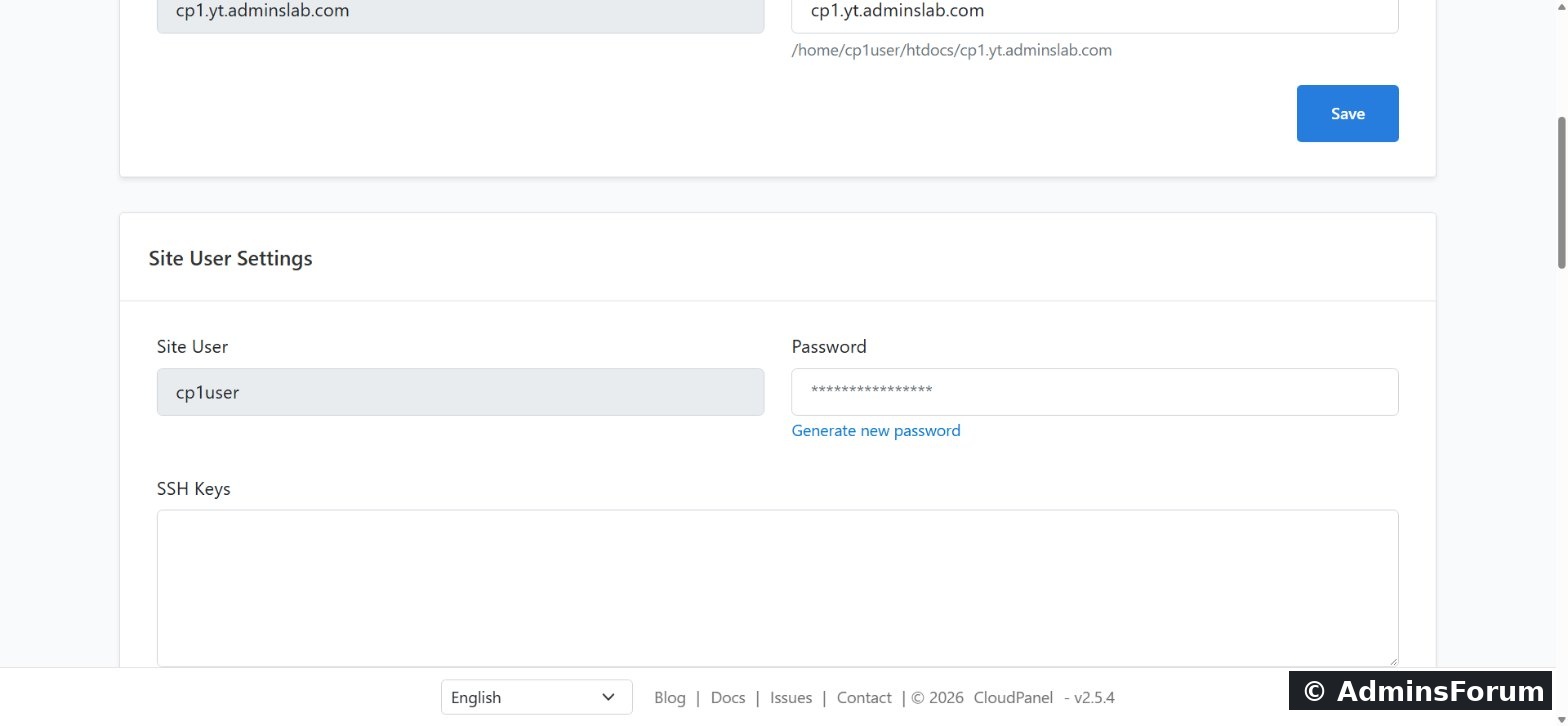
Every site already has one login: its site user. In the site's Settings tab you can reset its password, or paste your public SSH key to log in with a key instead of a password.
2. Log in over SSH
From your own computer:
You land in the site user's home. Your website lives in htdocs/YOUR_DOMAIN. A site user can't see any other site.
3. Upload with SFTP (FileZilla, WinSCP, Cyberduck)
Use SFTP, not plain FTP:
4. Extra SSH and FTP users
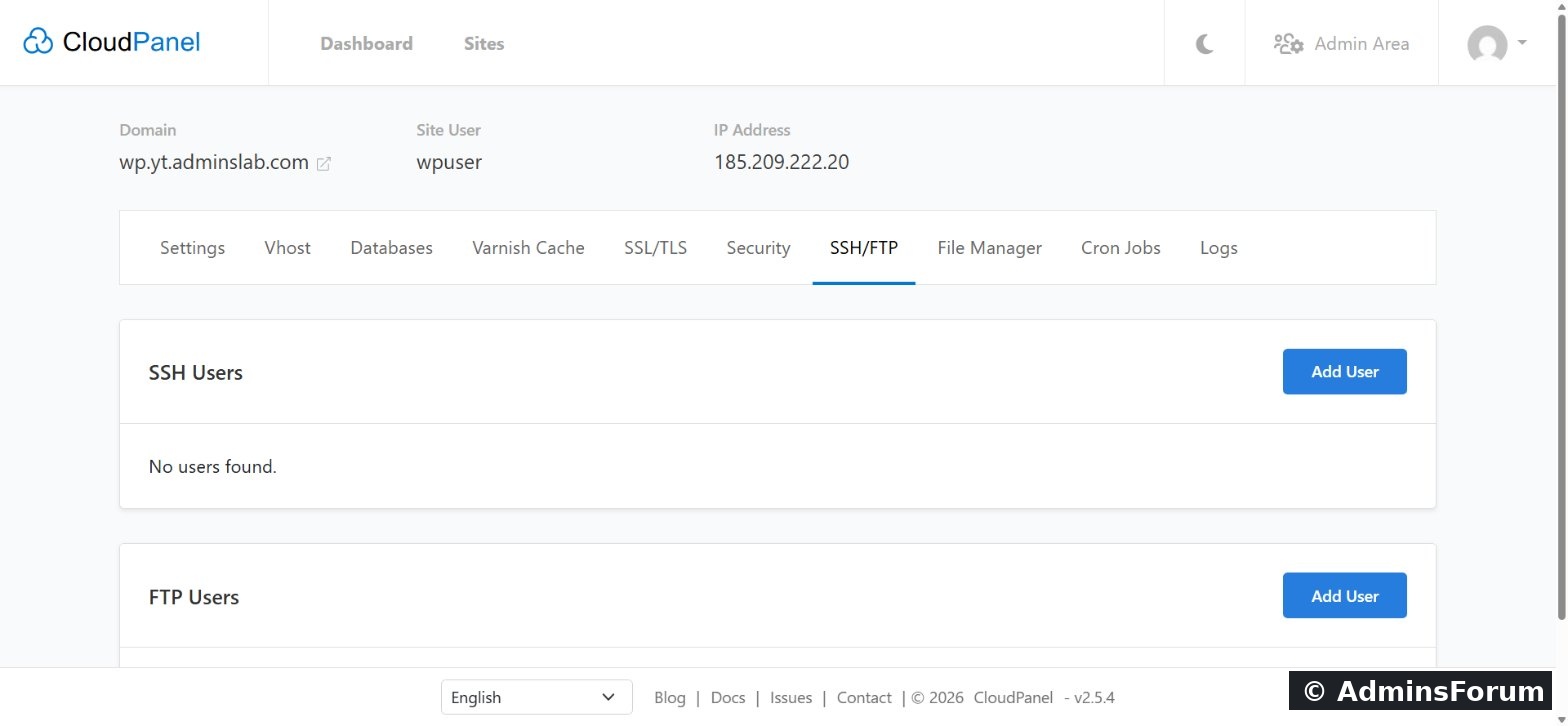
Need to give a developer access without sharing the main login? Open the SSH/FTP tab → SSH Users → Add User. They get their own password or key, and you delete them when the job's done.
FTP Users work the same way, for older tools that only speak FTP. Plain FTP isn't encrypted, so prefer SFTP. If you do use FTP, you'll also need to allow the FTP and passive ports in the firewall (Admin Area → Security).
5. The File Manager
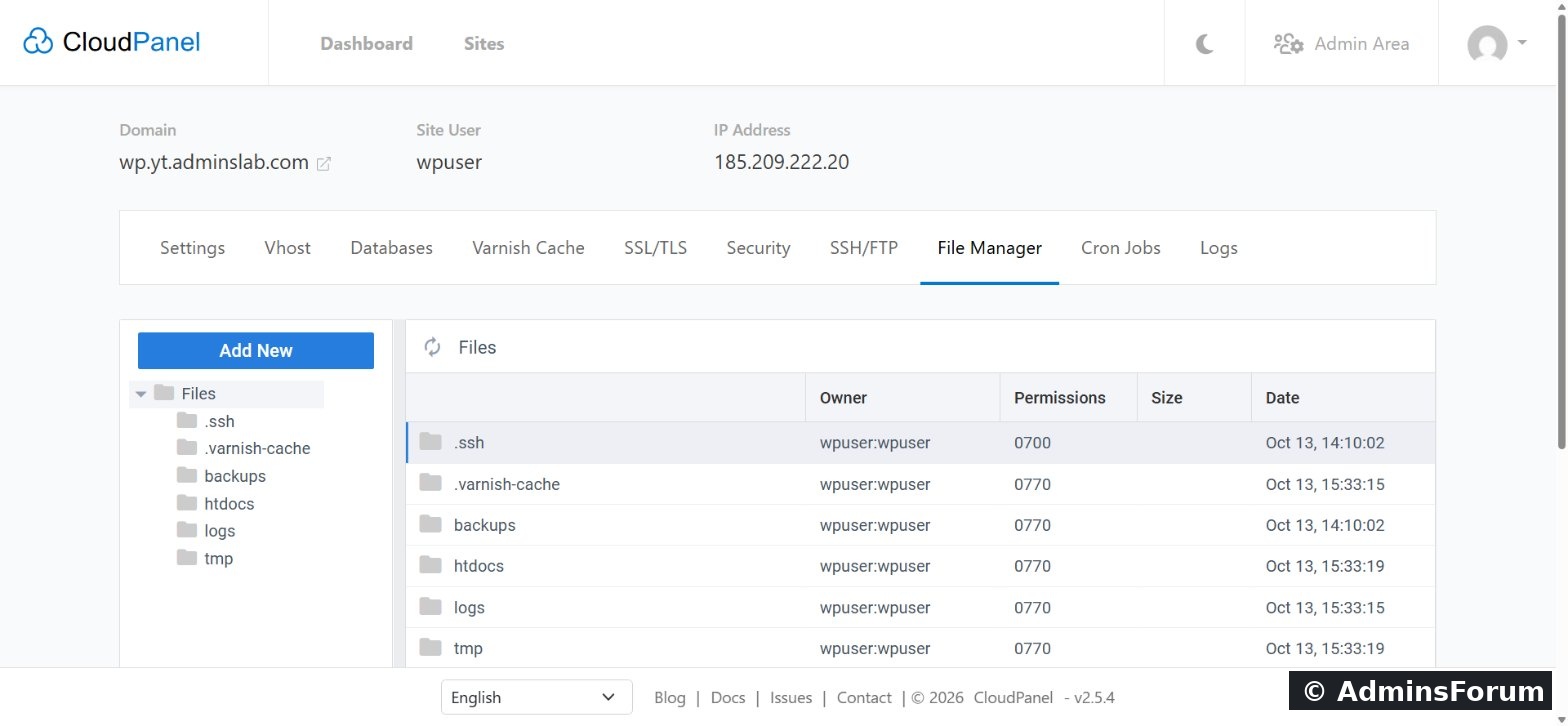
The File Manager tab works in your browser: upload, create, edit, rename, compress and extract files, and see the owner and permissions of each one. Everything is owned by the site user, which is exactly what PHP needs to write uploads and caches.
Avoid permission problems: don't work as root
Don't create site files as root over SSH. They'd be owned by root, and the site couldn't change them (failed uploads, cache errors, plugin updates that won't install). Always log in as the site user (or an extra SSH user for that site) and you'll never have permission problems.
Security tips
Questions? Ask in CloudPanel Users, SSH & SFTP Support.
CloudPanel guide series
This guide covers every way to get files onto a CloudPanel site: the site user over SSH and SFTP, SSH keys, extra SSH and FTP users for developers, and the built-in File Manager, plus the one habit that prevents permission problems. Tested on CloudPanel 2.5.4, Ubuntu 24.04.
1. The site user: your main login
Every site already has one login: its site user. In the site's Settings tab you can reset its password, or paste your public SSH key to log in with a key instead of a password.
2. Log in over SSH
From your own computer:
Code:
ssh SITE_USER@YOUR_SERVER_IP
ls
# backups  htdocs  logs  tmp
ls htdocs
# example.com3. Upload with SFTP (FileZilla, WinSCP, Cyberduck)
Use SFTP, not plain FTP:
Code:
Protocol: SFTP
Host:     YOUR_SERVER_IP
Port:     22
User:     SITE_USER  (password or SSH key)
Folder:   /home/SITE_USER/htdocs/YOUR_DOMAIN
4. Extra SSH and FTP users
Need to give a developer access without sharing the main login? Open the SSH/FTP tab → SSH Users → Add User. They get their own password or key, and you delete them when the job's done.
FTP Users work the same way, for older tools that only speak FTP. Plain FTP isn't encrypted, so prefer SFTP. If you do use FTP, you'll also need to allow the FTP and passive ports in the firewall (Admin Area → Security).
5. The File Manager
The File Manager tab works in your browser: upload, create, edit, rename, compress and extract files, and see the owner and permissions of each one. Everything is owned by the site user, which is exactly what PHP needs to write uploads and caches.
Avoid permission problems: don't work as root
Don't create site files as root over SSH. They'd be owned by root, and the site couldn't change them (failed uploads, cache errors, plugin updates that won't install). Always log in as the site user (or an extra SSH user for that site) and you'll never have permission problems.
Security tips
- Prefer SSH keys over passwords.
- Remove extra SSH/FTP users as soon as they're not needed.
- If you have a fixed IP, restrict port 22 to it in Admin Area → Security → Firewall.
Questions? Ask in CloudPanel Users, SSH & SFTP Support.
CloudPanel guide series
- What is CloudPanel? Complete overview
- CloudPanel system requirements
- CloudPanel features: the complete list
- How to create a PHP site
- How to install free Let's Encrypt SSL
- How to install WordPress (one-click)
- Databases, users and phpMyAdmin
- SSH, SFTP, FTP and File Manager (you are here)
- Cron jobs, logs and Varnish Cache
- Backups, firewall and Basic Auth