



CloudPanel backups and security: remote backups, firewall and Basic Auth
The steps that protect a CloudPanel server: off-server backups, locking down the panel, per-site blocking, and keeping everything updated. Tested on CloudPanel 2.5.4, Ubuntu 24.04.
Part 1: Remote backups
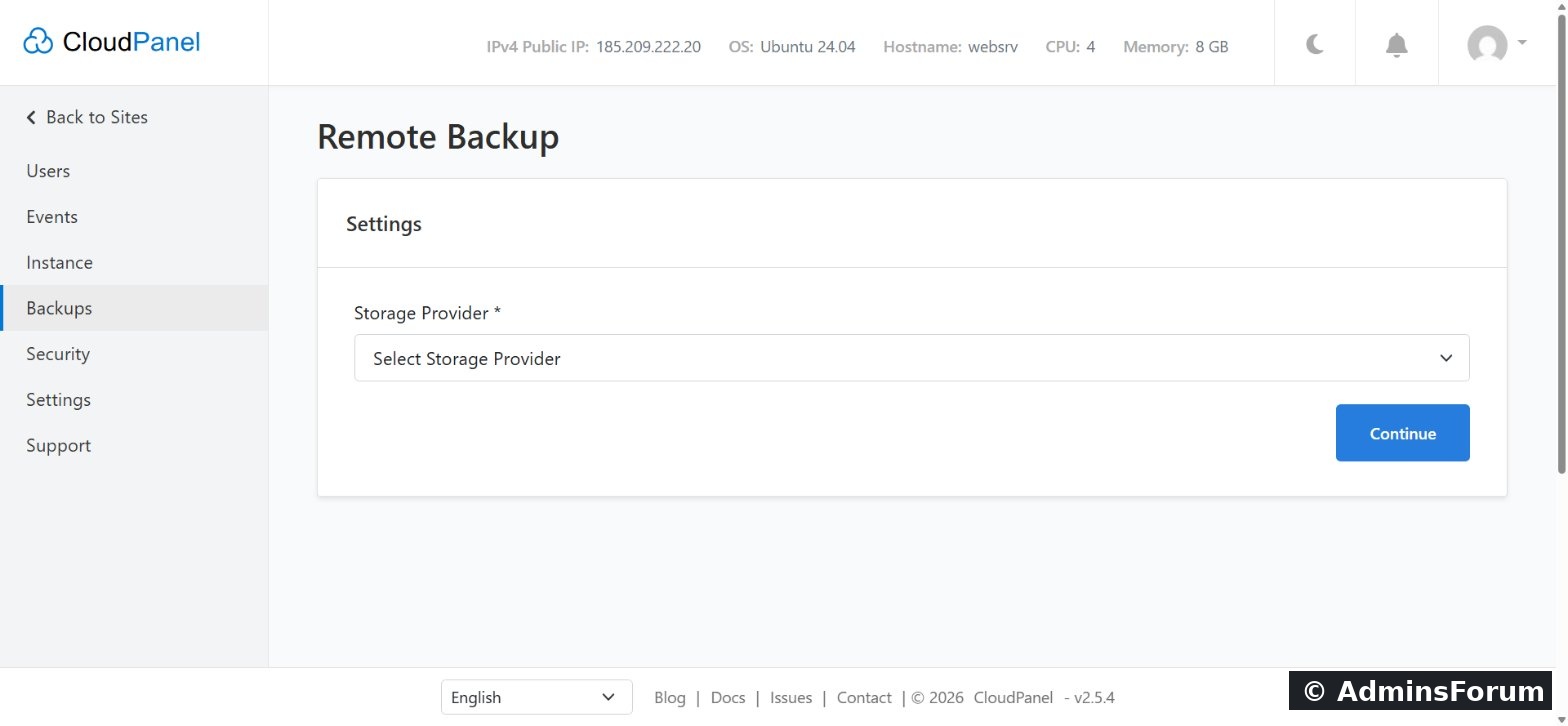
A backup on the same server isn't a backup if the server dies. Go to Admin Area → Backups and choose a Storage Provider: Amazon S3, Wasabi, DigitalOcean Spaces, Dropbox, Google Drive, Hetzner Storage Box, SFTP or a custom Rclone config.
Turn on Enable Remote Backup and set the Frequency and Time. Pick a quiet hour, such as 02:00.
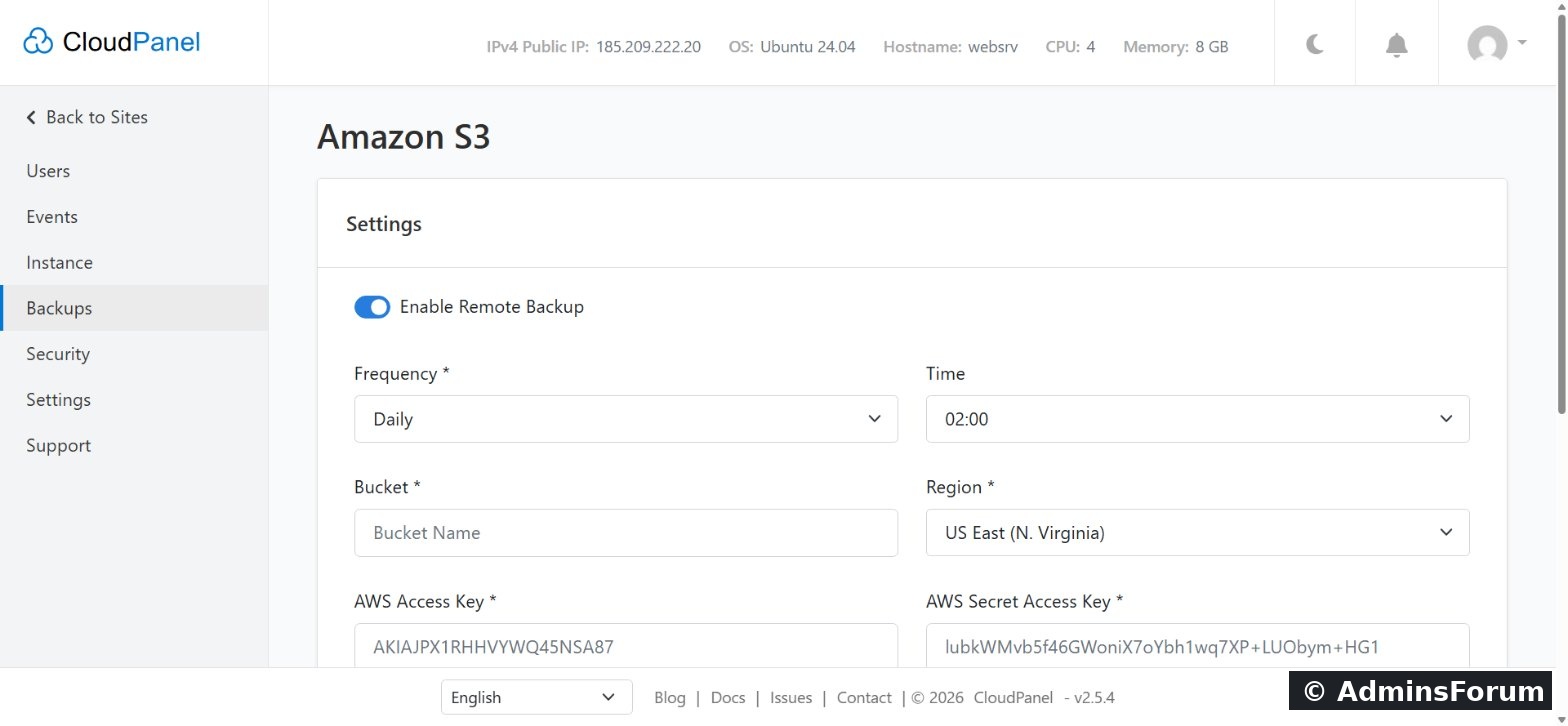
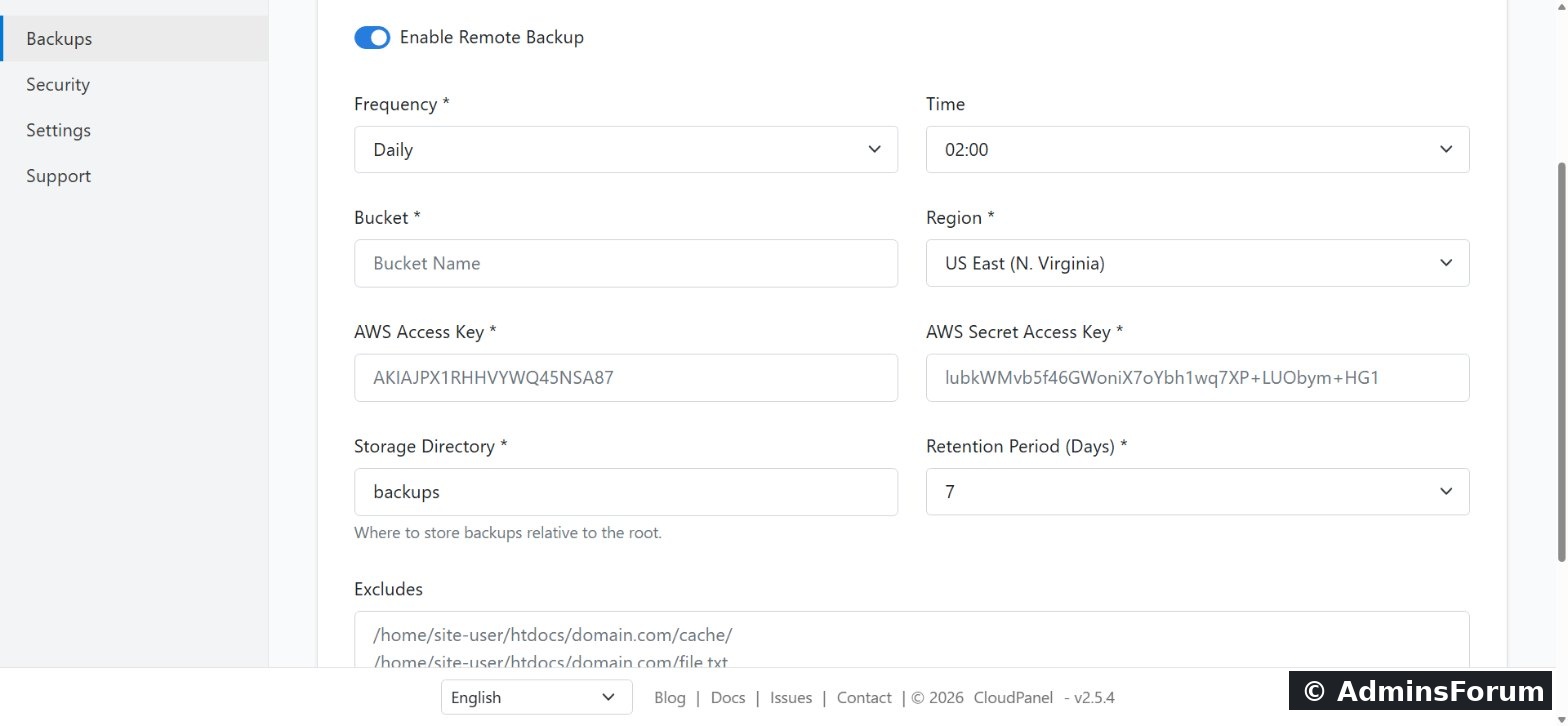
Enter the bucket and region, an access key and secret key, the storage directory, the retention period (days to keep) and any excludes such as cache folders, then save. (The keys in our screenshot are CloudPanel's example values, not real keys.) Create a key that can only access this one bucket.
Part 2: The firewall
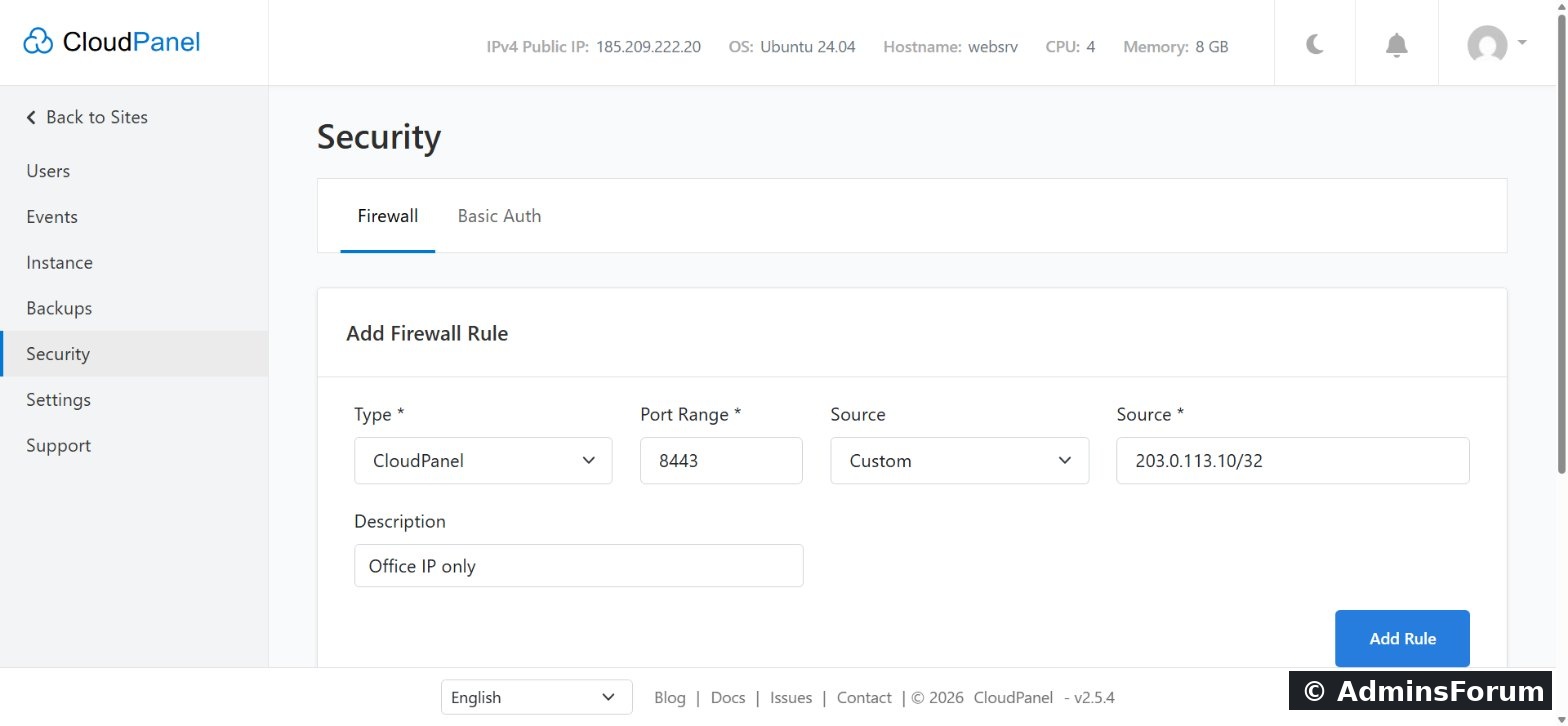
In Admin Area → Security → Firewall, CloudPanel by default allows SSH (22), HTTP (80), HTTPS (443) and the panel (8443) from anywhere.
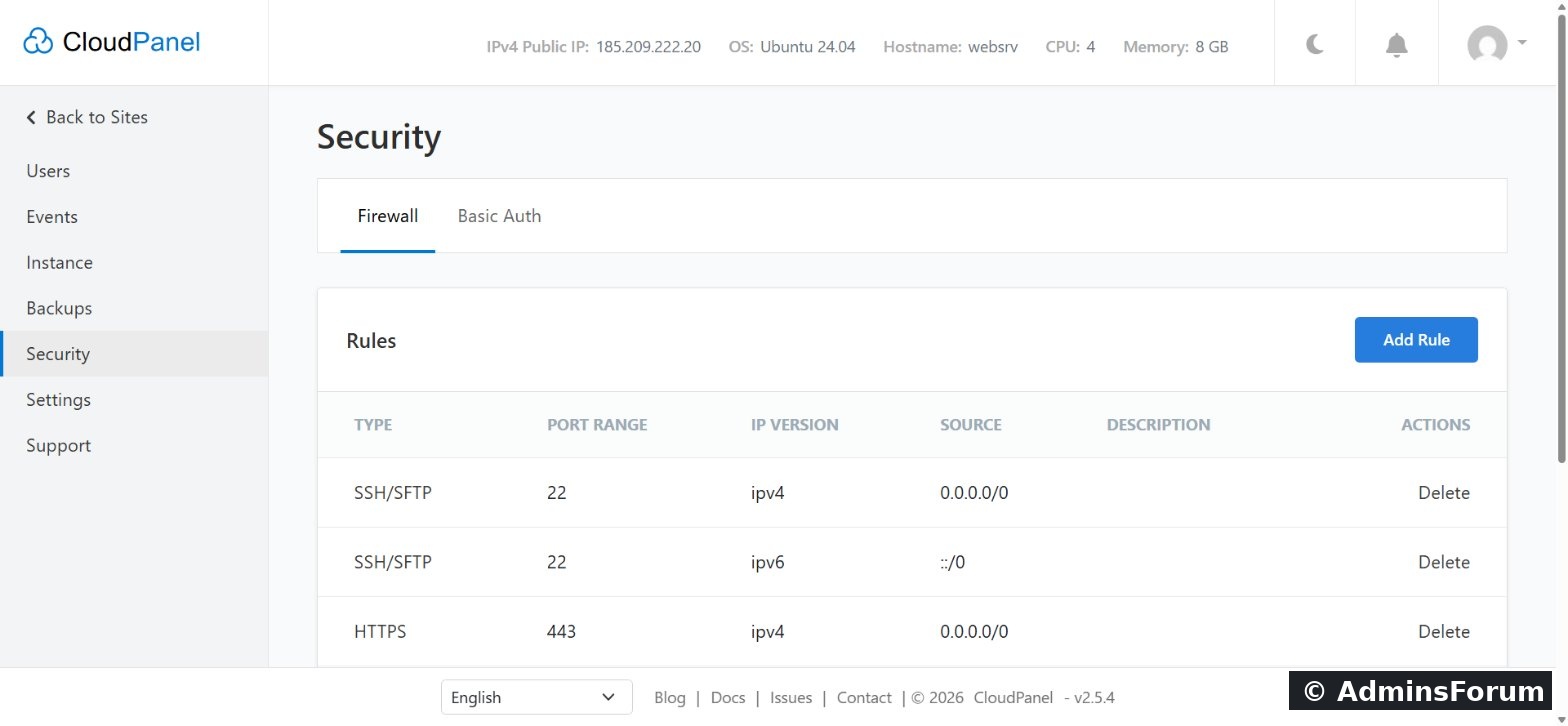
Best single step: allow port 8443 only from your own IP. Click Add Rule, type CloudPanel, source Custom, your IP with /32, and save. Add your rule first, then delete the rules that allow 8443 from anywhere, so you don't lock yourself out. Do the same for SSH if you have a fixed IP.
Part 3: Basic Auth in front of the panel
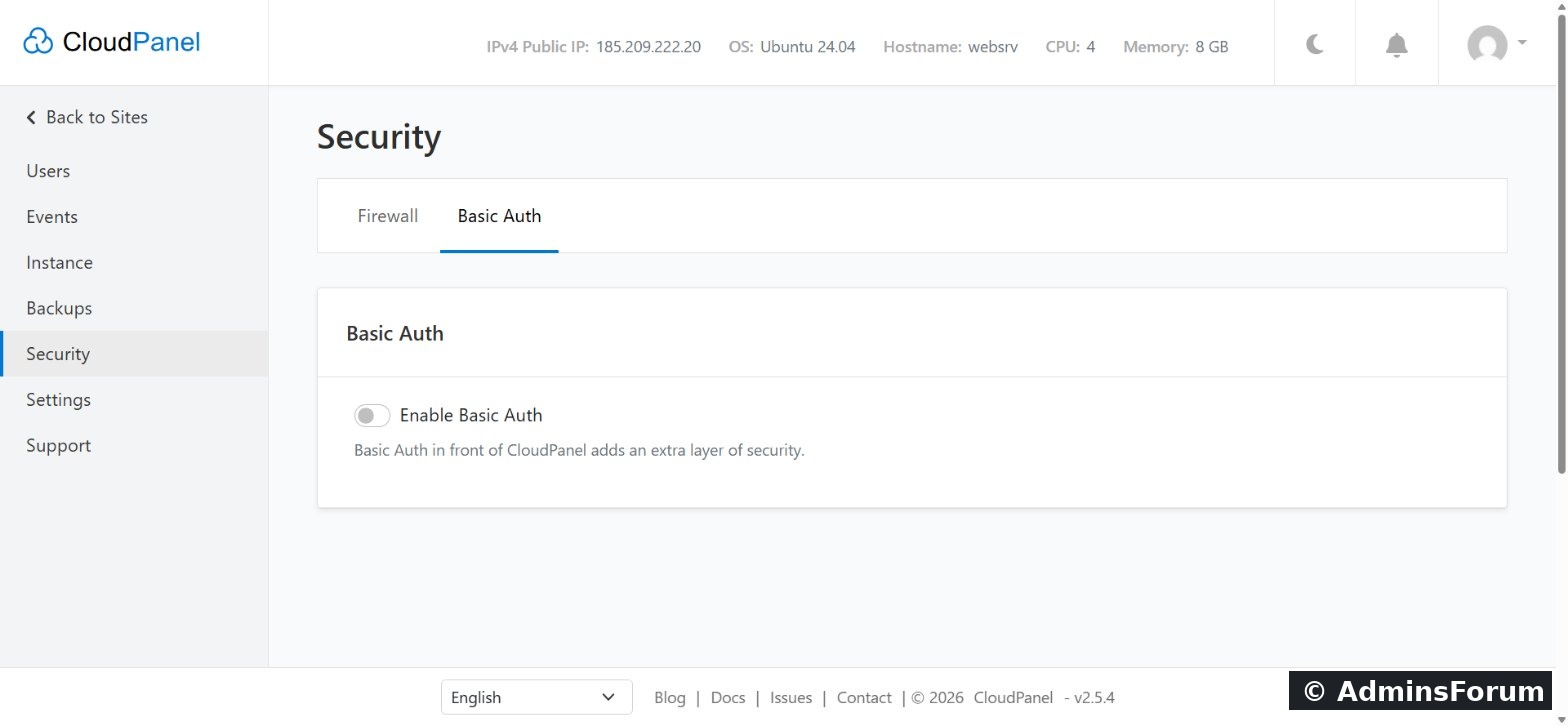
If your IP changes often, use Basic Auth instead (Admin Area → Security → Basic Auth). It puts a second username and password in front of CloudPanel's login page, which stops bots from even reaching it. As root you can also toggle it with:
Part 4: Site-level security
Each site has its own Security tab: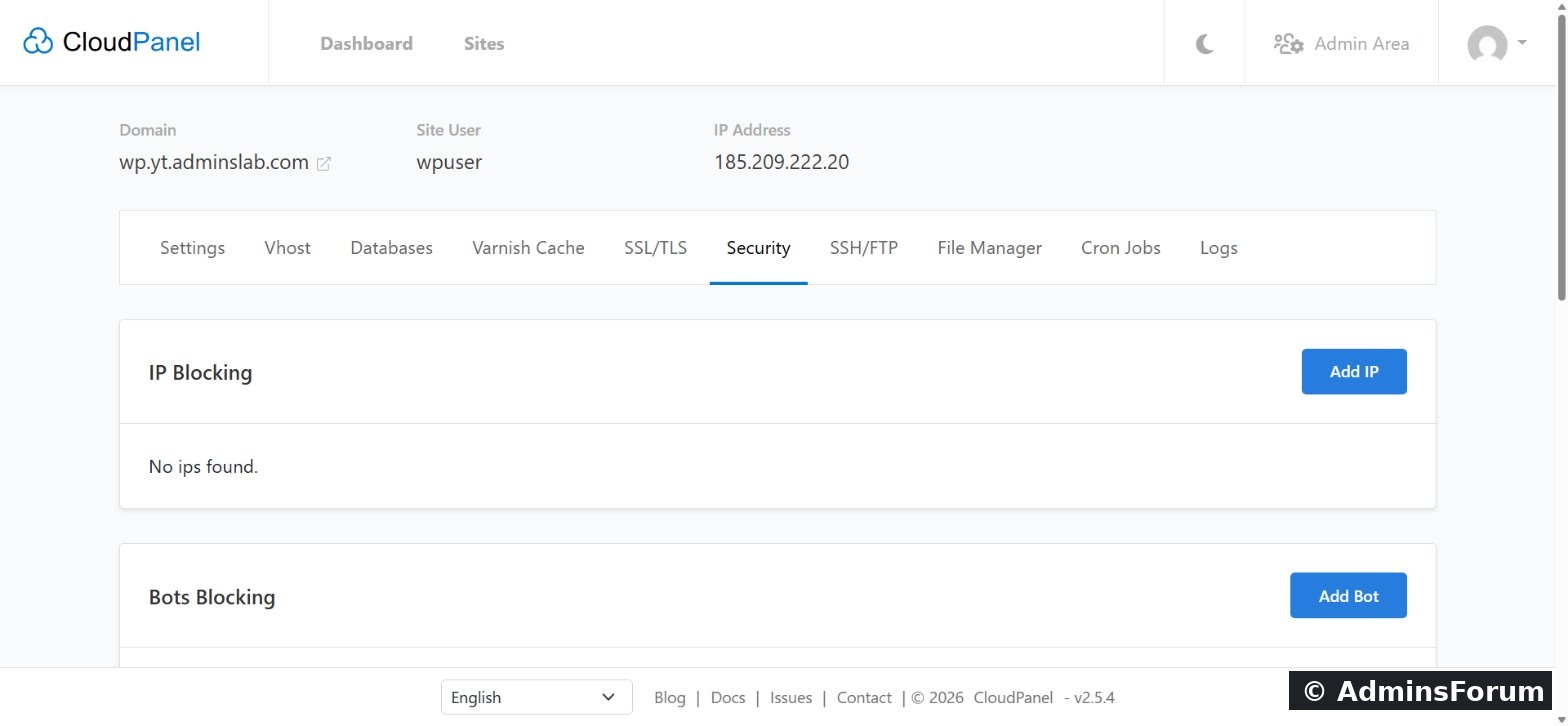
Part 5: Keep everything updated
Security checklist
Questions? Ask in CloudPanel Security Support.
CloudPanel guide series
The steps that protect a CloudPanel server: off-server backups, locking down the panel, per-site blocking, and keeping everything updated. Tested on CloudPanel 2.5.4, Ubuntu 24.04.
Part 1: Remote backups
A backup on the same server isn't a backup if the server dies. Go to Admin Area → Backups and choose a Storage Provider: Amazon S3, Wasabi, DigitalOcean Spaces, Dropbox, Google Drive, Hetzner Storage Box, SFTP or a custom Rclone config.
Turn on Enable Remote Backup and set the Frequency and Time. Pick a quiet hour, such as 02:00.
Enter the bucket and region, an access key and secret key, the storage directory, the retention period (days to keep) and any excludes such as cache folders, then save. (The keys in our screenshot are CloudPanel's example values, not real keys.) Create a key that can only access this one bucket.
Part 2: The firewall
In Admin Area → Security → Firewall, CloudPanel by default allows SSH (22), HTTP (80), HTTPS (443) and the panel (8443) from anywhere.
Best single step: allow port 8443 only from your own IP. Click Add Rule, type CloudPanel, source Custom, your IP with /32, and save. Add your rule first, then delete the rules that allow 8443 from anywhere, so you don't lock yourself out. Do the same for SSH if you have a fixed IP.
Part 3: Basic Auth in front of the panel
If your IP changes often, use Basic Auth instead (Admin Area → Security → Basic Auth). It puts a second username and password in front of CloudPanel's login page, which stops bots from even reaching it. As root you can also toggle it with:
Code:
clpctl cloudpanel:enable:basic-auth --userName=john --password='a-strong-password'
clpctl cloudpanel:disable:basic-auth
Part 4: Site-level security
Each site has its own Security tab:
- IP Blocking: block single IPs or whole ranges.
- Bot Blocking: block bad bots by user agent, such as the scanners you'll see in your access logs.
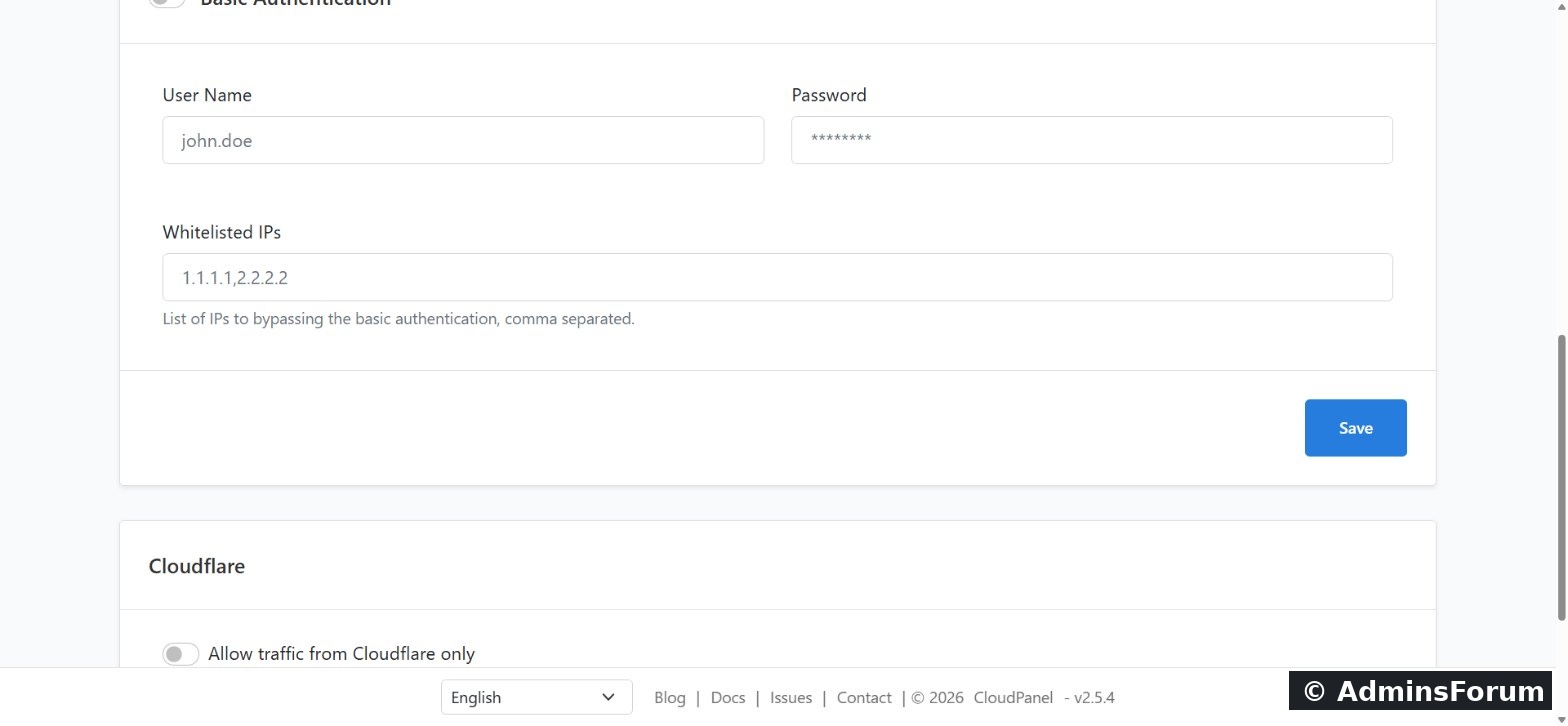
- Basic Authentication: password-protect staging copies the public shouldn't see, with a list of whitelisted IPs that skip it.
- Cloudflare: "Allow traffic from Cloudflare only", so nobody can bypass Cloudflare by hitting your server's IP directly.
Part 5: Keep everything updated
Code:
apt update && apt -y upgrade
# take a snapshot of the server at your provider first
clp-update
reboot   # when a new kernel was installed
Security checklist
- Remote backups on, with a tested restore.
- Port 8443 restricted to your IP, or Basic Auth enabled.
- Two-factor authentication on your CloudPanel admin user.
- SSH keys instead of passwords; SSH restricted if you have a fixed IP.
- Bad bots and abusive IPs blocked per site; Cloudflare-only mode if you use Cloudflare.
- OS and CloudPanel updated regularly.
Questions? Ask in CloudPanel Security Support.
CloudPanel guide series
- What is CloudPanel? Complete overview
- CloudPanel system requirements
- CloudPanel features: the complete list
- How to create a PHP site
- How to install free Let's Encrypt SSL
- How to install WordPress (one-click)
- Databases, users and phpMyAdmin
- SSH, SFTP, FTP and File Manager
- Cron jobs, logs and Varnish Cache
- Backups, firewall and Basic Auth (you are here)