



10-12-2026, 04:36 AM
How do you back up WordPress in aaPanel WP Toolkit?
Open WP Toolkit, select the website’s Backup link, confirm Full Backup and the storage destination, then click Backup. Wait for a successful result and verify that an archive appears before making website changes.
This walkthrough uses our HTTPS test site, wp.adminslab.com, on aaPanel 8.0.6 Free Edition. We created a real backup and checked its archive on the server. A successful backup job is not the same as a tested restoration.
Before you begin
1. Open the website’s backup window
Sign in to aaPanel and choose WP Toolkit in the left menu. Find the correct WordPress domain. Click the Backup link or backup count in its row. A site without a previous backup may show 0 Backup.
The window contains Backup / Restore and Schedule & Remote Storage. For this guide, stay on Backup / Restore. This is a manual backup; it does not require creating a recurring task.
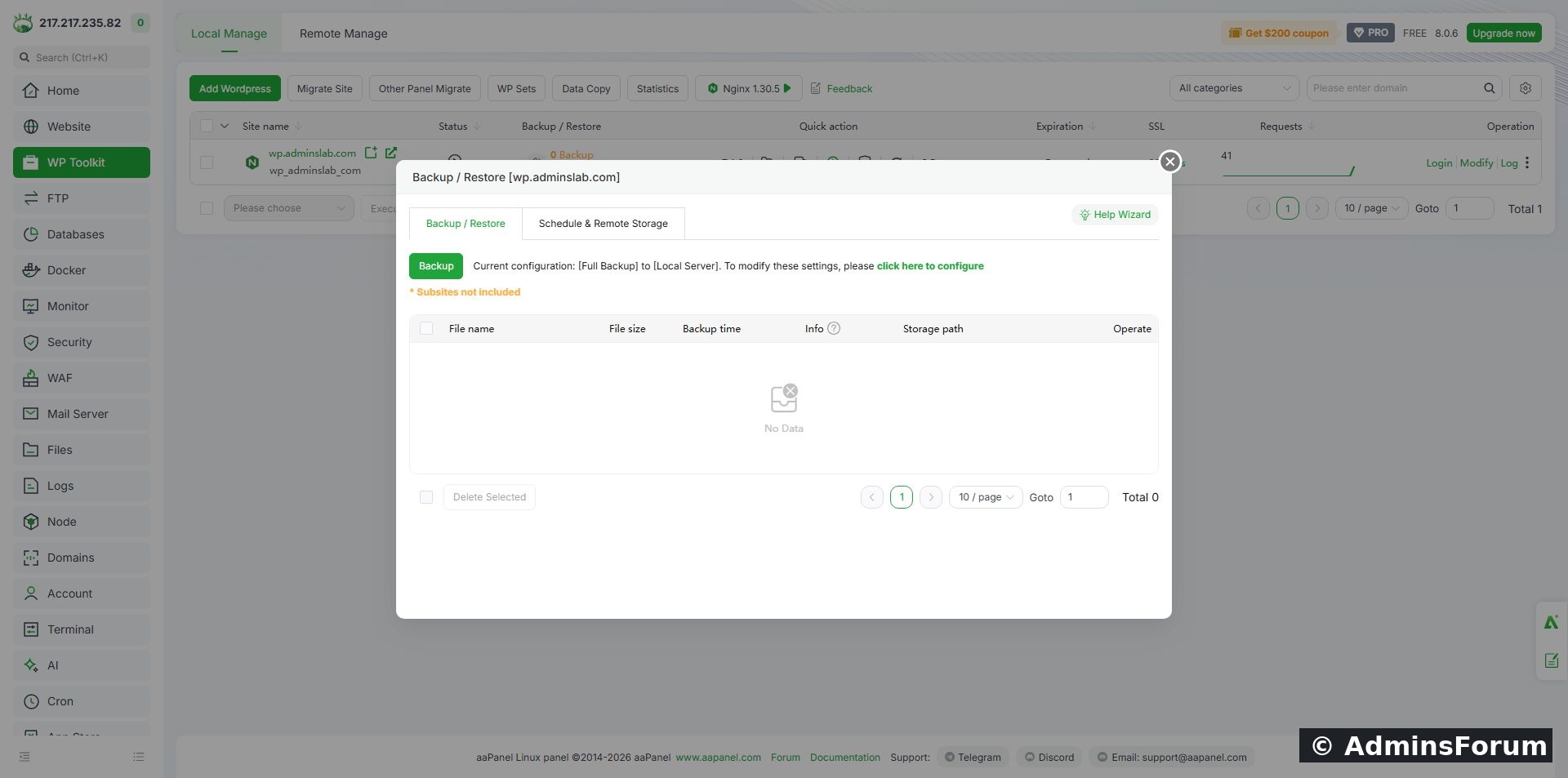
The backup window before our first backup. Check the selected backup type and destination before clicking Backup.
2. Check the backup type and destination
Our window displayed Full Backup to Local Server. If yours is different, use click here to configure and inspect the available choices before starting. Do not assume that a files-only or database-only backup can recover the whole website.
Local Server means the copy remains on the same VPS. It is useful before a plugin update, but it will not protect you if the VPS and its disk are lost. Keep an additional copy outside that server.
The panel also states Subsites not included. If you run WordPress Multisite, do not treat this walkthrough as a complete multisite recovery procedure. Verify the coverage and use a backup method appropriate to your network.
3. Run the backup and wait for completion
Click Backup once. Leave the operation running until aaPanel reports the result. A large site can take longer than this small installation. Do not repeatedly click Backup because the first job is still working.
Our result was 1 success, 0 failed. The table then showed a 35.28 MB archive, marked Full Backup with Local Server storage. Your filename, timestamp and size will differ.
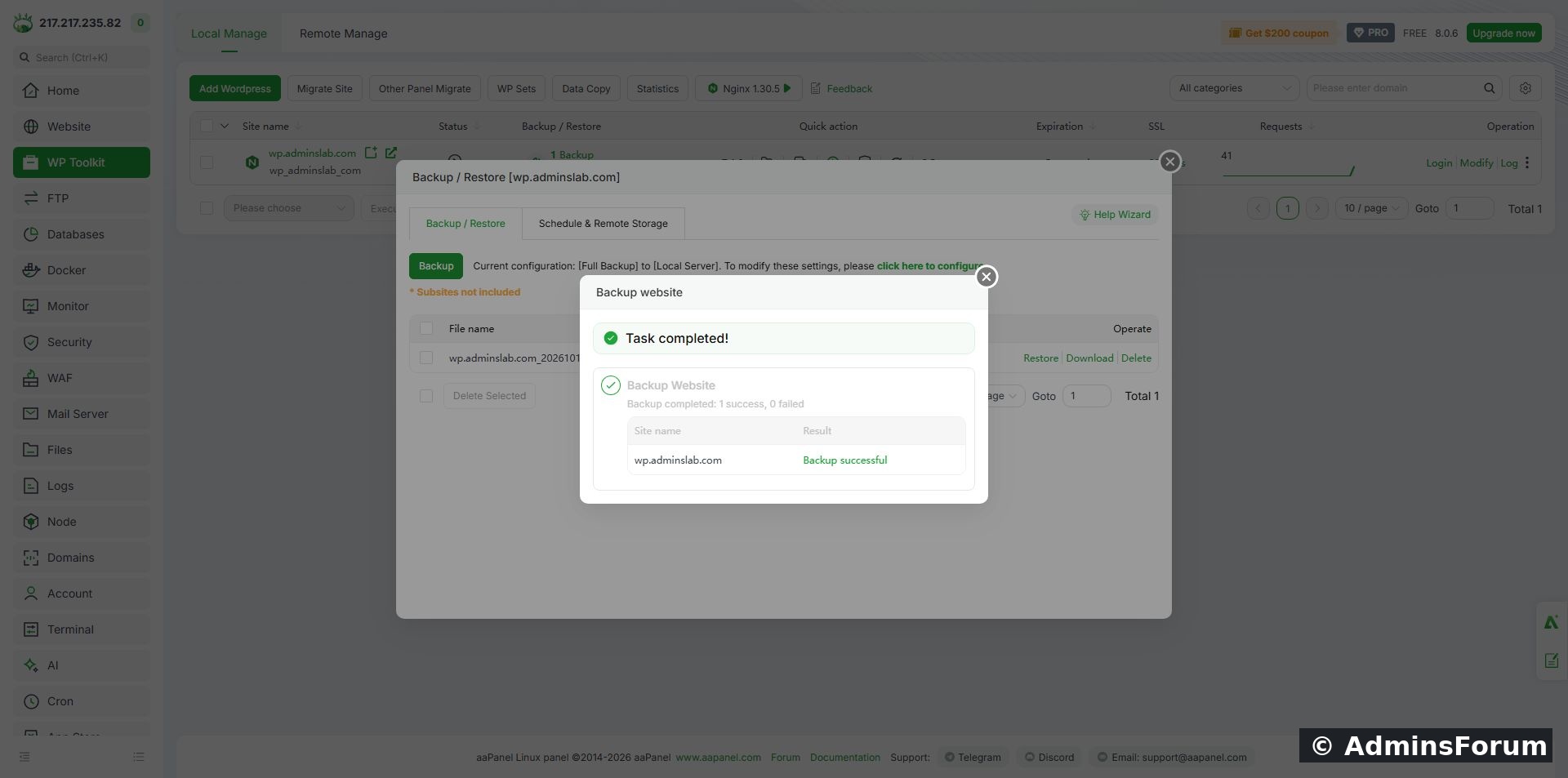
Our completed backup. The successful task result and archive row are both visible.
4. Verify the backup before relying on it
Check that the table contains a new archive with the expected time, a non-zero size and the intended storage location. A missing or unexpectedly small archive needs investigation.
We also inspected the server archive in /www/backup/wordpress/. Its ZIP integrity check passed. It contained meta.json, database.sql.gz and files.zip. The nested website archive contained wp-config.php. These checks confirm that our job produced an archive with database and website-file components; they do not prove that a restoration will succeed.
For administrators comfortable with the terminal, a read-only ZIP check is:
Replace the filename with your actual archive. Do not paste a guessed filename or publish the contents of wp-config.php: it contains database credentials.
5. Keep a copy outside the VPS
The archive row includes Download. Download it to a trusted device, confirm the file arrived and keep it in private backup storage. Check the downloaded copy’s integrity too. A backup can include credentials, private uploads and user data, so do not place it in a public website folder or attach it to a support thread.
Test limitation: our browser download did not complete during this session. The server archive and its integrity were verified, but a downloaded copy was not. Do not count an attempted download as an off-server backup.
The Schedule & Remote Storage tab is a separate workflow. Before depending on a remote destination, confirm its availability in your edition, credentials, retained copies and recovery access. This guide did not configure remote storage or a schedule.
6. Understand Restore before clicking it
The archive row also has Restore. Restoration can replace current website files and database content with an older state. That can remove changes made since the backup, including posts, orders or user registrations.
Before restoring:
Troubleshooting
Backup fails: read the task result, check disk space and inspect the relevant panel logs. Fix the reported cause before retrying.
Archive is missing: confirm the storage destination and refresh the backup list after the job finishes. Do not assume an older file is the new backup.
Download fails: check your panel session and browser downloads. Keep the server archive intact while resolving access; do not delete it just because downloading failed.
The website changed after the backup: take another copy before maintenance. An older archive cannot contain newer changes.
Final checklist
Source: aaPanel WP Toolkit documentation. Screenshots and the backup result are from our own AdminsForum lab.
Open WP Toolkit, select the website’s Backup link, confirm Full Backup and the storage destination, then click Backup. Wait for a successful result and verify that an archive appears before making website changes.
This walkthrough uses our HTTPS test site, wp.adminslab.com, on aaPanel 8.0.6 Free Edition. We created a real backup and checked its archive on the server. A successful backup job is not the same as a tested restoration.
Before you begin
- Your WordPress site must already appear in WP Toolkit. If it does not, follow Install WordPress with aaPanel WP Toolkit first.
- Have enough free disk space for the backup. Large uploads folders can make archives much larger than our example.
- Avoid updating plugins, importing content or accepting important changes while the backup is running. A quiet period makes the files and database easier to keep consistent.
- Check which site you selected. Our lab has other websites, so we verified the domain before starting.
1. Open the website’s backup window
Sign in to aaPanel and choose WP Toolkit in the left menu. Find the correct WordPress domain. Click the Backup link or backup count in its row. A site without a previous backup may show 0 Backup.
The window contains Backup / Restore and Schedule & Remote Storage. For this guide, stay on Backup / Restore. This is a manual backup; it does not require creating a recurring task.
The backup window before our first backup. Check the selected backup type and destination before clicking Backup.
2. Check the backup type and destination
Our window displayed Full Backup to Local Server. If yours is different, use click here to configure and inspect the available choices before starting. Do not assume that a files-only or database-only backup can recover the whole website.
Local Server means the copy remains on the same VPS. It is useful before a plugin update, but it will not protect you if the VPS and its disk are lost. Keep an additional copy outside that server.
The panel also states Subsites not included. If you run WordPress Multisite, do not treat this walkthrough as a complete multisite recovery procedure. Verify the coverage and use a backup method appropriate to your network.
3. Run the backup and wait for completion
Click Backup once. Leave the operation running until aaPanel reports the result. A large site can take longer than this small installation. Do not repeatedly click Backup because the first job is still working.
Our result was 1 success, 0 failed. The table then showed a 35.28 MB archive, marked Full Backup with Local Server storage. Your filename, timestamp and size will differ.
Our completed backup. The successful task result and archive row are both visible.
4. Verify the backup before relying on it
Check that the table contains a new archive with the expected time, a non-zero size and the intended storage location. A missing or unexpectedly small archive needs investigation.
We also inspected the server archive in /www/backup/wordpress/. Its ZIP integrity check passed. It contained meta.json, database.sql.gz and files.zip. The nested website archive contained wp-config.php. These checks confirm that our job produced an archive with database and website-file components; they do not prove that a restoration will succeed.
For administrators comfortable with the terminal, a read-only ZIP check is:
Code:
unzip -t /www/backup/wordpress/YOUR-BACKUP-FILENAME.zip5. Keep a copy outside the VPS
The archive row includes Download. Download it to a trusted device, confirm the file arrived and keep it in private backup storage. Check the downloaded copy’s integrity too. A backup can include credentials, private uploads and user data, so do not place it in a public website folder or attach it to a support thread.
Test limitation: our browser download did not complete during this session. The server archive and its integrity were verified, but a downloaded copy was not. Do not count an attempted download as an off-server backup.
The Schedule & Remote Storage tab is a separate workflow. Before depending on a remote destination, confirm its availability in your edition, credentials, retained copies and recovery access. This guide did not configure remote storage or a schedule.
6. Understand Restore before clicking it
The archive row also has Restore. Restoration can replace current website files and database content with an older state. That can remove changes made since the backup, including posts, orders or user registrations.
Before restoring:
- Make a fresh backup of the current state and keep it outside the server.
- Confirm the domain and exact archive date.
- Use a staging site or maintenance window where possible.
- Read the restore confirmation carefully and verify which data it will replace.
Troubleshooting
Backup fails: read the task result, check disk space and inspect the relevant panel logs. Fix the reported cause before retrying.
Archive is missing: confirm the storage destination and refresh the backup list after the job finishes. Do not assume an older file is the new backup.
Download fails: check your panel session and browser downloads. Keep the server archive intact while resolving access; do not delete it just because downloading failed.
The website changed after the backup: take another copy before maintenance. An older archive cannot contain newer changes.
Final checklist
- Correct WordPress domain selected.
- Backup type and destination reviewed.
- Task completed successfully and archive exists.
- Archive integrity checked.
- Private off-server copy obtained and verified before relying on it for server-loss recovery.
- Restoration tested separately before calling the backup recovery-tested.
Source: aaPanel WP Toolkit documentation. Screenshots and the backup result are from our own AdminsForum lab.