



10-12-2026, 03:08 AM
Quick answer
Open Cron, choose Backup Site, select the website, set a daily time and a backup destination, then click Add Task. Run the task once with Execute and check its Log before trusting the schedule. Website files and the database need separate backup coverage.
Tested on the AdminsForum lab
We created Backup Site[adminslab.com] in aaPanel 8.0.6, scheduled it for 02:10 using the server's clock, selected Local Disk and retained three copies. We manually executed the new task. The log reported Successful and created a 45.78 MB archive from a 119.08 MB document root. The archive passed a tar readability check. We paused the tutorial-only schedule after testing; the archive was preserved. An overnight scheduled execution and a restore of this specific archive were not tested.
1. Decide what you need to protect
For a WordPress or other database-driven website, keep both the document-root files and its database. Files include application code, uploads and configuration. Database content such as posts, settings and accounts is separate.
Check the site you want to back up, its document-root path and the available disk space first. Keep backup archives outside the public document root. A same-server backup helps with accidental file changes but cannot protect you from losing the entire server.
2. Select Backup Site
Click Cron in the left-hand menu. In the Add Task section, open Task type and choose Backup Site. Select your particular website in Backup site. The lab's task name changed automatically to Backup Site[adminslab.com]. Choose ALL only when you actually want every listed site included.
3. Set the schedule and retention
Choose Daily in Execute cycle, then enter the hour and minute. Our example is 02:10. These fields use the server's clock; check its time zone before treating the value as your local time. Choose a quiet period and avoid overlapping with other large backups or imports.
For this first test, select Local Disk in Backup to and set Retain the latest to 3. This is a number of copies, not a guaranteed number of days. Extra manual executions can also consume retained copies. Use a retention count that covers your recovery needs and fits your storage capacity.
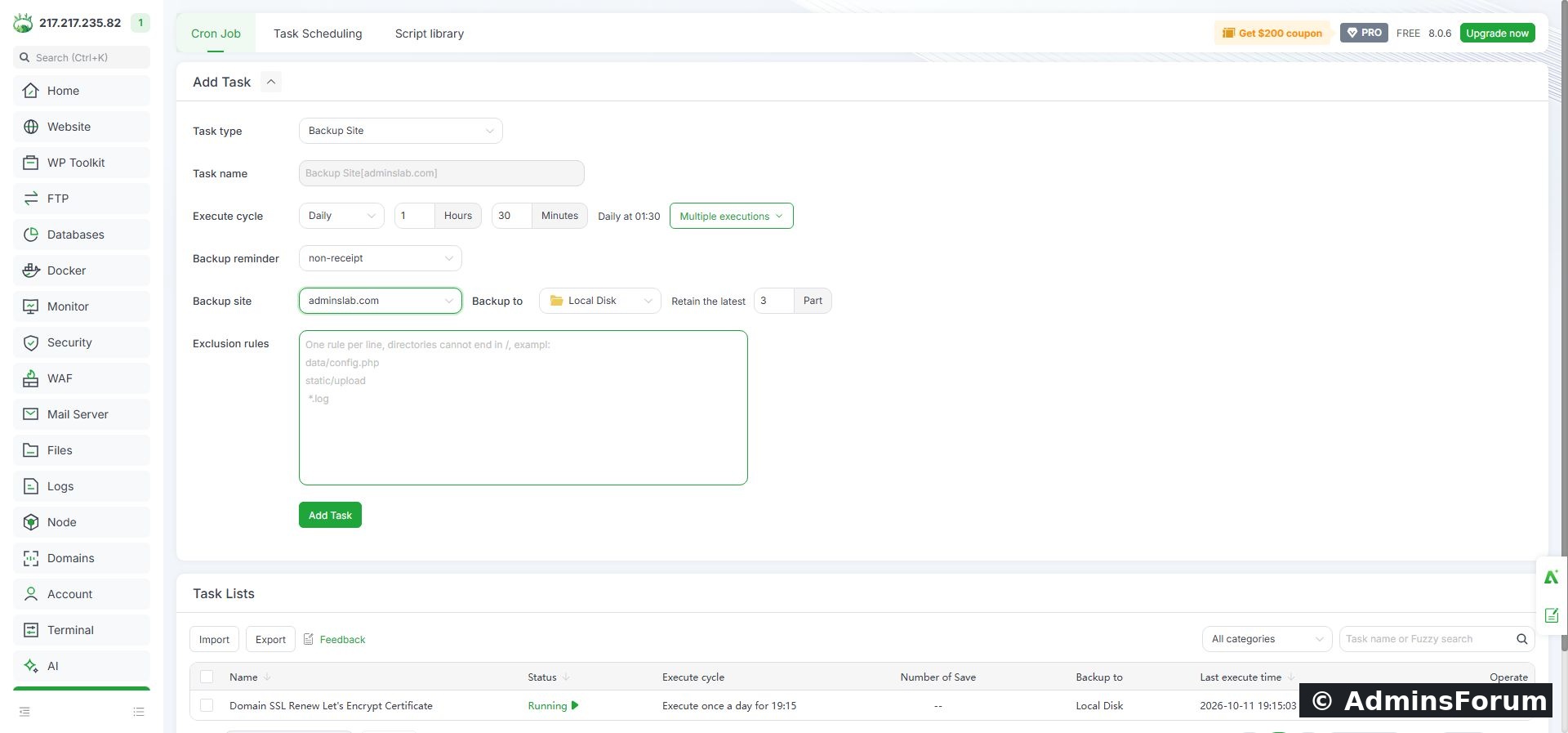
AdminsForum lab: the website backup settings before creating the task.
If you later configure a remote storage integration, verify that a complete archive actually reaches that destination. Selecting a destination is not proof that its credentials, permissions or connectivity work.
4. Review exclusions carefully
The Exclusion rules field can omit unwanted paths. We left it blank for the first test so the website document root was covered. Excluding uploads or a configuration file without a separate backup can prevent a complete recovery. Do not place your backup destination inside the site and then accidentally include old backups in every new archive.
The Backup reminder field was left at non-receipt in our test. No failure notification was configured or tested. Configure and test notifications separately if you depend on them.
5. Create and run the task
Click Add Task. Check the new row's site name, status, execution time, copy count and destination. It should show Running when enabled for future executions.
In that row, click Execute and confirm the prompt. Wait for the run to finish. Use Log or Refresh log to read the outcome. A task row or last-execution timestamp alone does not prove that the backup succeeded.
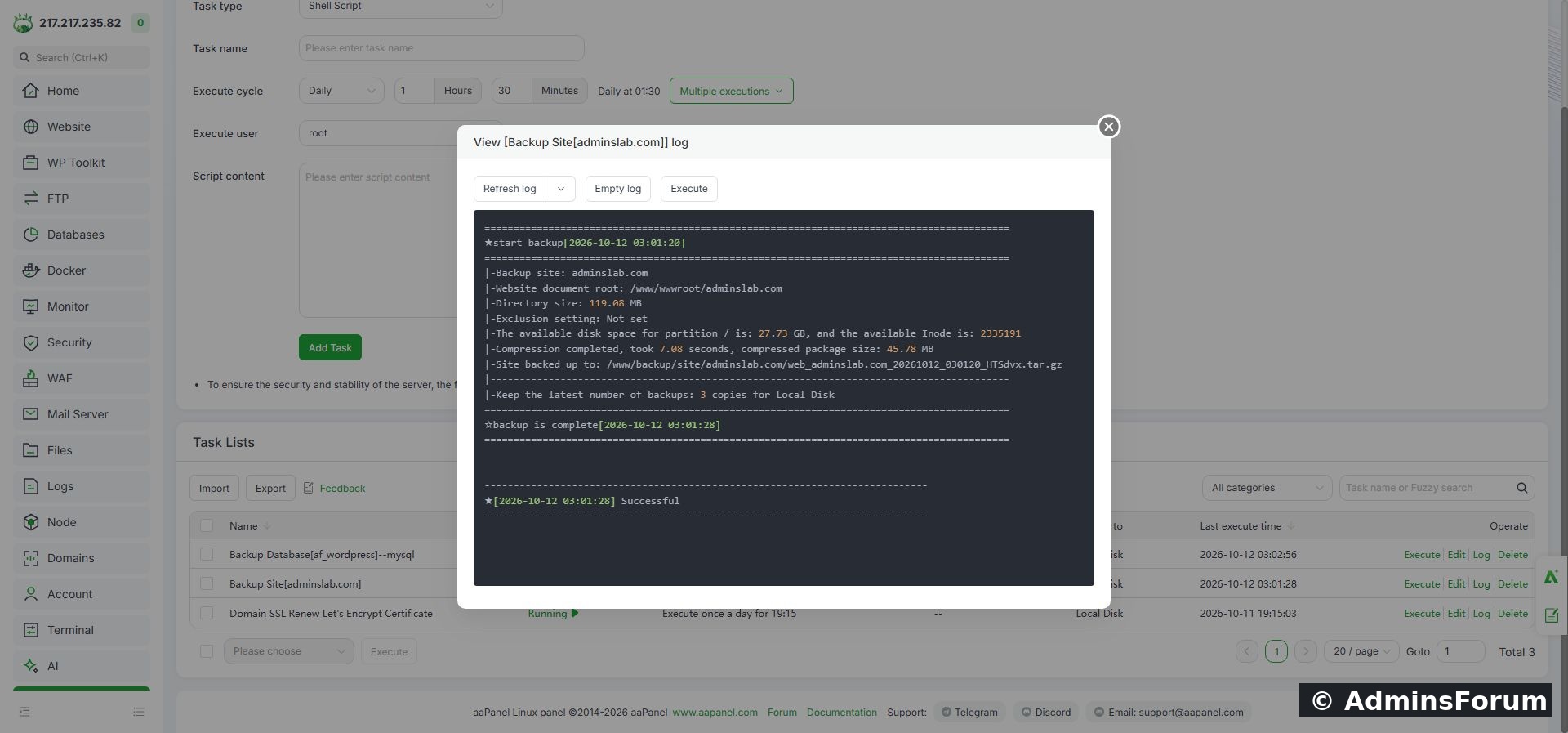
AdminsForum lab: successful first backup, including the archive path, size and retention setting.
Our completed archive was saved under:
Use the exact filename shown in your own log rather than copying a timestamped name from a tutorial.
6. Verify the archive
Check that the file exists and has a plausible size. A compressed archive is usually smaller than the source directory, so compare with the actual content rather than expecting matching sizes.
If you use the terminal, this read-only check verifies that tar can read the archive listing:
Replace the path with the real archive path from your log. We ran this check successfully on the lab archive. It does not prove that the application's database is included or that the website will recover correctly.
For stronger recovery assurance, test extraction and application recovery in an isolated directory or separate test site. Avoid overwriting a live website simply to test a backup. See the website file backup and restore guide for the separate restore workflow.
7. Keep a copy away from the server
Transfer an archive to protected off-server storage and verify that it can be downloaded again. Treat it as sensitive: website configuration files can contain database credentials. Do not attach backup archives to a public forum post or place them at a public download URL.
Pair the file backup with a database backup from a compatible point in time. A rapidly changing site may need coordinated backups or a brief maintenance window for consistency.
8. Check future runs
After the next scheduled time, inspect Last execute time and Log. Confirm a new archive appeared and that retention behaves as expected. We tested the task manually; you should still verify its first unattended execution on your server.
To pause a task, select its checkbox, choose Stop task in the list action menu, click Execute and confirm. Reload the list and verify Stopped. We used this explicit stop action for the lab task. We preserved it for reference instead of leaving an unnecessary tutorial schedule running.
Troubleshooting
Completion checklist
Reference: aaPanel official Cron documentation.
Open Cron, choose Backup Site, select the website, set a daily time and a backup destination, then click Add Task. Run the task once with Execute and check its Log before trusting the schedule. Website files and the database need separate backup coverage.
Tested on the AdminsForum lab
We created Backup Site[adminslab.com] in aaPanel 8.0.6, scheduled it for 02:10 using the server's clock, selected Local Disk and retained three copies. We manually executed the new task. The log reported Successful and created a 45.78 MB archive from a 119.08 MB document root. The archive passed a tar readability check. We paused the tutorial-only schedule after testing; the archive was preserved. An overnight scheduled execution and a restore of this specific archive were not tested.
1. Decide what you need to protect
For a WordPress or other database-driven website, keep both the document-root files and its database. Files include application code, uploads and configuration. Database content such as posts, settings and accounts is separate.
Check the site you want to back up, its document-root path and the available disk space first. Keep backup archives outside the public document root. A same-server backup helps with accidental file changes but cannot protect you from losing the entire server.
2. Select Backup Site
Click Cron in the left-hand menu. In the Add Task section, open Task type and choose Backup Site. Select your particular website in Backup site. The lab's task name changed automatically to Backup Site[adminslab.com]. Choose ALL only when you actually want every listed site included.
3. Set the schedule and retention
Choose Daily in Execute cycle, then enter the hour and minute. Our example is 02:10. These fields use the server's clock; check its time zone before treating the value as your local time. Choose a quiet period and avoid overlapping with other large backups or imports.
For this first test, select Local Disk in Backup to and set Retain the latest to 3. This is a number of copies, not a guaranteed number of days. Extra manual executions can also consume retained copies. Use a retention count that covers your recovery needs and fits your storage capacity.
AdminsForum lab: the website backup settings before creating the task.
If you later configure a remote storage integration, verify that a complete archive actually reaches that destination. Selecting a destination is not proof that its credentials, permissions or connectivity work.
4. Review exclusions carefully
The Exclusion rules field can omit unwanted paths. We left it blank for the first test so the website document root was covered. Excluding uploads or a configuration file without a separate backup can prevent a complete recovery. Do not place your backup destination inside the site and then accidentally include old backups in every new archive.
The Backup reminder field was left at non-receipt in our test. No failure notification was configured or tested. Configure and test notifications separately if you depend on them.
5. Create and run the task
Click Add Task. Check the new row's site name, status, execution time, copy count and destination. It should show Running when enabled for future executions.
In that row, click Execute and confirm the prompt. Wait for the run to finish. Use Log or Refresh log to read the outcome. A task row or last-execution timestamp alone does not prove that the backup succeeded.
AdminsForum lab: successful first backup, including the archive path, size and retention setting.
Our completed archive was saved under:
Code:
/www/backup/site/adminslab.com/6. Verify the archive
Check that the file exists and has a plausible size. A compressed archive is usually smaller than the source directory, so compare with the actual content rather than expecting matching sizes.
If you use the terminal, this read-only check verifies that tar can read the archive listing:
Code:
tar -tzf /path/to/your-backup.tar.gz > /dev/null && echo 'Archive readable'For stronger recovery assurance, test extraction and application recovery in an isolated directory or separate test site. Avoid overwriting a live website simply to test a backup. See the website file backup and restore guide for the separate restore workflow.
7. Keep a copy away from the server
Transfer an archive to protected off-server storage and verify that it can be downloaded again. Treat it as sensitive: website configuration files can contain database credentials. Do not attach backup archives to a public forum post or place them at a public download URL.
Pair the file backup with a database backup from a compatible point in time. A rapidly changing site may need coordinated backups or a brief maintenance window for consistency.
8. Check future runs
After the next scheduled time, inspect Last execute time and Log. Confirm a new archive appeared and that retention behaves as expected. We tested the task manually; you should still verify its first unattended execution on your server.
To pause a task, select its checkbox, choose Stop task in the list action menu, click Execute and confirm. Reload the list and verify Stopped. We used this explicit stop action for the lab task. We preserved it for reference instead of leaving an unnecessary tutorial schedule running.
Troubleshooting
- No archive: read the task log, check the selected website and document root, and confirm free disk space and permissions.
- Unexpectedly small backup: review exclusions and the actual source directory. Verify archive contents before relying on it.
- Missed scheduled run: check task status, server clock, cron service and logs. A manual Execute success does not prove the scheduled trigger ran.
- Storage fills up: review retention, other backup jobs and whether archives are being copied into the source site. Preserve needed recovery copies before changing cleanup behavior.
Completion checklist
- Correct website and document root selected.
- Schedule checked against the server clock.
- Destination, retention and exclusions reviewed.
- First Execute run has a successful log and an archive.
- Archive readability checked and off-server storage planned.
- Database backup and an isolated recovery test included in the plan.
- First unattended run checked afterward.
Reference: aaPanel official Cron documentation.