CloudPanel features: the complete list (2026)
This is every major CloudPanel feature in one place, grouped the way you'll use them, with real screenshots from our CloudPanel 2.5.4 server on Ubuntu 24.04. New to CloudPanel? Start with What is CloudPanel? Complete overview.
Quick summary
1. Sites and applications
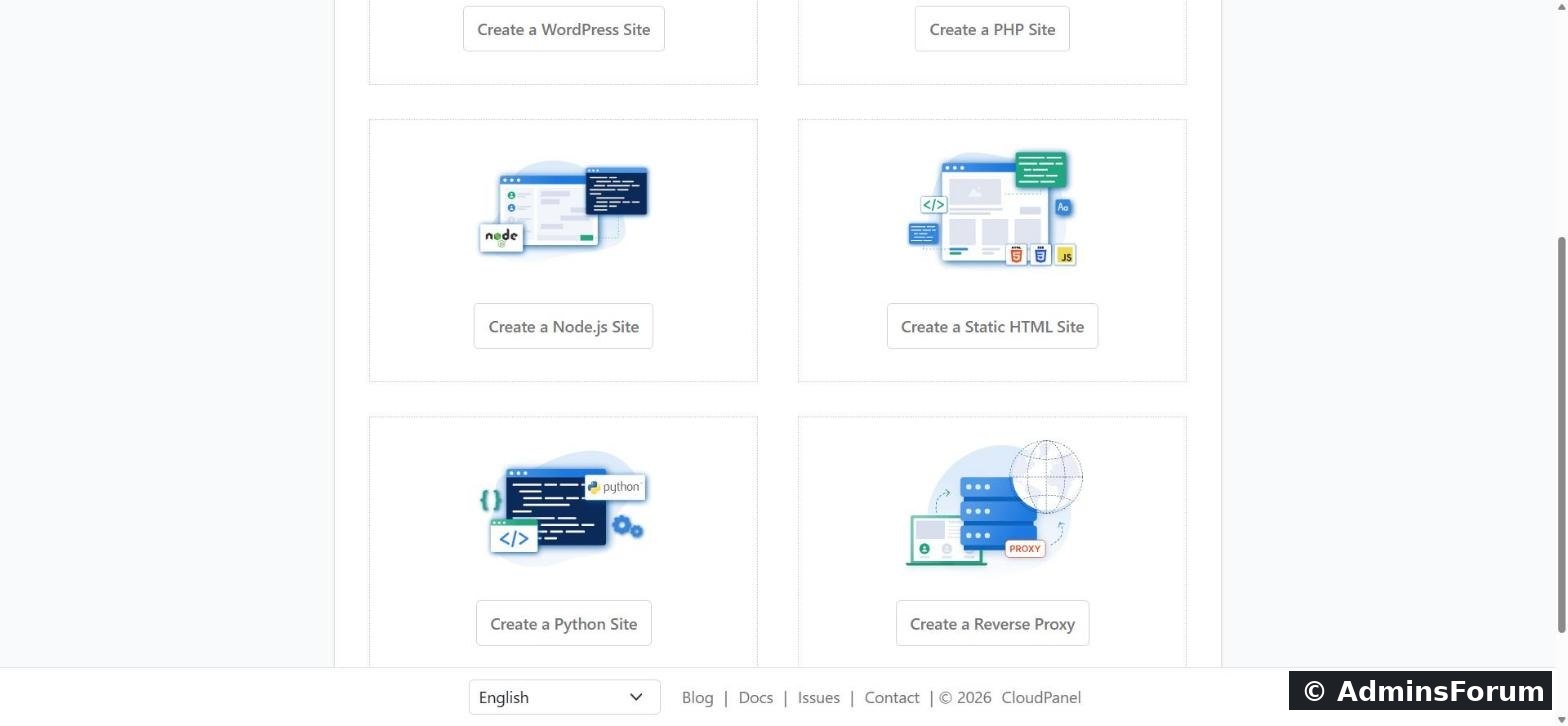
Six site types. Add a WordPress site, a PHP site, a Node.js site, a Python site, a static HTML site or a reverse proxy. Each runs in its own isolated environment under its own site user.
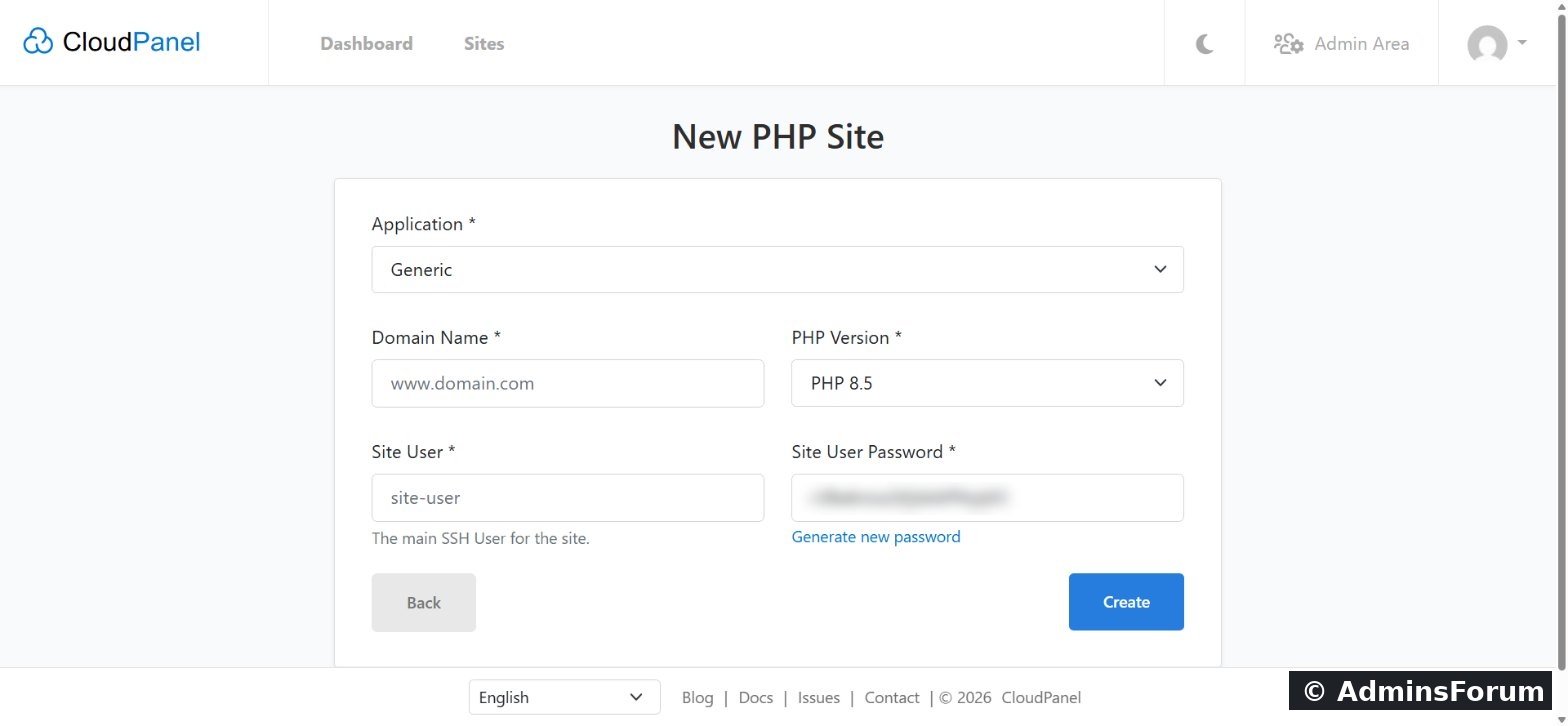
Application templates. For PHP sites you pick an application and CloudPanel writes a matching Nginx configuration: Generic, WordPress, WooCommerce, Laravel, Symfony, Magento, Shopware, Drupal, Joomla, TYPO3, Nextcloud, Moodle, PrestaShop and more. CloudPanel says it ships 30+ configured vhost templates.
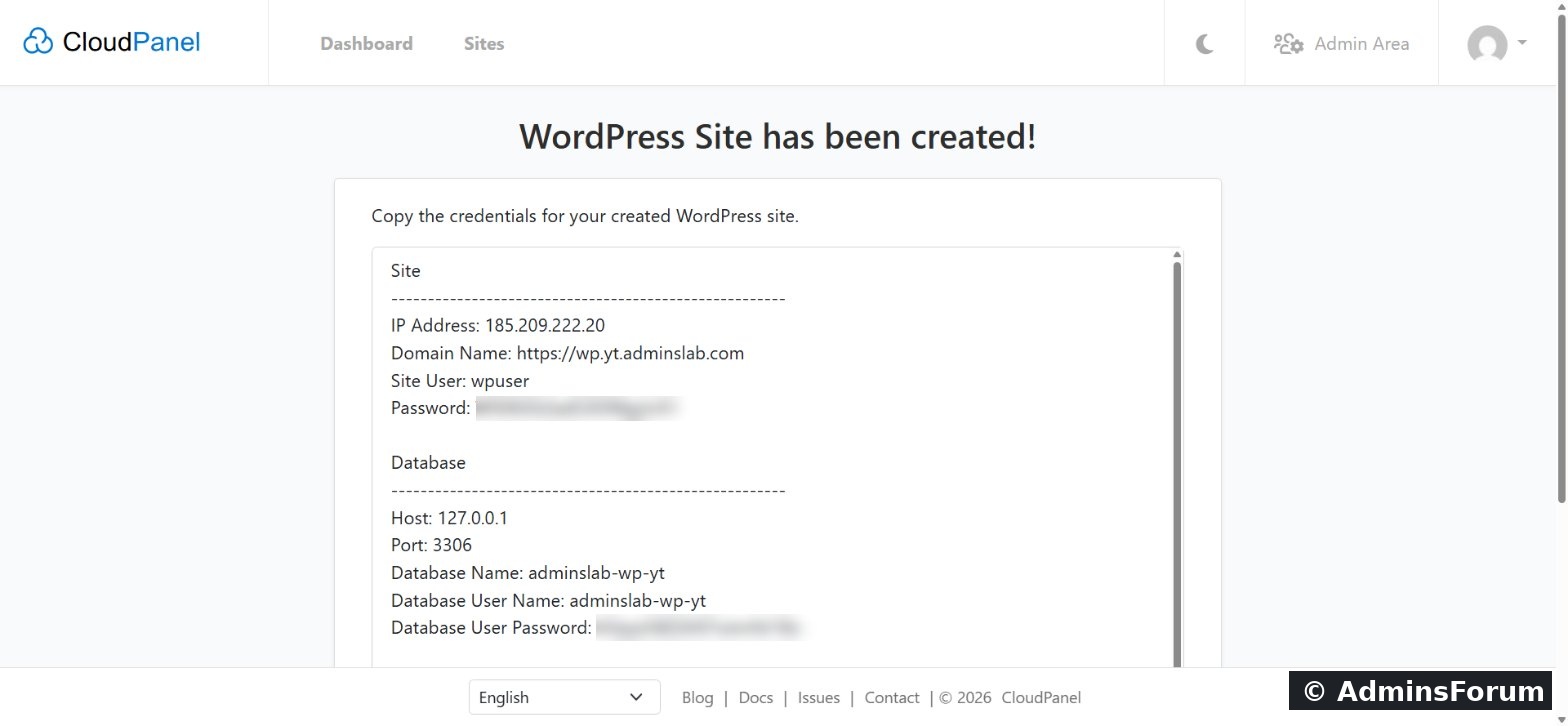
One-click WordPress. Enter the domain, title and admin user, and CloudPanel creates the site user, database and a ready WordPress install, then shows all credentials once on one page.
Node.js and Python. Node.js 12 to 24 (LTS versions) and Python 3.12 (3.14 on Ubuntu 26.04 and Debian 13), served behind Nginx. The docs cover pm2 for Node.js and uWSGI for Python.
2. PHP
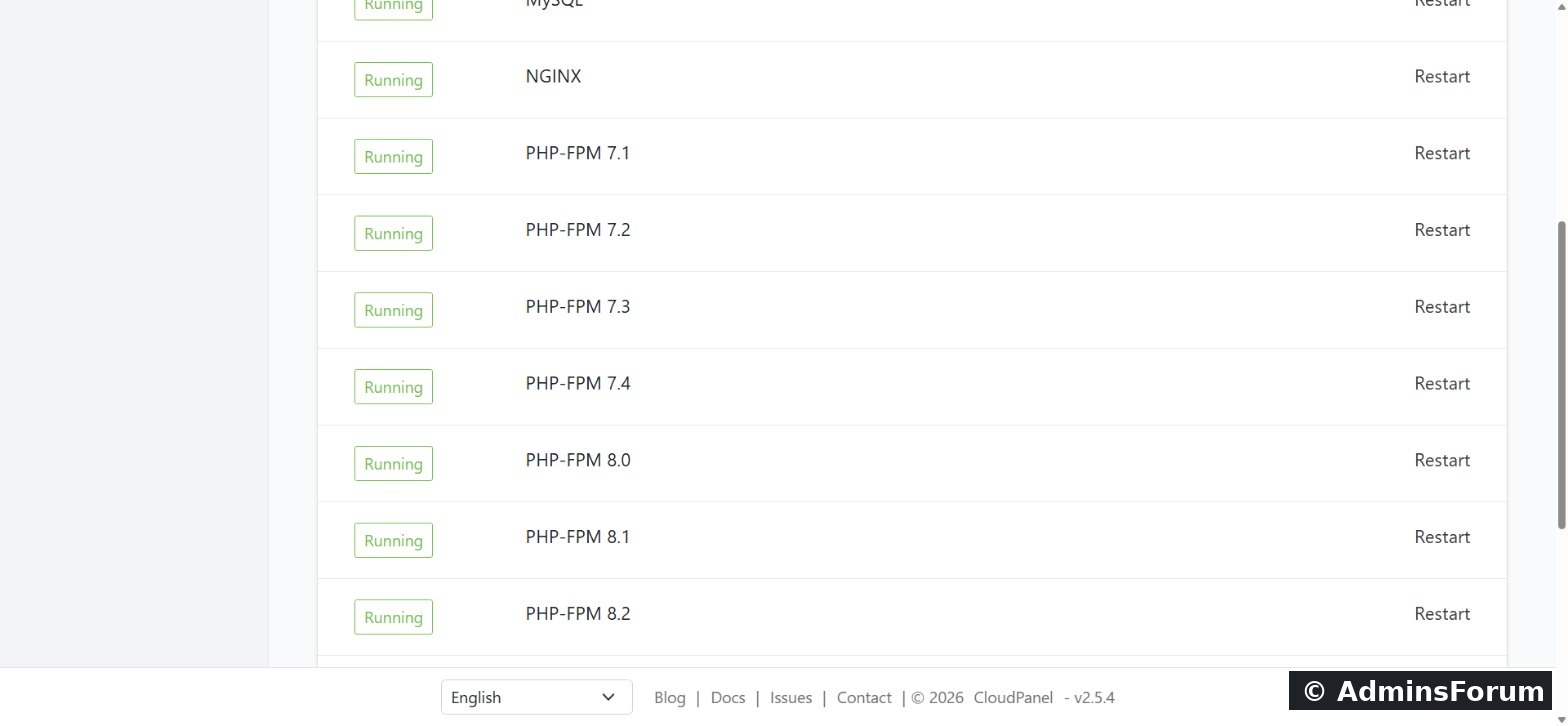
Every PHP version from 7.1 to 8.5, each with its own PHP-FPM service, running side by side. Switch a site's version from a dropdown at any time.
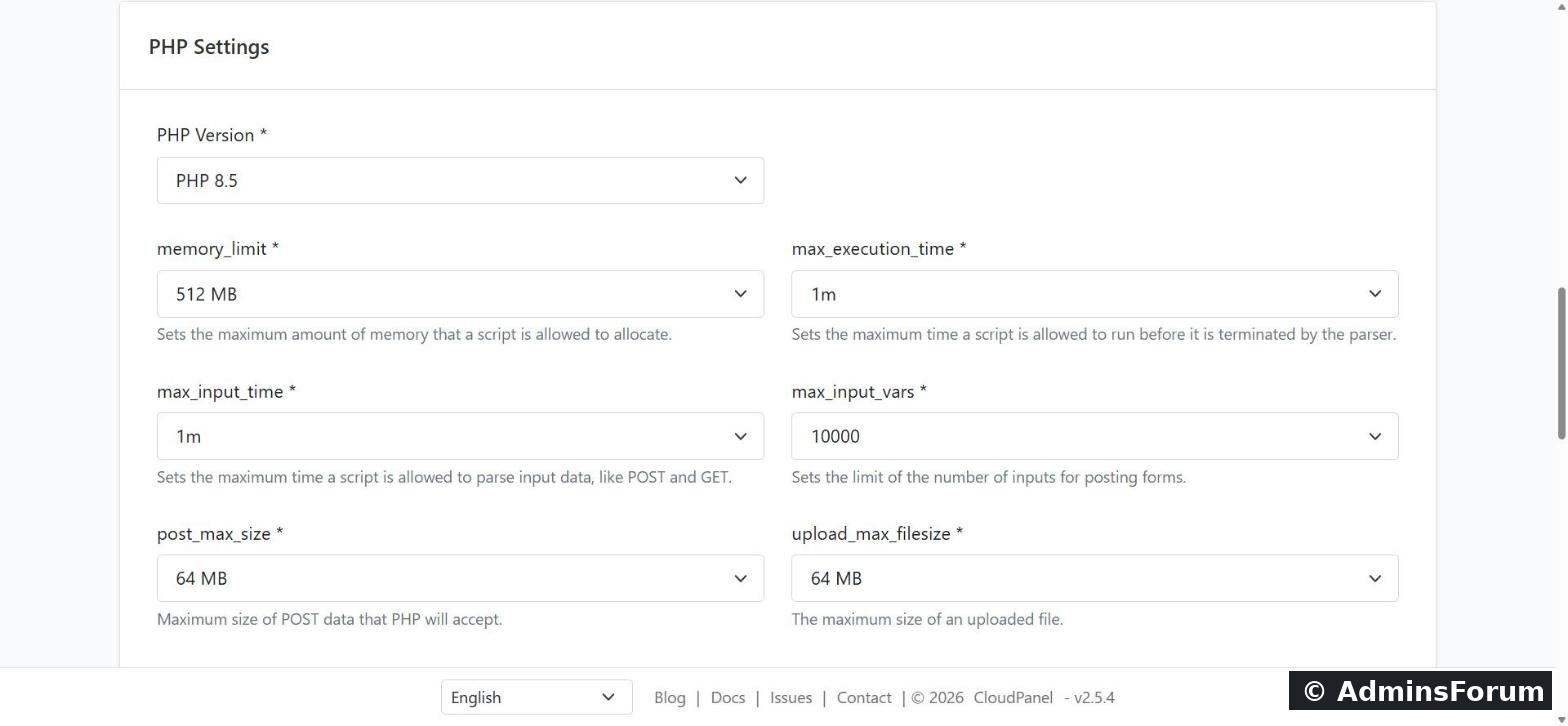
Per-site PHP settings: memory_limit, max_execution_time, max_input_time, max_input_vars, post_max_size and upload_max_filesize, without editing php.ini.
3. Nginx vhost editor
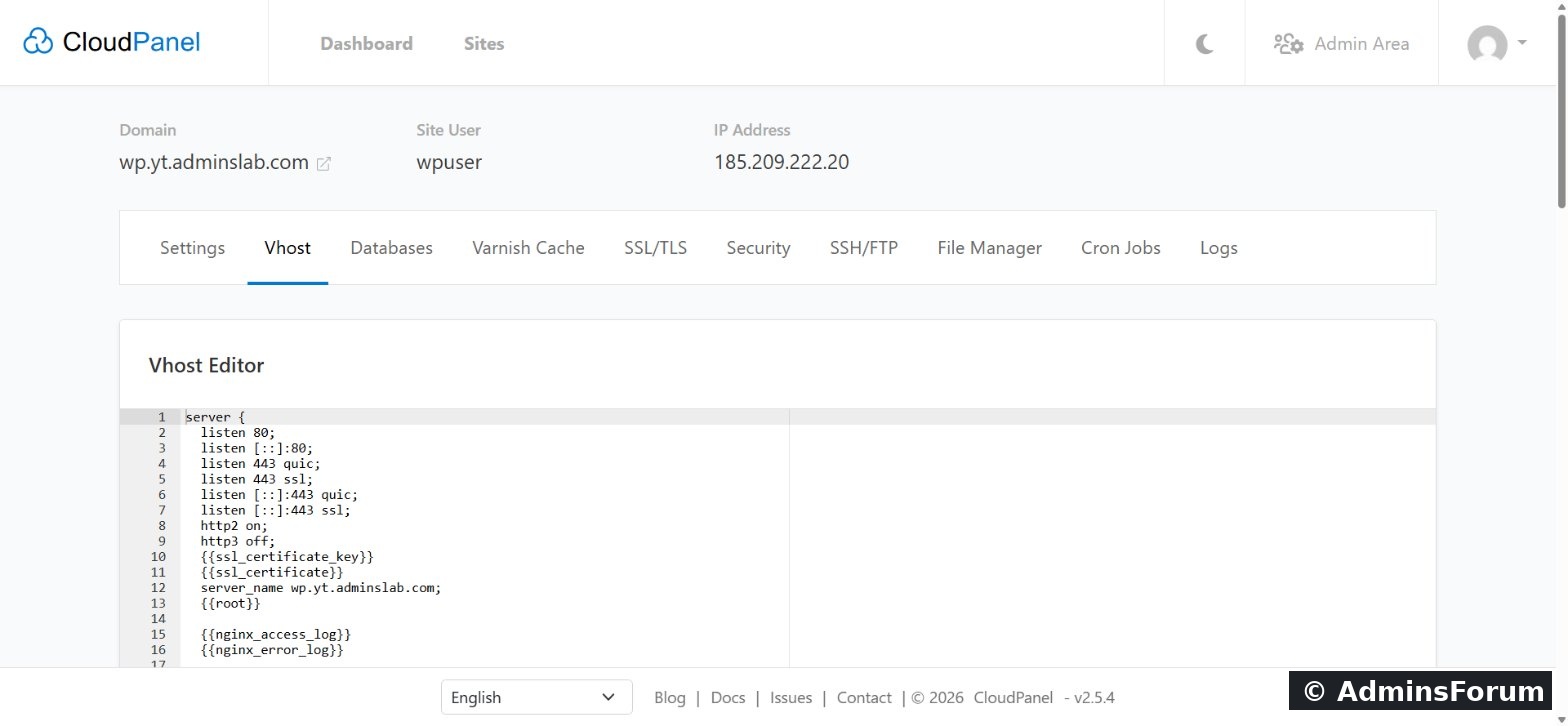
Each site's Vhost tab shows its full Nginx configuration, so you can add redirects, headers or custom rules when you need to. CloudPanel fills in placeholders such as certificate paths for you.
4. Free SSL/TLS
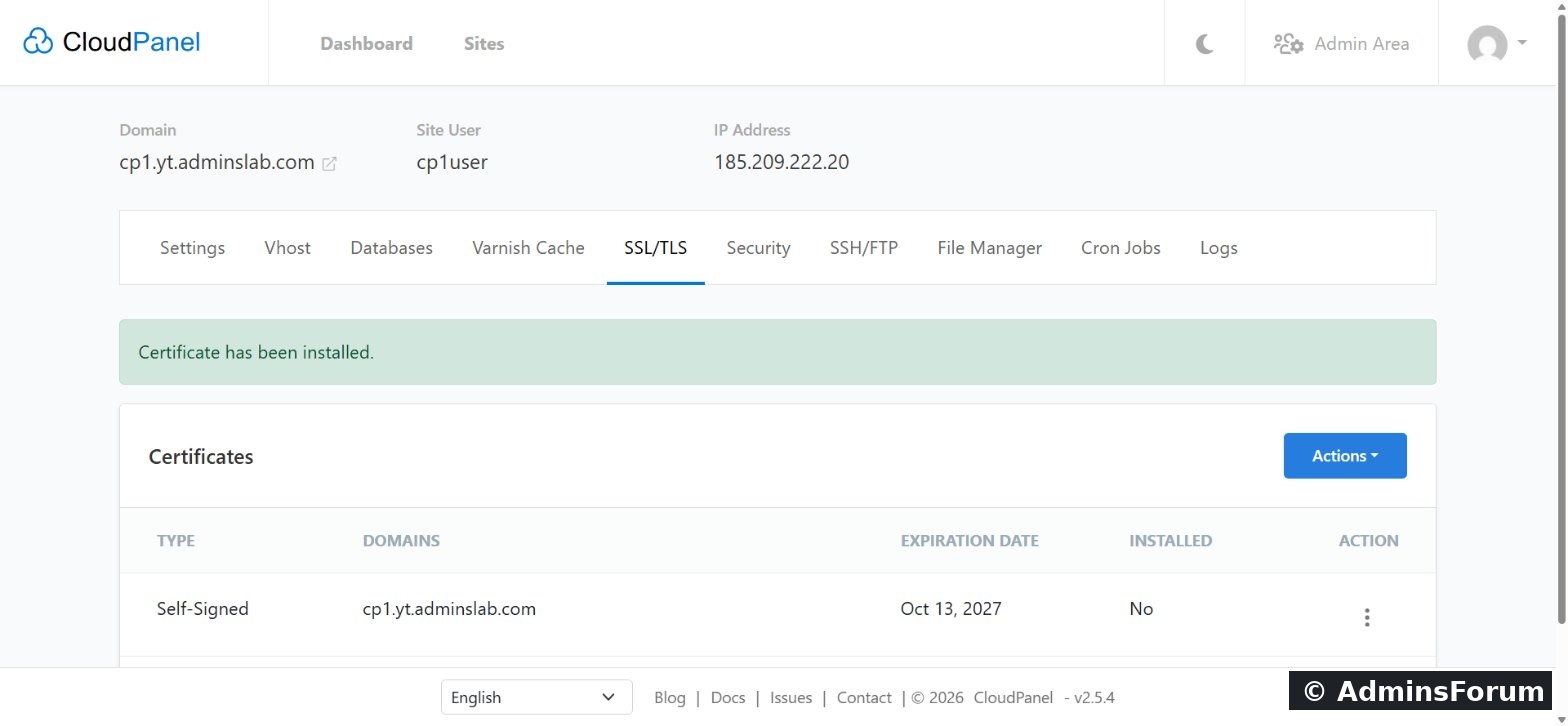
Issue a free Let's Encrypt certificate from the SSL/TLS tab (including the www name and other aliases); CloudPanel renews it automatically. You can also import a certificate you bought elsewhere.
5. Databases and phpMyAdmin
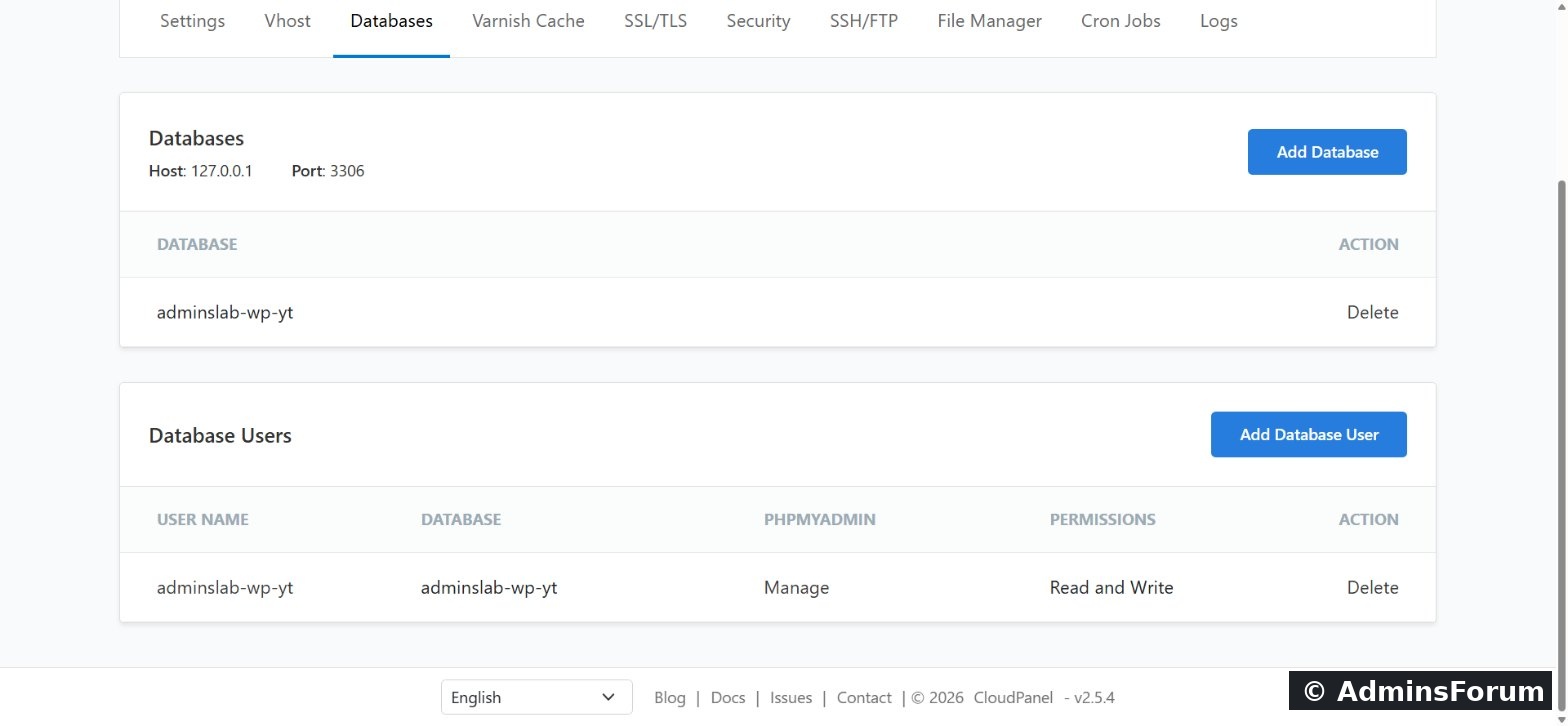
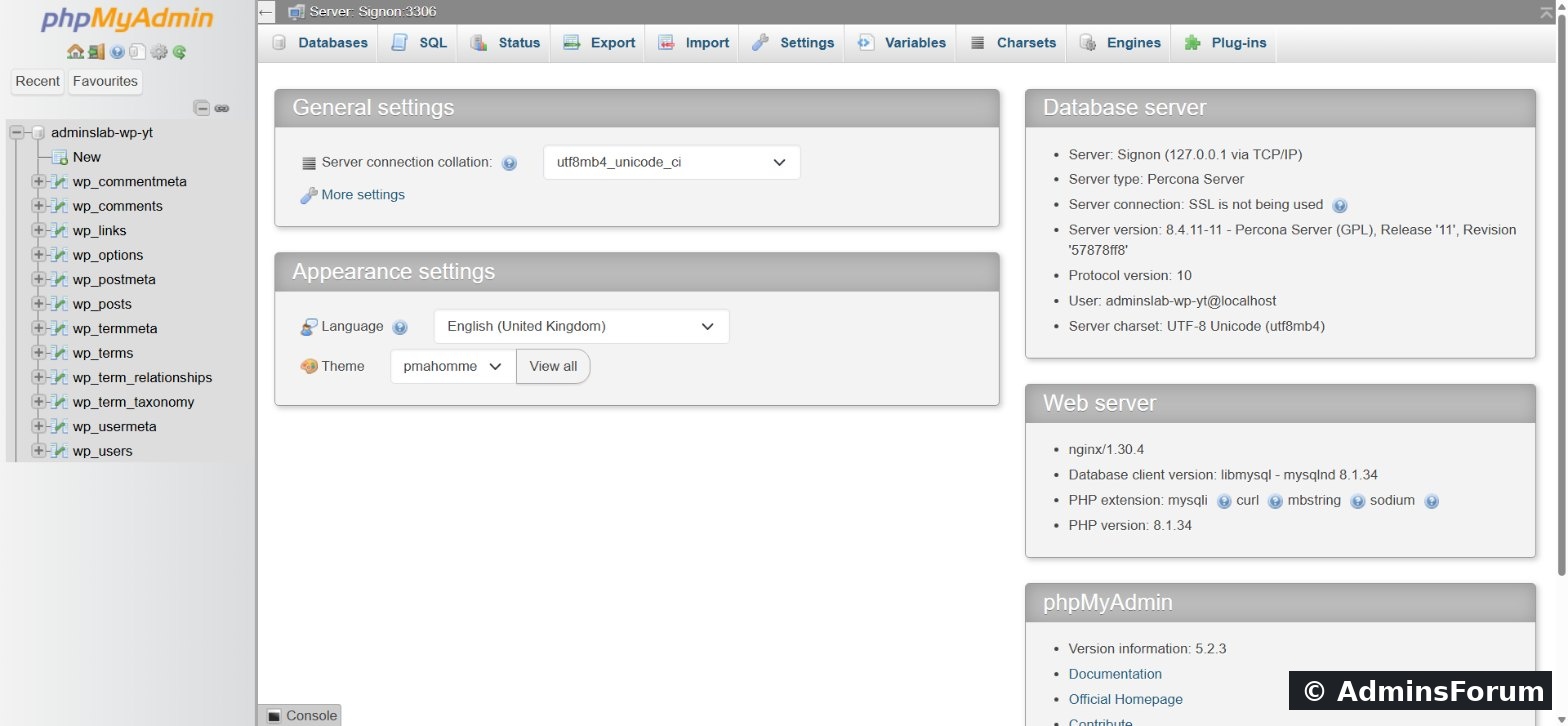
Databases belong to a site. Add a database and user in one form, create extra users with Read and Write or Read Only access, and open phpMyAdmin with one click, already logged in. At install you choose MySQL (our server runs Percona Server 8.4) or MariaDB. Admins can also add a remote database server.
6. Varnish Cache
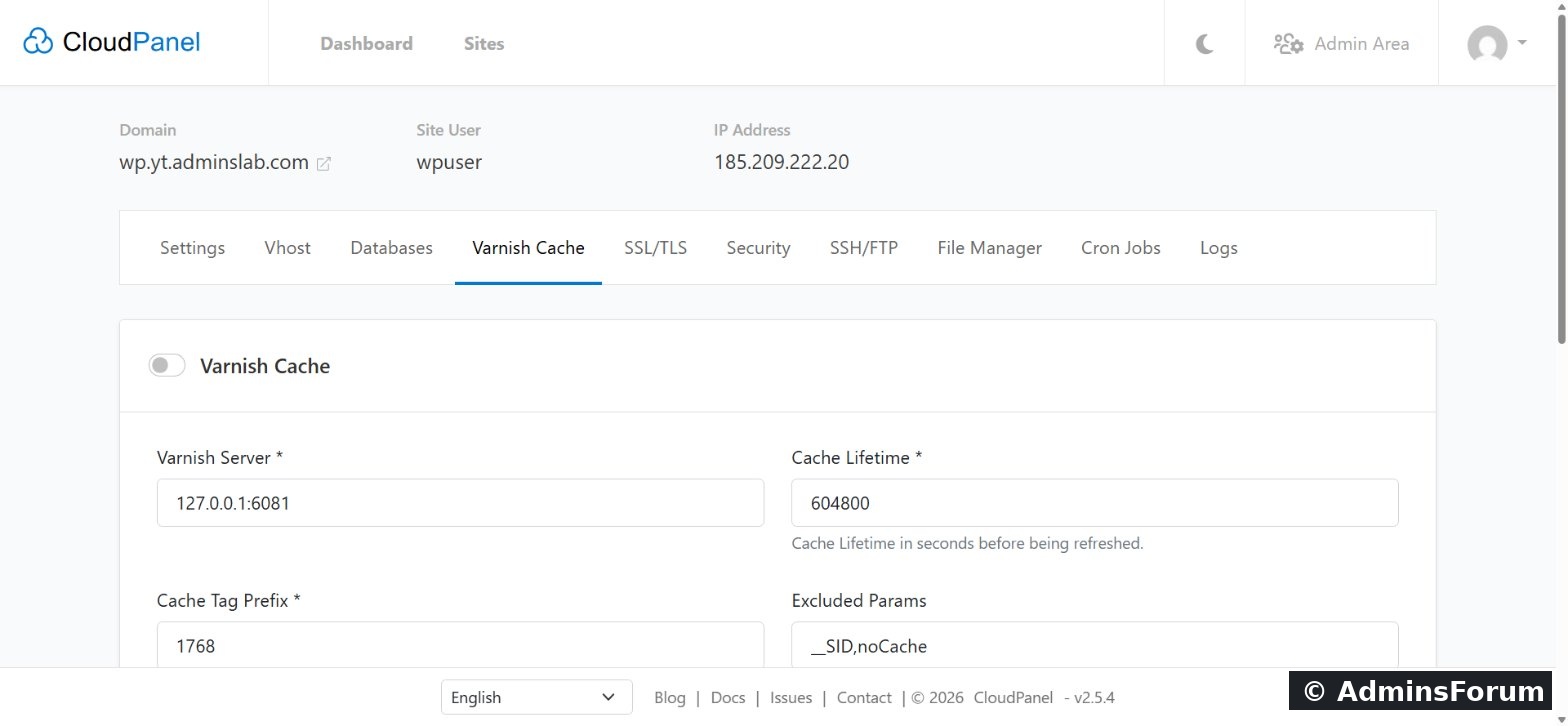
Built-in full-page caching for PHP sites, switched on per site, with a cache lifetime and excluded parameters. For WordPress, the CLP Varnish Cache plugin purges the cache when you publish. Great for content sites; test carefully on shops and member areas.
7. SSH, SFTP, FTP and File Manager
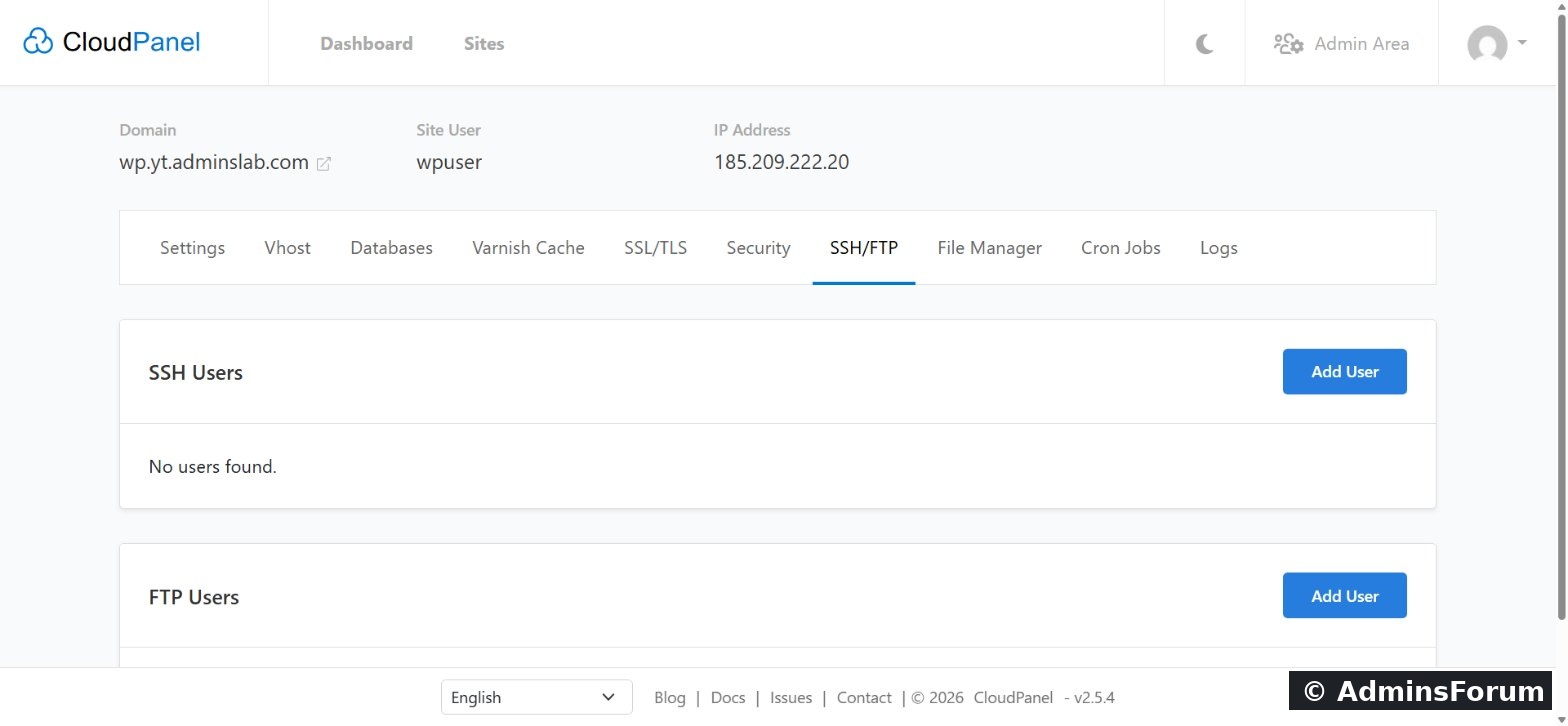
Each site user can log in over SSH/SFTP with a password or SSH keys. Add extra SSH or FTP users for developers without sharing the main login.
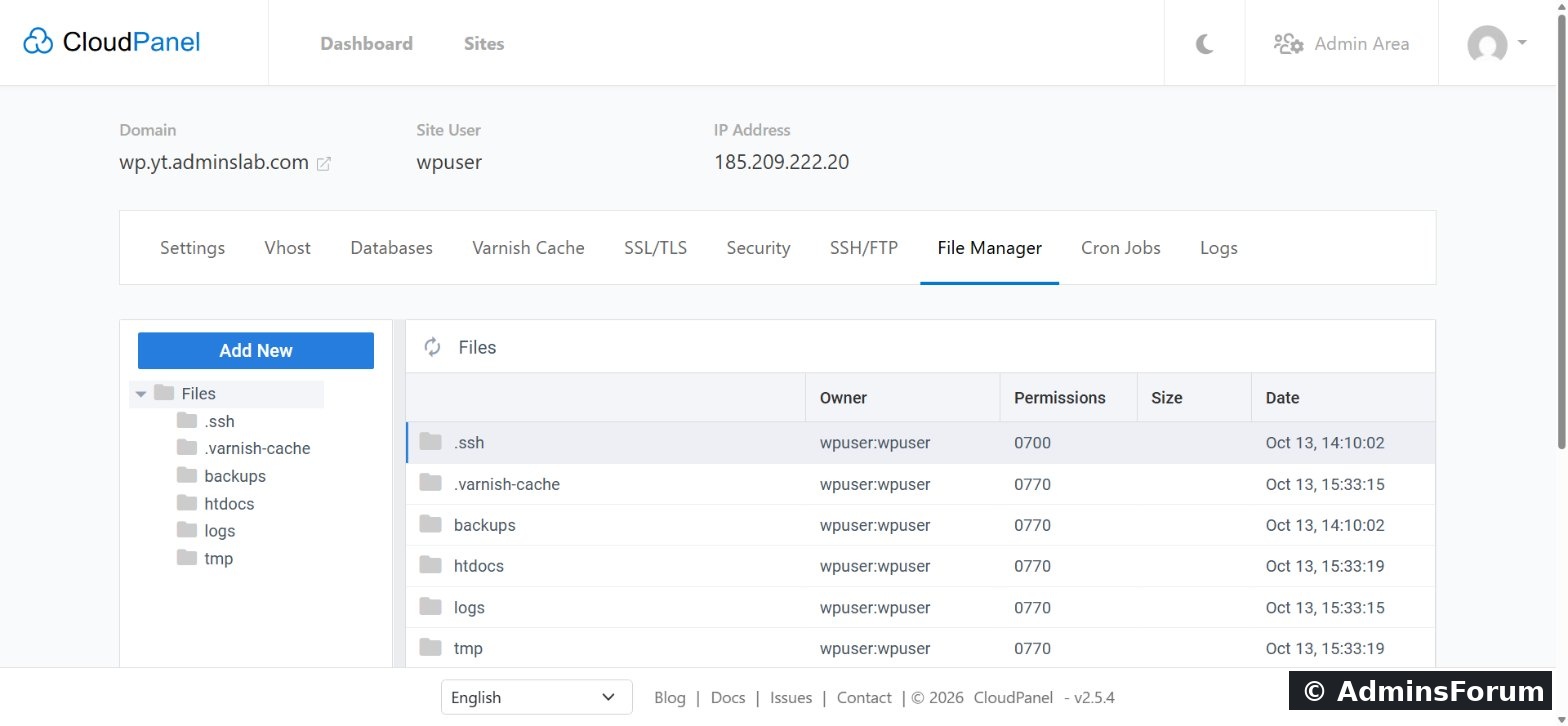
The browser File Manager lets you upload, create, edit, rename, compress and extract files and see owners and permissions.
8. Cron jobs and logs
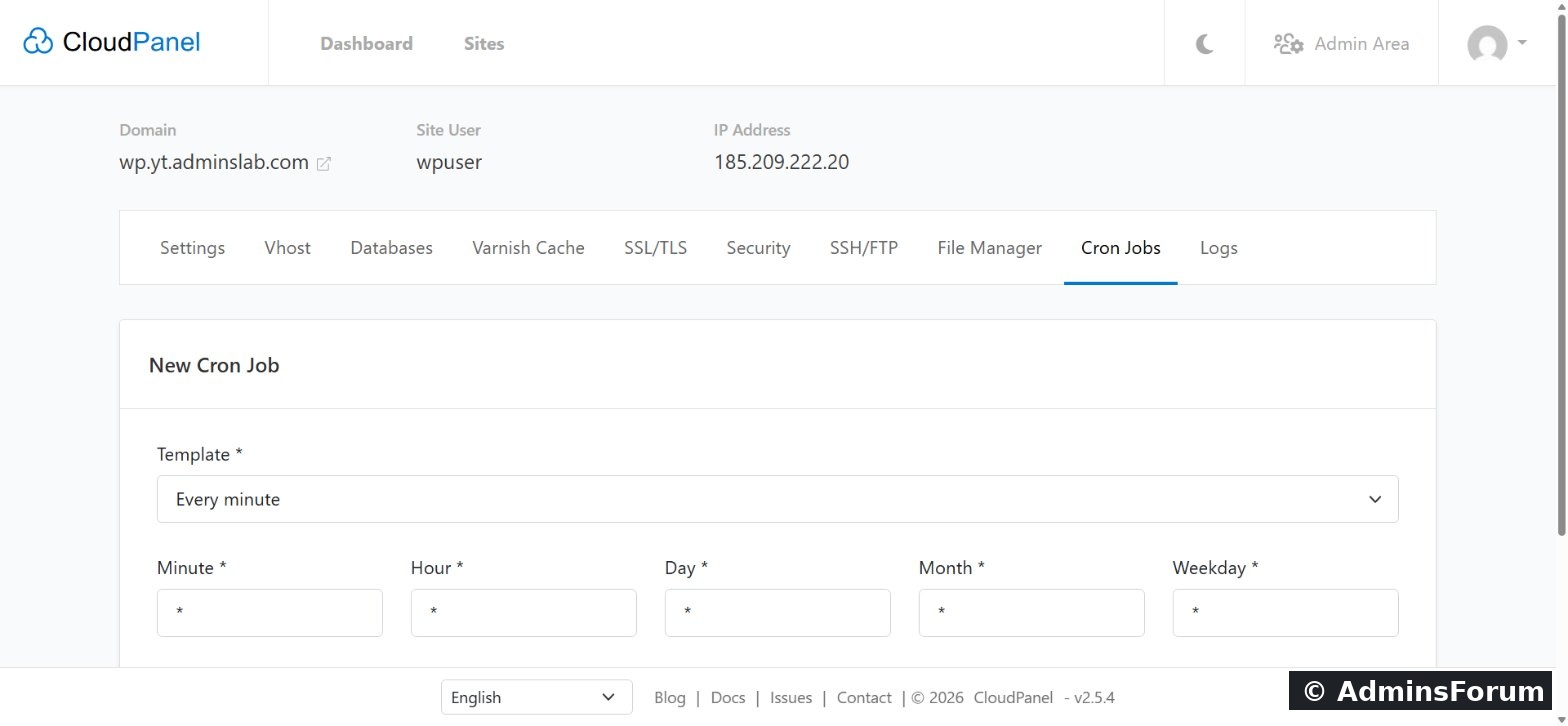
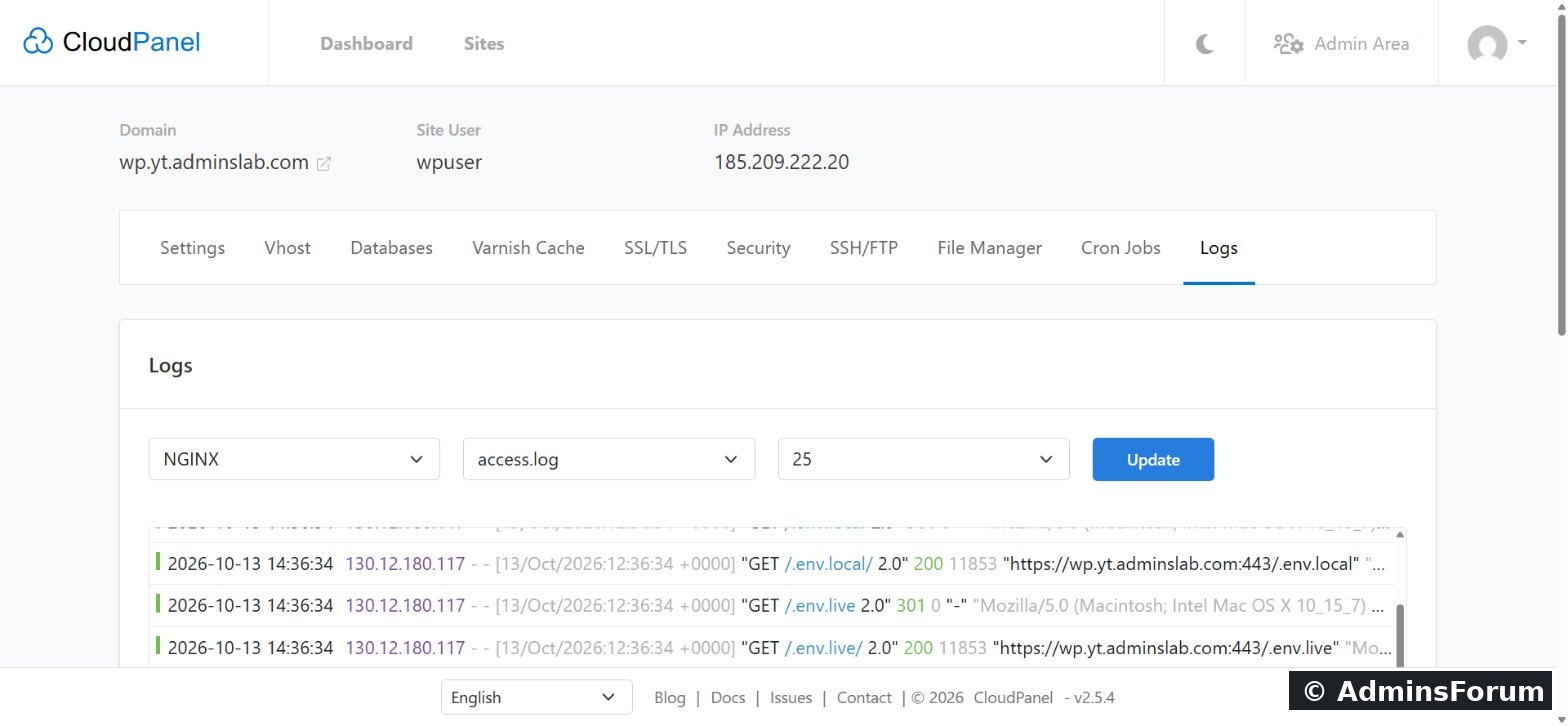
Schedule cron jobs per site with ready-made schedule templates; they run as the site user. The Logs tab shows Nginx and PHP access and error logs right in the panel.
9. Security
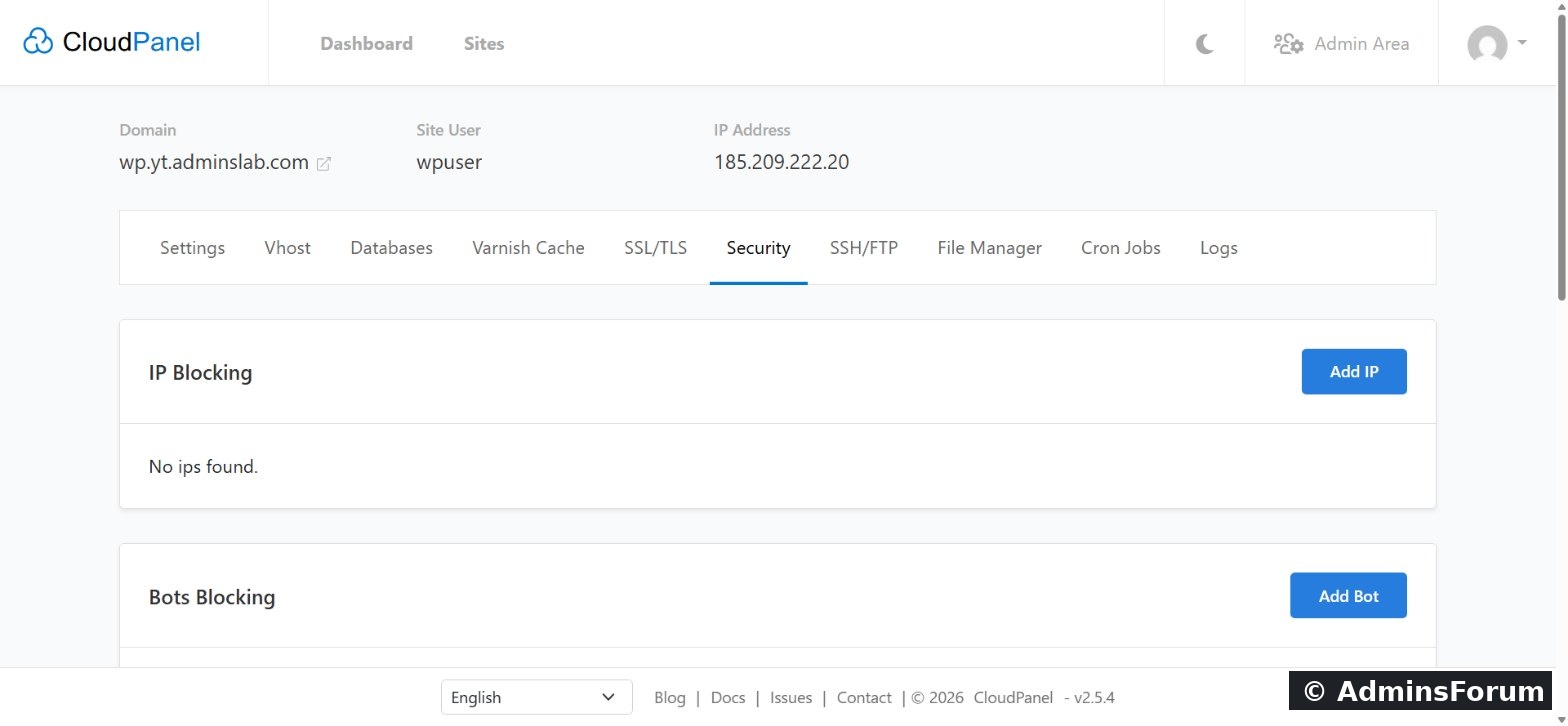
Per site: block IP addresses (IPv4 and IPv6), block bots by name, protect staging sites with Basic Auth, and allow traffic only through Cloudflare.
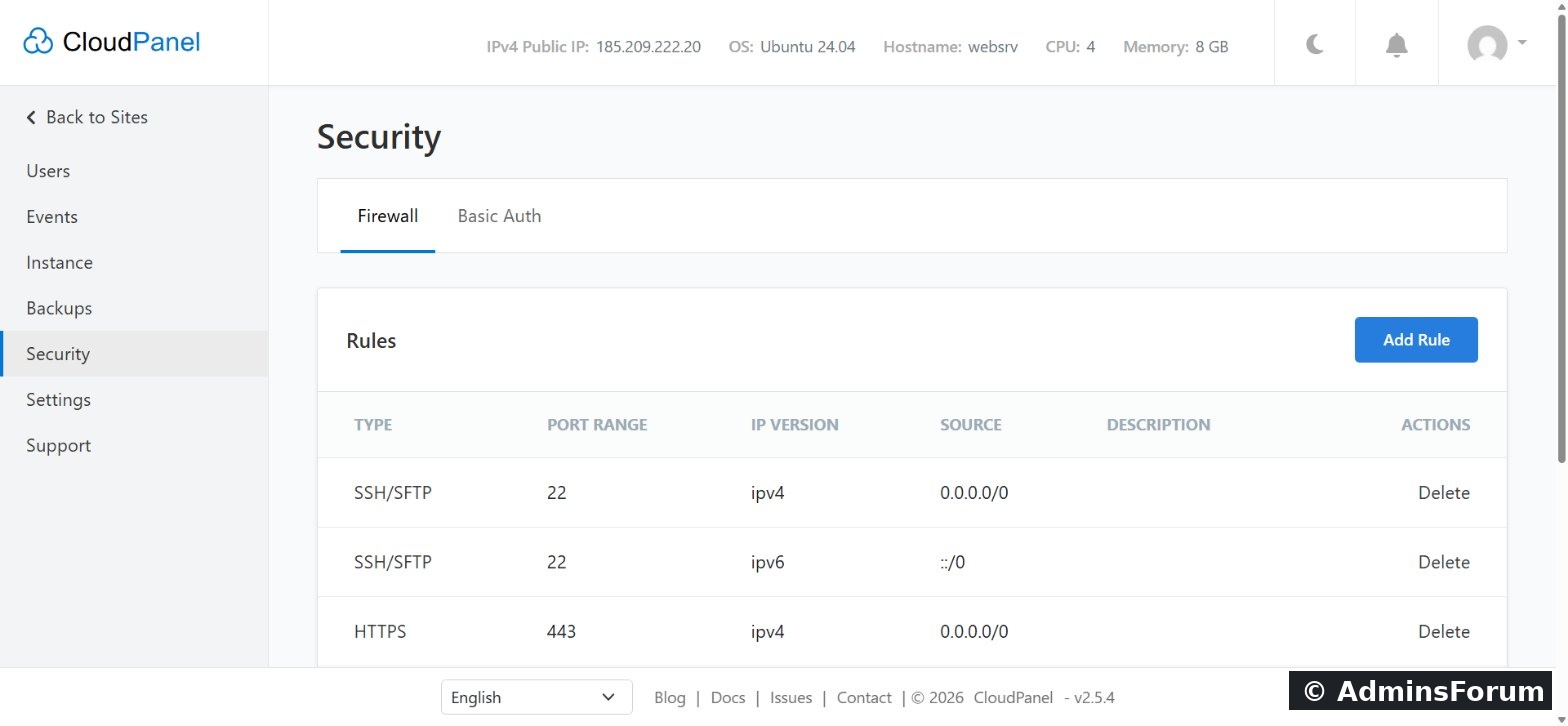
Server-wide: a UFW firewall with add/edit/delete rules (best practice: allow port 8443 only from your IP), Basic Auth in front of the panel, two-factor authentication for panel logins, and site isolation by Linux user. fail2ban was running on our server too.
10. Backups
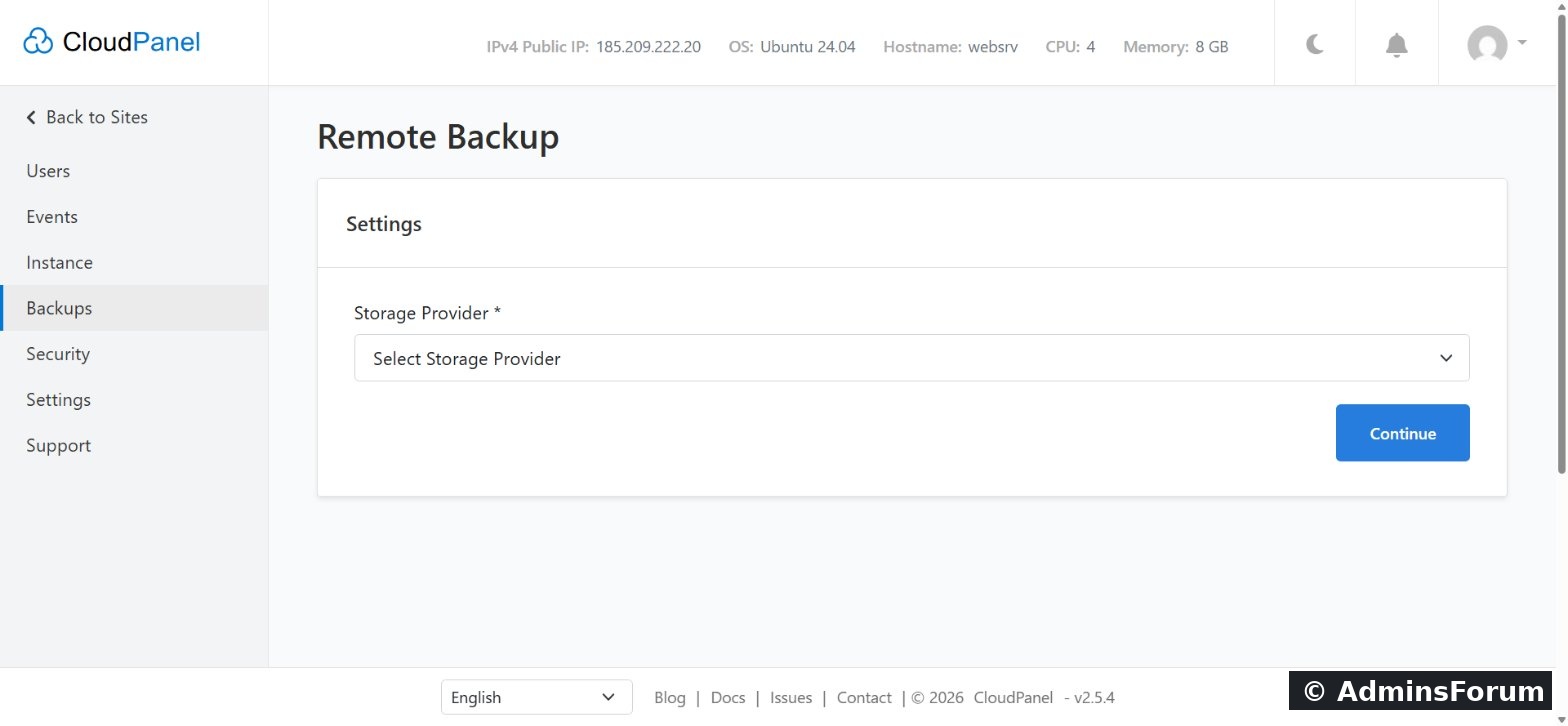
Scheduled remote backups of every site's files and vhost to Amazon S3, Wasabi, DigitalOcean Spaces, Dropbox, Google Drive (Workspace), Hetzner Storage Box, SFTP or any Rclone remote. On supported clouds CloudPanel can also make whole-instance snapshots.
11. Server management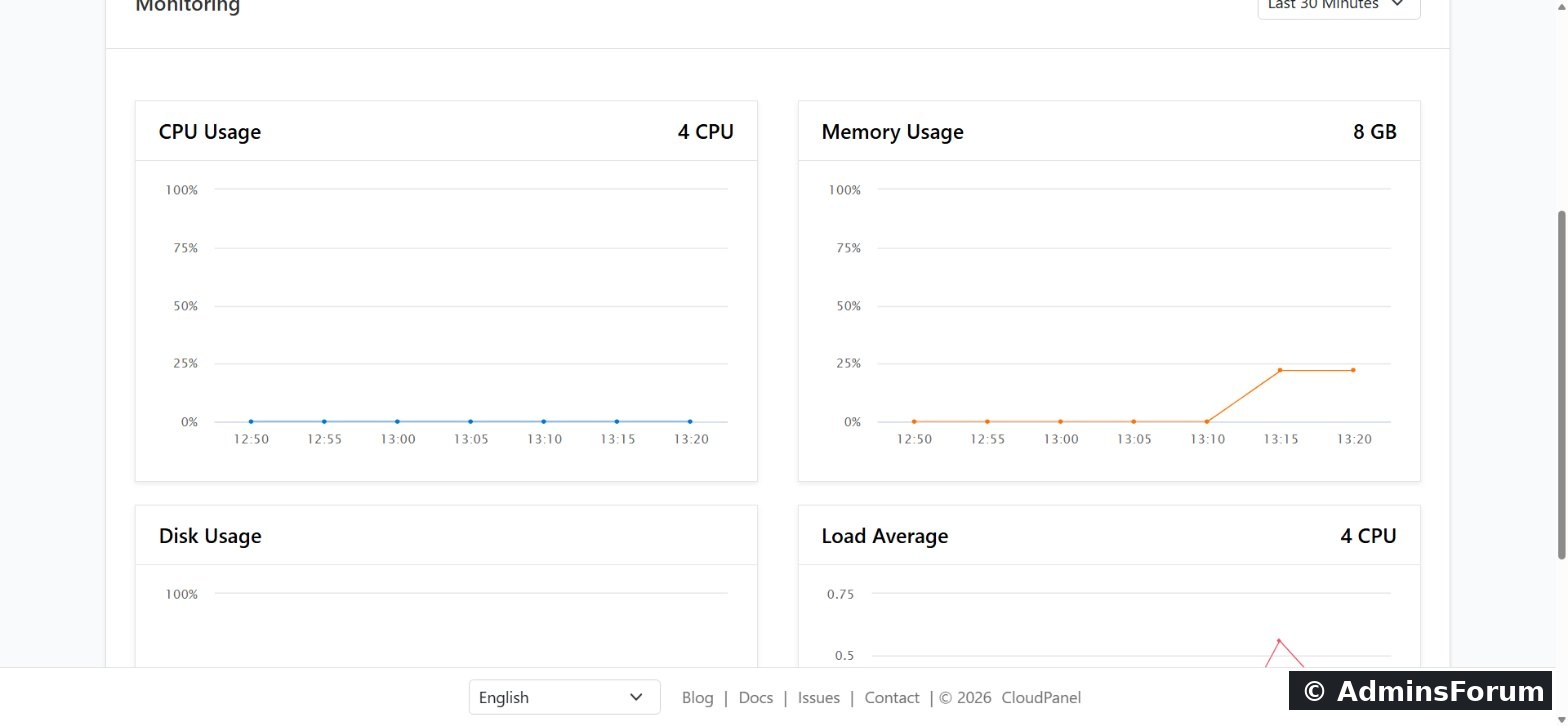
12. Command line: clpctl
As root, the clpctl command-line tool can add sites, databases, certificates and users, manage vhost templates and toggle Basic Auth. The main commands:
Run clpctl with no arguments to list every command and its options. See CloudPanel: getting started with the clpctl command.
What's not included
No mail server, no DNS hosting, no Apache/LiteSpeed, no app store and no Docker manager. CloudPanel leaves those to dedicated services on purpose.
Sources (checked October 2026): cloudpanel.io · Technology stack · Backups · Users · Site security · clpctl root commands
Which feature do you use most? Questions go in CloudPanel Support & Troubleshooting.
CloudPanel guide series
This is every major CloudPanel feature in one place, grouped the way you'll use them, with real screenshots from our CloudPanel 2.5.4 server on Ubuntu 24.04. New to CloudPanel? Start with What is CloudPanel? Complete overview.
Quick summary
- Sites: WordPress, PHP, Node.js, Python, static and reverse proxy, each with its own Linux user.
- Stack: Nginx 1.30 (HTTP/3), PHP 7.1 to 8.5, MySQL or MariaDB, Redis, Varnish Cache, ProFTPD.
- Per site: PHP settings, Nginx vhost editor, databases, free SSL, security rules, SSH/FTP users, file manager, cron jobs and logs.
- Server: panel users and roles, events, services, remote backups, UFW firewall, Basic Auth, 2FA and a custom panel domain.
- Automation: the
command-line tool.Code:clpctl
1. Sites and applications
Six site types. Add a WordPress site, a PHP site, a Node.js site, a Python site, a static HTML site or a reverse proxy. Each runs in its own isolated environment under its own site user.
Application templates. For PHP sites you pick an application and CloudPanel writes a matching Nginx configuration: Generic, WordPress, WooCommerce, Laravel, Symfony, Magento, Shopware, Drupal, Joomla, TYPO3, Nextcloud, Moodle, PrestaShop and more. CloudPanel says it ships 30+ configured vhost templates.
One-click WordPress. Enter the domain, title and admin user, and CloudPanel creates the site user, database and a ready WordPress install, then shows all credentials once on one page.
Node.js and Python. Node.js 12 to 24 (LTS versions) and Python 3.12 (3.14 on Ubuntu 26.04 and Debian 13), served behind Nginx. The docs cover pm2 for Node.js and uWSGI for Python.
2. PHP
Every PHP version from 7.1 to 8.5, each with its own PHP-FPM service, running side by side. Switch a site's version from a dropdown at any time.
Per-site PHP settings: memory_limit, max_execution_time, max_input_time, max_input_vars, post_max_size and upload_max_filesize, without editing php.ini.
3. Nginx vhost editor
Each site's Vhost tab shows its full Nginx configuration, so you can add redirects, headers or custom rules when you need to. CloudPanel fills in placeholders such as certificate paths for you.
4. Free SSL/TLS
Issue a free Let's Encrypt certificate from the SSL/TLS tab (including the www name and other aliases); CloudPanel renews it automatically. You can also import a certificate you bought elsewhere.
5. Databases and phpMyAdmin
Databases belong to a site. Add a database and user in one form, create extra users with Read and Write or Read Only access, and open phpMyAdmin with one click, already logged in. At install you choose MySQL (our server runs Percona Server 8.4) or MariaDB. Admins can also add a remote database server.
6. Varnish Cache
Built-in full-page caching for PHP sites, switched on per site, with a cache lifetime and excluded parameters. For WordPress, the CLP Varnish Cache plugin purges the cache when you publish. Great for content sites; test carefully on shops and member areas.
7. SSH, SFTP, FTP and File Manager
Each site user can log in over SSH/SFTP with a password or SSH keys. Add extra SSH or FTP users for developers without sharing the main login.
The browser File Manager lets you upload, create, edit, rename, compress and extract files and see owners and permissions.
8. Cron jobs and logs
Schedule cron jobs per site with ready-made schedule templates; they run as the site user. The Logs tab shows Nginx and PHP access and error logs right in the panel.
9. Security
Per site: block IP addresses (IPv4 and IPv6), block bots by name, protect staging sites with Basic Auth, and allow traffic only through Cloudflare.
Server-wide: a UFW firewall with add/edit/delete rules (best practice: allow port 8443 only from your IP), Basic Auth in front of the panel, two-factor authentication for panel logins, and site isolation by Linux user. fail2ban was running on our server too.
10. Backups
Scheduled remote backups of every site's files and vhost to Amazon S3, Wasabi, DigitalOcean Spaces, Dropbox, Google Drive (Workspace), Hetzner Storage Box, SFTP or any Rclone remote. On supported clouds CloudPanel can also make whole-instance snapshots.
11. Server management
- Dashboard monitoring: CPU, memory, disk and load average charts.
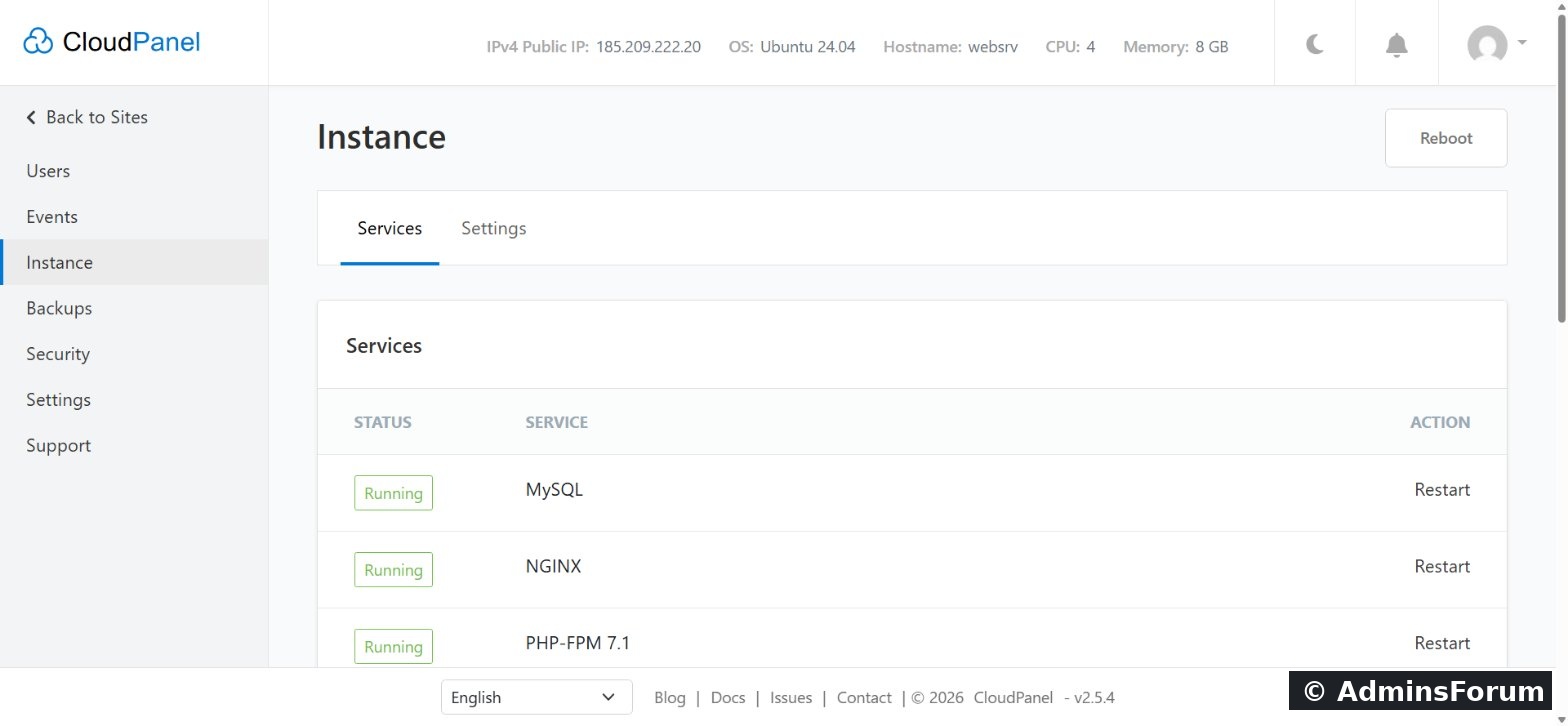
- Instance: the status of MySQL, Nginx, every PHP-FPM version, Redis and Varnish, with restart buttons and a server reboot.
- Users and roles: Admin (everything), Site Manager (all sites, no Admin Area) and User (only assigned sites).
- Events: a history of actions taken in the panel.
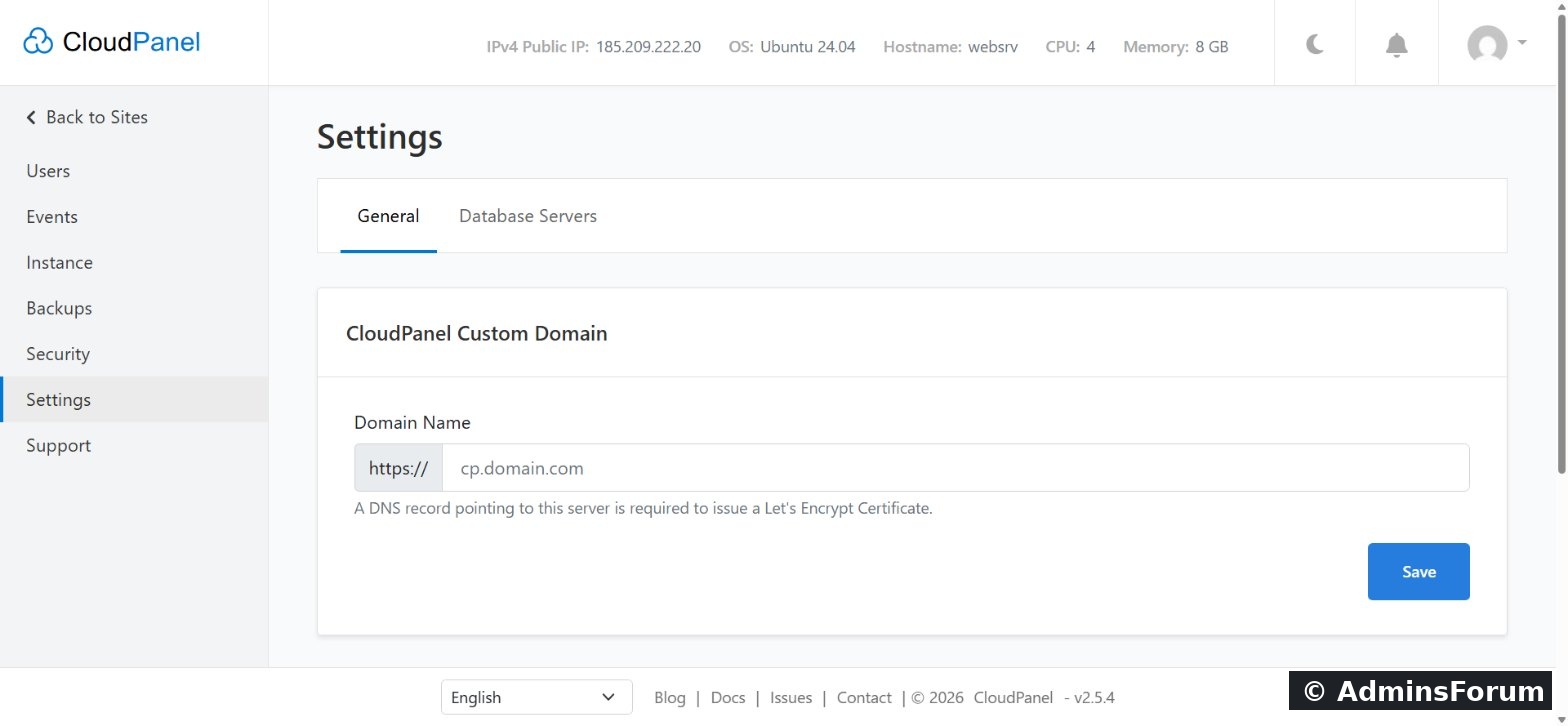
- Custom panel domain: move the panel from IP:8443 to a domain such as cp.example.com with a Let's Encrypt certificate.
- Interface: dark mode and many interface languages.
12. Command line: clpctl
As root, the clpctl command-line tool can add sites, databases, certificates and users, manage vhost templates and toggle Basic Auth. The main commands:
Code:
# sites
site:add:php  site:add:nodejs  site:add:python  site:add:static  site:add:reverse-proxy  site:delete
# databases
db:add  db:export  db:import  db:show:master-credentials
# certificates
lets-encrypt:install:certificate  site:install:certificate
# panel users
user:add  user:list  user:reset:password  user:disable:mfa
# panel access
cloudpanel:enable:basic-auth cloudpanel:disable:basic-authWhat's not included
No mail server, no DNS hosting, no Apache/LiteSpeed, no app store and no Docker manager. CloudPanel leaves those to dedicated services on purpose.
Sources (checked October 2026): cloudpanel.io · Technology stack · Backups · Users · Site security · clpctl root commands
Which feature do you use most? Questions go in CloudPanel Support & Troubleshooting.
CloudPanel guide series
- What is CloudPanel? Complete overview
- CloudPanel system requirements
- CloudPanel features: the complete list (you are here)
- How to create a PHP site
- How to install free Let's Encrypt SSL
- How to install WordPress (one-click)
- Databases, users and phpMyAdmin
- SSH, SFTP, FTP and File Manager
- Cron jobs, logs and Varnish Cache
- Backups, firewall and Basic Auth