



10-19-2026, 02:28 PM
How to change the PHP version and PHP settings in CloudPanel
Every PHP and WordPress site in CloudPanel has its own PHP version and its own PHP limits. You can change them from the site's settings without touching any config files, and the change only affects that one site. This guide shows where the settings are, what each one does and which values to use for common jobs like bigger uploads or heavy WordPress plugins.
Where to find the PHP settings
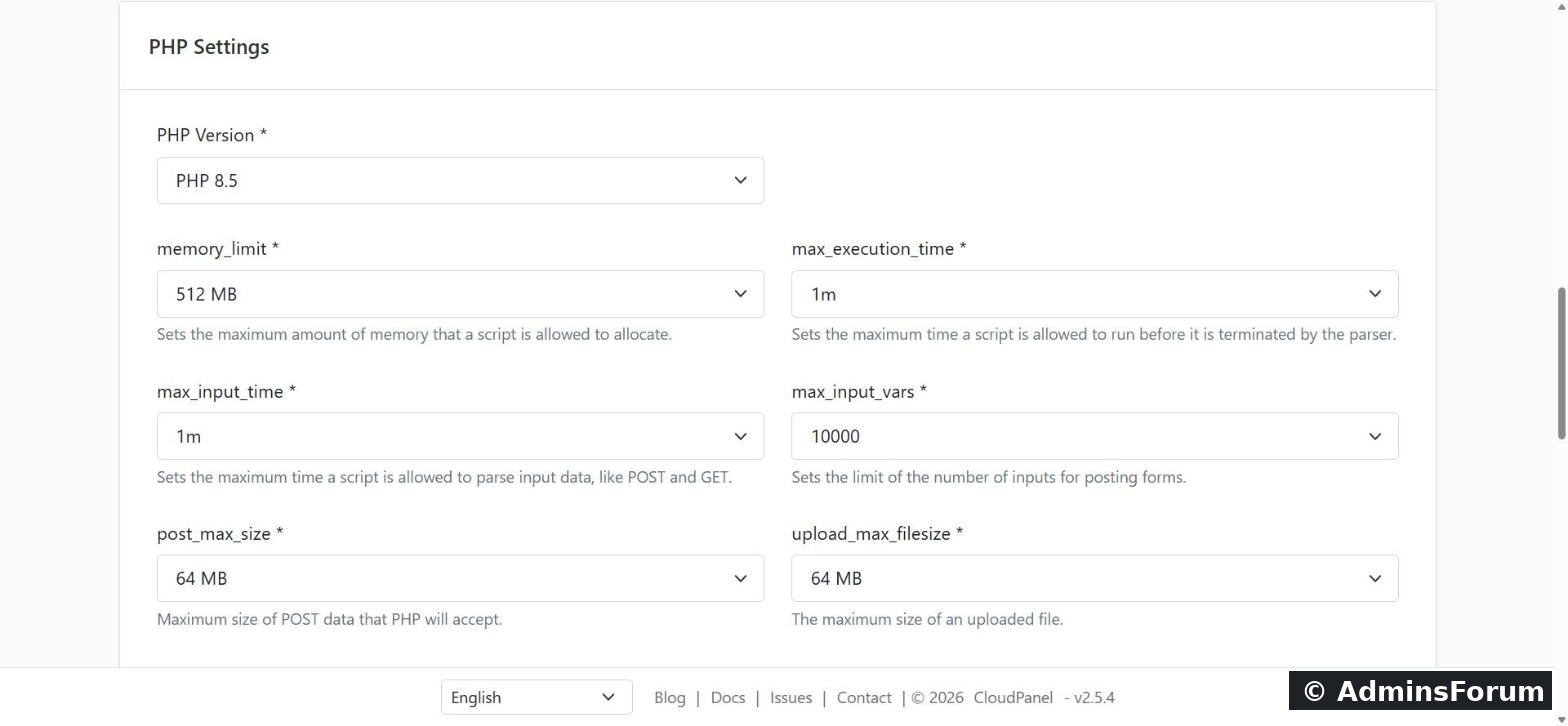
Change the PHP version
Pick the version from the PHP Version dropdown and save. CloudPanel ships several PHP versions side by side, so other sites on the same server keep their own version.
Before you switch a live site:
What each setting does
Recommended values for common jobs
Allow bigger uploads (for example a 256 MB theme, plugin or backup)
Check that the new values are active
Create a temporary file in the site's root folder (for example) with this content:
Open and check PHP Version, memory_limit and upload_max_filesize. Delete the file straight after, because it shows details about your server to anyone.
For WordPress, you can also check under Tools > Site Health > Info > Server.
Troubleshooting
Tested on CloudPanel v2.5.4. Sources: CloudPanel documentation.
More CloudPanel guides: Create a PHP site · What can you host on CloudPanel?
Every PHP and WordPress site in CloudPanel has its own PHP version and its own PHP limits. You can change them from the site's settings without touching any config files, and the change only affects that one site. This guide shows where the settings are, what each one does and which values to use for common jobs like bigger uploads or heavy WordPress plugins.
Where to find the PHP settings
- Log in to CloudPanel and click Sites.
- Click Manage next to your site.
- Stay on the Settings tab and scroll down to PHP Settings.
- Change the values you need and click Save at the bottom of the page.
Change the PHP version
Pick the version from the PHP Version dropdown and save. CloudPanel ships several PHP versions side by side, so other sites on the same server keep their own version.
Before you switch a live site:
- Check that your CMS, theme and plugins support the new version.
- Take a backup or a database dump first.
- After switching, open the site and a few key pages, then check the site's error log under Logs.
What each setting does
- memory_limit: the most memory one PHP script may use. Raise it if you see "Allowed memory size exhausted" errors.
- max_execution_time: how long a script may run before PHP stops it. Raise it for long imports, exports or backups.
- max_input_time: how long PHP may spend reading incoming data (form posts and uploads).
- max_input_vars: how many form fields PHP accepts in one request. Large WordPress menus and WooCommerce settings pages often need more than the PHP default.
- post_max_size: the biggest total POST request PHP accepts.
- upload_max_filesize: the biggest single file you can upload.
Recommended values for common jobs
Allow bigger uploads (for example a 256 MB theme, plugin or backup)
- upload_max_filesize: 256 MB
- post_max_size: 256 MB or more. It must be at least as large as upload_max_filesize, or big uploads still fail.
- max_execution_time and max_input_time: a few minutes, so slow uploads don't time out.
- memory_limit: 256 MB to 512 MB
- max_input_vars: 5000 to 10000
Check that the new values are active
Create a temporary file in the site's root folder (for example
Code:
htdocs/www.example.com/info.phpCode:
<?php phpinfo();Code:
https://www.example.com/info.phpFor WordPress, you can also check under Tools > Site Health > Info > Server.
Troubleshooting
- Uploads still fail at a smaller size: check post_max_size as well as upload_max_filesize. If you use Cloudflare's free plan, it limits uploads to 100 MB per request no matter what PHP allows.
- WordPress still shows the old memory limit: look for a line in wp-config.php that sets a lower value.Code:
WP_MEMORY_LIMIT
- White page after changing the PHP version: check the error log under Logs, usually a plugin or theme that isn't compatible. Switch back while you fix it.
Tested on CloudPanel v2.5.4. Sources: CloudPanel documentation.
More CloudPanel guides: Create a PHP site · What can you host on CloudPanel?