



10-13-2026, 05:01 AM
Quick answer
Find which layer returned the error before changing settings. A 502 commonly means the gateway did not receive a usable upstream response. A 503 means a service is unavailable and can be intentional maintenance, a policy response or a capacity problem. Neither code alone proves that increasing PHP memory or restarting every service is the fix.
What we tested
We used a separate Nginx configuration bound only to localhost, without stopping or reconfiguring the public web service. A missing local upstream produced HTTP 502 and a connection-refused error log. An explicit maintenance response produced HTTP 503. Starting the intended upstream restored its route to 200, and removing the test maintenance response restored that route to 200. The public WordPress site also returned 200.
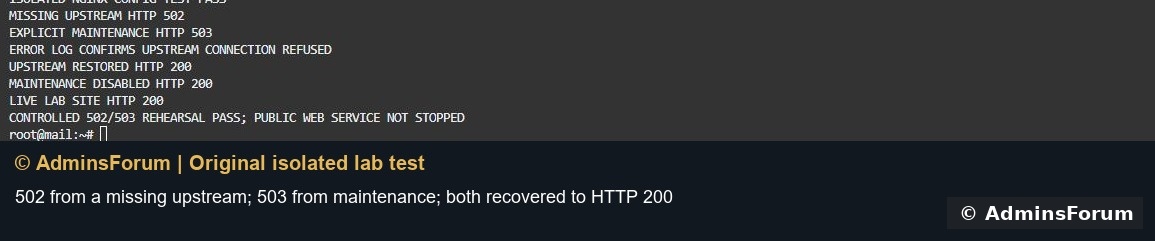
These were controlled examples on the lab, not claims that a current public-site outage had either specific cause. The temporary test listeners were closed afterward.
1. Record the failure before restarting anything
Note the exact URL, time, error code and what changed immediately beforehand: PHP version, extension, plugin, proxy target, certificate, deployment or firewall rule. Test an affected page and a simple page on the same website.
If the browser shows a CDN error page, distinguish that layer from the server's own response. Compare the origin through a trusted administration route while keeping hostname and TLS validation correct. Do not permanently disable a CDN or firewall just to see whether the error disappears.
A working aaPanel login only proves the panel route works. It does not prove the website's Nginx, PHP handler, database or application route is healthy.
2. Check the active website handler
Open Website and inspect the affected site's actual web server and PHP selection. In a multi-webserver setup, the frontend and backend may be different services. Record the chain before changing it.
Our public lab site uses Nginx and PHP-FPM 8.5. An OpenLiteSpeed website would use its corresponding handler and logs; checking a running PHP-FPM service would not by itself verify lsphp.
If the error began immediately after switching PHP, verify the selected interpreter, required extensions and compatibility. Use a recorded previous working configuration for rollback rather than choosing an arbitrary older version.
3. Read the matching logs
Find the website's access/error logs and the relevant backend or PHP-FPM log. Match entries to the same request time. Look for the diagnostic message, not only a repeated status code.
Share only the relevant log excerpt when asking for help, keeping credentials and tokens out of it.
4. Verify service state and configuration
In App Store, open the manager for the actual web server and PHP version. If the intended service is stopped, inspect its startup result and start that service. A Running badge is useful but still needs a real request check.
For our Nginx/PHP 8.5 installation, the following configuration tests are appropriate:
Use your installed paths and version. A failed syntax test needs its specific error corrected before reload. Keep a private backup of the previous configuration. Avoid restarting unrelated mail, database and panel services as a generic troubleshooting step.
5. Match the upstream endpoint
Compare the website's proxy_pass or FastCGI target with the backend's real listener. A running process on the wrong port, or a website still pointing to an old PHP socket, can leave the error unchanged.
Check local listeners from an established administration session:
Do not copy a socket path or backend port from another server without checking it. Internal application and multi-webserver ports should remain private; opening them to the Internet is not a general fix for a frontend 502.
In our isolated test, only the expected local upstream needed to start. The same Nginx route then returned HTTP 200.
6. For 503, check explicit maintenance and policy first
Inspect whether the application or web-server configuration deliberately returns 503, including a maintenance setting left active after an interrupted change. Review the intended rule before removing it.
Our demonstration used a deliberate Nginx maintenance response. Removing that test response and validating/reloading the test configuration restored 200. Starting PHP would not change an explicit return rule.
If no deliberate response explains the error, inspect the application log, worker capacity, queueing and resource pressure. The responsible layer may be the application, origin gateway or a fronting service.
7. Check resources without guessing limits
Look at memory, disk space and process behavior:
A full disk can prevent logging or temporary-file writes. A saturated PHP pool can queue work. Investigate slow requests and calculate available memory before increasing worker counts; multiplying workers on a small VPS can make pressure worse.
Our separate preflight showed the lab's web and PHP services active with free disk and memory available. Those observations do not replace checking conditions at the time of your own incident.
8. Verify the fix through the actual route
Repeat the affected URL, a normal application page and any relevant upload/login/action. Check the corresponding error log again. Record the one change that fixed the cause and preserve the rollback configuration.
A brief 200 from a static page is not enough if the failing route executes PHP or another backend. Our test specifically rechecked the previously failing upstream route, the maintenance route and the public WordPress home page.
What not to do blindly
Do not disable certificate validation, expose backend ports, clear shared Redis databases, raise every timeout or keep restarting services without reading the failure. Each changes a different layer and can hide the useful evidence.
References: Nginx proxy documentation and PHP-FPM configuration documentation. © AdminsForum.
Find which layer returned the error before changing settings. A 502 commonly means the gateway did not receive a usable upstream response. A 503 means a service is unavailable and can be intentional maintenance, a policy response or a capacity problem. Neither code alone proves that increasing PHP memory or restarting every service is the fix.
What we tested
We used a separate Nginx configuration bound only to localhost, without stopping or reconfiguring the public web service. A missing local upstream produced HTTP 502 and a connection-refused error log. An explicit maintenance response produced HTTP 503. Starting the intended upstream restored its route to 200, and removing the test maintenance response restored that route to 200. The public WordPress site also returned 200.
These were controlled examples on the lab, not claims that a current public-site outage had either specific cause. The temporary test listeners were closed afterward.
1. Record the failure before restarting anything
Note the exact URL, time, error code and what changed immediately beforehand: PHP version, extension, plugin, proxy target, certificate, deployment or firewall rule. Test an affected page and a simple page on the same website.
If the browser shows a CDN error page, distinguish that layer from the server's own response. Compare the origin through a trusted administration route while keeping hostname and TLS validation correct. Do not permanently disable a CDN or firewall just to see whether the error disappears.
A working aaPanel login only proves the panel route works. It does not prove the website's Nginx, PHP handler, database or application route is healthy.
2. Check the active website handler
Open Website and inspect the affected site's actual web server and PHP selection. In a multi-webserver setup, the frontend and backend may be different services. Record the chain before changing it.
Our public lab site uses Nginx and PHP-FPM 8.5. An OpenLiteSpeed website would use its corresponding handler and logs; checking a running PHP-FPM service would not by itself verify lsphp.
If the error began immediately after switching PHP, verify the selected interpreter, required extensions and compatibility. Use a recorded previous working configuration for rollback rather than choosing an arbitrary older version.
3. Read the matching logs
Find the website's access/error logs and the relevant backend or PHP-FPM log. Match entries to the same request time. Look for the diagnostic message, not only a repeated status code.
- Connection refused to upstream: verify the intended process is started and listening at the configured address or socket.
- Missing Unix socket: compare the web-server FastCGI target with the selected PHP pool's actual listen setting.
- Permission denied on a socket: inspect socket ownership, mode and worker identity. Do not make the whole website world-writable.
- Upstream reset or invalid response: inspect the backend/application failure and whether the configured protocol matches it.
- Timeout: inspect slow application/database work and saturation before simply extending timeouts.
Share only the relevant log excerpt when asking for help, keeping credentials and tokens out of it.
4. Verify service state and configuration
In App Store, open the manager for the actual web server and PHP version. If the intended service is stopped, inspect its startup result and start that service. A Running badge is useful but still needs a real request check.
For our Nginx/PHP 8.5 installation, the following configuration tests are appropriate:
Code:
/www/server/nginx/sbin/nginx -t
/www/server/php/85/sbin/php-fpm -t5. Match the upstream endpoint
Compare the website's proxy_pass or FastCGI target with the backend's real listener. A running process on the wrong port, or a website still pointing to an old PHP socket, can leave the error unchanged.
Check local listeners from an established administration session:
Code:
ss -lntp
ss -lxIn our isolated test, only the expected local upstream needed to start. The same Nginx route then returned HTTP 200.
6. For 503, check explicit maintenance and policy first
Inspect whether the application or web-server configuration deliberately returns 503, including a maintenance setting left active after an interrupted change. Review the intended rule before removing it.
Our demonstration used a deliberate Nginx maintenance response. Removing that test response and validating/reloading the test configuration restored 200. Starting PHP would not change an explicit return rule.
If no deliberate response explains the error, inspect the application log, worker capacity, queueing and resource pressure. The responsible layer may be the application, origin gateway or a fronting service.
7. Check resources without guessing limits
Look at memory, disk space and process behavior:
Code:
free -m
df -h /Our separate preflight showed the lab's web and PHP services active with free disk and memory available. Those observations do not replace checking conditions at the time of your own incident.
8. Verify the fix through the actual route
Repeat the affected URL, a normal application page and any relevant upload/login/action. Check the corresponding error log again. Record the one change that fixed the cause and preserve the rollback configuration.
A brief 200 from a static page is not enough if the failing route executes PHP or another backend. Our test specifically rechecked the previously failing upstream route, the maintenance route and the public WordPress home page.
What not to do blindly
Do not disable certificate validation, expose backend ports, clear shared Redis databases, raise every timeout or keep restarting services without reading the failure. Each changes a different layer and can hide the useful evidence.
References: Nginx proxy documentation and PHP-FPM configuration documentation. © AdminsForum.