



10-13-2026, 02:01 AM
Quick answer
In aaPanel's FTP module, choose Add FTP, enter a separate username and unique password, and assign only the directory that user needs. Confirm the saved account/root, then test it over FTPS. Do not give a transfer user the server's root login or assign /www/wwwroot when they only need one folder.
We created af_ftp_lab on our aaPanel 8.0.6 Ubuntu lab and restricted it to /www/wwwroot/adminslab.com/ftp-lab. A verified encrypted upload/download test passed, and an attempt to access a different website path through FTP was refused.
1. Prepare the server and destination folder
Confirm Pure-FTPd is installed and started. Follow the installation/service guide first if necessary.
Decide exactly which directory the user needs. A website administrator may need that website's root; a narrow transfer task may need only a subfolder. Our test needed only a dedicated lab folder, so we did not grant access to the parent website directory or other sites.
Check the intended folder and its contents before creating the account. Avoid copying a path from an unrelated website. If you use a new folder, confirm the saved directory exists after account creation and has appropriate ownership for the intended workflow.
2. Open Add FTP and enter the fields
Open FTP → Add FTP. The dialog contains Username, Password and Document Root.
Review all three fields, then Confirm. Wait until the account appears in the table. If the dialog reports a validation error, correct the relevant field instead of repeatedly submitting it.
3. Verify the saved account
Our FTP table showed the account, a masked password, Running status and the exact restricted root. The screenshot includes the Add FTP action and the saved result; the password remains hidden.
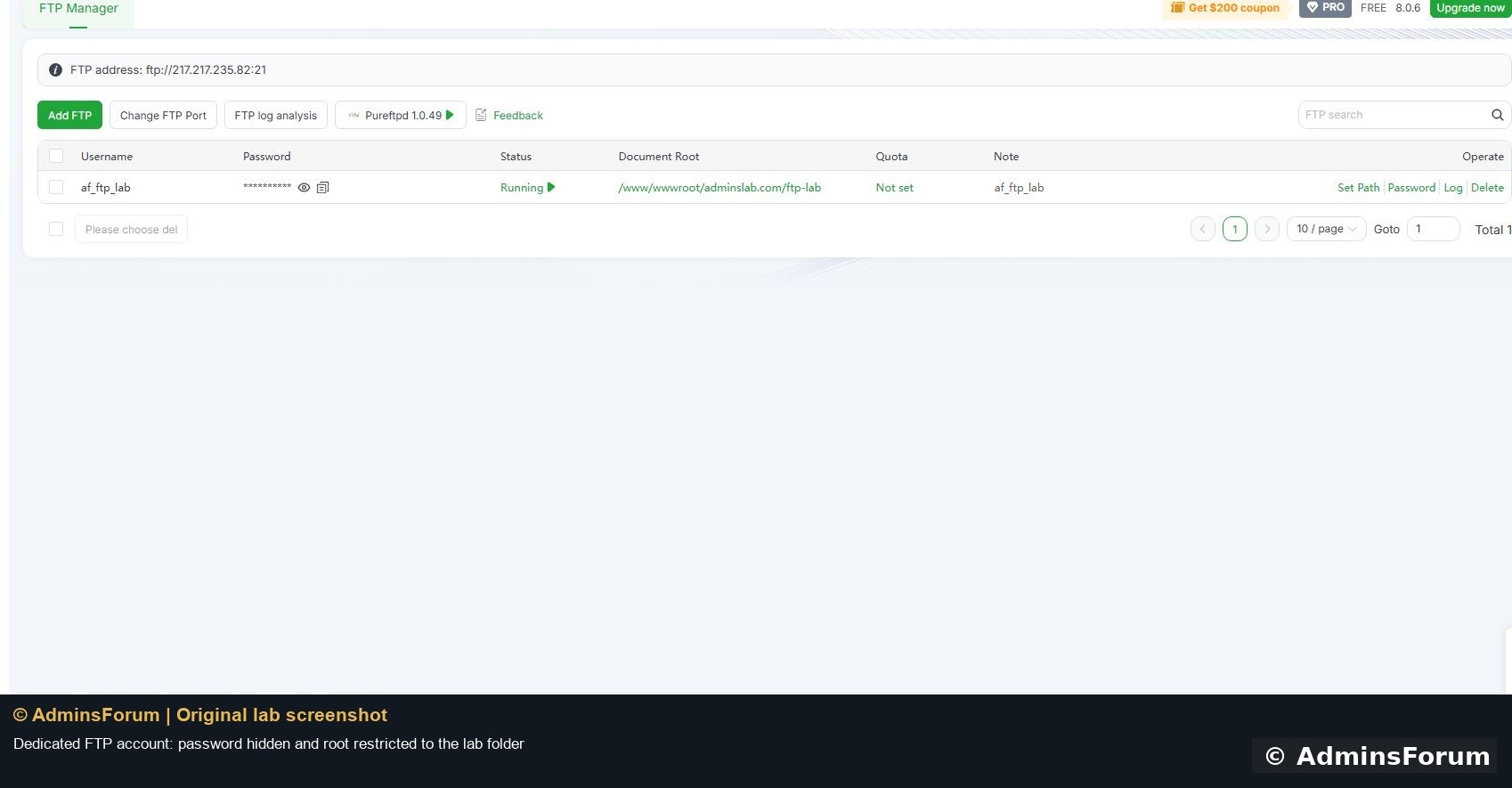
Running here refers to the account's enabled state. Also check the Pure-FTPd service itself. A valid saved user cannot log in if the server is stopped.
Review the Quota field before assuming a storage cap is enforced. Our test displayed Not set. This walkthrough does not claim that an unspecified quota limits disk consumption; check your filesystem/panel support before using quotas as a control.
4. Connect with encrypted FTP
Use a certificate-matching hostname and require explicit FTP over TLS. A client profile for our test used:
The password is deliberately omitted. The hostname must match the server's FTPS certificate. The panel's displayed ftp:// IP address alone does not establish a secure client profile.
FTPS and SFTP are different protocols. This FTP account is not automatically an SSH/SFTP account. If your client is set to SFTP, it will contact the SSH service and use that service's authentication instead.
5. Test both directions and the root restriction
After login, a client may show / as its remote directory. That is the FTP account's logical root, not evidence that it can see the entire server filesystem.
Upload a small original file, refresh the remote listing, then download it again and compare its contents or checksum. We transferred adminsforum-ftps-proof.txt through protected data connections and verified identical bytes and SHA-256 after download.
Next, verify the account stays inside its assigned root. Our client was refused when it requested another website's absolute filesystem path. That checks FTP directory isolation; it is separate from application or operating-system isolation.
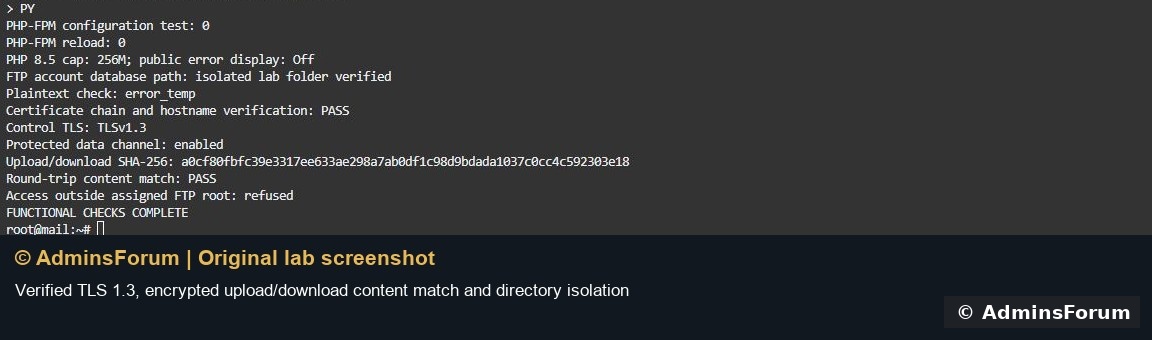
The certificate chain and hostname were verified, TLS 1.3 was negotiated, and the data connection was protected. We did not disable certificate verification to make the test pass.
6. Manage the account afterward
The saved row exposes Set Path, Password and Log actions. Review a path change carefully before applying it; broadening the root broadens the files the user can reach. If your panel offers migration while changing a root, understand its copy behavior before using it.
Change passwords privately, update the intended client profile and retest. Inspect the account's log when troubleshooting. Disable an account when it no longer needs access; deleting an account is a separate action and should not be treated as a routine cure for an authentication error.
Troubleshooting
Verified result
The saved root matched the intended lab folder, an encrypted round-trip transfer passed and another website path was refused. Our test used a certificate-verifying FTPS client in the lab; the result is not based only on the account's Running label.
Reference: aaPanel FTP account management. © AdminsForum.
In aaPanel's FTP module, choose Add FTP, enter a separate username and unique password, and assign only the directory that user needs. Confirm the saved account/root, then test it over FTPS. Do not give a transfer user the server's root login or assign /www/wwwroot when they only need one folder.
We created af_ftp_lab on our aaPanel 8.0.6 Ubuntu lab and restricted it to /www/wwwroot/adminslab.com/ftp-lab. A verified encrypted upload/download test passed, and an attempt to access a different website path through FTP was refused.
1. Prepare the server and destination folder
Confirm Pure-FTPd is installed and started. Follow the installation/service guide first if necessary.
Decide exactly which directory the user needs. A website administrator may need that website's root; a narrow transfer task may need only a subfolder. Our test needed only a dedicated lab folder, so we did not grant access to the parent website directory or other sites.
Check the intended folder and its contents before creating the account. Avoid copying a path from an unrelated website. If you use a new folder, confirm the saved directory exists after account creation and has appropriate ownership for the intended workflow.
2. Open Add FTP and enter the fields
Open FTP → Add FTP. The dialog contains Username, Password and Document Root.
- Username: choose a separate identifiable name. Our actual account was af_ftp_lab.
- Password: use a long unique value; keep it private. The panel can generate a value. Do not reuse the panel/root password or publish it in a screenshot.
- Document Root: assign the exact authorized directory. Our value was /www/wwwroot/adminslab.com/ftp-lab.
Review all three fields, then Confirm. Wait until the account appears in the table. If the dialog reports a validation error, correct the relevant field instead of repeatedly submitting it.
3. Verify the saved account
Our FTP table showed the account, a masked password, Running status and the exact restricted root. The screenshot includes the Add FTP action and the saved result; the password remains hidden.
Running here refers to the account's enabled state. Also check the Pure-FTPd service itself. A valid saved user cannot log in if the server is stopped.
Review the Quota field before assuming a storage cap is enforced. Our test displayed Not set. This walkthrough does not claim that an unspecified quota limits disk consumption; check your filesystem/panel support before using quotas as a control.
4. Connect with encrypted FTP
Use a certificate-matching hostname and require explicit FTP over TLS. A client profile for our test used:
Code:
Protocol: FTP
Encryption: require explicit FTP over TLS
Host: mail.adminslab.com
Port: 21
User: af_ftp_lab
Transfer mode: passive
The password is deliberately omitted. The hostname must match the server's FTPS certificate. The panel's displayed ftp:// IP address alone does not establish a secure client profile.
FTPS and SFTP are different protocols. This FTP account is not automatically an SSH/SFTP account. If your client is set to SFTP, it will contact the SSH service and use that service's authentication instead.
5. Test both directions and the root restriction
After login, a client may show / as its remote directory. That is the FTP account's logical root, not evidence that it can see the entire server filesystem.
Upload a small original file, refresh the remote listing, then download it again and compare its contents or checksum. We transferred adminsforum-ftps-proof.txt through protected data connections and verified identical bytes and SHA-256 after download.
Next, verify the account stays inside its assigned root. Our client was refused when it requested another website's absolute filesystem path. That checks FTP directory isolation; it is separate from application or operating-system isolation.
The certificate chain and hostname were verified, TLS 1.3 was negotiated, and the data connection was protected. We did not disable certificate verification to make the test pass.
6. Manage the account afterward
The saved row exposes Set Path, Password and Log actions. Review a path change carefully before applying it; broadening the root broadens the files the user can reach. If your panel offers migration while changing a root, understand its copy behavior before using it.
Change passwords privately, update the intended client profile and retest. Inspect the account's log when troubleshooting. Disable an account when it no longer needs access; deleting an account is a separate action and should not be treated as a routine cure for an authentication error.
Troubleshooting
- Authentication fails: check enabled status and the exact username/password, without showing the password in logs or public support posts.
- Login works but a listing stalls: check passive mode, its configured port range, and both server/provider firewalls.
- File upload is denied: inspect the assigned root, ownership and available space rather than using world-writable permissions everywhere.
- Certificate warning: correct the hostname/certificate/chain; do not send credentials until verification succeeds.
Verified result
The saved root matched the intended lab folder, an encrypted round-trip transfer passed and another website path was refused. Our test used a certificate-verifying FTPS client in the lab; the result is not based only on the account's Running label.
Reference: aaPanel FTP account management. © AdminsForum.