



10-16-2026, 09:59 AM
When an aaPanel SSL certificate fails to renew, first identify the certificate visitors actually receive. Then inspect the failed validation or renewal task. A valid certificate file on disk does not prove the website serves it, and a successful renewal does not prove every endpoint was updated.
This guide covers website certificates managed through aaPanel. Panel-login SSL, mail-server SSL and a CDN's public certificate are separate endpoints. Menu labels depend on your aaPanel release. The diagnostic sequence combines official ACME guidance with the specific read-only lab checks documented below; we did not deliberately expire a certificate or reproduce every possible renewal failure.
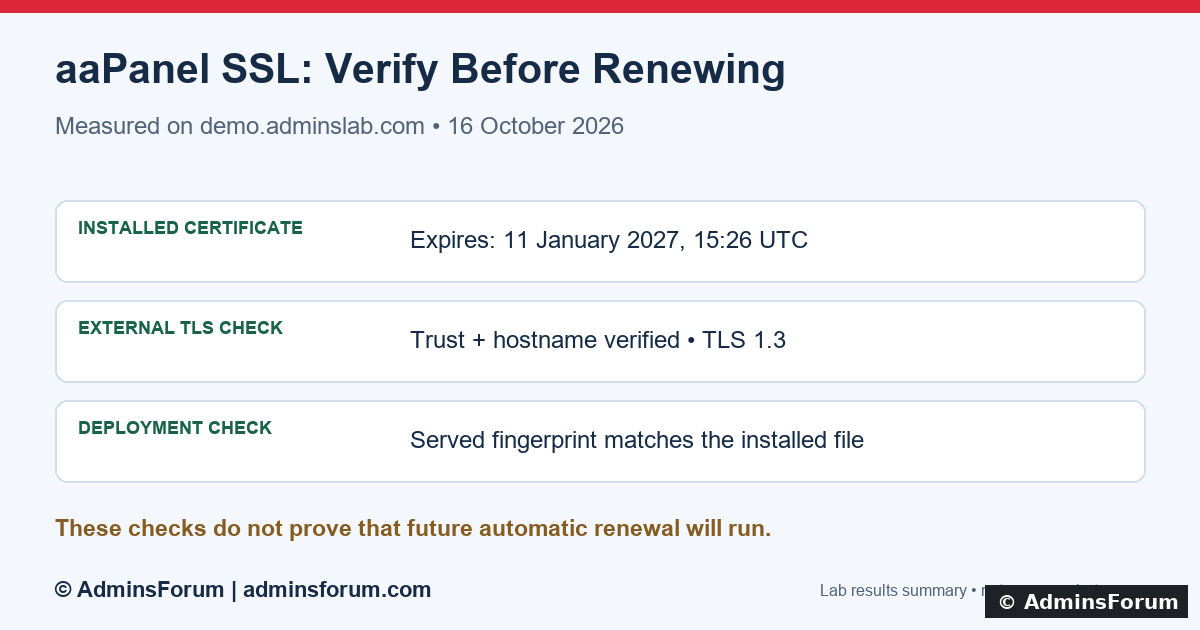
AdminsForum lab evidence summary, not a panel screenshot. The diagram reports measured certificate checks from 16 October 2026.
1. Identify the hostname and failing endpoint
Write down the exact address that shows the error, including its hostname and port. In a browser, view the certificate details and note its names, issuer and expiry. Check the website hostname rather than the server's IP address. A hostname mismatch, an incomplete trust chain and an expired certificate are different faults.
If Cloudflare or another proxy terminates HTTPS, visitors may see its edge certificate while your VPS serves a separate origin certificate. A green browser padlock at the edge does not establish origin-certificate health. Likewise, fixing the certificate on your aaPanel login port does not replace the certificate for a website on port 443.
2. Compare the installed certificate with the served one
Open Website, select the affected site and inspect its SSL settings. Confirm all intended hostnames and the certificate provider. A manually pasted certificate needs its own renewal arrangement; do not assume aaPanel can renew any certificate placed in this screen.
For a site using the standard aaPanel certificate layout, this read-only command inspects its public certificate file. Replace the path with the one actually configured for your site:
subject and issuer identify the certificate; dates show its validity interval; the fingerprint identifies the exact certificate. This reads the public certificate, not the private key. Never paste private-key contents into a support thread.
From another machine with curl installed, test HTTPS normally:
Do not add -k: that bypasses the certificate verification this test is intended to exercise. An application can return 403 or 404 even when TLS is valid, so read the certificate error separately from the HTTP status. A redirect should also be checked at its final hostname.
Verified lab example — 16 October 2026
On our Ubuntu 22.04.5 VPS, demo.adminslab.com resolved to the aaPanel lab. Its installed certificate reported:
We also made an external TLS connection using hostname and trust verification. It passed with TLS 1.3. The served certificate's SHA-256 fingerprint matched the installed certificate:
This verifies validity, trust and deployment for that hostname at the check time. It does not prove a future automatic renewal will execute. We made no certificate or web-server configuration changes for these checks.
3. Read the actual renewal error before retrying
In the site's SSL/certificate controls, inspect available issuance or renewal details. Also inspect the renewal-related scheduled task and its execution output if your release exposes one. Record the failing hostname, timestamp, challenge method and complete error. An empty crontab listing is not sufficient evidence that aaPanel has no internal scheduled renewal mechanism.
Classify the error first:
4. For HTTP validation, check DNS and port 80
Use the actual certificate hostname:
The DNS queries show advertised IPv4 and IPv6 destinations. Confirm they lead to the expected service. An obsolete AAAA record can send validation traffic to an unintended server even if IPv4 works.
HTTP-01 validates a specific token under /.well-known/acme-challenge/ using port 80. A successful home-page request is only a preliminary reachability check; it does not prove that token path works. Match the failed path from the renewal error against access logs, authentication, rewrites and proxy rules. Check every hostname included in the request. A wildcard certificate requires DNS validation instead.
If you test a temporary challenge-path file, use an isolated known filename, confirm the correct document root and remove only that test file afterward. Do not delete the whole challenge directory or turn off security controls site-wide.
5. For DNS validation, verify automation can still update the zone
Confirm which provider hosts the authoritative DNS zone. Check whether the configured API credential remains valid and has the required narrowly scoped permission for that zone. Never expose its value in screenshots or logs.
Inspect the TXT record requested by the current issuance attempt:
Compare it with the value required for that attempt, allowing for any documented CNAME delegation and authoritative DNS propagation. Old successful issuance with manually entered TXT does not establish unattended renewal. A wildcard and the root domain are distinct names; include and validate the names the certificate actually needs.
6. Resolve the cause, then make one controlled retry
Back up the working certificate, private key and relevant configuration securely before replacing anything; do not publish or put those backups in a website directory. Use the renewal action appropriate to the installed aaPanel release after the validation failure is corrected. Watch its output through completion.
If the certificate authority reports a limit, follow its retry guidance rather than repeatedly requesting new certificates. Test ACME integrations with a supported staging mode when appropriate. A staging certificate is not suitable for normal public browser trust.
If issuance succeeds but deployment fails, inspect the web-server configuration and error log. Validate configuration before a reload. Keep the previous working configuration available for rollback; a renewed certificate file alone is not a reason to blindly restart every service.
7. Verify every affected endpoint and monitor the next renewal
Repeat the external HTTPS check and inspect the served names, expiry and fingerprint. Check the primary hostname, relevant aliases and the final redirect destination. Where a proxy is present, verify both its public endpoint and the intended origin using their proper trust configuration.
Confirm the panel reports the expected renewed certificate and that renewal execution is scheduled or otherwise managed for your release. Monitor public certificate expiry independently so a missed future run is detected before an outage. A healthy certificate today and a proven automatic renewal are separate results.
Where should I start if SSL was never installed successfully?
Use Install Let's Encrypt SSL in aaPanel first. For management-port certificates, use Install a Trusted SSL Certificate for the aaPanel Login. Mail TLS has its own aaPanel Mail Server SSL guide.
Need help diagnosing a renewal failure?
Post the aaPanel version, web server, failing hostname, challenge type, timestamp and redacted error in aaPanel Support & Troubleshooting. Include whether DNS is proxied and whether the certificate is expired, mismatched or simply approaching expiry. Keep credentials and private keys out of the post.
References
Let's Encrypt: challenge types.
Let's Encrypt: rate limits and retry guidance.
More aaPanel Domains, DNS & SSL Guides.
This guide covers website certificates managed through aaPanel. Panel-login SSL, mail-server SSL and a CDN's public certificate are separate endpoints. Menu labels depend on your aaPanel release. The diagnostic sequence combines official ACME guidance with the specific read-only lab checks documented below; we did not deliberately expire a certificate or reproduce every possible renewal failure.
AdminsForum lab evidence summary, not a panel screenshot. The diagram reports measured certificate checks from 16 October 2026.
1. Identify the hostname and failing endpoint
Write down the exact address that shows the error, including its hostname and port. In a browser, view the certificate details and note its names, issuer and expiry. Check the website hostname rather than the server's IP address. A hostname mismatch, an incomplete trust chain and an expired certificate are different faults.
If Cloudflare or another proxy terminates HTTPS, visitors may see its edge certificate while your VPS serves a separate origin certificate. A green browser padlock at the edge does not establish origin-certificate health. Likewise, fixing the certificate on your aaPanel login port does not replace the certificate for a website on port 443.
2. Compare the installed certificate with the served one
Open Website, select the affected site and inspect its SSL settings. Confirm all intended hostnames and the certificate provider. A manually pasted certificate needs its own renewal arrangement; do not assume aaPanel can renew any certificate placed in this screen.
For a site using the standard aaPanel certificate layout, this read-only command inspects its public certificate file. Replace the path with the one actually configured for your site:
Code:
openssl x509 -in /www/server/panel/vhost/cert/example.com/fullchain.pem -noout -subject -issuer -dates -fingerprint -sha256From another machine with curl installed, test HTTPS normally:
Code:
curl -I https://example.com/Verified lab example — 16 October 2026
On our Ubuntu 22.04.5 VPS, demo.adminslab.com resolved to the aaPanel lab. Its installed certificate reported:
Code:
subject=CN = demo.adminslab.com
issuer=C = US, O = Let's Encrypt, CN = YR2
notBefore=Oct 13 15:26:24 2026 GMT
notAfter=Jan 11 15:26:23 2027 GMTCode:
7D:69:2E:E4:C0:FC:A9:A2:D3:5C:08:C4:BC:91:F3:98:39:0F:7E:8F:35:B7:FF:44:65:46:5F:1C:B1:FD:79:E33. Read the actual renewal error before retrying
In the site's SSL/certificate controls, inspect available issuance or renewal details. Also inspect the renewal-related scheduled task and its execution output if your release exposes one. Record the failing hostname, timestamp, challenge method and complete error. An empty crontab listing is not sufficient evidence that aaPanel has no internal scheduled renewal mechanism.
Classify the error first:
- Connection timeout or refusal: investigate public routing and the validation endpoint.
- Unexpected response or wrong token: investigate the challenge path, proxy and site routing.
- Missing or incorrect DNS TXT: investigate DNS validation and its automation credentials.
- CAA or rate-limit error: follow that exact policy or retry timing.
- Certificate renewed but visitors see the old one: investigate certificate deployment, the selected virtual host and the serving process.
4. For HTTP validation, check DNS and port 80
Use the actual certificate hostname:
Code:
dig +short A example.com
dig +short AAAA example.com
curl -I http://example.com/HTTP-01 validates a specific token under /.well-known/acme-challenge/ using port 80. A successful home-page request is only a preliminary reachability check; it does not prove that token path works. Match the failed path from the renewal error against access logs, authentication, rewrites and proxy rules. Check every hostname included in the request. A wildcard certificate requires DNS validation instead.
If you test a temporary challenge-path file, use an isolated known filename, confirm the correct document root and remove only that test file afterward. Do not delete the whole challenge directory or turn off security controls site-wide.
5. For DNS validation, verify automation can still update the zone
Confirm which provider hosts the authoritative DNS zone. Check whether the configured API credential remains valid and has the required narrowly scoped permission for that zone. Never expose its value in screenshots or logs.
Inspect the TXT record requested by the current issuance attempt:
Code:
dig +short TXT _acme-challenge.example.com6. Resolve the cause, then make one controlled retry
Back up the working certificate, private key and relevant configuration securely before replacing anything; do not publish or put those backups in a website directory. Use the renewal action appropriate to the installed aaPanel release after the validation failure is corrected. Watch its output through completion.
If the certificate authority reports a limit, follow its retry guidance rather than repeatedly requesting new certificates. Test ACME integrations with a supported staging mode when appropriate. A staging certificate is not suitable for normal public browser trust.
If issuance succeeds but deployment fails, inspect the web-server configuration and error log. Validate configuration before a reload. Keep the previous working configuration available for rollback; a renewed certificate file alone is not a reason to blindly restart every service.
7. Verify every affected endpoint and monitor the next renewal
Repeat the external HTTPS check and inspect the served names, expiry and fingerprint. Check the primary hostname, relevant aliases and the final redirect destination. Where a proxy is present, verify both its public endpoint and the intended origin using their proper trust configuration.
Confirm the panel reports the expected renewed certificate and that renewal execution is scheduled or otherwise managed for your release. Monitor public certificate expiry independently so a missed future run is detected before an outage. A healthy certificate today and a proven automatic renewal are separate results.
Where should I start if SSL was never installed successfully?
Use Install Let's Encrypt SSL in aaPanel first. For management-port certificates, use Install a Trusted SSL Certificate for the aaPanel Login. Mail TLS has its own aaPanel Mail Server SSL guide.
Need help diagnosing a renewal failure?
Post the aaPanel version, web server, failing hostname, challenge type, timestamp and redacted error in aaPanel Support & Troubleshooting. Include whether DNS is proxied and whether the certificate is expired, mismatched or simply approaching expiry. Keep credentials and private keys out of the post.
References
Let's Encrypt: challenge types.
Let's Encrypt: rate limits and retry guidance.
More aaPanel Domains, DNS & SSL Guides.