



CloudPanel cron jobs, logs and Varnish Cache
Three tools you'll use on every CloudPanel site: cron jobs for scheduled tasks, the Logs tab for troubleshooting, and Varnish Cache for fast page loads. Tested on CloudPanel 2.5.4, Ubuntu 24.04.
Part 1: Cron jobs
Open the site's Cron Jobs tab and click Add Cron Job. The Template menu fills in common schedules for you, from every minute to once a month, or you can type the five fields yourself: minute, hour, day, month and weekday.
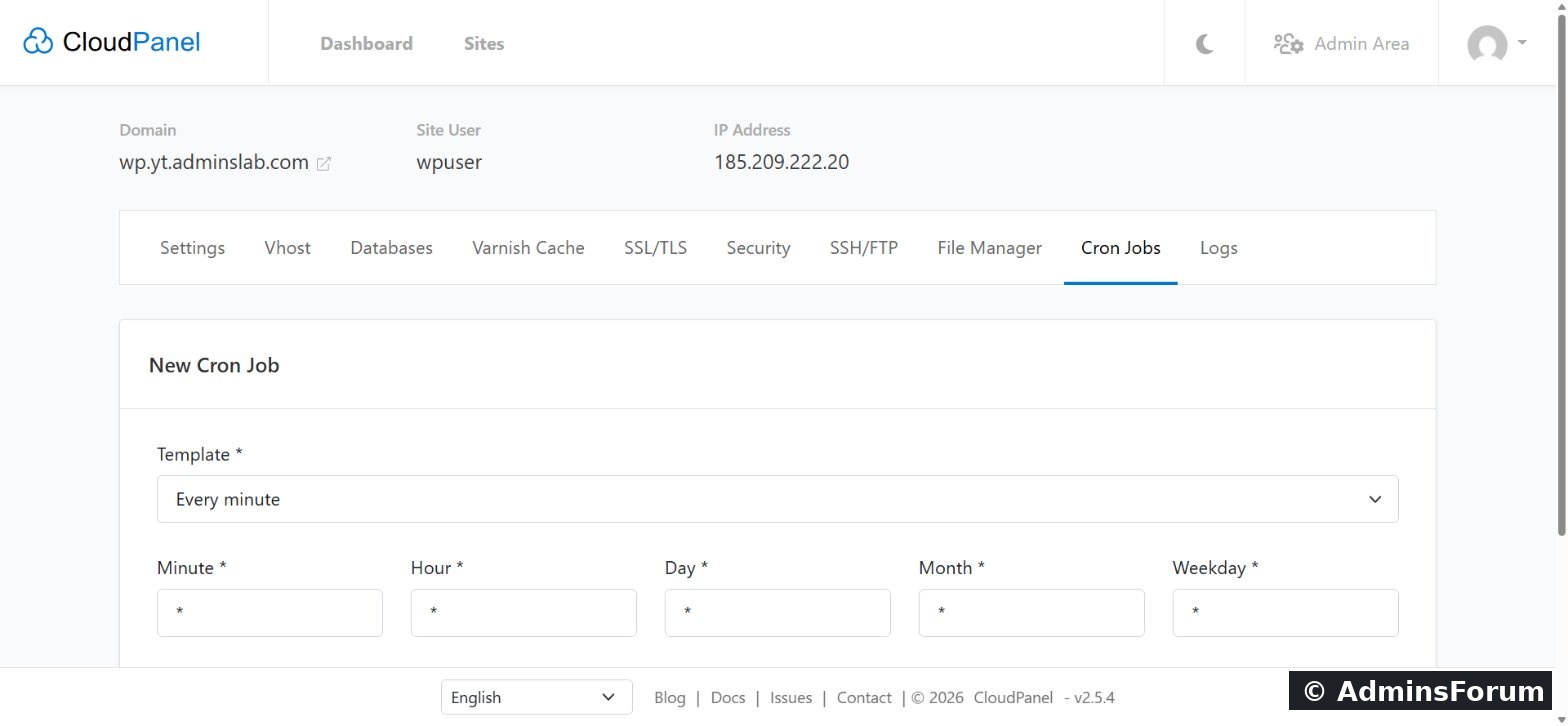
Example: a real cron for WordPress. WordPress's built-in cron only runs when someone visits the site. Run it every 5 minutes with real cron instead: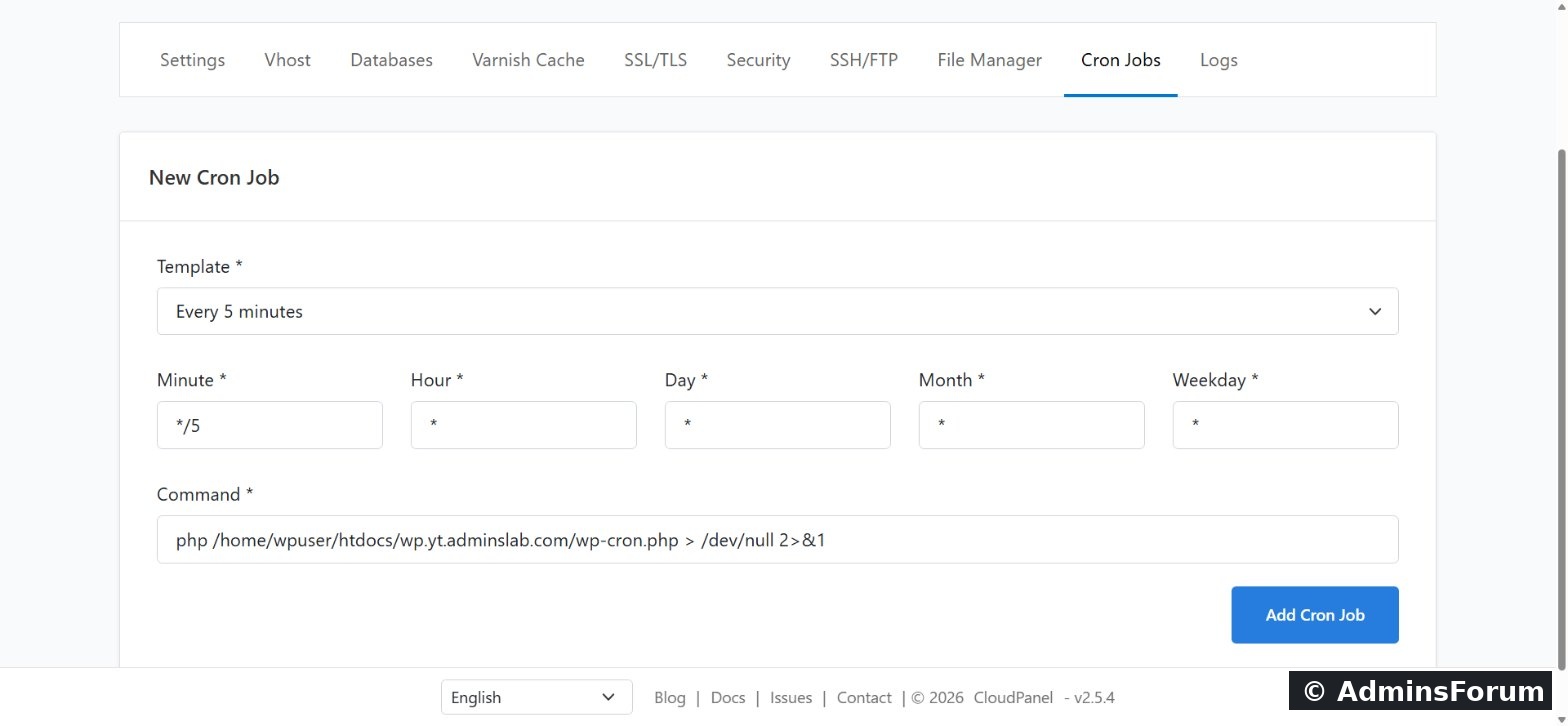
Then add this line to wp-config.php so WordPress doesn't also run it on page loads:
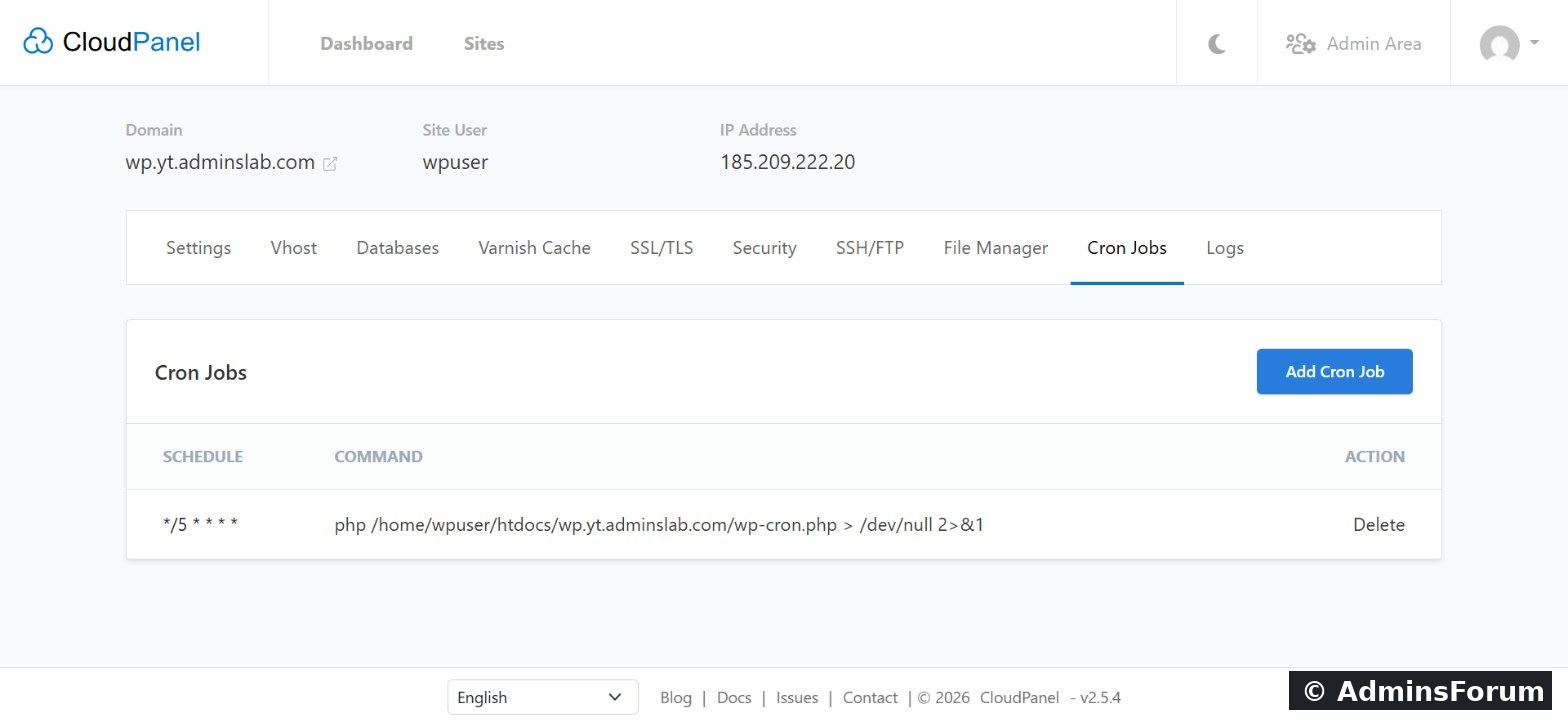
The job is saved and runs as the site user, with exactly the same permissions as the website.
Part 2: Logs
When something breaks, open the Logs tab. Choose the source (NGINX or PHP), the file (access or error) and how many lines to show, then click Update.
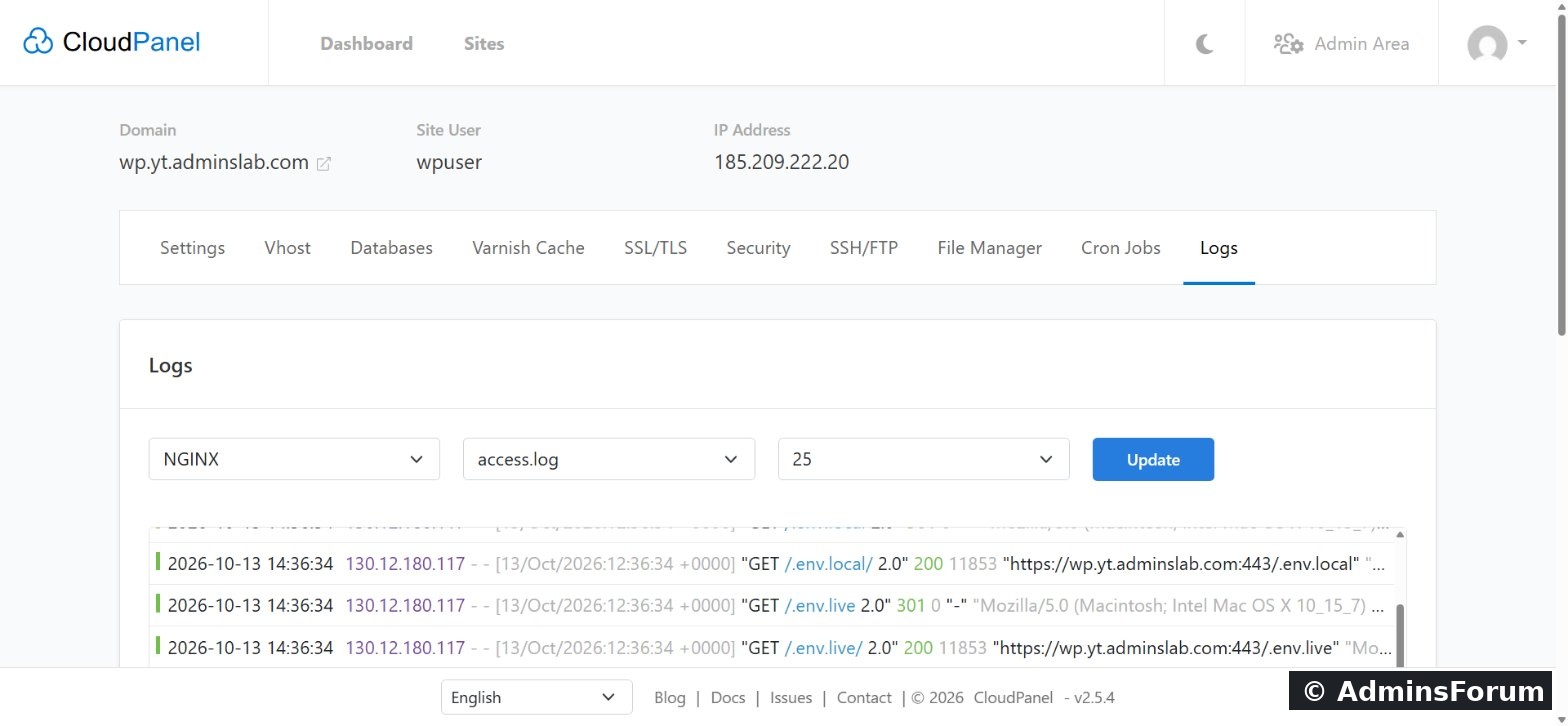
Each access-log line is one request: time, visitor IP, URL and status code. In our screenshot, a bot was probing for .env files (which can contain secrets) minutes after the site went live. That's normal on the internet, and a good reason to block bad bots in the site's Security tab.
Troubleshooting tip: for 500 errors or blank pages, check the PHP error log first; for 404s and redirects, the Nginx access log.
Part 3: Varnish Cache
Varnish stores finished pages in memory, so repeat visitors are served without running PHP at all. It's off by default; switch it on per site in the Varnish Cache tab.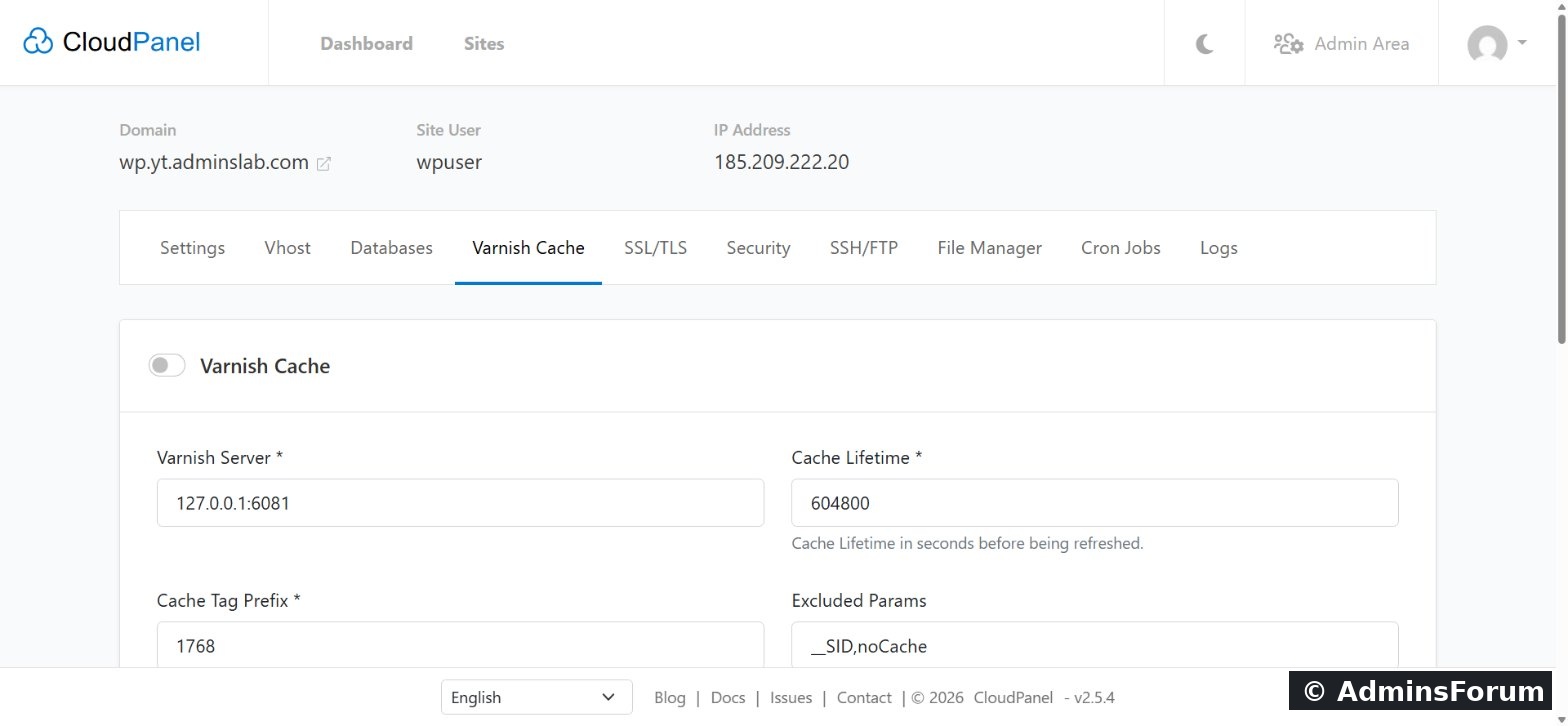
When to use it: Varnish is a big win for blogs and content sites. For shops and member areas, test carefully: logged-in pages must never be cached for everyone. For WordPress, CloudPanel's CLP Varnish Cache plugin clears the cache when you publish.
Questions? Ask in CloudPanel Varnish Cache & Performance Support.
CloudPanel guide series
Three tools you'll use on every CloudPanel site: cron jobs for scheduled tasks, the Logs tab for troubleshooting, and Varnish Cache for fast page loads. Tested on CloudPanel 2.5.4, Ubuntu 24.04.
Part 1: Cron jobs
Open the site's Cron Jobs tab and click Add Cron Job. The Template menu fills in common schedules for you, from every minute to once a month, or you can type the five fields yourself: minute, hour, day, month and weekday.
Example: a real cron for WordPress. WordPress's built-in cron only runs when someone visits the site. Run it every 5 minutes with real cron instead:
- Template: Every 5 minutes (
)Code:*/5 * * * *
- Command:
Code:php /home/SITE_USER/htdocs/YOUR_DOMAIN/wp-cron.php > /dev/null 2>&1
Then add this line to wp-config.php so WordPress doesn't also run it on page loads:
Code:
define('DISABLE_WP_CRON', true);The job is saved and runs as the site user, with exactly the same permissions as the website.
Part 2: Logs
When something breaks, open the Logs tab. Choose the source (NGINX or PHP), the file (access or error) and how many lines to show, then click Update.
Each access-log line is one request: time, visitor IP, URL and status code. In our screenshot, a bot was probing for .env files (which can contain secrets) minutes after the site went live. That's normal on the internet, and a good reason to block bad bots in the site's Security tab.
Troubleshooting tip: for 500 errors or blank pages, check the PHP error log first; for 404s and redirects, the Nginx access log.
Part 3: Varnish Cache
Varnish stores finished pages in memory, so repeat visitors are served without running PHP at all. It's off by default; switch it on per site in the Varnish Cache tab.
- Cache Lifetime: how long pages are kept.
- Excluded Params: requests with these parameters bypass the cache (for example sessions).
When to use it: Varnish is a big win for blogs and content sites. For shops and member areas, test carefully: logged-in pages must never be cached for everyone. For WordPress, CloudPanel's CLP Varnish Cache plugin clears the cache when you publish.
Questions? Ask in CloudPanel Varnish Cache & Performance Support.
CloudPanel guide series
- What is CloudPanel? Complete overview
- CloudPanel system requirements
- CloudPanel features: the complete list
- How to create a PHP site
- How to install free Let's Encrypt SSL
- How to install WordPress (one-click)
- Databases, users and phpMyAdmin
- SSH, SFTP, FTP and File Manager
- Cron jobs, logs and Varnish Cache (you are here)
- Backups, firewall and Basic Auth