CloudPanel system requirements (2026): OS, CPU, RAM, disk and ports
Before you install CloudPanel, check that your server meets these requirements. They're taken from the official docs for CloudPanel 2.5.4 and checked against our own test install on Ubuntu 24.04.
Minimum requirements at a glance
Supported operating systems
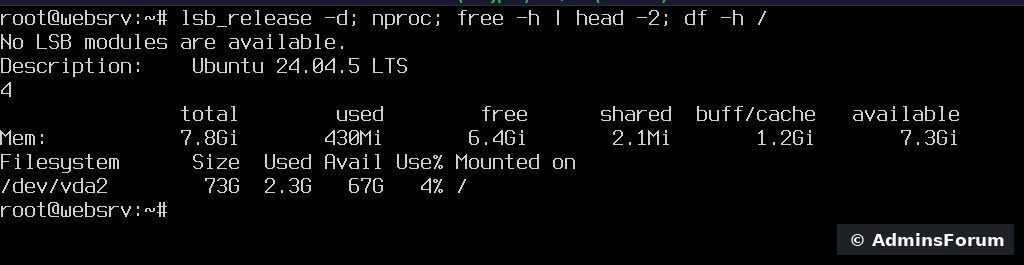
Here's our test server before installing: Ubuntu 24.04.5 LTS, 4 cores, 7.8 GB RAM and a 73 GB disk.
What gets installed (by OS)
Ubuntu 24.04, Ubuntu 22.04 and Debian 12: Nginx 1.30, PHP 7.1 to 8.5, MySQL 8.4 or 8.0 / MariaDB 11.8, 11.4 or 10.11, Redis 7, Varnish 7.5, ProFTPD 1.3, Node.js 12 to 24, Python 3.12.
Ubuntu 26.04 and Debian 13: Nginx 1.30, PHP 7.1 to 8.5, MySQL 8.4 / MariaDB 12.3 or 11.8, Redis 8, Varnish 7.7, ProFTPD 1.3, Node.js 12 to 24, Python 3.14.
You pick the database engine when you run the installer, so decide between MySQL and MariaDB before you start.
How much RAM do you really need?
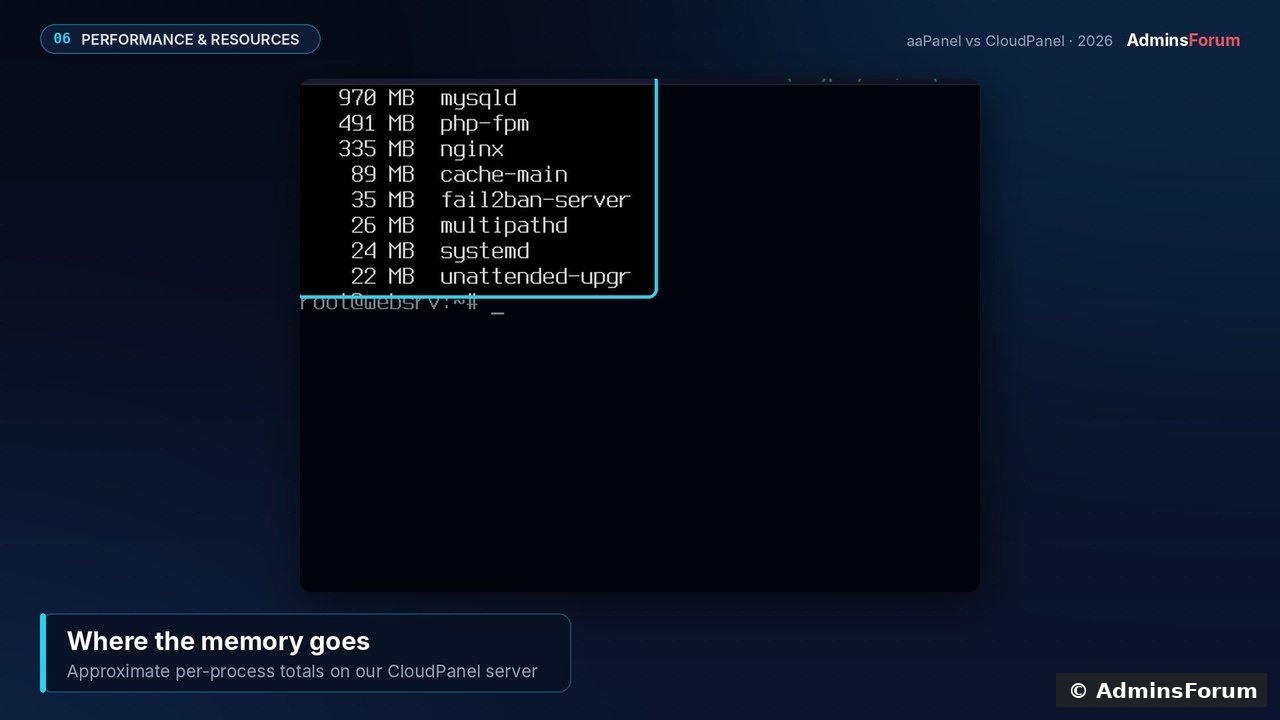
2 GB is the official minimum, and it's a real one: CloudPanel installs a full stack, including a PHP-FPM service for every PHP version, MySQL/MariaDB, Redis and Varnish. On our 8 GB server with two sites, a few hours after install, 1.95 GB was in use, mostly MySQL's buffer pool (~970 MB), which is sized from the server's RAM.
Our practical guidance (not an official figure):
Network and ports
CloudPanel's default firewall rules allow these ports. Make sure your cloud provider's firewall / security group allows them too: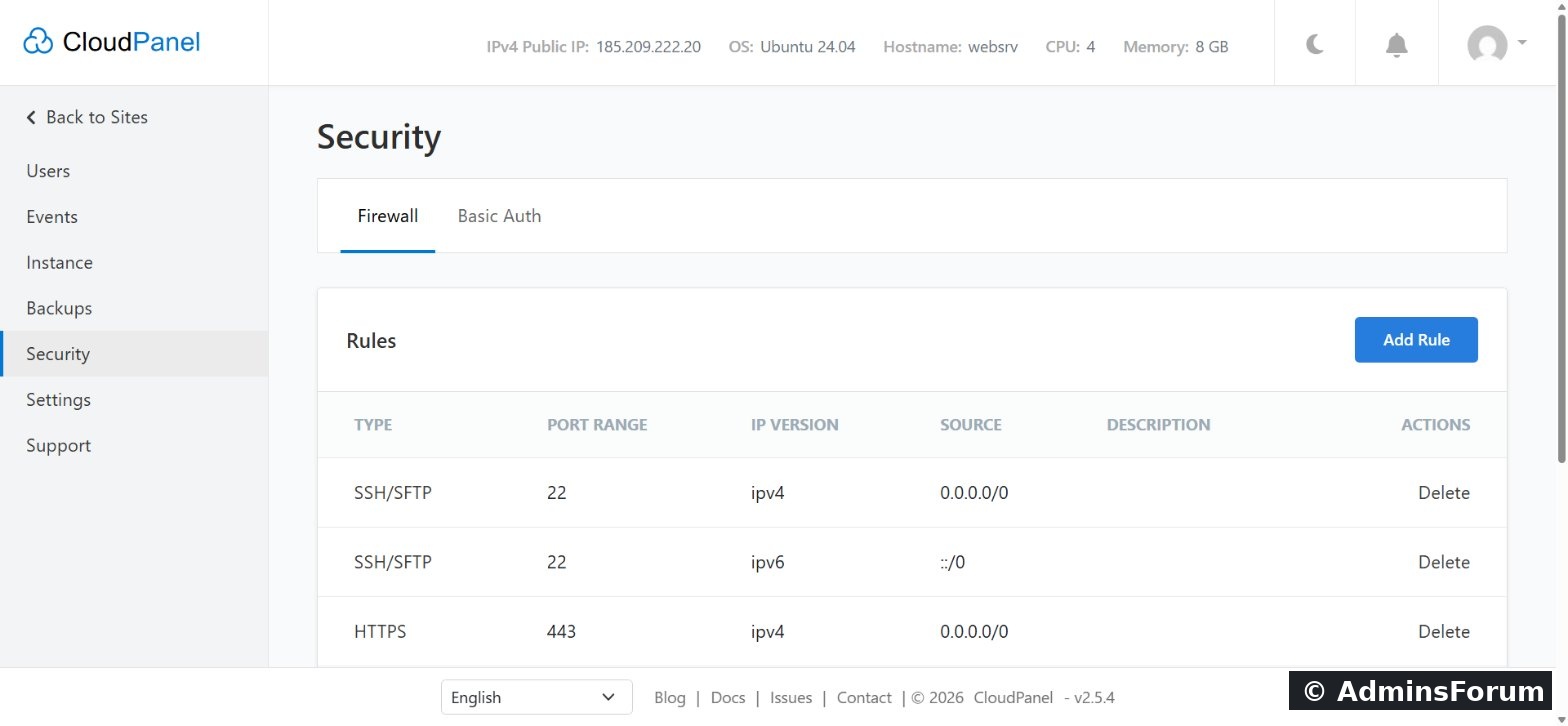
Important: right after installation, anyone who reaches port 8443 can create the admin user. If you can, allow 8443 only from your own IP before you install, and create the admin user immediately.
You'll also want a public IPv4 address and, for real sites, a domain with an A record pointing to the server (needed for Let's Encrypt SSL).
Supported cloud providers
CloudPanel has dedicated install guides for Amazon Web Services, Google Compute Engine, Microsoft Azure, Oracle Cloud, DigitalOcean, Hetzner Cloud, Vultr, Hostinger and Donweb Cloud. Any other VPS or dedicated server that meets the requirements works with the generic installer.
Pre-install checklist

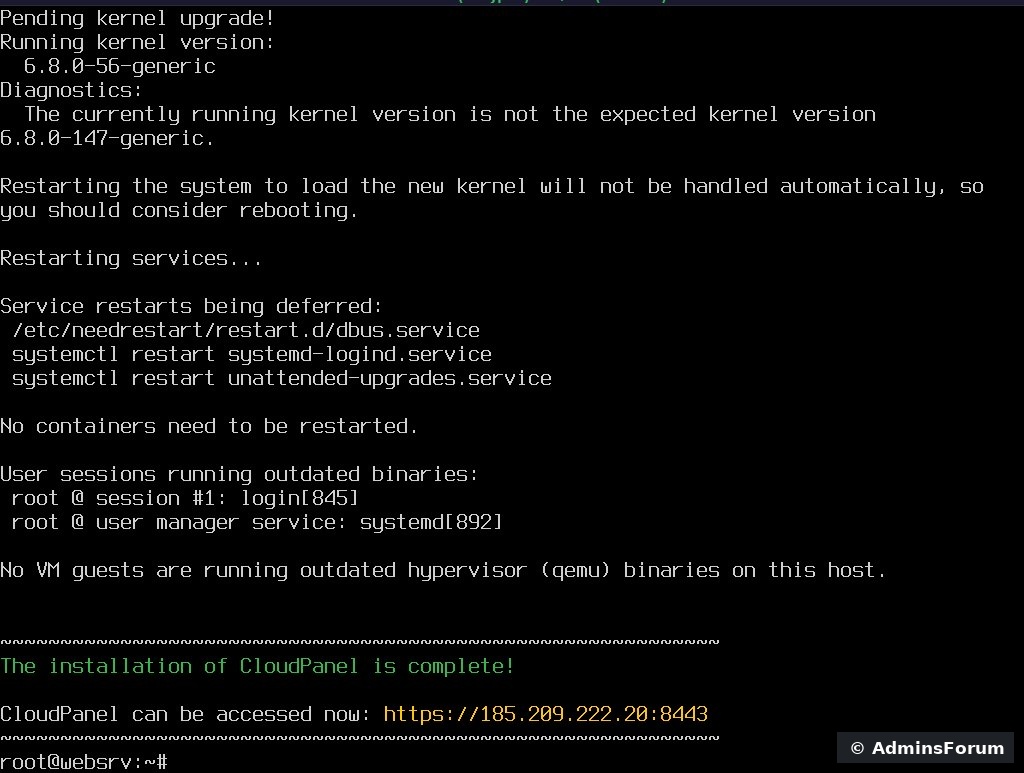
If the system update installed a new kernel, the installer may show a pending kernel upgrade notice. That's normal; reboot when convenient.
After install, open
, accept the self-signed certificate and create your admin user.
Sources (checked October 2026): CloudPanel requirements · Technology stack · Install docs
Next: see What is CloudPanel? and CloudPanel features: the complete list.
Not sure if your server qualifies? Post your provider, OS and plan in CloudPanel Getting Started Support.
CloudPanel guide series
Before you install CloudPanel, check that your server meets these requirements. They're taken from the official docs for CloudPanel 2.5.4 and checked against our own test install on Ubuntu 24.04.
Minimum requirements at a glance
- Operating system: Ubuntu 26.04, 24.04 or 22.04 LTS; Debian 13 or 12.
- Architecture: x86 (x86_64) or ARM64.
- CPU: 1 core or more.
- Memory: 2 GB RAM or more.
- Disk: 10 GB or more.
- Server type: a virtual machine or dedicated server. LXC, LXD and OpenVZ containers are not supported.
- Access: root access to a clean, freshly installed server.
Supported operating systems
- Ubuntu 26.04 LTS (Resolute Raccoon)
- Ubuntu 24.04 LTS (Noble Numbat): the one we use in our guides
- Ubuntu 22.04 LTS (Jammy Jellyfish)
- Debian 13 (Trixie)
- Debian 12 (Bookworm)
Here's our test server before installing: Ubuntu 24.04.5 LTS, 4 cores, 7.8 GB RAM and a 73 GB disk.
What gets installed (by OS)
Ubuntu 24.04, Ubuntu 22.04 and Debian 12: Nginx 1.30, PHP 7.1 to 8.5, MySQL 8.4 or 8.0 / MariaDB 11.8, 11.4 or 10.11, Redis 7, Varnish 7.5, ProFTPD 1.3, Node.js 12 to 24, Python 3.12.
Ubuntu 26.04 and Debian 13: Nginx 1.30, PHP 7.1 to 8.5, MySQL 8.4 / MariaDB 12.3 or 11.8, Redis 8, Varnish 7.7, ProFTPD 1.3, Node.js 12 to 24, Python 3.14.
You pick the database engine when you run the installer, so decide between MySQL and MariaDB before you start.
How much RAM do you really need?
2 GB is the official minimum, and it's a real one: CloudPanel installs a full stack, including a PHP-FPM service for every PHP version, MySQL/MariaDB, Redis and Varnish. On our 8 GB server with two sites, a few hours after install, 1.95 GB was in use, mostly MySQL's buffer pool (~970 MB), which is sized from the server's RAM.
Our practical guidance (not an official figure):
- 2 GB: fine for one or two small sites or a test server.
- 4 GB: a comfortable start for several WordPress or PHP sites.
- 8 GB or more: busy shops, many sites, or heavy Varnish caching.
Network and ports
CloudPanel's default firewall rules allow these ports. Make sure your cloud provider's firewall / security group allows them too:
- 22 SSH/SFTP
- 80 HTTP (also needed for Let's Encrypt validation)
- 443 HTTPS
- 8443 the CloudPanel interface
Important: right after installation, anyone who reaches port 8443 can create the admin user. If you can, allow 8443 only from your own IP before you install, and create the admin user immediately.
You'll also want a public IPv4 address and, for real sites, a domain with an A record pointing to the server (needed for Let's Encrypt SSL).
Supported cloud providers
CloudPanel has dedicated install guides for Amazon Web Services, Google Compute Engine, Microsoft Azure, Oracle Cloud, DigitalOcean, Hetzner Cloud, Vultr, Hostinger and Donweb Cloud. Any other VPS or dedicated server that meets the requirements works with the generic installer.
Pre-install checklist
- A fresh server with a supported OS, no other web server, database or panel installed.
- Root SSH access.
- 2 GB+ RAM, 10 GB+ disk, x86 or ARM64.
- Ports 22, 80, 443 and 8443 open (8443 ideally only for your IP).
- Update the system:
Code:apt update && apt -y upgrade && apt -y install curl wget sudo - Download the installer and verify its SHA-256 checksum. Copy the current command and checksum from the official install docs, as it changes with each release.
If the system update installed a new kernel, the installer may show a pending kernel upgrade notice. That's normal; reboot when convenient.
After install, open
Code:
https://YOUR_SERVER_IP:8443Sources (checked October 2026): CloudPanel requirements · Technology stack · Install docs
Next: see What is CloudPanel? and CloudPanel features: the complete list.
Not sure if your server qualifies? Post your provider, OS and plan in CloudPanel Getting Started Support.
CloudPanel guide series
- What is CloudPanel? Complete overview
- CloudPanel system requirements (you are here)
- CloudPanel features: the complete list
- How to create a PHP site
- How to install free Let's Encrypt SSL
- How to install WordPress (one-click)
- Databases, users and phpMyAdmin
- SSH, SFTP, FTP and File Manager
- Cron jobs, logs and Varnish Cache
- Backups, firewall and Basic Auth