



10-12-2026, 04:36 PM
Quick answer
A backup job finishing successfully proves that the panel created a backup, not that your website can be recovered. Before relying on a WordPress backup, confirm its site and date, check the archive components, preserve another private copy and test restoration on an isolated site.
This guide uses a real full backup from our AdminsForum lab: aaPanel 8.0.6, WordPress 7.1.3 and a root-installed WP Toolkit site. We verified the archive and compression checks on 12 October 2026. It is a verification walkthrough, not a claim that a completed restore was proven.
1. Create a current full backup
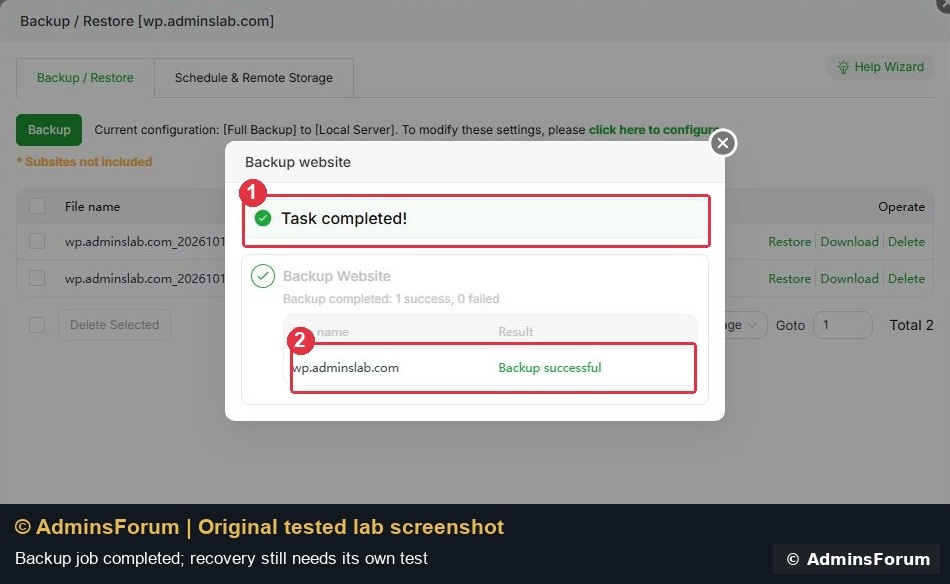
Open WP Toolkit, find the correct domain and click its Backup / Restore entry. Check that the configured backup type includes both files and database, then start the backup and wait for the job to finish.
Our task displayed 1 success, 0 failed. If yours fails, investigate that job before testing restoration. See the backup creation walkthrough for the initial panel steps.
2. Identify the exact archive
In the backup list, check the domain, backup time, file size, backup type and storage location. Do not select an older archive just because it is first in a downloaded folder.
Our selected entry was: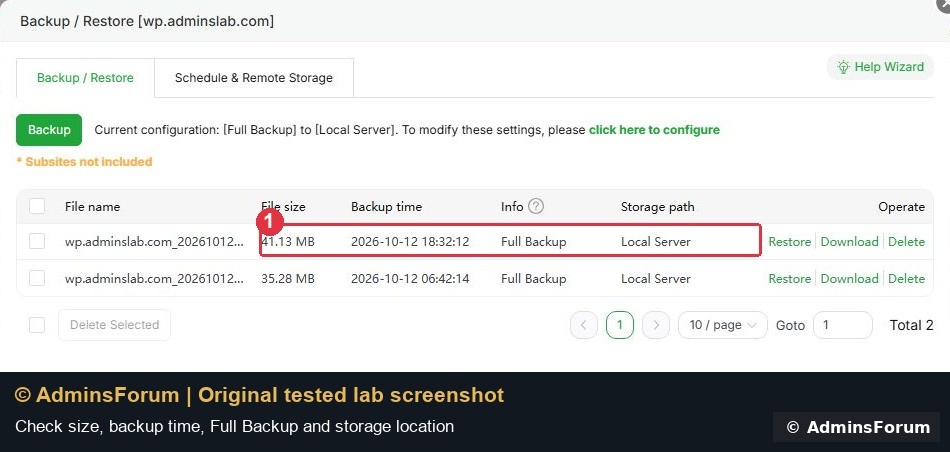
The panel's displayed backup time can use a different timezone from a timestamp embedded in the filename. Record the exact filename and check the selected site's identity. The warning Subsites not included also matters: a backup of the parent site is not proof that every separate subsite has been captured.
3. Preserve a private copy
Keep the original archive while you investigate. We made a second private copy and confirmed its SHA-256 matched the original. That second copy was on the same lab VPS: it protects against accidentally changing the original during testing, but not against losing the server.
For disaster recovery, keep a verified copy in separate storage or on another machine. Do not put backups in a public website directory, attach SQL dumps to support posts, or share archive contents that include wp-config.php or database credentials.
4. Check the archive without restoring it
Our full-backup ZIP contained meta.json, database.sql.gz and files.zip. We checked the outer ZIP, decompressed the SQL gzip, tested the nested files ZIP and confirmed wp-config.php was included.
The following read-only example was also tested against this archive. Open the aaPanel Terminal and change the p = Path(...) line to your actual backup file before running it. It needs Python 3 and its standard library; it does not extract files into your website, import SQL or modify the backup.
This example matches the archive layout observed in our aaPanel version. A different backup format needs a different check; a missing component should be investigated rather than renamed to make the script pass. It loads the compressed components into memory, so for large backups use an appropriate streaming/offline verification process instead of copying this small-lab example blindly.

Read the result carefully:
5. Test recovery on an isolated site
Use a disposable staging environment and preserve its current state before overwriting it. Keep production traffic, outgoing email and scheduled jobs out of the recovery test so a copied website does not send duplicate messages or run live integrations.
Record something that must be recovered from the backup: for example an existing test file's contents, a draft's content, an uploaded image and a harmless database setting. Make a controlled change after the backup, then perform the staging restore through the appropriate restore workflow.
Afterward, independently check both files and database. Open the restored homepage and a deep page, sign in to WordPress, inspect media and confirm the chosen pre-backup state returned. A page loading alone is not enough.
A caution from our own test
In a separate restore test on this lab, WP Toolkit returned a success response, but a changed backed-up file and a disposable database marker remained afterward. We did not count that as a verified recovery. We have not established the cause or claimed that the result applies to other servers or versions. The disposable markers were removed and our private backup was preserved.
Extra files created after a backup can also remain in an overwrite-style restore. Their presence alone is not decisive: check an existing backed-up file and a database value as well.
If any check fails
What this walkthrough verified
The full backup completed, archive checks passed, SQL gzip data decompressed, the nested files ZIP contained wp-config.php, and a matching private safety copy was kept. Successful end-to-end recovery was not verified; that remains a separate requirement.
Reference: aaPanel WP Toolkit documentation. Screenshots are original AdminsForum lab captures.
A backup job finishing successfully proves that the panel created a backup, not that your website can be recovered. Before relying on a WordPress backup, confirm its site and date, check the archive components, preserve another private copy and test restoration on an isolated site.
This guide uses a real full backup from our AdminsForum lab: aaPanel 8.0.6, WordPress 7.1.3 and a root-installed WP Toolkit site. We verified the archive and compression checks on 12 October 2026. It is a verification walkthrough, not a claim that a completed restore was proven.
1. Create a current full backup
Open WP Toolkit, find the correct domain and click its Backup / Restore entry. Check that the configured backup type includes both files and database, then start the backup and wait for the job to finish.
Our task displayed 1 success, 0 failed. If yours fails, investigate that job before testing restoration. See the backup creation walkthrough for the initial panel steps.
2. Identify the exact archive
In the backup list, check the domain, backup time, file size, backup type and storage location. Do not select an older archive just because it is first in a downloaded folder.
Our selected entry was:
- File: wp.adminslab.com_20261012_153210.zip
- Size displayed by aaPanel: 41.13 MB
- Type: Full Backup
- Storage: Local Server
The panel's displayed backup time can use a different timezone from a timestamp embedded in the filename. Record the exact filename and check the selected site's identity. The warning Subsites not included also matters: a backup of the parent site is not proof that every separate subsite has been captured.
3. Preserve a private copy
Keep the original archive while you investigate. We made a second private copy and confirmed its SHA-256 matched the original. That second copy was on the same lab VPS: it protects against accidentally changing the original during testing, but not against losing the server.
For disaster recovery, keep a verified copy in separate storage or on another machine. Do not put backups in a public website directory, attach SQL dumps to support posts, or share archive contents that include wp-config.php or database credentials.
4. Check the archive without restoring it
Our full-backup ZIP contained meta.json, database.sql.gz and files.zip. We checked the outer ZIP, decompressed the SQL gzip, tested the nested files ZIP and confirmed wp-config.php was included.
The following read-only example was also tested against this archive. Open the aaPanel Terminal and change the p = Path(...) line to your actual backup file before running it. It needs Python 3 and its standard library; it does not extract files into your website, import SQL or modify the backup.
Code:
python3 - <<'PY'
from pathlib import Path
import gzip, io, json, zipfile
p = Path('/www/backup/wordpress/wp.adminslab.com_20261012_153210.zip')
if not p.is_file():
    raise SystemExit('STOP: backup file not found')
with zipfile.ZipFile(p) as archive:
    if archive.testzip() is not None:
        raise SystemExit('STOP: outer ZIP integrity failed')
    required = {'meta.json', 'database.sql.gz', 'files.zip'}
    if not required.issubset(archive.namelist()):
        raise SystemExit('STOP: expected full-backup components missing')
    meta = json.loads(archive.read('meta.json'))
    print('Backup domain:', meta.get('domain'))
    print('Backup site root:', meta.get('site_path'))
    sql = gzip.decompress(archive.read('database.sql.gz'))
    if not sql:
        raise SystemExit('STOP: SQL data is empty')
    print('SQL compression and non-empty data: PASS')
    with zipfile.ZipFile(io.BytesIO(archive.read('files.zip'))) as files:
        if files.testzip() is not None:
            raise SystemExit('STOP: nested files ZIP integrity failed')
        if not any(n.endswith('wp-config.php') for n in files.namelist()):
            raise SystemExit('STOP: wp-config.php missing')
    print('Files ZIP integrity and wp-config.php presence: PASS')
print('Integrity checks finished. A restore test is still required.')
PY
This example matches the archive layout observed in our aaPanel version. A different backup format needs a different check; a missing component should be investigated rather than renamed to make the script pass. It loads the compressed components into memory, so for large backups use an appropriate streaming/offline verification process instead of copying this small-lab example blindly.
Read the result carefully:
- The domain and site root should describe the website you intended to back up.
- ZIP integrity checks detect archive corruption; they do not prove the application data is complete or safe.
- Successful SQL gzip decompression and non-empty data do not prove that the SQL will import successfully or contain every required table.
- wp-config.php being present confirms inclusion of that file, not that its database settings match the restore target.
5. Test recovery on an isolated site
Use a disposable staging environment and preserve its current state before overwriting it. Keep production traffic, outgoing email and scheduled jobs out of the recovery test so a copied website does not send duplicate messages or run live integrations.
Record something that must be recovered from the backup: for example an existing test file's contents, a draft's content, an uploaded image and a harmless database setting. Make a controlled change after the backup, then perform the staging restore through the appropriate restore workflow.
Afterward, independently check both files and database. Open the restored homepage and a deep page, sign in to WordPress, inspect media and confirm the chosen pre-backup state returned. A page loading alone is not enough.
A caution from our own test
In a separate restore test on this lab, WP Toolkit returned a success response, but a changed backed-up file and a disposable database marker remained afterward. We did not count that as a verified recovery. We have not established the cause or claimed that the result applies to other servers or versions. The disposable markers were removed and our private backup was preserved.
Extra files created after a backup can also remain in an overwrite-style restore. Their presence alone is not decisive: check an existing backed-up file and a database value as well.
If any check fails
- Stop before overwriting production or deleting older backups.
- Confirm the intended backup filename, domain, site root and database target.
- Review the backup/restore task result and relevant errors; redact credentials before sharing diagnostics.
- Keep the original archive and try recovery in an isolated environment before relying on it.
What this walkthrough verified
The full backup completed, archive checks passed, SQL gzip data decompressed, the nested files ZIP contained wp-config.php, and a matching private safety copy was kept. Successful end-to-end recovery was not verified; that remains a separate requirement.
Reference: aaPanel WP Toolkit documentation. Screenshots are original AdminsForum lab captures.