



Yesterday, 10:08 AM
aaPanel's file permission editor lets you change a selected file's access mode and owner. Understand who needs access before changing a number: the correct permission depends on the application user and the specific file.
Tested: aaPanel Free 8.0.7 on Ubuntu 22.04.5. We changed one disposable non-public file from 644 to 600 through the native Files permission dialog, verified owner access and denial for an unrelated user, then restored 644. No application directory was changed recursively.
1. Understand owner, group and others
Linux permission digits describe three classes in this order: owner, group and others. Each digit combines read (4), write (2) and execute (1).
Common modes, with their limits
2. Find the exact file in aaPanel
Open Files and navigate to the file's directory. Check the filename, full path and current PMSN/Owner value. Our test file was /www/af-composer-lab/af-protection-lab.txt, owned by www with mode 644.
Select the intended row, open its Operate menu and choose Permission. In our version this opened Set Permission with the full target path in the title.
3. Review the dialog before applying
The dialog shows read/write/execute controls, the numeric permission field, an Owner selector and Apply to subdir. Record the existing mode and ownership so you can restore them.
For a single-file test, leave Apply to subdir unchecked. Do not apply one identical mode recursively across files and directories: directories need traversal permissions, while ordinary text files usually do not need executable bits.
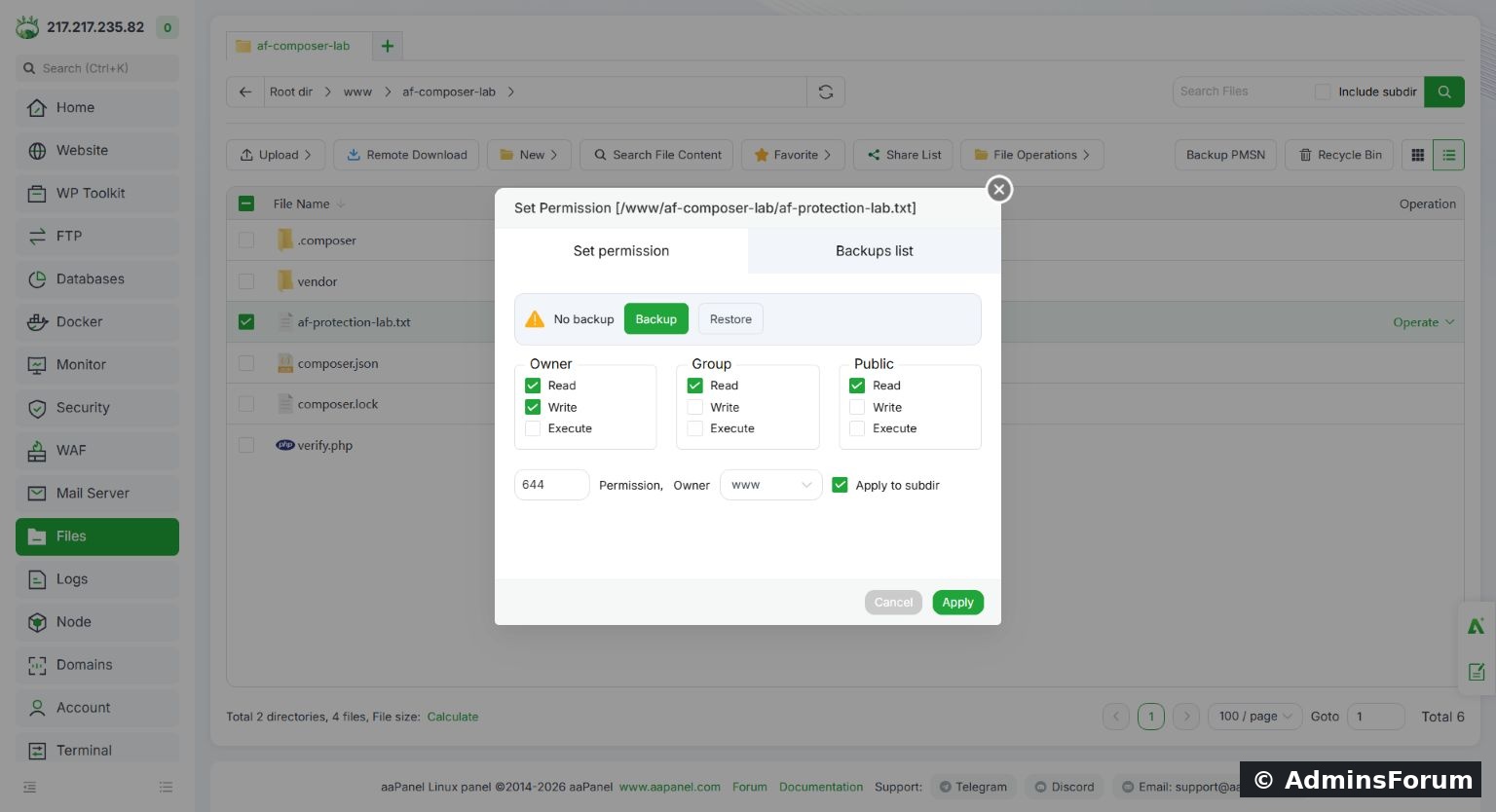
Native aaPanel permission dialog for the disposable file, with owner-only mode 600 entered.
We retained owner www, entered 600 and clicked Apply. The Files row updated to 600 / www.
4. Verify as the intended user
From an authorized SSH administrator session, our checks were:
The first command reported 600 www:www. The owner www read the harmless text successfully. The unrelated nobody account received Permission denied. Those accounts already existed; we did not create another login or grant access.
Use your actual application user when testing. A successful root read is not proof that PHP, Nginx or a Python worker can read the file.
5. Understand ownership before changing it
The Owner selector changes who owns the file. Do not choose www merely because this guide uses it: check the service or deployment user for your application. Different sites and services can use different users.
For this lesson we kept existing ownership unchanged. We inspected the owner control but did not claim a tested ownership migration. Changing ownership can allow one service to write files or prevent another service from accessing them, so review the intended account before applying it.
6. Restore and verify after the test
We reopened Operate → Permission, changed 600 back to 644 and applied it to the same file only. An SSH check confirmed 644 www:www, and the original harmless text was unchanged.
For real maintenance, verify the application action you intended to repair: reading configuration, uploading a file or creating a cache entry. Restore the previous settings if the change fails, then investigate the underlying user/path problem instead of widening access repeatedly.
Diagnose Permission denied
Completion checklist
AdminsForum lab-tested native aaPanel guide. The screenshot contains our own disposable file; ownership changes and recursive updates were not performed.
Tested: aaPanel Free 8.0.7 on Ubuntu 22.04.5. We changed one disposable non-public file from 644 to 600 through the native Files permission dialog, verified owner access and denial for an unrelated user, then restored 644. No application directory was changed recursively.
1. Understand owner, group and others
Linux permission digits describe three classes in this order: owner, group and others. Each digit combines read (4), write (2) and execute (1).
- 6 = read + write.
- 4 = read only.
- 7 = read + write + execute.
- 5 = read + execute.
- 0 = no permissions for that class.
Common modes, with their limits
- 644 file: owner reads/writes; group and others read. Suitable for some public source/static files, but not a universal choice for private configuration.
- 600 file: only the owner reads/writes under ordinary mode bits. Useful where just the intended owner needs access; it can break an app running as another user.
- 640 file: owner reads/writes and group reads. Requires the correct group membership and parent-directory access.
- 755 directory: owner can manage entries; group and others can list/traverse. It does not mean every directory should be public or writable.
- 777: gives every class write access. Do not use it as a general fix for application permission errors.
2. Find the exact file in aaPanel
Open Files and navigate to the file's directory. Check the filename, full path and current PMSN/Owner value. Our test file was /www/af-composer-lab/af-protection-lab.txt, owned by www with mode 644.
Select the intended row, open its Operate menu and choose Permission. In our version this opened Set Permission with the full target path in the title.
3. Review the dialog before applying
The dialog shows read/write/execute controls, the numeric permission field, an Owner selector and Apply to subdir. Record the existing mode and ownership so you can restore them.
For a single-file test, leave Apply to subdir unchecked. Do not apply one identical mode recursively across files and directories: directories need traversal permissions, while ordinary text files usually do not need executable bits.
Native aaPanel permission dialog for the disposable file, with owner-only mode 600 entered.
We retained owner www, entered 600 and clicked Apply. The Files row updated to 600 / www.
4. Verify as the intended user
From an authorized SSH administrator session, our checks were:
Code:
stat -c '%a %U:%G' /www/af-composer-lab/af-protection-lab.txt
runuser -u www -- cat /www/af-composer-lab/af-protection-lab.txt
runuser -u nobody -- cat /www/af-composer-lab/af-protection-lab.txtUse your actual application user when testing. A successful root read is not proof that PHP, Nginx or a Python worker can read the file.
5. Understand ownership before changing it
The Owner selector changes who owns the file. Do not choose www merely because this guide uses it: check the service or deployment user for your application. Different sites and services can use different users.
For this lesson we kept existing ownership unchanged. We inspected the owner control but did not claim a tested ownership migration. Changing ownership can allow one service to write files or prevent another service from accessing them, so review the intended account before applying it.
6. Restore and verify after the test
We reopened Operate → Permission, changed 600 back to 644 and applied it to the same file only. An SSH check confirmed 644 www:www, and the original harmless text was unchanged.
For real maintenance, verify the application action you intended to repair: reading configuration, uploading a file or creating a cache entry. Restore the previous settings if the change fails, then investigate the underlying user/path problem instead of widening access repeatedly.
Diagnose Permission denied
- Check the exact target and every parent directory's traversal permissions.
- Identify the process user and group instead of assuming it runs as root.
- Check whether it needs read access, write access or directory-entry access.
- Inspect ACLs and filesystem attributes if mode bits appear correct.
- Check a read-only filesystem or service isolation where applicable.
- If the immutable i flag is present, chmod does not remove it. See Linux file protection with chattr.
Completion checklist
- Exact file and current settings recorded.
- Required user and access identified.
- Change limited to the intended path.
- Actual user access tested.
- Application behavior checked and rollback available.
AdminsForum lab-tested native aaPanel guide. The screenshot contains our own disposable file; ownership changes and recursive updates were not performed.