



10-13-2026, 03:42 AM
Quick answer
Create one aaPanel task that runs your site's wp-cron.php using the correct PHP interpreter and website user. Verify a due event actually runs, then keep traffic-triggered WP-Cron disabled for that site. Our lab now has one five-minute task for wp.adminslab.com; its native log and a due WordPress test event both passed.
Why use a server schedule?
WordPress normally checks scheduled events during website traffic. A low-traffic site can therefore run due work late. A server scheduler gives WordPress regular opportunities to process its due queue, even when nobody visits the site. It does not make every plugin task safe, repair broken callbacks or force future events to run early.
1. Check the actual website and PHP
Record the exact document root and active PHP version. Our website root is /www/wwwroot/wp.adminslab.com and its active PHP-FPM runtime is PHP 8.5.11. The matching CLI interpreter is /www/server/php/85/bin/php. Verify those paths on your own server instead of copying 85 for a website using another version.
WordPress Site Health reports the web runtime. The server's generic php command may point to another interpreter with different extensions and limits. Test the executable you will schedule.
Also identify the website's OS user. Our site files use www. Running the PHP workload as the website user helps avoid root-owned generated files.
2. Create one task
In aaPanel, open Cron and keep Task type set to Shell Script. Give it a specific name such as “WordPress scheduled tasks — wp.adminslab.com”. Choose N Minutes and set the interval to 5. Check that the description says it executes every five minutes, rather than a daily time or a five-hour interval.
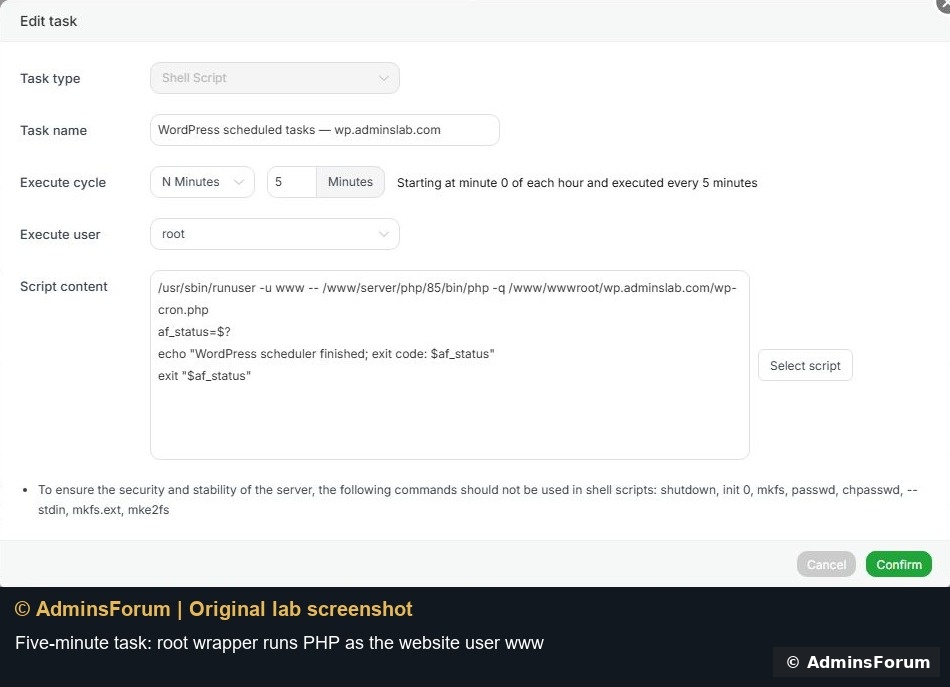
Our panel stores the scheduler wrapper as root, and the command explicitly runs PHP as www. If your panel supports selecting the correct website user directly, use that with the corresponding plain PHP command instead. Do not substitute another OS account without checking its access.
3. Use a command with visible exit status
The exact tested lab wrapper is:
Change the website path, PHP interpreter and website user to match your setup. The wrapper's scheduler account must be allowed to use runuser; a non-root task cannot generally switch to arbitrary accounts.
Keep the exit status: it makes a failed PHP invocation visible. Do not suppress every error and then print a misleading success message. Our first silent version gave an unhelpful empty log, so the tested final version reports the interpreter's result.
Save the task once. Check the task list for an existing equivalent job before adding another.
4. Verify the native task
Use Execute for this specific task, confirm the named task and inspect its Log. An empty output is not by itself proof that a due WordPress callback ran.
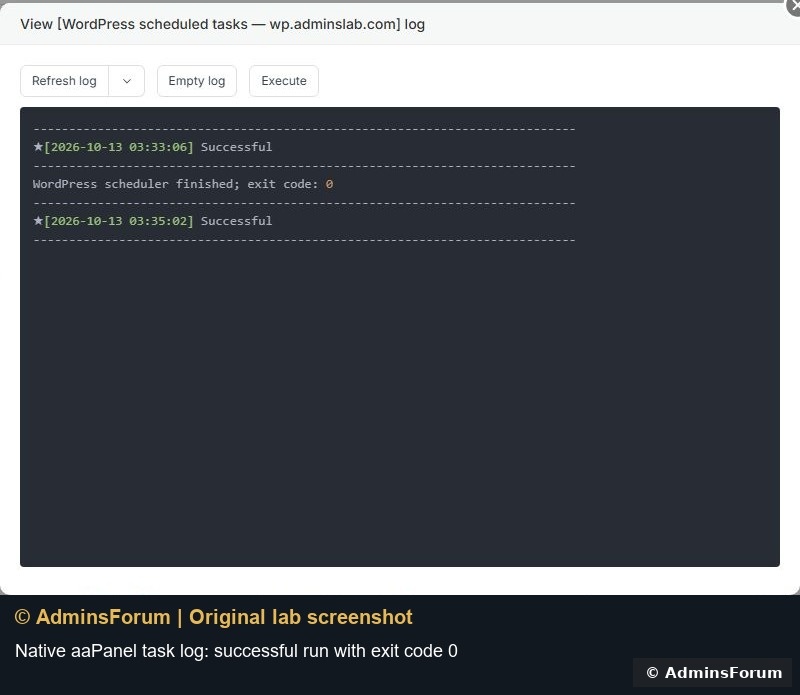
Our final native log reported exit code 0 and Successful. A subsequent automatic five-minute run also logged success. The existing certificate-renewal task stayed running, and the earlier website/database backup demo tasks stayed stopped.
5. Verify an actual due WordPress event
For the lab, we registered a temporary, uniquely named test hook, scheduled it as due and had its callback write a timestamp. The native task processed it. A separate check read the recorded execution time and confirmed DISABLE_WP_CRON was true. The test hook and marker were then cleaned up.

This is stronger evidence than the task's Running label. For your real site, inspect a known due event or a scheduled post after its due time, and review any plugin-specific errors. Do not change every plugin schedule just to create a test.
6. Replace traffic-triggered WP-Cron
Back up wp-config.php privately. Once the server task is ready and its operation is verified, add the following before WordPress loads wp-settings.php:
Check first whether that constant is already defined. Do not create duplicate definitions. Lint the configuration and confirm the site still loads.
If the new task fails, restore the previous scheduling behavior while you fix the task. Leaving both traffic-triggered and external scheduling disabled can prevent due work from running. The lab's final state keeps the verified five-minute task running and traffic-triggered execution disabled for this site.
Troubleshooting
Rollback
Restore traffic-triggered scheduling if needed, then stop the equivalent aaPanel task so you do not leave redundant schedulers. Verify a due event again. Do not disable unrelated SSL renewal, mail or backup tasks.
References: WordPress system-scheduler documentation and aaPanel Cron documentation. © AdminsForum.
Create one aaPanel task that runs your site's wp-cron.php using the correct PHP interpreter and website user. Verify a due event actually runs, then keep traffic-triggered WP-Cron disabled for that site. Our lab now has one five-minute task for wp.adminslab.com; its native log and a due WordPress test event both passed.
Why use a server schedule?
WordPress normally checks scheduled events during website traffic. A low-traffic site can therefore run due work late. A server scheduler gives WordPress regular opportunities to process its due queue, even when nobody visits the site. It does not make every plugin task safe, repair broken callbacks or force future events to run early.
1. Check the actual website and PHP
Record the exact document root and active PHP version. Our website root is /www/wwwroot/wp.adminslab.com and its active PHP-FPM runtime is PHP 8.5.11. The matching CLI interpreter is /www/server/php/85/bin/php. Verify those paths on your own server instead of copying 85 for a website using another version.
WordPress Site Health reports the web runtime. The server's generic php command may point to another interpreter with different extensions and limits. Test the executable you will schedule.
Also identify the website's OS user. Our site files use www. Running the PHP workload as the website user helps avoid root-owned generated files.
2. Create one task
In aaPanel, open Cron and keep Task type set to Shell Script. Give it a specific name such as “WordPress scheduled tasks — wp.adminslab.com”. Choose N Minutes and set the interval to 5. Check that the description says it executes every five minutes, rather than a daily time or a five-hour interval.
Our panel stores the scheduler wrapper as root, and the command explicitly runs PHP as www. If your panel supports selecting the correct website user directly, use that with the corresponding plain PHP command instead. Do not substitute another OS account without checking its access.
3. Use a command with visible exit status
The exact tested lab wrapper is:
Code:
/usr/sbin/runuser -u www -- /www/server/php/85/bin/php -q /www/wwwroot/wp.adminslab.com/wp-cron.php
af_status=$?
echo "WordPress scheduler finished; exit code: $af_status"
exit "$af_status"Keep the exit status: it makes a failed PHP invocation visible. Do not suppress every error and then print a misleading success message. Our first silent version gave an unhelpful empty log, so the tested final version reports the interpreter's result.
Save the task once. Check the task list for an existing equivalent job before adding another.
4. Verify the native task
Use Execute for this specific task, confirm the named task and inspect its Log. An empty output is not by itself proof that a due WordPress callback ran.
Our final native log reported exit code 0 and Successful. A subsequent automatic five-minute run also logged success. The existing certificate-renewal task stayed running, and the earlier website/database backup demo tasks stayed stopped.
5. Verify an actual due WordPress event
For the lab, we registered a temporary, uniquely named test hook, scheduled it as due and had its callback write a timestamp. The native task processed it. A separate check read the recorded execution time and confirmed DISABLE_WP_CRON was true. The test hook and marker were then cleaned up.
This is stronger evidence than the task's Running label. For your real site, inspect a known due event or a scheduled post after its due time, and review any plugin-specific errors. Do not change every plugin schedule just to create a test.
6. Replace traffic-triggered WP-Cron
Back up wp-config.php privately. Once the server task is ready and its operation is verified, add the following before WordPress loads wp-settings.php:
Code:
define('DISABLE_WP_CRON', true);If the new task fails, restore the previous scheduling behavior while you fix the task. Leaving both traffic-triggered and external scheduling disabled can prevent due work from running. The lab's final state keeps the verified five-minute task running and traffic-triggered execution disabled for this site.
Troubleshooting
- PHP executable not found: use the full installed interpreter path for the website's intended PHP version.
- Permission denied: check the website user, directory permissions and command wrapper. Avoid making the entire website world-writable.
- Task exits successfully but an event remains overdue: inspect that event's callback, application logs and any cron lock; scheduler invocation alone cannot repair plugin logic.
- Task runs twice: check for duplicate native jobs, external schedulers and the site's DISABLE_WP_CRON configuration.
- Wrong timestamps: distinguish server/log timezone from WordPress display timezone. The lab verification timestamp was recorded in UTC.
Rollback
Restore traffic-triggered scheduling if needed, then stop the equivalent aaPanel task so you do not leave redundant schedulers. Verify a due event again. Do not disable unrelated SSL renewal, mail or backup tasks.
References: WordPress system-scheduler documentation and aaPanel Cron documentation. © AdminsForum.