



Run a Node.js App on CyberPanel Behind Your Domain with SSL (Tested)
CyberPanel is built around PHP sites, and it has no "Node.js app" button. But you can still host a Node.js app on the same server: the app runs on a private port, a small service keeps it alive, and your CyberPanel website passes visitors to it, with the SSL certificate CyberPanel already manages. We set this up on a CyberPanel 3.0.8 server (Ubuntu 24.04) and tested each step.
Which web server: our test server runs LiteSpeed Enterprise. Steps 1 to 3 are the same on any CyberPanel server. Step 4 (the proxy rule) is different on OpenLiteSpeed. See the note there.
Step 1: Install Node.js
Over SSH as root. Ubuntu 24.04's own package is the old Node.js 18 (
showed 18.19.1 for us), so we used the NodeSource repository for version 22:
We got
and npm
.
Step 2: Put the app in the website's home folder
Create a normal website in CyberPanel for the domain first (with SSL). CyberPanel gives every website its own Linux user. Find it:
Ours was
. We'll run the app as this user, not as root, so a bug in the app can't touch the rest of the server.
Put the app next to public_html, not inside it, so nobody can download your source files through the web server:
Our test app, saved as
:
Two details matter here:
Step 3: Keep it running with a service
Create
(use your user and domain):
Start it, and make it start after every reboot:
Ours showed active (running), about 8 MB of memory, and:
We also killed the app on purpose (
). Two seconds later the service had started it again and it answered normally. That's what
is for.
Step 4: Send the domain to the app
In CyberPanel open Websites → your site → Config → Rewrite Rules, replace what's there with these two lines and click Save Rewrite Rules:
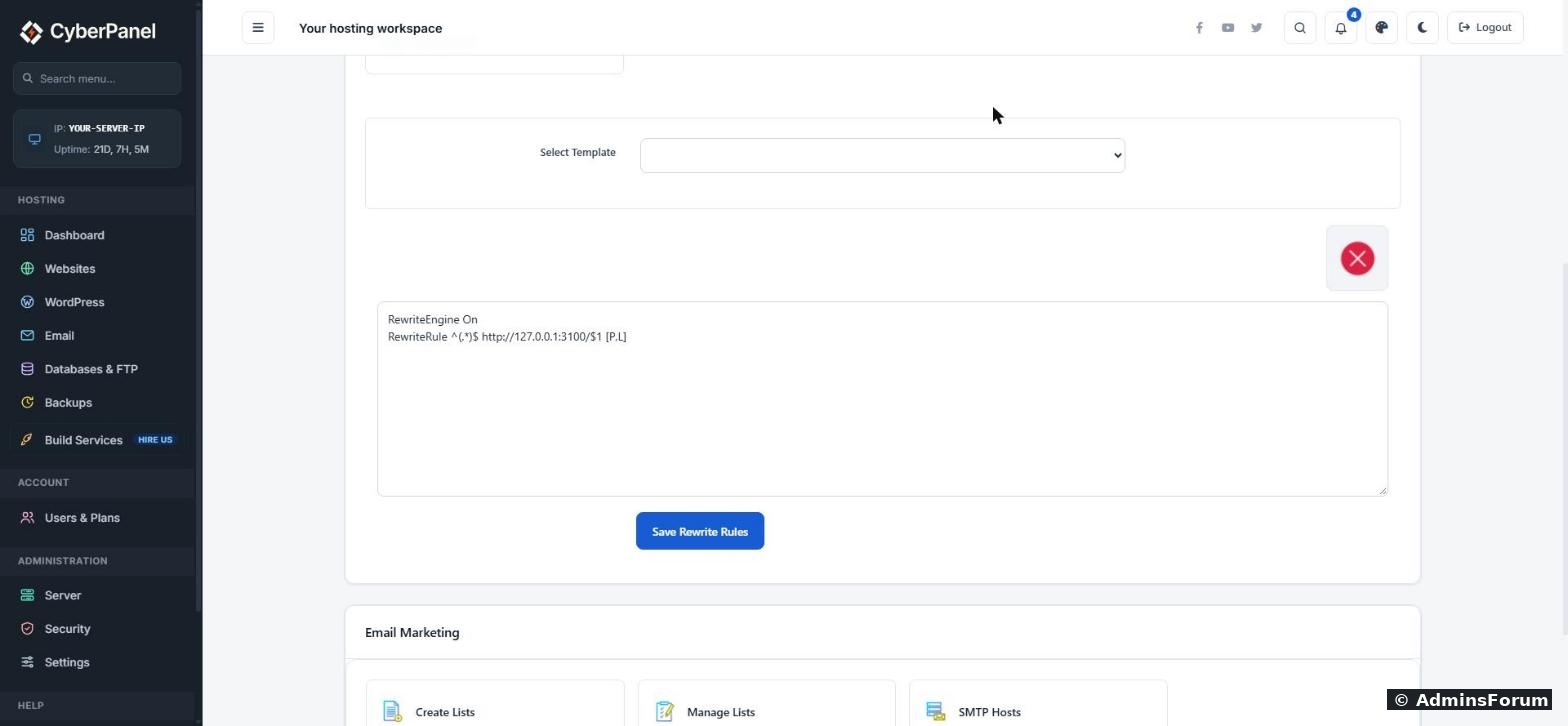
means "proxy": the web server fetches each page from your app and hands it to the visitor.
We opened
in a browser and got, with the padlock:
The path and the query string arrive in the app unchanged. It worked right after saving, without restarting the web server.
On OpenLiteSpeed (the free default): a
rule can't point at a raw address like this. You first define the app as an external app (a proxy to
) in the site's vHost Conf, and the rule uses that app's name. We tested this guide on LiteSpeed Enterprise only. Our Docker Manager guide in the Docker section of this forum shows the OpenLiteSpeed way of putting an app on a private port behind a domain.
Day-to-day commands
The
line is how we found the port problem above. Everything your app prints with
lands there.
Good to know
Questions, or an app that won't start? Reply below with the lines from
(hide your server IP and domain first).
CyberPanel is built around PHP sites, and it has no "Node.js app" button. But you can still host a Node.js app on the same server: the app runs on a private port, a small service keeps it alive, and your CyberPanel website passes visitors to it, with the SSL certificate CyberPanel already manages. We set this up on a CyberPanel 3.0.8 server (Ubuntu 24.04) and tested each step.
Which web server: our test server runs LiteSpeed Enterprise. Steps 1 to 3 are the same on any CyberPanel server. Step 4 (the proxy rule) is different on OpenLiteSpeed. See the note there.
Step 1: Install Node.js
Over SSH as root. Ubuntu 24.04's own package is the old Node.js 18 (
Code:
apt-cache policy nodejsCode:
curl -fsSL https://deb.nodesource.com/setup_22.x -o /root/nodesource_setup.sh
bash /root/nodesource_setup.sh
apt-get install -y nodejs
node -v
npm -vCode:
v22.23.5Code:
10.9.9Step 2: Put the app in the website's home folder
Create a normal website in CyberPanel for the domain first (with SSL). CyberPanel gives every website its own Linux user. Find it:
Code:
stat -c %U /home/yourdomain.com/public_htmlCode:
cours5268Put the app next to public_html, not inside it, so nobody can download your source files through the web server:
Code:
mkdir -p /home/yourdomain.com/nodeappCode:
/home/yourdomain.com/nodeapp/app.jsCode:
const http = require('http');

const server = http.createServer((req, res) => {
  res.writeHead(200, { 'Content-Type': 'text/plain' });
  res.end('Hello from Node.js ' + process.version + '\n' + 'URL: ' + req.url + '\n');
});

server.listen(3100, '127.0.0.1', () => {
  console.log('App listening on 127.0.0.1:3100');
});- Listen on 127.0.0.1, not on all addresses. Then the app can only be reached from the server itself, and you don't open any firewall port.
- Check the port is free first. We started with port 3000 and the app crashed with
. Another program on our server already used 3000. Check withCode:Error: listen EADDRINUSE: address already in use 127.0.0.1:3000
. No output means the port is free. We moved to 3100.Code:ss -ltnp | grep :3000
Code:
chown -R cours5268:cours5268 /home/yourdomain.com/nodeappStep 3: Keep it running with a service
Create
Code:
/etc/systemd/system/nodeapp.serviceCode:
[Unit]
Description=Node.js app for yourdomain.com
After=network.target

[Service]
User=cours5268
WorkingDirectory=/home/yourdomain.com/nodeapp
ExecStart=/usr/bin/node app.js
Restart=always
Environment=NODE_ENV=production

[Install]
WantedBy=multi-user.targetCode:
systemctl daemon-reload
systemctl enable --now nodeapp
systemctl status nodeapp --no-pager
curl http://127.0.0.1:3100/testCode:
Hello from Node.js v22.23.5
URL: /testCode:
pkill -f "node app.js"Code:
Restart=alwaysStep 4: Send the domain to the app
In CyberPanel open Websites → your site → Config → Rewrite Rules, replace what's there with these two lines and click Save Rewrite Rules:
Code:
RewriteEngine On
RewriteRule ^(.*)$ http://127.0.0.1:3100/$1 [P,L]
Code:
[P]We opened
Code:
https://yourdomain.com/hello?name=testCode:
Hello from Node.js v22.23.5
URL: /hello?name=testOn OpenLiteSpeed (the free default): a
Code:
[P]Code:
127.0.0.1:3100Day-to-day commands
Code:
systemctl restart nodeapp                 # after you change the code
journalctl -u nodeapp -n 50 --no-pager    # the app's output and errors
systemctl stop nodeapp                    # stop it
systemctl disable --now nodeapp # stop it and don't start at bootCode:
journalctlCode:
console.logGood to know
- A real app needs its packages: run
in the app folder as the website's user, for exampleCode:npm install
from inside the folder.Code:sudo -u cours5268 npm install
- More than one app: give each its own port, its own service file (nodeapp2.service...) and its own website.
- WebSockets (live chat, socket.io): this rule alone does not pass them. They need one extra rule. See our WebSockets on CyberPanel guide.
- Everything goes to the app. With this rule, files in public_html are no longer served. If you want the web server to serve static files itself, you need a narrower rule.
Questions, or an app that won't start? Reply below with the lines from
Code:
journalctl -u nodeapp