



Yesterday, 07:13 AM
requirements.txt records the Python packages an application needs, so you can install them into the correct environment and rebuild the app later. In aaPanel, the key is using the Python executable from the environment selected for that project.
Tested: Our Flask project on aaPanel Free 8.0.7 uses af_python_lab. We also created a separate clean environment, installed the sample's requirements, ran pip check and started the restored app on a different local port. This lesson uses SSH commands for package management; it does not claim a new aaPanel package-management screen exists.
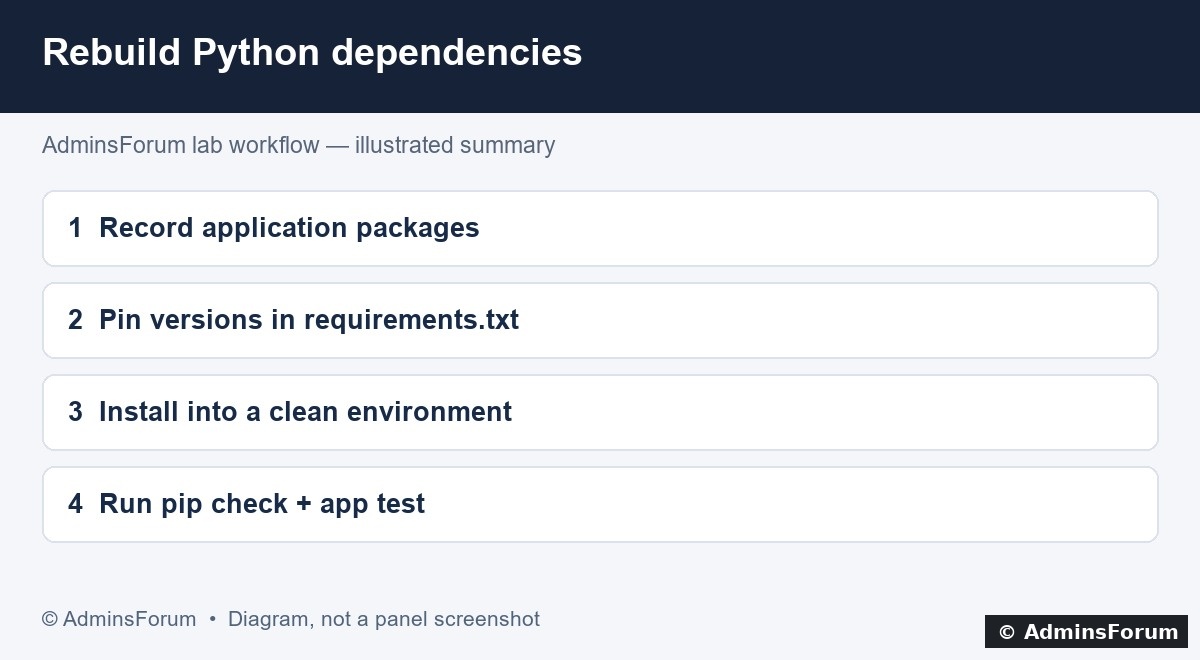
Dependency workflow diagram: record, install, check and run the application.
1. Find the project's actual environment
Open Website → Python Project, click the project and inspect Project information → Python Environment. Our selected environment is af_python_lab. Its actual path on this panel version is:
Do not assume the path is identical on every release. Verify the executable before installing packages:
The pip output should point inside that environment. Using python -m pip ties the installer to the chosen interpreter, avoiding a different pip from the shell's PATH.
2. Create requirements.txt beside the app
For our small sample, the project folder is /www/wwwroot/af-flask-lab and the file contains:
Each line names a package; == pins the direct version. These are the versions tested in this lab, not an instruction to upgrade every existing app to them. Use your application's known compatible versions and include its real direct dependencies.
This two-line file does not pin every transitive dependency. Pip will resolve Flask's dependencies when it installs the file. For stronger repeatability, keep a reviewed full version snapshot or the lock file used by your project's dependency workflow.
3. Understand pip freeze before using it
To inspect installed packages in this environment:
A freeze snapshot includes installed packages, including packages added by tools or unrelated experiments in that same environment. It does not identify which ones your application directly uses. Review it before using it as your application requirements file, and avoid overwriting an existing reviewed file without keeping a copy.
AaPanel initialized additional support packages in our project environment. For the tiny Flask restore, we used the application's two direct dependencies instead of blindly copying every installed package.
4. Install using the intended environment and user
If the environment belongs to www, run the installer as that user. Give it a writable cache inside the project rather than broadening permissions on system directories:
The project and environment must already have appropriate ownership for www. If the command reports Permission denied, inspect that specific path; do not apply chmod 777 to the environment or the whole website tree.
Review the requirements file and package source before installation. Do not paste credentials into package URLs that may appear in shell history or logs. For a running application, rehearse dependency changes in a separate environment and plan rollback before changing its live packages.
5. Check consistency and run the app
Use the same interpreter:
A successful pip check reports no incompatible or missing declared package requirements. It does not prove your application behavior is correct, so also test startup and a meaningful application request.
6. Prove the file can rebuild a clean environment
Our recovery exercise created a new environment under /www/af-flask-restore-20261014/venv and installed:
The installation succeeded with Flask 3.1.3 and Gunicorn 26.2.0. Pip check reported No broken requirements found. The rebuilt app returned HTTP 200 and AdminsForum Flask lab on 127.0.0.1:3202, then the temporary test process was stopped. The live website still returned HTTP 200.
See Back Up and Restore a Flask App for the complete isolated test. A separate environment prevents a failed experiment from replacing the live application's dependencies.
Common errors
Completion checklist
Reference: Official pip requirements-file documentation and pip freeze documentation.
Tested and illustrated by AdminsForum. Diagram summarizes our lab workflow; use paths and versions appropriate to your application.
Tested: Our Flask project on aaPanel Free 8.0.7 uses af_python_lab. We also created a separate clean environment, installed the sample's requirements, ran pip check and started the restored app on a different local port. This lesson uses SSH commands for package management; it does not claim a new aaPanel package-management screen exists.
Dependency workflow diagram: record, install, check and run the application.
1. Find the project's actual environment
Open Website → Python Project, click the project and inspect Project information → Python Environment. Our selected environment is af_python_lab. Its actual path on this panel version is:
Code:
/www/server/pyporject_evn/af_python_labCode:
/www/server/pyporject_evn/af_python_lab/bin/python --version
/www/server/pyporject_evn/af_python_lab/bin/python -m pip --version2. Create requirements.txt beside the app
For our small sample, the project folder is /www/wwwroot/af-flask-lab and the file contains:
Code:
Flask==3.1.3
gunicorn==26.2.0This two-line file does not pin every transitive dependency. Pip will resolve Flask's dependencies when it installs the file. For stronger repeatability, keep a reviewed full version snapshot or the lock file used by your project's dependency workflow.
3. Understand pip freeze before using it
To inspect installed packages in this environment:
Code:
/www/server/pyporject_evn/af_python_lab/bin/python -m pip list
/www/server/pyporject_evn/af_python_lab/bin/python -m pip freezeAaPanel initialized additional support packages in our project environment. For the tiny Flask restore, we used the application's two direct dependencies instead of blindly copying every installed package.
4. Install using the intended environment and user
If the environment belongs to www, run the installer as that user. Give it a writable cache inside the project rather than broadening permissions on system directories:
Code:
runuser -u www -- /www/server/pyporject_evn/af_python_lab/bin/python -m pip install --cache-dir /www/wwwroot/af-flask-lab/.pip-cache -r /www/wwwroot/af-flask-lab/requirements.txtReview the requirements file and package source before installation. Do not paste credentials into package URLs that may appear in shell history or logs. For a running application, rehearse dependency changes in a separate environment and plan rollback before changing its live packages.
5. Check consistency and run the app
Use the same interpreter:
Code:
/www/server/pyporject_evn/af_python_lab/bin/python -m pip check
/www/server/pyporject_evn/af_python_lab/bin/python -m pip show Flask gunicorn6. Prove the file can rebuild a clean environment
Our recovery exercise created a new environment under /www/af-flask-restore-20261014/venv and installed:
Code:
/www/af-flask-restore-20261014/venv/bin/python -m pip install   -r /www/af-flask-restore-20261014/af-flask-lab/requirements.txt
/www/af-flask-restore-20261014/venv/bin/python -m pip checkSee Back Up and Restore a Flask App for the complete isolated test. A separate environment prevents a failed experiment from replacing the live application's dependencies.
Common errors
- No module named flask: verify the project uses the same environment in which you installed Flask.
- No matching distribution: check whether the requested package version supports your Python version and platform.
- Permission denied: check the installer user, environment ownership and cache directory.
- Dependency conflict: read the reported package versions; test compatible pins in a clean environment rather than forcing an inconsistent installation.
- Packages install but app fails: check the startup command, environment variables, OS libraries and application logs. Pip cannot configure those for you.
Completion checklist
- Correct project environment identified.
- Application dependency file reviewed and backed up.
- Install and verification use the same interpreter.
- Pip check passes.
- Clean-environment rebuild and application response tested.
Reference: Official pip requirements-file documentation and pip freeze documentation.
Tested and illustrated by AdminsForum. Diagram summarizes our lab workflow; use paths and versions appropriate to your application.