



11-07-2026, 08:19 PM
Locked Out by 2FA on CyberPanel? Turn It Off From SSH (Tested)
Lost the phone with your authenticator app, or the codes suddenly stopped working? If you can still log in to the server over SSH as root, you can switch off two-factor login for any CyberPanel user in under a minute. We turned 2FA on for the admin account on a CyberPanel 3.0.8 server, then switched it off from SSH with the commands below.
First: is it just the clock?
2FA codes are based on the current time. If the server's clock or your phone's clock is wrong by more than a minute or so, every code fails. Check the server first:
If System clock synchronized says no, fix the time (for example
) and try a code again. On your phone, set the time to automatic.
Where 2FA is switched on
For reference, this is where 2FA lives: Users & Plans → Modify User, pick the user, tick Enable Two-Factor Authentication (2FA), scan the QR code and save. (We blurred our QR code: it's the secret for the account.)
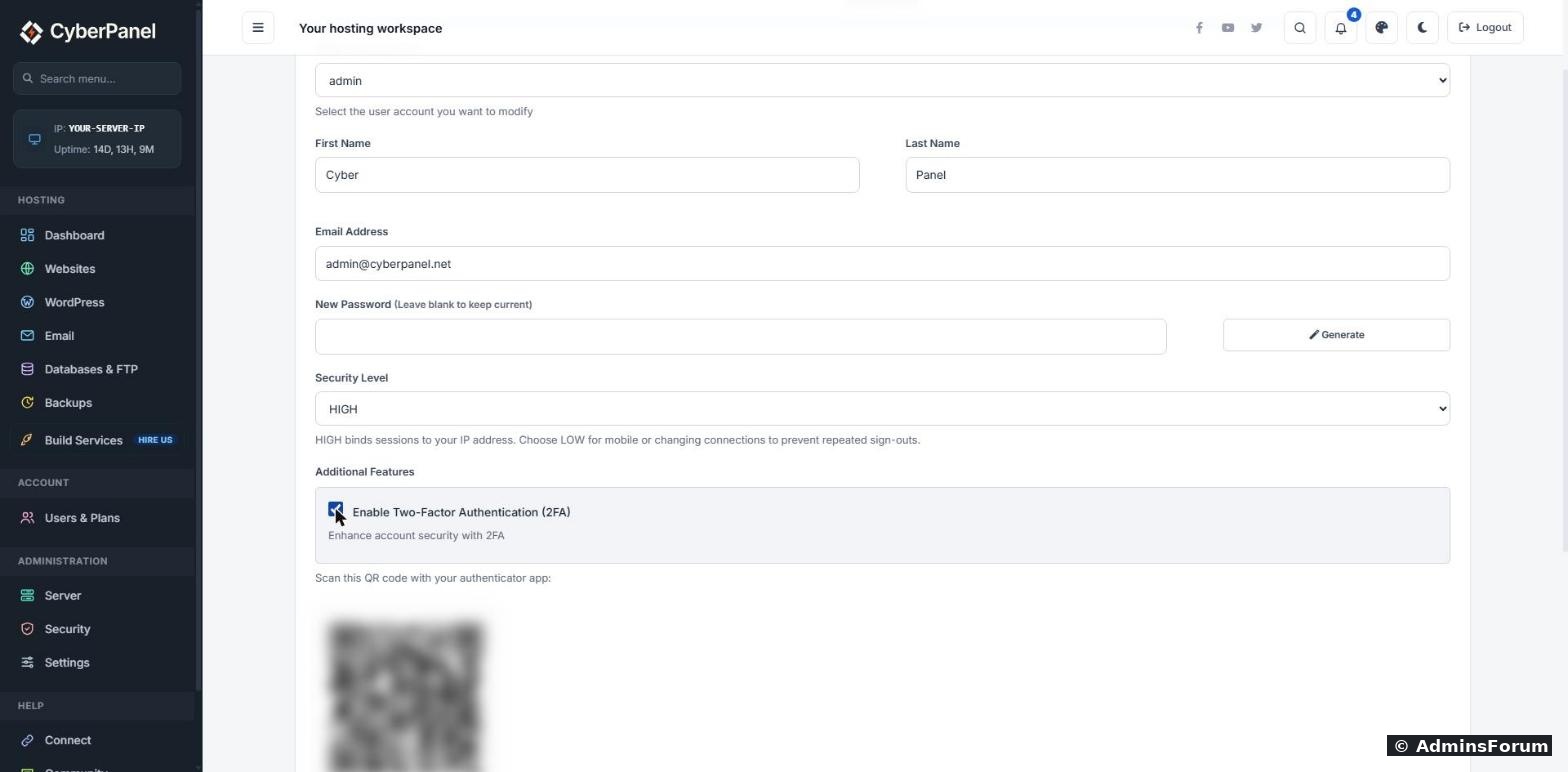
Watch out on this page: our browser auto-filled the saved panel password into the New Password box. If you save the form like that, you may change the password without meaning to. Empty that box before you click Save Changes.
Turn 2FA off from SSH
Log in to the server over SSH as root and run these three lines. They read CyberPanel's database password from its config file, so you don't need to know it:
The first query shows every panel user and whether 2FA is on (
) or off (
). The main admin account is
. For another user, use their name instead:
Here's what we saw on our server before and after:
No restart is needed. Back in the panel, the 2FA box for admin is now unticked:
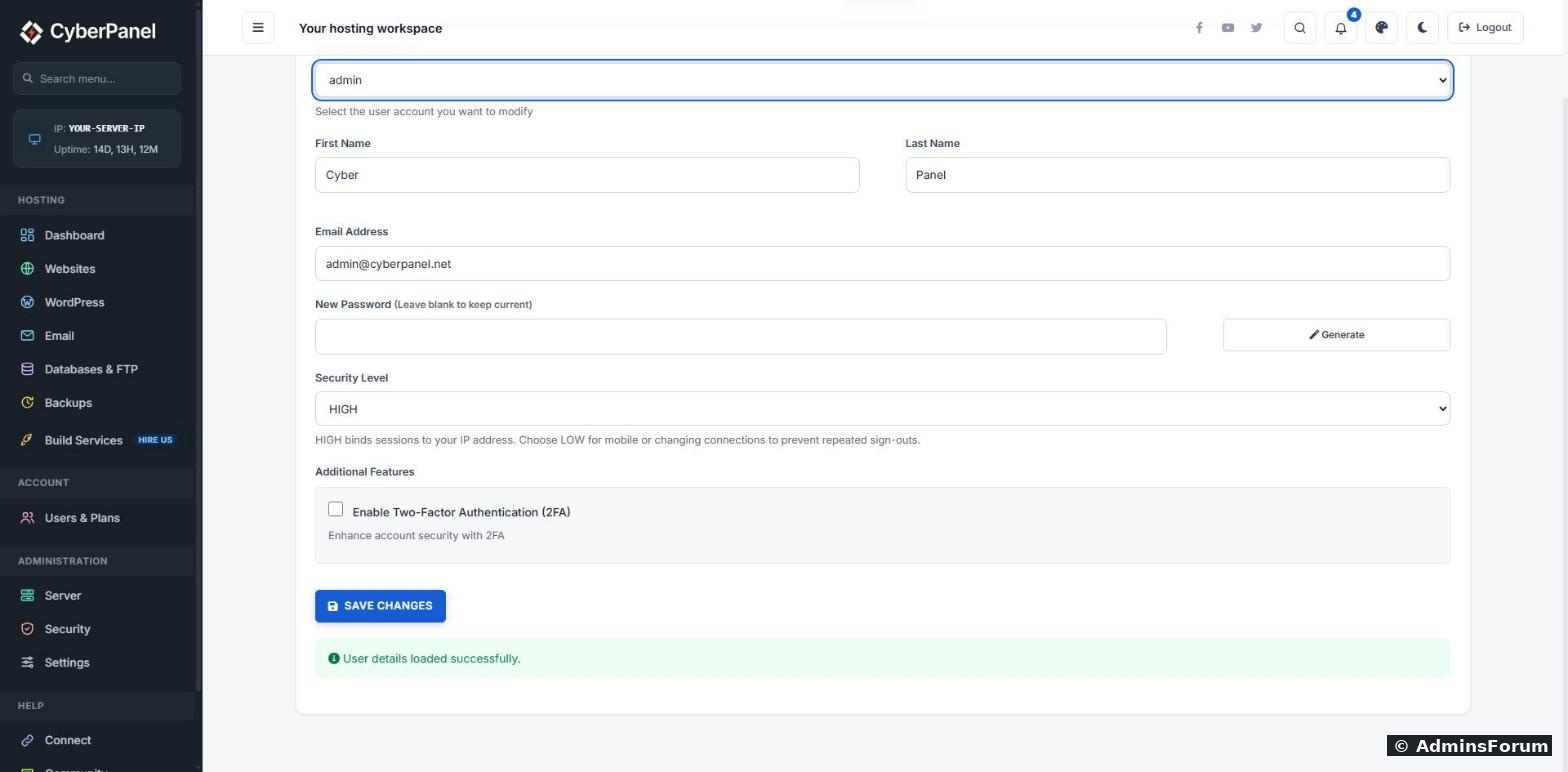
Log in with just your username and password. Then turn 2FA back on in Modify User with a fresh QR code. This time, save the setup key or the QR code somewhere safe (a password manager), so losing a phone doesn't lock you out again.
Good to know
Still locked out? Reply below with what the login page shows (hide your server IP).
Lost the phone with your authenticator app, or the codes suddenly stopped working? If you can still log in to the server over SSH as root, you can switch off two-factor login for any CyberPanel user in under a minute. We turned 2FA on for the admin account on a CyberPanel 3.0.8 server, then switched it off from SSH with the commands below.
First: is it just the clock?
2FA codes are based on the current time. If the server's clock or your phone's clock is wrong by more than a minute or so, every code fails. Check the server first:
Code:
timedatectlCode:
timedatectl set-ntp trueWhere 2FA is switched on
For reference, this is where 2FA lives: Users & Plans → Modify User, pick the user, tick Enable Two-Factor Authentication (2FA), scan the QR code and save. (We blurred our QR code: it's the secret for the account.)
Watch out on this page: our browser auto-filled the saved panel password into the New Password box. If you save the form like that, you may change the password without meaning to. Empty that box before you click Save Changes.
Turn 2FA off from SSH
Log in to the server over SSH as root and run these three lines. They read CyberPanel's database password from its config file, so you don't need to know it:
Code:
PASSWORD=$(cat /etc/cyberpanel/mysqlPassword)
mysql -uroot -p"$PASSWORD" cyberpanel -e "SELECT id,userName,twoFA FROM loginSystem_administrator;"
mysql -uroot -p"$PASSWORD" cyberpanel -e "UPDATE loginSystem_administrator SET twoFA=0 WHERE id=1;"Code:
1). The main admin account is
Code:
id=1Code:
mysql -uroot -p"$PASSWORD" cyberpanel -e "UPDATE loginSystem_administrator SET twoFA=0 WHERE userName='someuser';"Here's what we saw on our server before and after:
Code:
BEFORE:
| id | userName | twoFA |
|  1 | admin    |     1 |
AFTER:
| id | userName | twoFA |
| 1 | admin | 0 |Log in with just your username and password. Then turn 2FA back on in Modify User with a fresh QR code. This time, save the setup key or the QR code somewhere safe (a password manager), so losing a phone doesn't lock you out again.
Good to know
- Forgot the password too? Reset it from SSH with CyberPanel's
command. See our guide on resetting the CyberPanel admin password.Code:adminPass
- 2FA protects the panel login, not the server. As you just saw, anyone with root SSH access can switch it off. Protect SSH itself with keys (see our SSH key login guide).
- No SSH access either? Use your VPS provider's web console (VNC/noVNC) to get a root shell, then run the same commands.
Still locked out? Reply below with what the login page shows (hide your server IP).