



40 minutes ago
LiteSpeed Cache on CyberPanel: Settings That Matter (and One That Does Nothing)
If you installed WordPress with our WP-CLI guide, the LiteSpeed Cache plugin is already there, and page caching is on as soon as it's active. You don't need to change much. But it's worth knowing how to check it really works, which settings to leave alone, and that one popular setting does nothing on OpenLiteSpeed.
We tested everything on CyberPanel 3.0.8 with OpenLiteSpeed 2.5.5 and LiteSpeed Cache 7.9.2.
What the cache does: real numbers
We timed our WordPress home page from the server (time to first byte, median of 6 requests):
That's about 4.5 times faster, and PHP doesn't run at all for a cached page, so the server can take far more visitors. A small, nearly empty site already gains this much, and a heavy theme with many plugins gains more.
Step 1: Check that pages come from the cache
Over SSH (or any computer with curl), ask for a page twice:
The first answer may be x-litespeed-cache: miss (the page was just stored). The second should be hit. In a browser you can see the same header in Developer Tools → Network → click the page → Response Headers. Use a private window: as a logged-in admin you're never served the public cache.
No x-litespeed-cache header at all? First check the page really exists. We lost time on this ourselves: our test page
didn't exist on this site (its permalinks use
), so WordPress sent a 404 with
, and we briefly thought the cache was broken. Test with your home page or a URL you copied from the browser.
Step 2: The Cache tab (leave the defaults)
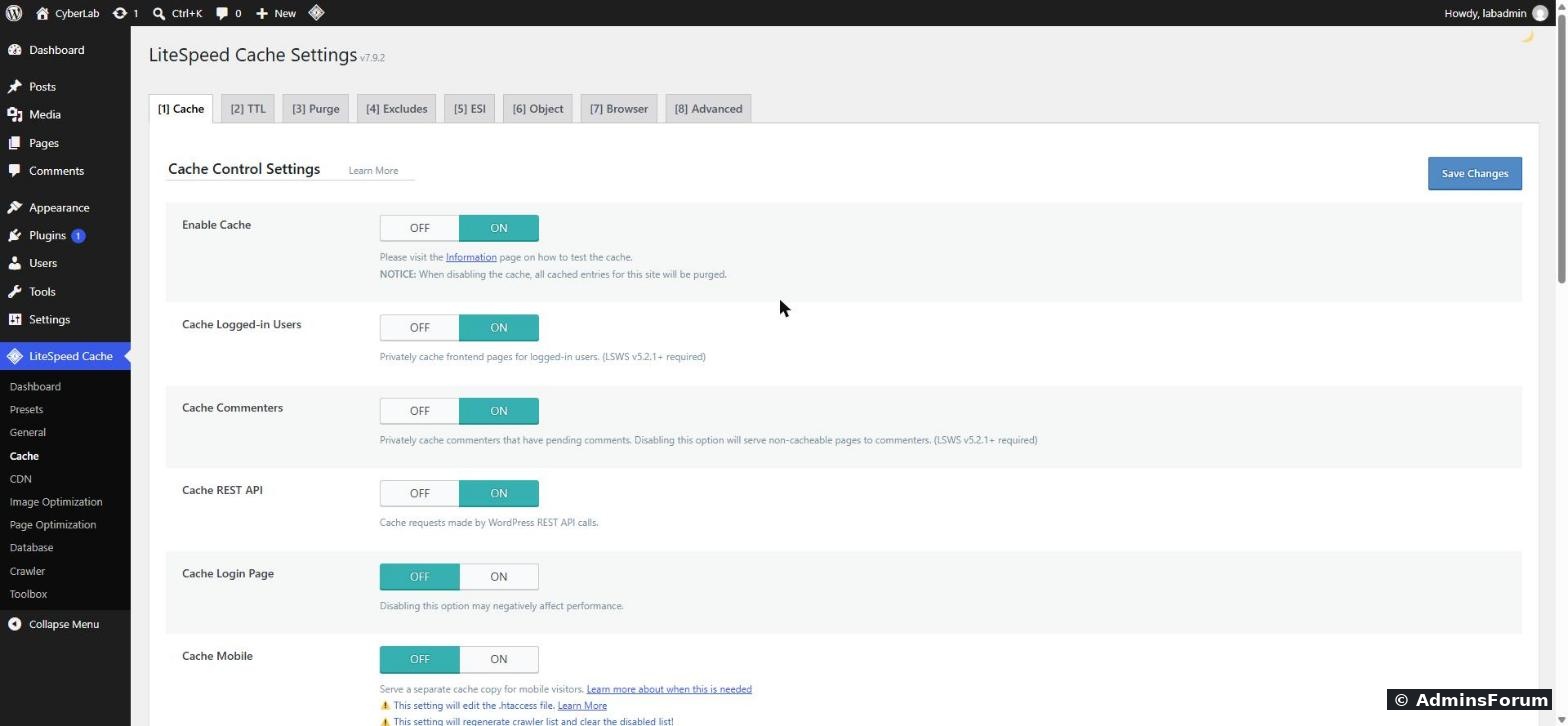
Go to LiteSpeed Cache → Cache. Our fresh install had:
Step 3: Browser Cache does nothing on OpenLiteSpeed
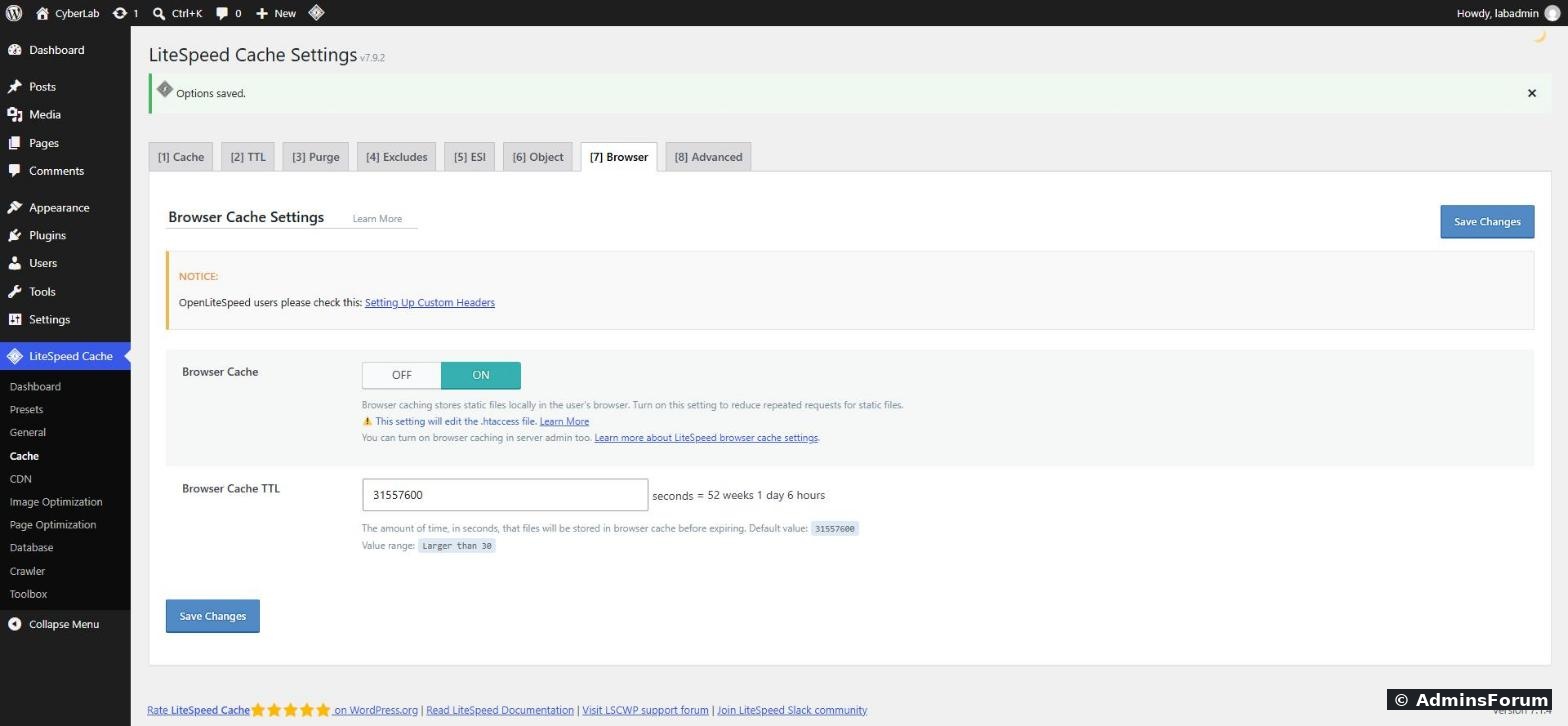
The Browser tab has a Browser Cache switch with a 1-year TTL, and a notice saying OpenLiteSpeed users should check custom headers. We tested what it actually does.
With the switch OFF, our CSS and image files were already sent with
(7 days). That comes from the server's default settings, not from the plugin.
With the switch ON, the plugin wrote one-year
rules into
, and the files were still sent with
. OpenLiteSpeed doesn't read those
rules (it only reads rewrite rules from
).
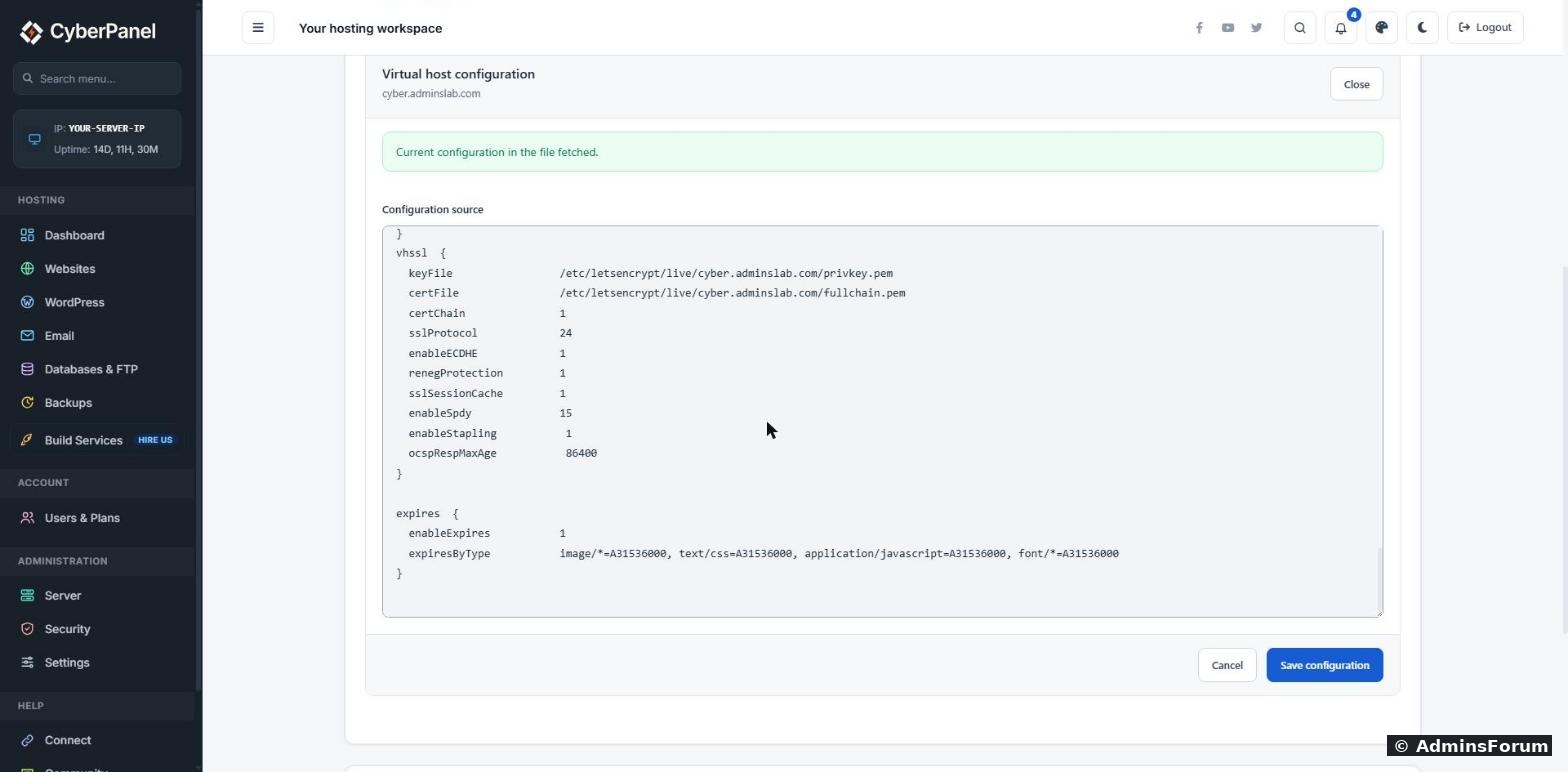
The setting that does work is in CyberPanel. Open Websites → your site → Config → vHost Conf, add this block at the very end, and click Save configuration:
Then restart OpenLiteSpeed over SSH:
Our CSS and images then came back with
(one year), and the site kept working. Check yours with:
Is one year safe? For WordPress, yes. WordPress adds a version number to its CSS and JS links (for example
), so when a theme or plugin updates, browsers download the new file anyway.
Step 4: Purging the cache
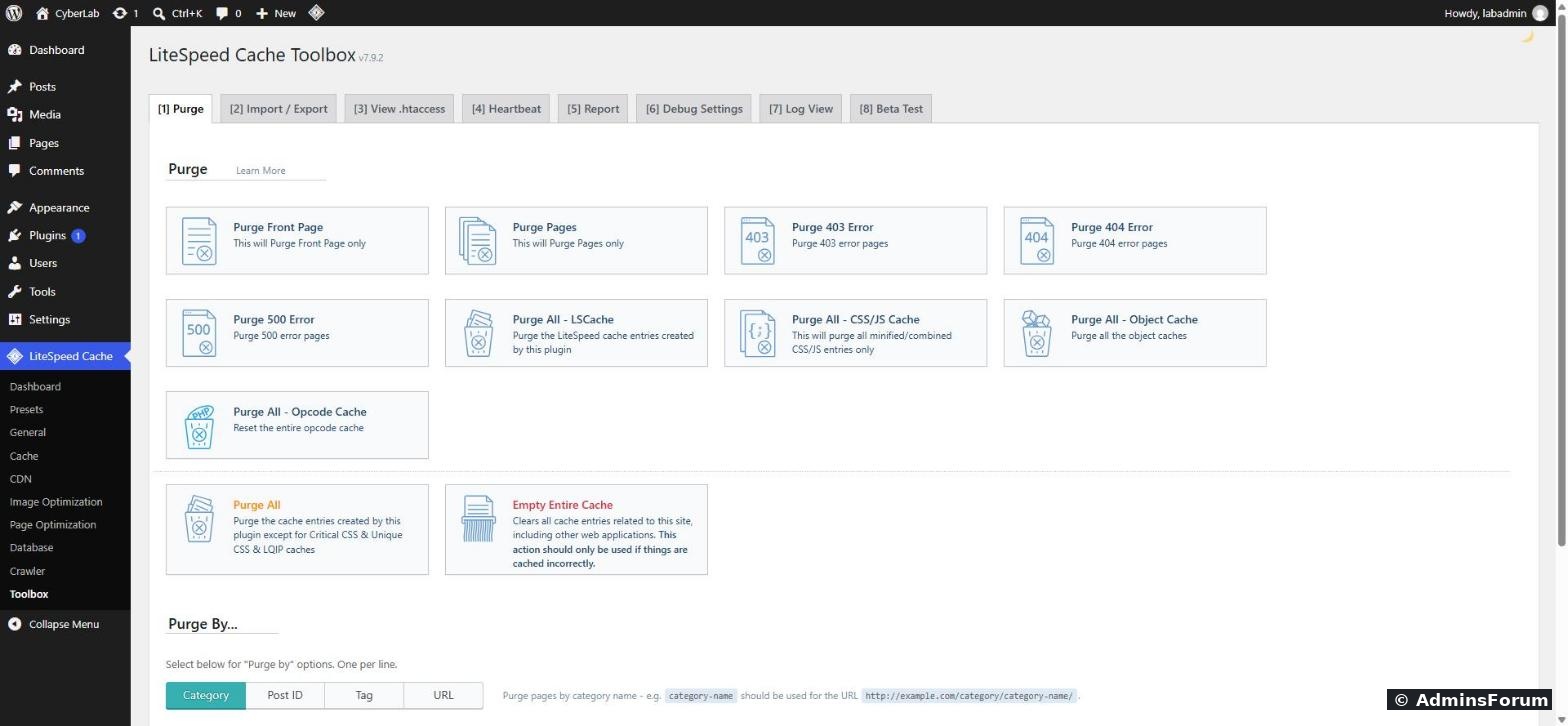
After big changes (a new theme, changed menus or widgets, or a page that looks out of date), clear the cache. In WordPress: LiteSpeed Cache → Toolbox → Purge → Purge All, or the LiteSpeed icon in the top admin bar.
Over SSH you can do the same with WP-CLI (we got Success: Purge all sent to the web server):
Use Empty Entire Cache only if something is badly wrong. It clears everything cached on the server for this site.
What we didn't change
Have a site that never shows hit? Reply below with the output of the curl command from step 1 (hide your server IP and domain if you prefer).
If you installed WordPress with our WP-CLI guide, the LiteSpeed Cache plugin is already there, and page caching is on as soon as it's active. You don't need to change much. But it's worth knowing how to check it really works, which settings to leave alone, and that one popular setting does nothing on OpenLiteSpeed.
We tested everything on CyberPanel 3.0.8 with OpenLiteSpeed 2.5.5 and LiteSpeed Cache 7.9.2.
What the cache does: real numbers
We timed our WordPress home page from the server (time to first byte, median of 6 requests):
Code:
Cache OFF:                         289 ms
First visit after a purge (miss):  358 ms
Cache ON (hit): 63 msStep 1: Check that pages come from the cache
Over SSH (or any computer with curl), ask for a page twice:
Code:
curl -sI https://yourdomain.com/ | grep -i x-litespeed-cache
curl -sI https://yourdomain.com/ | grep -i x-litespeed-cacheNo x-litespeed-cache header at all? First check the page really exists. We lost time on this ourselves: our test page
Code:
/sample-page/Code:
/index.php/...Code:
cache-control: private, no-cacheStep 2: The Cache tab (leave the defaults)
Go to LiteSpeed Cache → Cache. Our fresh install had:
- Enable Cache: ON. This is the one that matters.
- Cache Logged-in Users / Cache Commenters: ON. These keep a private copy per user. Fine to leave on.
- Cache REST API: ON, Cache Login Page: OFF. Leave as they are.
- Cache Mobile: OFF. Turn it on only if your theme sends different HTML to phones (most modern themes don't, they just use CSS).
Step 3: Browser Cache does nothing on OpenLiteSpeed
The Browser tab has a Browser Cache switch with a 1-year TTL, and a notice saying OpenLiteSpeed users should check custom headers. We tested what it actually does.
With the switch OFF, our CSS and image files were already sent with
Code:
cache-control: public, max-age=604800With the switch ON, the plugin wrote one-year
Code:
ExpiresByTypeCode:
.htaccessCode:
max-age=604800Code:
.htaccessCode:
.htaccessThe setting that does work is in CyberPanel. Open Websites → your site → Config → vHost Conf, add this block at the very end, and click Save configuration:
Code:
expires  {
  enableExpires           1
  expiresByType           image/*=A31536000, text/css=A31536000, application/javascript=A31536000, font/*=A31536000
}
Then restart OpenLiteSpeed over SSH:
Code:
/usr/local/lsws/bin/lswsctrl restartCode:
cache-control: public, max-age=31536000Code:
curl -sI https://yourdomain.com/wp-includes/css/dist/block-library/style.min.css | grep -i cache-controlCode:
style.min.css?ver=6.xStep 4: Purging the cache
After big changes (a new theme, changed menus or widgets, or a page that looks out of date), clear the cache. In WordPress: LiteSpeed Cache → Toolbox → Purge → Purge All, or the LiteSpeed icon in the top admin bar.
Over SSH you can do the same with WP-CLI (we got Success: Purge all sent to the web server):
Code:
wp --allow-root --path=/home/yourdomain.com/public_html litespeed-purge allWhat we didn't change
- Page Optimization (minify and combine CSS/JS): it can save a little more, but it's also the setting most likely to break a theme or plugin. If you try it, turn on one option at a time and check your site in a private window after each.
- Image Optimization and the CDN tab need a free QUIC.cloud connection. We didn't connect one for this guide.
- Object cache (the Object tab) speeds up the admin area and uncached pages with Redis. See our Redis object cache guide in this forum.
Have a site that never shows hit? Reply below with the output of the curl command from step 1 (hide your server IP and domain if you prefer).