



10-19-2026, 02:29 PM
How to host a Node.js app on CloudPanel with PM2
CloudPanel can run Node.js apps such as Express APIs, Next.js, Nuxt, Ghost or Strapi. CloudPanel creates the site, a dedicated site user and an Nginx reverse proxy that forwards your domain to the port your app listens on. You run the app itself with PM2, a process manager that keeps it online and restarts it after a crash or reboot.
What you need
Step 1: Create the Node.js site
Step 2: Log in as the site user
Connect over SSH as the site user, not as root:
Node.js and npm for the version you picked are already available for this user. Check them with:
Step 3: Upload or clone your app
Your site lives in. Put your project there, for example with Git:
If your app needs a build step (Next.js, Nuxt, React SSR), run it now, for example . Put secrets in a file in the project folder and never commit it to Git.
Make sure the app listens on the App Port you set in Step 1, for example:
Step 4: Start the app with PM2
Install PM2 for the site user and start the app:
Open your domain in the browser; Nginx now forwards requests to your app. Useful PM2 commands:
Step 5: Start the app again after a reboot
PM2 needs a cron job to bring your app back after the server restarts.
Step 6: Add free SSL
Open the site in CloudPanel, go to SSL/TLS > Actions > New Let's Encrypt Certificate and create the certificate. Details: How to install free SSL in CloudPanel.
Deploying updates
Troubleshooting
Sources (checked October 2026): CloudPanel: Node.js deployment with PM2 · CloudPanel: Strapi
Not sure which site type to choose? See What can you host on CloudPanel?
CloudPanel can run Node.js apps such as Express APIs, Next.js, Nuxt, Ghost or Strapi. CloudPanel creates the site, a dedicated site user and an Nginx reverse proxy that forwards your domain to the port your app listens on. You run the app itself with PM2, a process manager that keeps it online and restarts it after a crash or reboot.
What you need
- CloudPanel installed, with your domain's DNS A record pointing to the server.
- Your app's code (from Git or uploaded with SFTP).
- The port your app listens on, for example 3000.
Step 1: Create the Node.js site
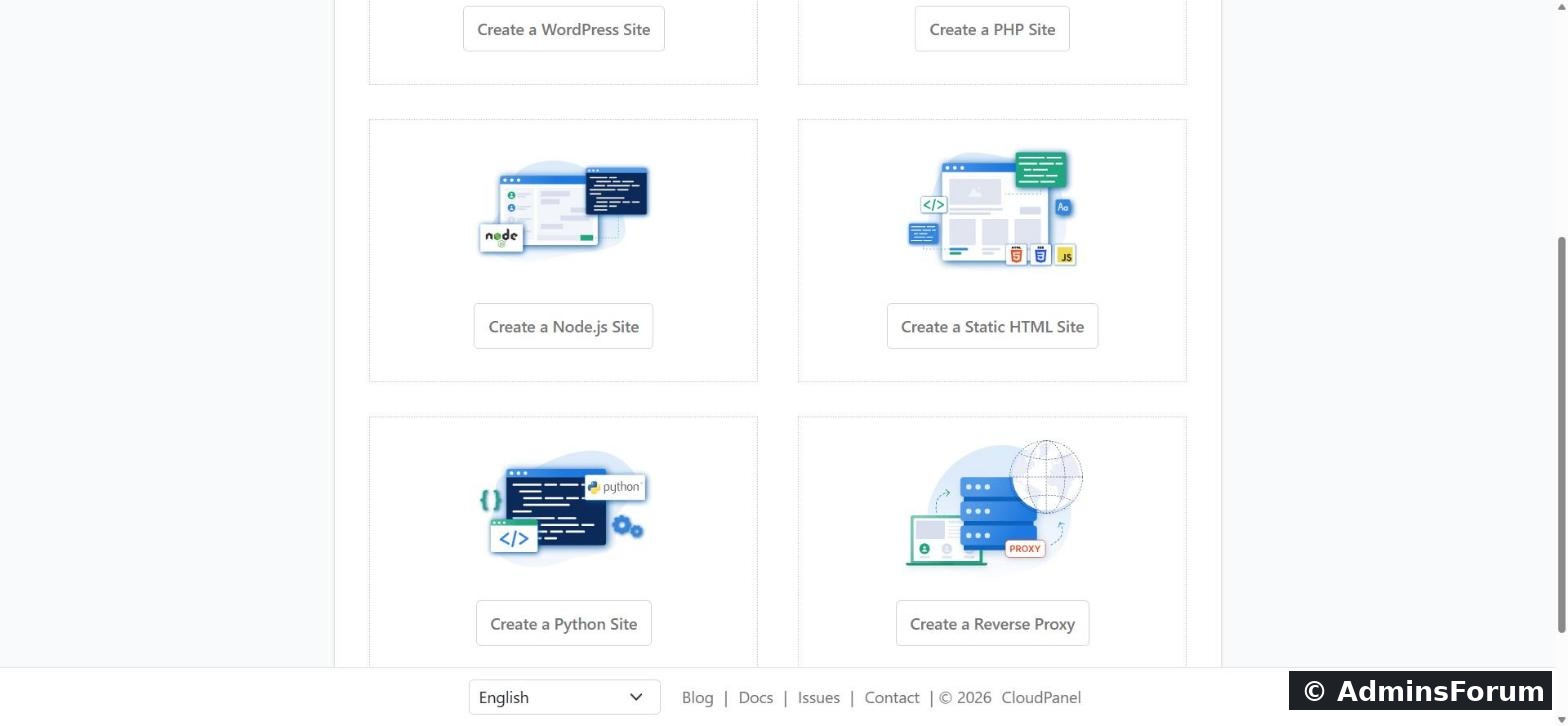
- In CloudPanel, go to Sites > Add Site > Create a Node.js Site.
- Enter the Domain Name, choose the Node.js Version and set the App Port (for example 3000).
- Set the Site User and a strong Site User Password, then click Create.
Step 2: Log in as the site user
Connect over SSH as the site user, not as root:
Code:
ssh site-user@YOUR_SERVER_IPCode:
node -v
npm -v
Step 3: Upload or clone your app
Your site lives in
Code:
~/htdocs/www.example.com/Code:
cd ~/htdocs
rm -rf www.example.com
git clone https://github.com/your-name/your-app.git www.example.com
cd www.example.com
npm installCode:
npm run buildCode:
.envMake sure the app listens on the App Port you set in Step 1, for example:
Code:
const port = process.env.PORT || 3000;
app.listen(port, '127.0.0.1');
Step 4: Start the app with PM2
Install PM2 for the site user and start the app:
Code:
npm install pm2@latest -g
pm2 start npm --name my-app -- start
pm2 saveCode:
pm2 status
pm2 logs my-app
pm2 restart my-app
pm2 stop my-app
Step 5: Start the app again after a reboot
PM2 needs a cron job to bring your app back after the server restarts.
- Print your PATH and copy the output: Code:
echo $PATH - Open the site user's crontab: Code:
crontab -e - Add these two lines, pasting your PATH into the first one:
Code:PATH=PASTE_YOUR_PATH_HERE @reboot pm2 resurrect &> /dev/null - Reboot the server and run . Your app should show as online.Code:
pm2 status
Step 6: Add free SSL
Open the site in CloudPanel, go to SSL/TLS > Actions > New Let's Encrypt Certificate and create the certificate. Details: How to install free SSL in CloudPanel.
Deploying updates
Code:
cd ~/htdocs/www.example.com
git pull
npm install
npm run build   # only if your app has a build step
pm2 restart my-app
Troubleshooting
- 502 Bad Gateway: the app isn't running or listens on a different port. Run andCode:
pm2 status, and compare the port with the App Port in CloudPanel.Code:pm2 logs my-app
- App is down after a reboot: the crontab PATH line is missing or wrong. Repeat Step 5.
- "pm2: command not found" in cron: same cause; the PATH line must contain the Node.js bin folder from .Code:
echo $PATH
- Wrong Node.js version: check as the site user. The version is set when you create the site.Code:
node -v
Sources (checked October 2026): CloudPanel: Node.js deployment with PM2 · CloudPanel: Strapi
Not sure which site type to choose? See What can you host on CloudPanel?