



1 hour ago
How to Change a Website's Domain in CyberPanel: Files, WordPress and a 301 Redirect (Tested)
CyberPanel has no "rename domain" button. Websites → Modify Website only changes the package, owner, email and PHP version. To move a site to a new domain you create a new website, copy the site over, update the old address inside the site, and send the old domain to the new one with a 301 redirect, so visitors and Google follow you.
We did exactly that on CyberPanel 3.0.8 (Ubuntu 24.04, OpenLiteSpeed), moving a WordPress site from course.adminslab.com to a new domain. Below we use olddomain.com and newdomain.com. Replace them with yours.
Before you start
Step 1: Create the new website
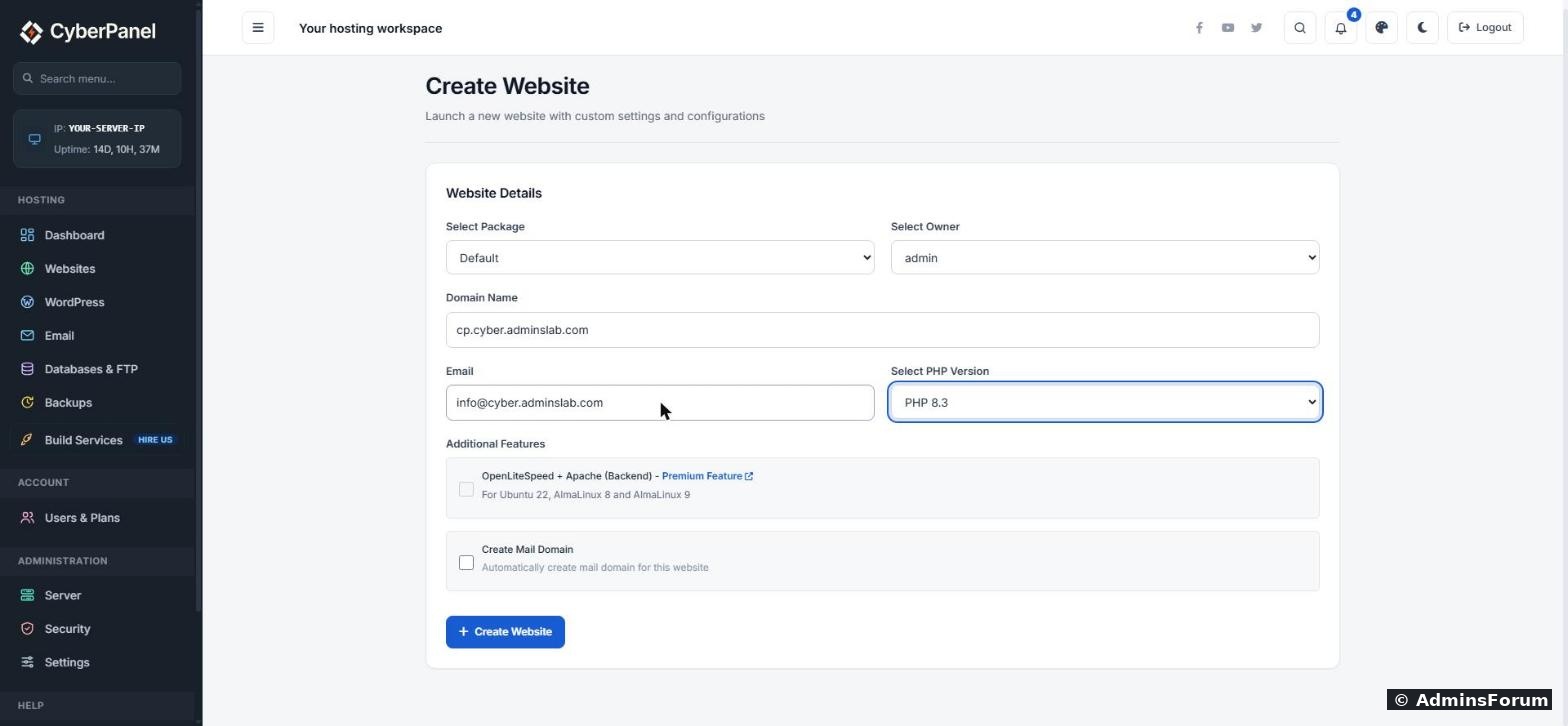
Go to Websites → Create Website. Pick the package and owner, type the new domain, and choose the same PHP version the old site uses. Click Create Website.
Because our DNS already pointed to the server, CyberPanel issued a Let's Encrypt certificate for the new domain during creation. We didn't have to do anything else for SSL. If yours didn't get one, see our SSL guide.
Step 2: Copy the files (and fix the owner)
CyberPanel gives every website its own Linux user. Find the new site's user:
The first name after the permissions is the user (ours was
), and the group is
.
Copy the site:
Don't stop here.
copies the old site's owner too, including onto the new
folder itself. Here's what we saw:
Fix it with two commands (use your new site's user):
The second line matters. The
folder itself must keep the group
, because that's how the web server gets in. When we left it as
, every page, even a plain .html file, returned 403 Forbidden. If you're not sure which group to use, run
on another working site and copy what it shows.
Step 3: The database
If both sites are on the same server, the copied
still points to the old site's database, and that just works. You don't have to move it.
But be careful: when you delete a website in CyberPanel, it also deletes every database attached to that website. We checked CyberPanel's own code (
looks up the site's databases and drops them). So if you ever delete the old website, the new one loses its database. Either keep the old website (you need it for the redirect anyway, see step 6), or first create a new database under the new website, copy the data across (see our databases guide) and update
.
Step 4: Change the address inside WordPress
WordPress stores its own address (and every link and image URL) in the database. Change them all with WP-CLI:
Ours answered Success: Made 5 replacements (a real site will show many more).
leaves the internal post IDs alone, as WordPress recommends. Then clear the cache:
If the site uses the LiteSpeed Cache plugin, also click LiteSpeed Cache → Purge All in the WordPress admin of the new site.
Check the result:
It should print
.
Not WordPress? Look for the old domain in your config files and change it by hand:
Step 5: Check the new site
Open
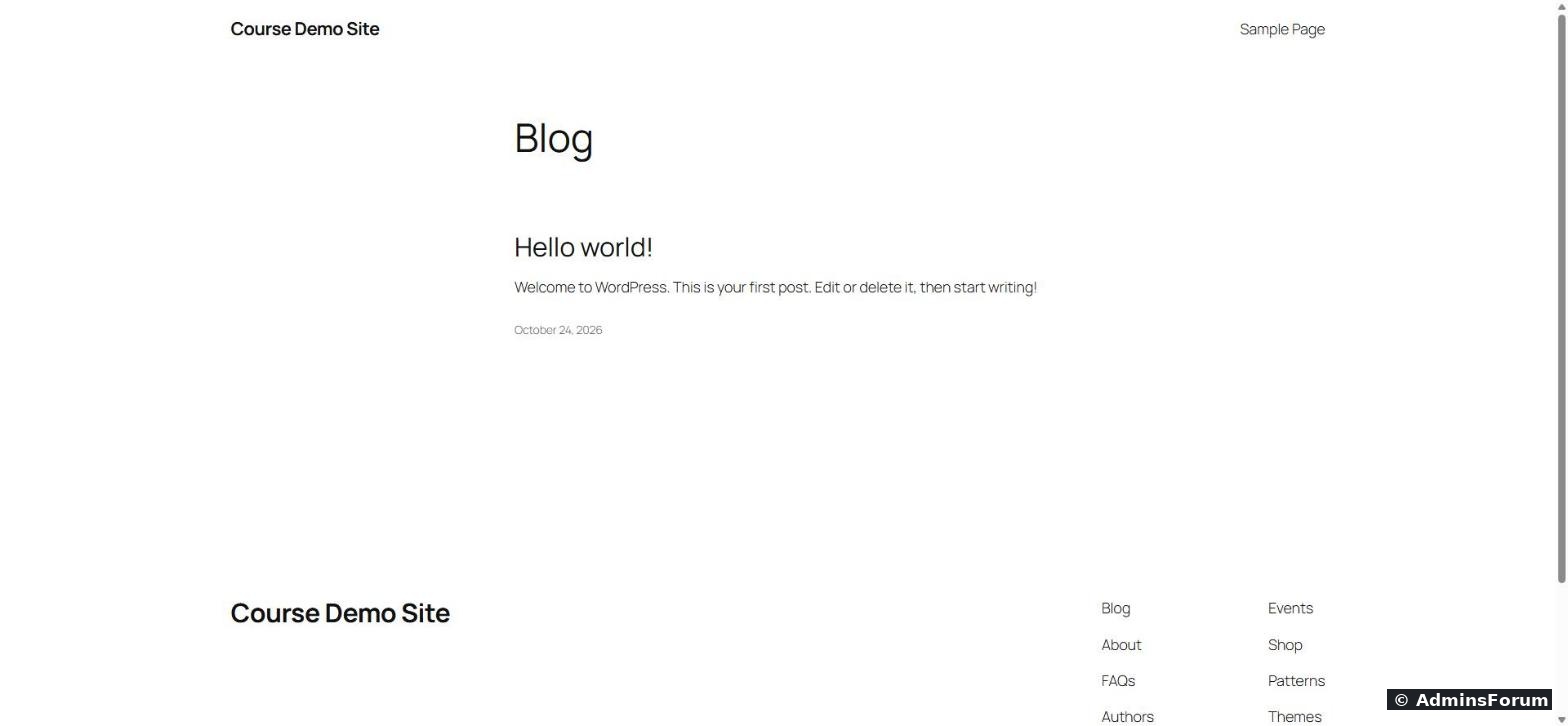
in a private window. Ours loaded straight away with the padlock, and the login page worked too.
Step 6: Send the old domain to the new one (301)
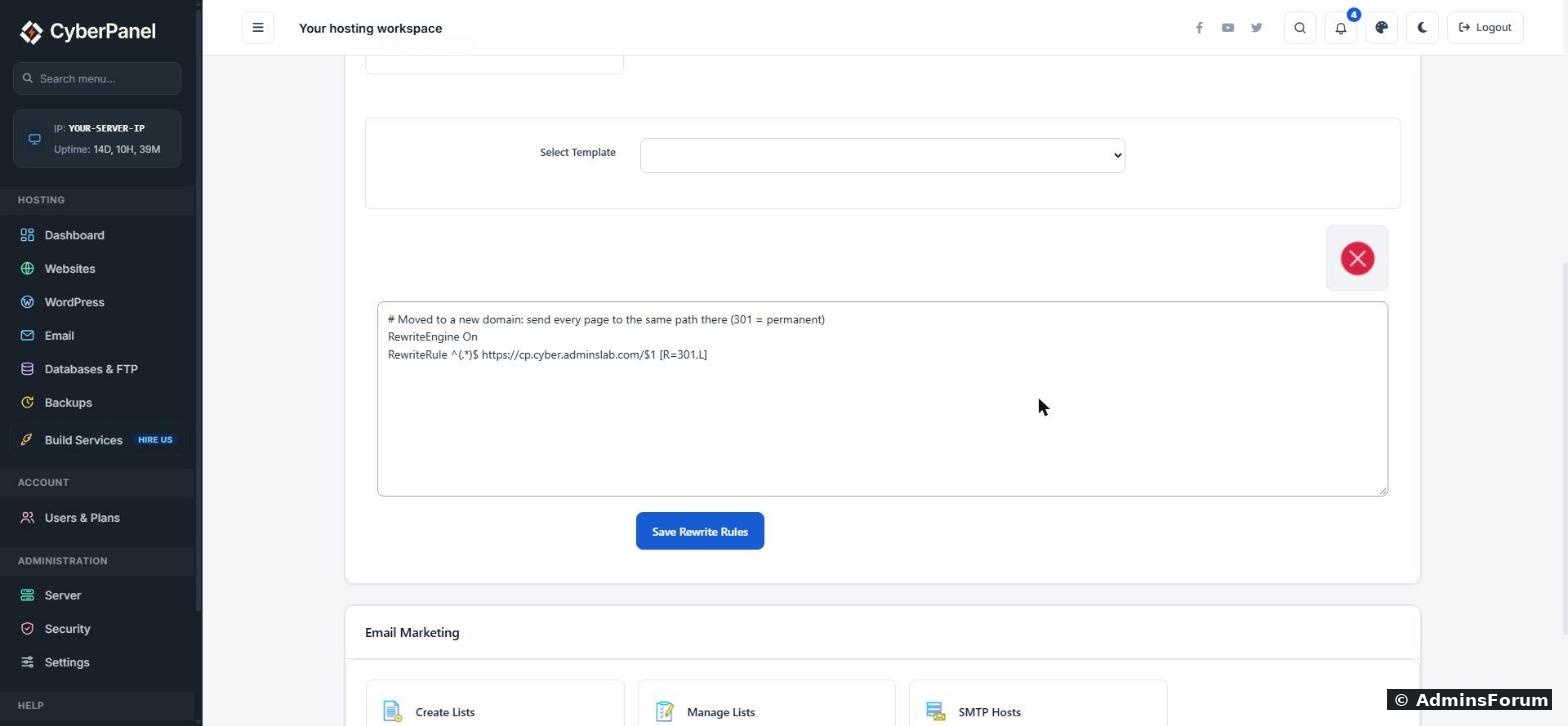
Keep the old website in CyberPanel and turn it into a redirect. Open Websites → olddomain.com → Config → Rewrite Rules, delete everything in the box, paste this and click Save Rewrite Rules:
This keeps the path, so old links land on the same page at the new address. We tested it:
301 means "moved permanently", so Google moves your rankings over to the new domain. Don't use a 302.
After the move
Questions or a step that didn't work for you? Reply below (hide your server IP first).
CyberPanel has no "rename domain" button. Websites → Modify Website only changes the package, owner, email and PHP version. To move a site to a new domain you create a new website, copy the site over, update the old address inside the site, and send the old domain to the new one with a 301 redirect, so visitors and Google follow you.
We did exactly that on CyberPanel 3.0.8 (Ubuntu 24.04, OpenLiteSpeed), moving a WordPress site from course.adminslab.com to a new domain. Below we use olddomain.com and newdomain.com. Replace them with yours.
Before you start
- Take a backup of the old site first (CyberPanel's Backups menu).
- Point the new domain at your server first. Add an A record for
(andCode:newdomain.com
if you use it) with your server IP. CyberPanel tries to get a free SSL certificate the moment the website is created, and that only works if the domain already points here.Code:www
- You need SSH as root for step 2 (or a user with sudo).
Step 1: Create the new website
Go to Websites → Create Website. Pick the package and owner, type the new domain, and choose the same PHP version the old site uses. Click Create Website.
Because our DNS already pointed to the server, CyberPanel issued a Let's Encrypt certificate for the new domain during creation. We didn't have to do anything else for SSL. If yours didn't get one, see our SSL guide.
Step 2: Copy the files (and fix the owner)
CyberPanel gives every website its own Linux user. Find the new site's user:
Code:
ls -ld /home/newdomain.com/public_htmlCode:
cpcyb5923Code:
nogroupCopy the site:
Code:
rm -f /home/newdomain.com/public_html/index.html
rsync -a /home/olddomain.com/public_html/ /home/newdomain.com/public_html/
Don't stop here.
Code:
rsync -aCode:
public_htmlCode:
new public_html before: drwxr-x---  cpcyb5923:nogroup
after rsync: drwxr-x--- cours5268:nogroup <- the OLD site's userCode:
chown -R NEWUSER:NEWUSER /home/newdomain.com/public_html
chown NEWUSER:nogroup /home/newdomain.com/public_htmlCode:
public_htmlCode:
nogroupCode:
NEWUSER:NEWUSERCode:
ls -ldStep 3: The database
If both sites are on the same server, the copied
Code:
wp-config.phpBut be careful: when you delete a website in CyberPanel, it also deletes every database attached to that website. We checked CyberPanel's own code (
Code:
/usr/local/CyberCP/plogical/vhost.pyCode:
wp-config.phpStep 4: Change the address inside WordPress
WordPress stores its own address (and every link and image URL) in the database. Change them all with WP-CLI:
Code:
wp --allow-root --path=/home/newdomain.com/public_html search-replace https://olddomain.com https://newdomain.com --all-tables --skip-columns=guidCode:
--skip-columns=guidCode:
wp --allow-root --path=/home/newdomain.com/public_html cache flushCheck the result:
Code:
wp --allow-root --path=/home/newdomain.com/public_html option get homeCode:
https://newdomain.comNot WordPress? Look for the old domain in your config files and change it by hand:
Code:
grep -rl "olddomain.com" /home/newdomain.com/public_html --include=*.php --include=.envStep 5: Check the new site
Open
Code:
https://newdomain.comStep 6: Send the old domain to the new one (301)
Keep the old website in CyberPanel and turn it into a redirect. Open Websites → olddomain.com → Config → Rewrite Rules, delete everything in the box, paste this and click Save Rewrite Rules:
Code:
RewriteEngine On
RewriteRule ^(.*)$ https://newdomain.com/$1 [R=301,L]
This keeps the path, so old links land on the same page at the new address. We tested it:
Code:
https://olddomain.com/              -> 301 https://newdomain.com/
https://olddomain.com/sample-page/  -> 301 https://newdomain.com/sample-page/
https://olddomain.com/?p=1          -> 301 https://newdomain.com/?p=1
https://olddomain.com/wp-login.php  -> 301 https://newdomain.com/wp-login.php
http://olddomain.com/ -> 301 https://newdomain.com/After the move
- Keep the old domain registered and the redirect running for at least a year. Keep its DNS pointing to your server so its SSL keeps renewing, otherwise https visitors get a certificate error before they ever see the redirect.
- Google Search Console: add the new domain, then use Change of Address on the old one.
- Email isn't moved. Mailboxes belong to a domain. If you used email on the old domain, create the mailboxes on the new domain and set its MX, SPF and DKIM records (see our email setup guide).
- Update anything outside the site that has the old address: Cloudflare, payment gateways, API callbacks, social profiles, Google Analytics.
Questions or a step that didn't work for you? Reply below (hide your server IP first).