



10-16-2026, 05:48 AM
A 502 Bad Gateway error in CloudPanel usually means a gateway could not obtain a usable response from its upstream. Find which hop failed before changing PHP limits or restarting the server.
This is a diagnostic guide for CloudPanel v2, checked against the official settings, vhost and PHP-FPM documentation. The diagram is an original workflow illustration; it is not a screenshot of a newly reproduced outage.
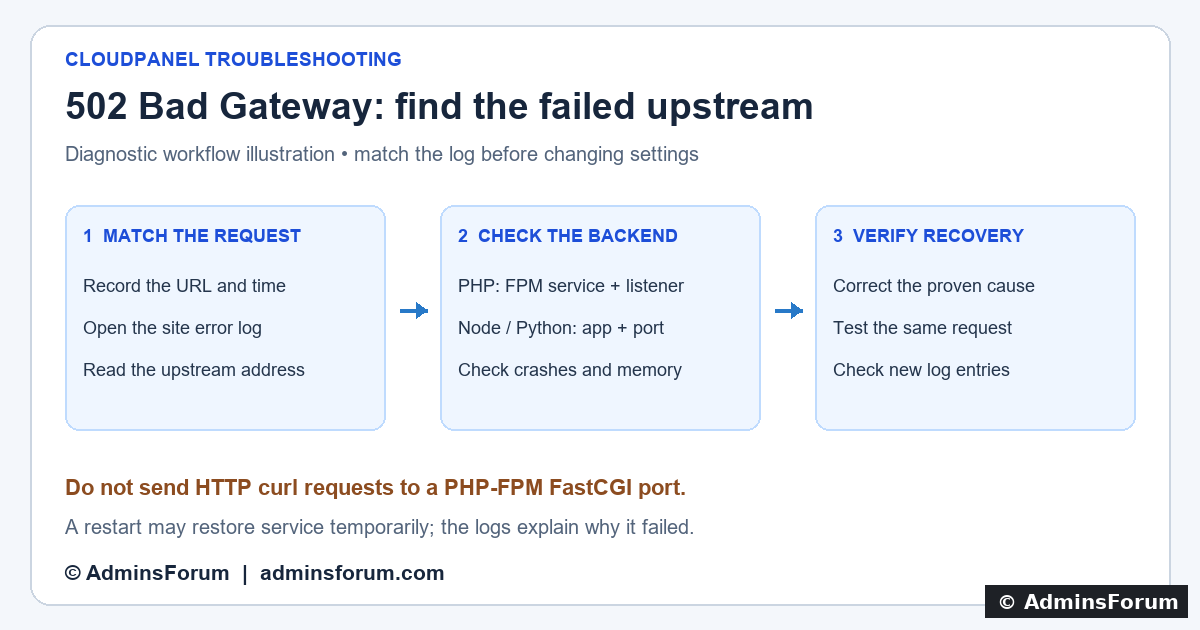
AdminsForum diagnostic workflow: identify the failed hop, check its backend, then verify recovery.
1. Confirm the affected site and capture one failure
Note the exact domain, URL, time, status and last deployment. In Sites → your site → Logs, update the Nginx error log immediately after one failed request. Also inspect the access log and application/PHP log. Follow our CloudPanel logs walkthrough if this is your first time using the viewer.
Is every site failing, one site failing, or only PHP/dynamic requests failing? Existing static assets may work while PHP-FPM is unavailable. That narrows the search but does not identify the cause on its own. If a CDN is present, distinguish its gateway error from the origin response using the origin's matching log entries. Keep the origin firewall protections in place.
2. Read the message and upstream address
Common log fragments and their next checks:
3. PHP sites: check the selected PHP-FPM version
Open the site's Settings and note its selected PHP version. The version returned by php -v in SSH can be different from the version serving the website. Discover installed service units:
For a site using PHP 8.3, and only if php8.3-fpm.service is the matching unit, inspect:
Replace the version/unit for your installation. If failed, read the startup error first: a bad pool setting, invalid extension configuration or a listener conflict can prevent startup. A service marked active can still have a problem with a particular pool or worker.
Compare the site's Vhost upstream with the pool's listen setting. An administrator can inspect the version's pool files; substitute the actual version:
Do not assume one universal CloudPanel FPM port. Use the upstream shown in your site's error and configuration, then check current TCP and Unix listeners:
PHP-FPM speaks FastCGI, not HTTP. Do not curl its listener as though it were a Node.js web server. A failed HTTP probe to an FPM port does not diagnose the pool correctly.
4. Node.js / Python sites: match App Port and process
In the site's Settings, compare App Port with the application's configured listening port and the upstream address from the log. Check the application's own process manager as the site user. For an app managed with PM2:
Replace APP_NAME with that application's PM2 name. Running PM2 as root can show a different process list. For a systemd-managed app, inspect its actual unit instead. Do not start a second copy of an app while the process manager already controls it.
For an HTTP-speaking app listening on local port 3000, a read-only local request can help:
Use your actual host, port, protocol and harmless test path; 3000 is an example. Connection refused supports a listener/process problem. A response such as 404 or 401 shows that an HTTP server answered, but is not proof the intended page is healthy. An app that requires a specific Host header may behave differently. Do not expose the app port publicly to work around Nginx.
5. Reverse proxies, Varnish and resource failures
For a Reverse Proxy site, check its configured target URL, protocol, hostname and port. A hostname-based upstream may depend on DNS and routing. For a site using Varnish, follow the address of the failing hop rather than assuming Nginx connects directly to PHP.
If the process repeatedly disappears, check resources and kernel messages:
A full filesystem, exhausted inodes or an OOM kill needs its own correction. Do not raise worker counts without measuring available memory. Save a short private diagnostic excerpt before changes; redact secrets before sharing it.
6. Apply one justified correction, then verify
Do not run that example against a different version. Re-test the exact failing URL, confirm expected page content and check fresh log timestamps. Verify both a normal public page and the affected dynamic route. If it fails again, preserve the new evidence rather than repeatedly rebooting.
Need help?
Share the CloudPanel/OS versions, site type, PHP version or app runtime, exact error fragment, failing upstream (redacted as needed), time, recent change and what you already checked. Never share credentials or private keys.
References
CloudPanel site settings and App Port
CloudPanel Vhost Editor
PHP-FPM pool configuration
Nginx proxy configuration
This is a diagnostic guide for CloudPanel v2, checked against the official settings, vhost and PHP-FPM documentation. The diagram is an original workflow illustration; it is not a screenshot of a newly reproduced outage.
AdminsForum diagnostic workflow: identify the failed hop, check its backend, then verify recovery.
1. Confirm the affected site and capture one failure
Note the exact domain, URL, time, status and last deployment. In Sites → your site → Logs, update the Nginx error log immediately after one failed request. Also inspect the access log and application/PHP log. Follow our CloudPanel logs walkthrough if this is your first time using the viewer.
Is every site failing, one site failing, or only PHP/dynamic requests failing? Existing static assets may work while PHP-FPM is unavailable. That narrows the search but does not identify the cause on its own. If a CDN is present, distinguish its gateway error from the origin response using the origin's matching log entries. Keep the origin firewall protections in place.
2. Read the message and upstream address
Common log fragments and their next checks:
- Connection refused while connecting to upstream: Nothing accepted that connection, or it was actively rejected. Compare the logged address/port with the intended backend listener and check service status.
- No such file or directory for an upstream Unix socket: The configured socket is missing. Check whether its service started and whether the vhost references the correct socket.
- Permission denied for an upstream socket: Check socket owner/group/mode and directory access. Do not fix this with chmod 777.
- Upstream prematurely closed connection / reset by peer: Inspect the backend's crash, worker and application logs at that time; also check for an out-of-memory kill.
- Upstream sent too big header: Inspect oversized cookies/response headers and the relevant FastCGI or proxy buffering configuration. This is a different fault from a stopped service.
3. PHP sites: check the selected PHP-FPM version
Open the site's Settings and note its selected PHP version. The version returned by php -v in SSH can be different from the version serving the website. Discover installed service units:
Code:
systemctl list-units --type=service --all | grep -Ei 'php.*fpm'Code:
sudo systemctl status php8.3-fpm.service --no-pager -l
sudo journalctl -u php8.3-fpm.service --since '30 minutes ago' --no-pager -n 100Compare the site's Vhost upstream with the pool's listen setting. An administrator can inspect the version's pool files; substitute the actual version:
Code:
sudo grep -RnsE '^[[:space:]]*listen[[:space:]]*=' /etc/php/8.3/fpm/pool.d/Code:
sudo ss -ltnp
sudo ss -lxnp4. Node.js / Python sites: match App Port and process
In the site's Settings, compare App Port with the application's configured listening port and the upstream address from the log. Check the application's own process manager as the site user. For an app managed with PM2:
Code:
pm2 list
pm2 logs APP_NAME --lines 50 --nostreamFor an HTTP-speaking app listening on local port 3000, a read-only local request can help:
Code:
curl --max-time 10 -sS -D - -o /dev/null http://127.0.0.1:3000/5. Reverse proxies, Varnish and resource failures
For a Reverse Proxy site, check its configured target URL, protocol, hostname and port. A hostname-based upstream may depend on DNS and routing. For a site using Varnish, follow the address of the failing hop rather than assuming Nginx connects directly to PHP.
If the process repeatedly disappears, check resources and kernel messages:
Code:
free -h
df -h
df -i
sudo journalctl -k --since '30 minutes ago' --no-pager | grep -Ei 'out of memory|oom|killed process'6. Apply one justified correction, then verify
- If a deployment changed the listener or App Port incorrectly, restore the known working value and retain a copy of the current configuration.
- If PHP-FPM cannot start, correct the specific reported configuration error. Test with the matching FPM binary/configuration before restarting that version's service.
- If the application crashed, fix or roll back the bad deployment and use its existing process manager to restore it.
- If you edit Nginx through CloudPanel's Vhost Editor, the panel checks syntax and reverts invalid changes. Syntax validation does not prove the backend is healthy. Keep a backup of your previous vhost anyway.
Code:
sudo systemctl restart php8.3-fpm.service
sudo systemctl status php8.3-fpm.service --no-pager -lNeed help?
Share the CloudPanel/OS versions, site type, PHP version or app runtime, exact error fragment, failing upstream (redacted as needed), time, recent change and what you already checked. Never share credentials or private keys.
References
CloudPanel site settings and App Port
CloudPanel Vhost Editor
PHP-FPM pool configuration
Nginx proxy configuration
