



11 hours ago
A 429 Too Many Requests response usually means a request limit has been reached. Find the layer issuing the response before changing a setting: it may be your CDN, Nginx, a security plugin or the application itself.
This guide demonstrates one Nginx limiter on a private lab endpoint. It does not assume every aaPanel website has that rule, and it does not recommend turning off protection to make an error disappear.
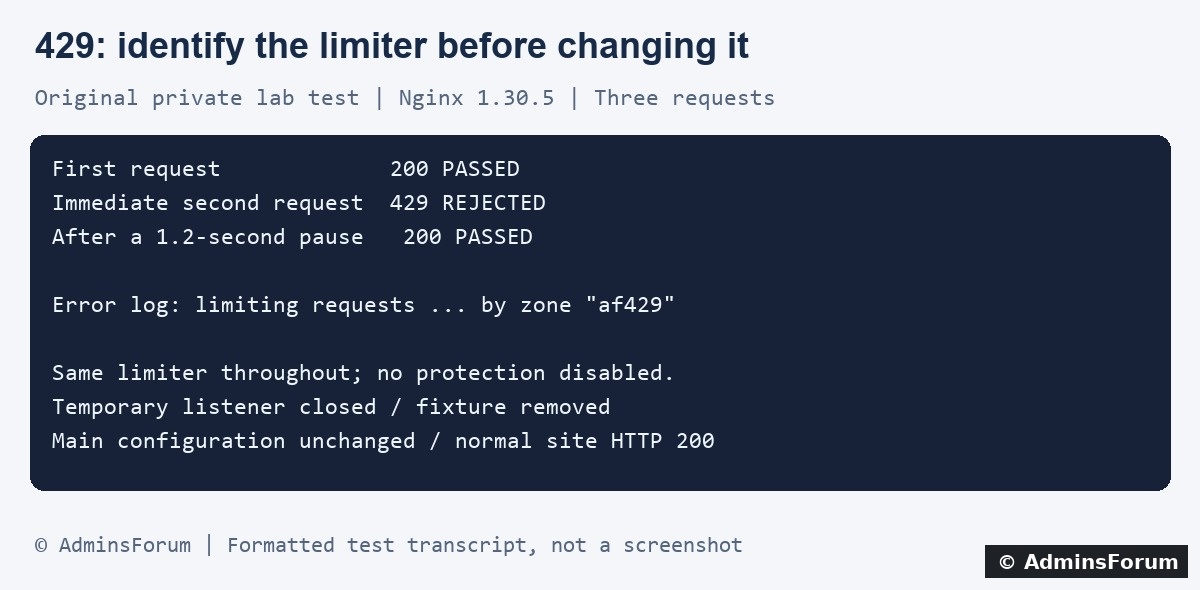
Original AdminsForum lab results, formatted as a transcript rather than a screenshot.
1. Capture one safe example
Record the URL path, time and timezone, action, response status and how often the client is sending requests. Does it affect everyone, one network, one account or only a particular API? A page can send many background requests even when a user clicks once.
Inspect response headers in your browser's Network tab. If a Retry-After header is present, use its stated delay; do not assume every limiter supplies it. Avoid repeatedly submitting login forms, purchases or imports while diagnosing the problem. Save a redacted error example without session cookies, authorization headers or private query strings.
2. Match the response to website logs
In aaPanel open Website → PHP Project, find the affected site and select Log. Check Access log and Error log around the recorded time. Refresh and expand the displayed line count if needed. Labels may vary by panel version.
Our lab site's logs are at:
Use the actual path configured for your own domain. A bounded SSH check is:
A 429 entry confirms that this log recorded the response, but does not by itself identify the rule. If there is no matching origin request, check the CDN or earlier proxy's events and verify you selected the correct log. Application-generated 429 responses need application logs too.
3. Recognize an Nginx rate-limit rejection
Our test error log contained:
The named zone was our own test limiter. Its name is not a built-in aaPanel setting. We also added a diagnostic access-log field in the isolated configuration and saw:
Default website logs may not contain that extra field. Do not expect to find it unless your log format includes it. Nginx can use a different rejection status; seeing 503 instead of 429 does not rule out a request limiter.
4. What the private experiment tested
We ran a separate Nginx configuration listening only on the lab's loopback interface. One exact path served a harmless text fixture. Its illustrative limit allowed one request per second with no extra burst allowance, and we explicitly selected 429 for rejections.
The temporary listener was stopped and its PID file and disposable text fixture were removed. The main Nginx configuration hash remained unchanged, and the normal HTTPS website returned 200 afterward.
5. Fix the cause at the correct layer
6. Review configuration safely
Before editing, back up the affected site's configuration and identify any included rules. Note the rule scope, key, rate and burst behavior. The test's one-request-per-second allowance was deliberately restrictive and is not a recommended value for your site.
If you have evidence for a change, alter only the intended rule, validate the complete Nginx configuration using the panel's validation mechanism and apply it only after validation passes. Keep the previous configuration for rollback. Do not add duplicate location blocks or globally disable a security plugin to fix one URL.
7. Verify without creating more traffic problems
Repeat a small number of safe requests at a normal pace. Check both response content and status, then inspect the corresponding logs. Confirm that ordinary users can finish the intended action and that the relevant protection still applies to excessive requests in a controlled test environment.
Do not run bursts against a production login or somebody else's API. If many visitors share a corporate or mobile network, include that scenario in your review. Observe a representative period before calling an intermittent issue resolved.
When asking for help, include
The failing path without private query data, time and timezone, which layer logged the rejection, a short redacted log excerpt, approximate request frequency and any recent rule changes. Never include authentication headers, full session cookies or API keys.
Related guides
Find website access and error logs in aaPanel
Monitor resource use during controlled traffic tests
Technical reference
Official Nginx request-limit module documentation
This guide demonstrates one Nginx limiter on a private lab endpoint. It does not assume every aaPanel website has that rule, and it does not recommend turning off protection to make an error disappear.
Original AdminsForum lab results, formatted as a transcript rather than a screenshot.
1. Capture one safe example
Record the URL path, time and timezone, action, response status and how often the client is sending requests. Does it affect everyone, one network, one account or only a particular API? A page can send many background requests even when a user clicks once.
Inspect response headers in your browser's Network tab. If a Retry-After header is present, use its stated delay; do not assume every limiter supplies it. Avoid repeatedly submitting login forms, purchases or imports while diagnosing the problem. Save a redacted error example without session cookies, authorization headers or private query strings.
2. Match the response to website logs
In aaPanel open Website → PHP Project, find the affected site and select Log. Check Access log and Error log around the recorded time. Refresh and expand the displayed line count if needed. Labels may vary by panel version.
Our lab site's logs are at:
Code:
/www/wwwlogs/adminslab.com.log
/www/wwwlogs/adminslab.com.error.logCode:
tail -n 100 /www/wwwlogs/example.com.log
tail -n 100 /www/wwwlogs/example.com.error.log3. Recognize an Nginx rate-limit rejection
Our test error log contained:
Code:
limiting requests, excess: 0.991 by zone "af429"Code:
200 PASSED
429 REJECTED
200 PASSED4. What the private experiment tested
We ran a separate Nginx configuration listening only on the lab's loopback interface. One exact path served a harmless text fixture. Its illustrative limit allowed one request per second with no extra burst allowance, and we explicitly selected 429 for rejections.
- The first request returned 200 with the expected text.
- An immediate second request returned 429, with a matching limiter rejection in the error log.
- After a 1.2-second pause, the next request returned 200 with the same expected text.
The temporary listener was stopped and its PID file and disposable text fixture were removed. The main Nginx configuration hash remained unchanged, and the normal HTTPS website returned 200 afterward.
5. Fix the cause at the correct layer
- A client is polling too frequently: reduce unnecessary refreshes, use caching where appropriate and apply bounded backoff. Honor Retry-After when supplied. Do not create a rapid retry loop after a rejection.
- An application account or API quota is reached: inspect that service's quota and application logs. Changing Nginx cannot increase a third-party API allowance. Check for duplicate jobs or repeated failed requests.
- A CDN or WAF rule is rejecting legitimate traffic: inspect the matching event and rule. Consider a narrow, documented adjustment for the intended endpoint after reviewing the evidence. Keep login and abuse protections in place.
- Nginx sees many visitors as one address: investigate how the trusted reverse proxy communicates client addresses. This is a configuration review, not a reason to trust arbitrary forwarded headers. Incorrect trust settings can let clients spoof identities.
- A valid origin rule is too strict for an application's normal behavior: measure that endpoint's legitimate request pattern before choosing a scoped allowance. Avoid a blanket site-wide exemption or unlimited burst setting.
6. Review configuration safely
Before editing, back up the affected site's configuration and identify any included rules. Note the rule scope, key, rate and burst behavior. The test's one-request-per-second allowance was deliberately restrictive and is not a recommended value for your site.
If you have evidence for a change, alter only the intended rule, validate the complete Nginx configuration using the panel's validation mechanism and apply it only after validation passes. Keep the previous configuration for rollback. Do not add duplicate location blocks or globally disable a security plugin to fix one URL.
7. Verify without creating more traffic problems
Repeat a small number of safe requests at a normal pace. Check both response content and status, then inspect the corresponding logs. Confirm that ordinary users can finish the intended action and that the relevant protection still applies to excessive requests in a controlled test environment.
Do not run bursts against a production login or somebody else's API. If many visitors share a corporate or mobile network, include that scenario in your review. Observe a representative period before calling an intermittent issue resolved.
When asking for help, include
The failing path without private query data, time and timezone, which layer logged the rejection, a short redacted log excerpt, approximate request frequency and any recent rule changes. Never include authentication headers, full session cookies or API keys.
Related guides
Find website access and error logs in aaPanel
Monitor resource use during controlled traffic tests
Technical reference
Official Nginx request-limit module documentation