



aaPanel's Git Manager can deploy a public repository to an existing website. Open the website settings, choose Git Manager, enter the repository URL, test access, select its branch and use Save & deploy. Saving immediately deploys files, so start with a separate test website and a backup.
Tested environment
Ubuntu 22.04, aaPanel 8.0.7 Free Edition and Nginx 1.30.5. We deployed MDN's public beginner HTML/CSS example to a dedicated demo website. Repository access succeeded, commit 6c7a360 was deployed and recorded as Success/Active. The website returned HTTP 200 over HTTPS with certificate verification passing. We did not test private repositories, webhooks, custom build scripts or rollback in this walkthrough.
1. Prepare a separate website
Create a test website through Website → Add site. Use a domain or subdomain you control. If there are existing files, back them up before deployment. Our demo site's native backup completed successfully and produced an 86.97 KB file-only ZIP. Its restore was not tested here. A file backup does not include an application's database unless you explicitly include and verify that component.
Create a DNS A record for the test hostname pointing to the server's public IPv4 address. Configure HTTPS through the site's SSL settings after DNS resolves. Our lab used DNS-only Cloudflare resolution and a Let's Encrypt certificate. Use your own IP and hostname; the demonstration hostname is not a shared deployment service.
2. Choose a repository suitable for the first test
For this rehearsal we used the public, static MDN sample:
It contains an index.html plus styles and images. This avoids a database or build step during the initial Git test. Use a trusted repository and inspect its contents before deployment. A framework application may also need dependency installation, a build command, runtime configuration and a different document root.
3. Connect through Git Manager
Open Website, find the demo site and click Conf. Select Git Manager, then Repository URL. Paste the repository address. For a public repository choose Public authentication. No GitHub account connection, token or SSH key was required for our public example.
Click Test connection. Wait for the result. Our screen reported Connection successful · 4 branches available. Select the intended deployment branch; ours was main. Branch names vary by repository.
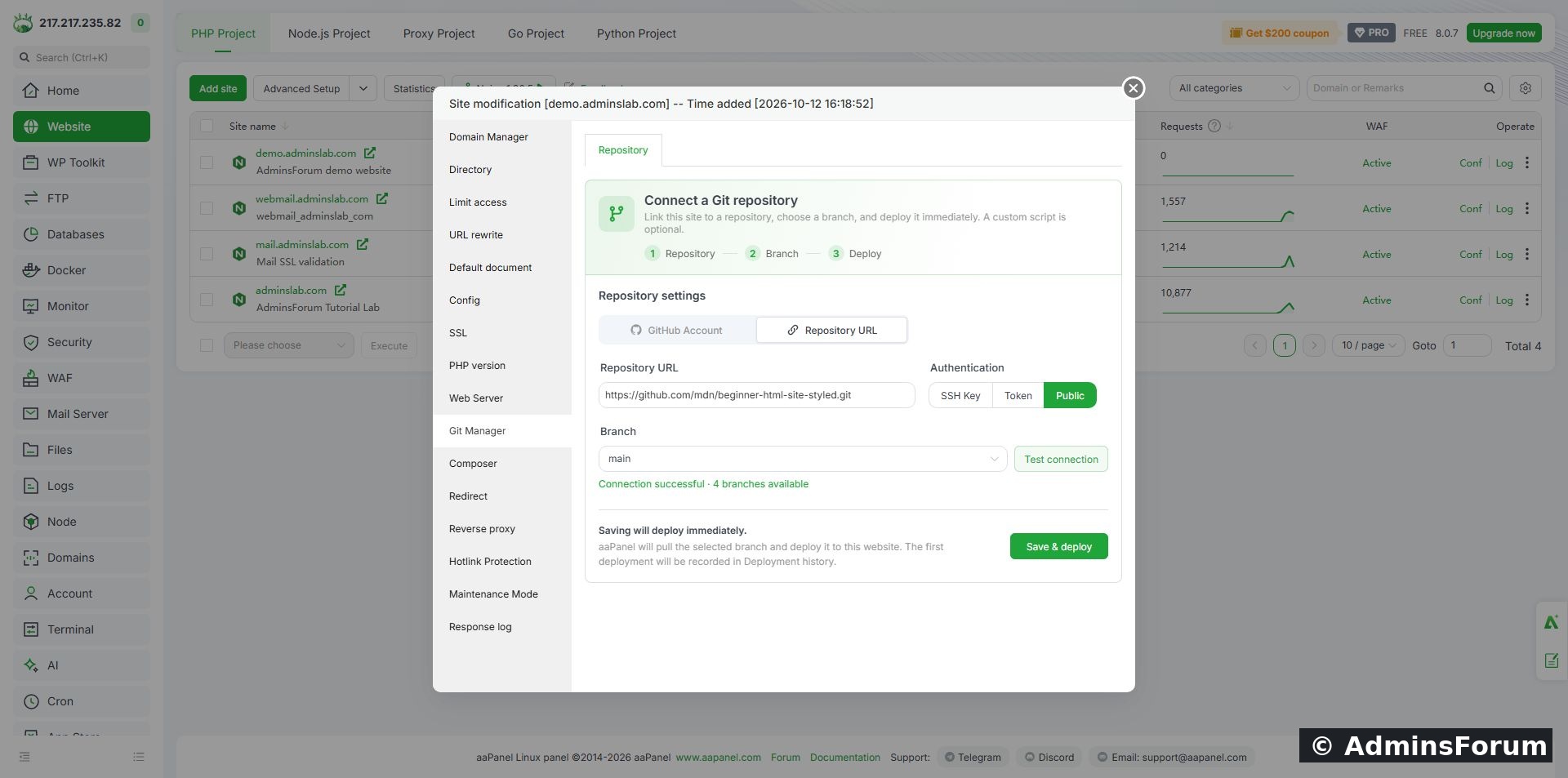
Successful public-repository connection, with main selected before deployment.
4. Save and deploy
Check the destination site and branch again. Click Save & deploy once. The panel states that saving deploys immediately; it is not merely saving connection preferences. Wait for the task result.
After our successful deployment, reopening Git Manager showed the connected repository, deployed commit and last deployment time. Automatic deployment was Off; connecting a repository does not by itself configure a webhook.
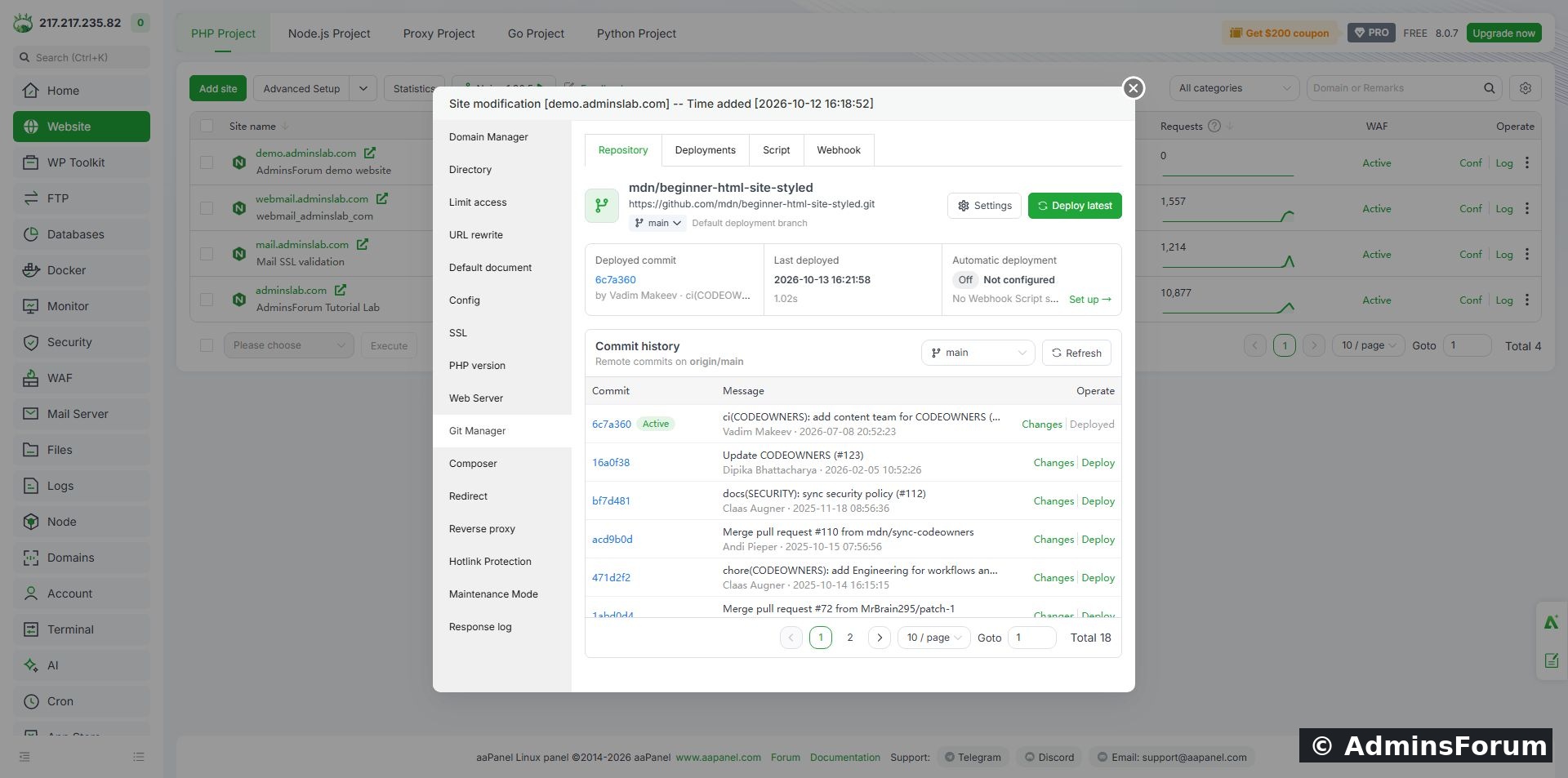
Connected repository and active commit after deployment.
5. Read deployment history
Select Deployments. Confirm that the expected commit and branch appear, its result is Success, and the active version is marked. Use the record's Log action when diagnosing a failed deployment.
Our installed Free panel says it retains 5 deployment records, while its upgrade notice advertises 30 for Pro. This is the limit shown by this version, not a comparison test of Pro. The displayed 1.02-second duration applies only to this small sample and is not a deployment-speed benchmark.
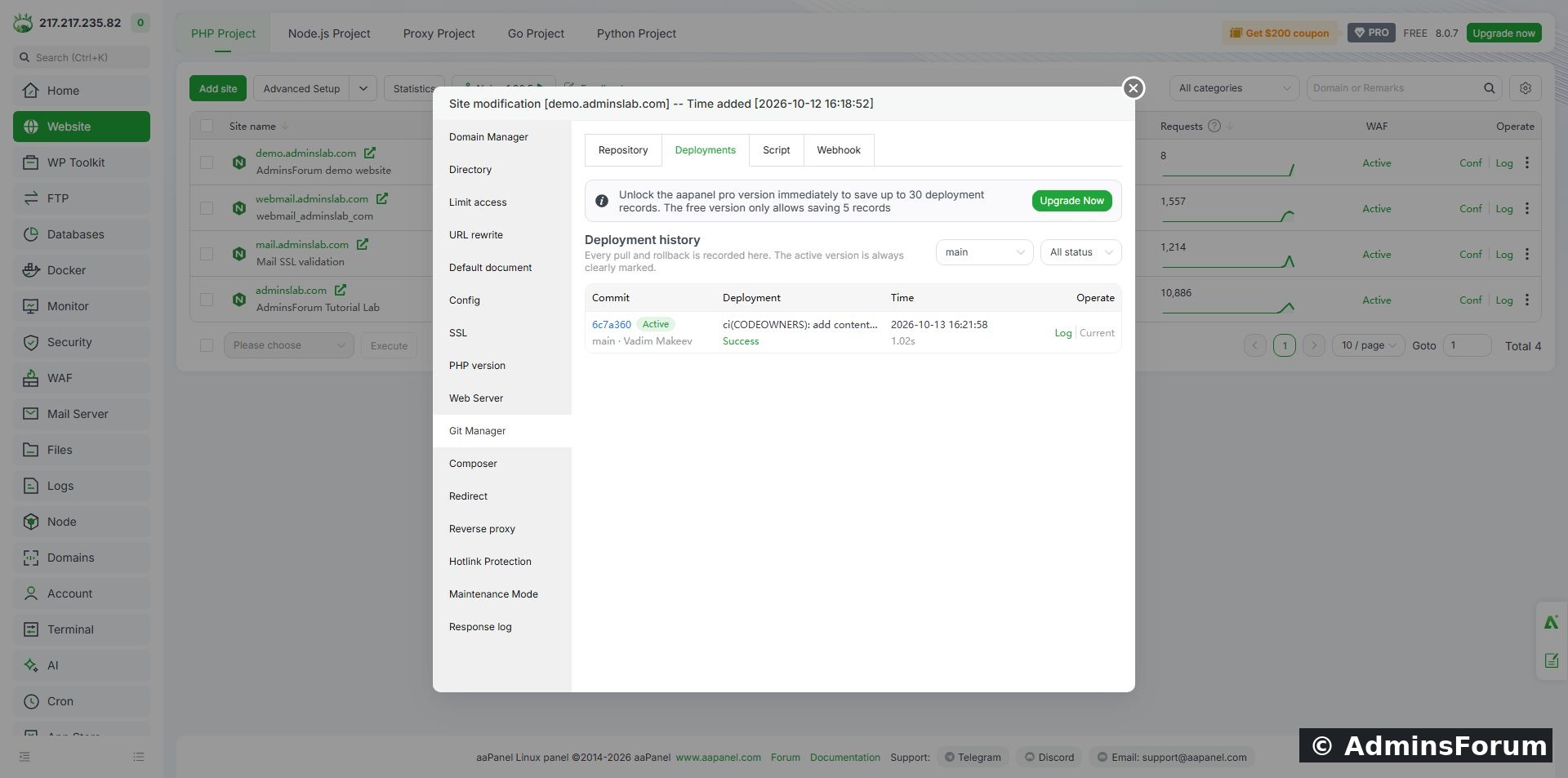
Deployment history records the tested commit as Success and Active.
6. Verify the actual website
Visit the hostname and check the expected page, stylesheet and images. A success notice alone is not proof that DNS, HTTPS or application configuration is correct. Our hostname initially had no DNS record. After adding it, the local browser retained an NXDOMAIN result temporarily. We first verified the origin over HTTPS using the hostname and explicit IP resolution; certificate checking stayed enabled. Once the resolver cache updated, a fresh browser request also displayed the deployed page and Firefox image over HTTPS.
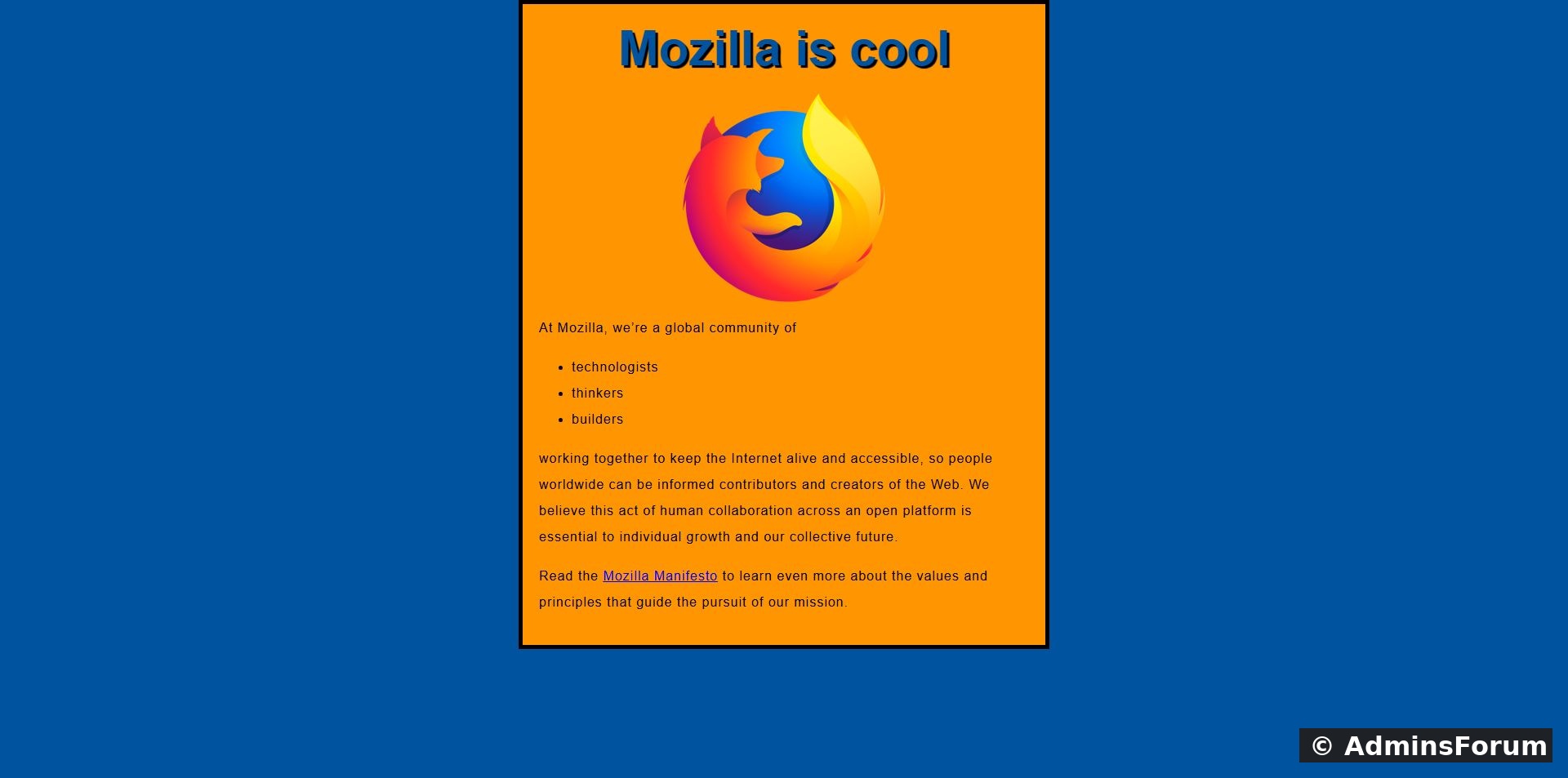
The deployed sample rendered in the browser after DNS propagation.
Optional command for readers:
Replace both placeholders. Do not add -k to hide certificate failures. The response in our lab contained the sample's expected HTML and returned HTTP 200. A request for /.git/HEAD returned 404; that specific file was not publicly readable. This is a targeted check, not a comprehensive server security audit.
7. Understand updates before automating
The connected repository screen offers Deploy latest and per-commit deployment controls. Review the selected branch and changes, preserve a recovery copy and test an update on a staging site before using these on production. This guide directly verified the first deployment only. A Git rollback is not a database restore, and runtime uploads or secrets should not be treated as disposable repository files.
Keep automatic deployment disabled until you deliberately configure and test the separate webhook workflow. Do not publish tokens or webhook secrets in screenshots.
Troubleshooting
Reference sample: MDN beginner HTML/CSS repository. Its website files belong to the sample's authors; our screenshots document the aaPanel deployment workflow.
Need help? Share the aaPanel version, repository visibility, branch and relevant deployment error in Plugins & Integrations Support. Remove credentials and private configuration values first.
Tested follow-up: Roll Back a Git Deployment in aaPanel and Verify Recovery — our separate native rollback rehearsal is now complete.
Tested environment
Ubuntu 22.04, aaPanel 8.0.7 Free Edition and Nginx 1.30.5. We deployed MDN's public beginner HTML/CSS example to a dedicated demo website. Repository access succeeded, commit 6c7a360 was deployed and recorded as Success/Active. The website returned HTTP 200 over HTTPS with certificate verification passing. We did not test private repositories, webhooks, custom build scripts or rollback in this walkthrough.
1. Prepare a separate website
Create a test website through Website → Add site. Use a domain or subdomain you control. If there are existing files, back them up before deployment. Our demo site's native backup completed successfully and produced an 86.97 KB file-only ZIP. Its restore was not tested here. A file backup does not include an application's database unless you explicitly include and verify that component.
Create a DNS A record for the test hostname pointing to the server's public IPv4 address. Configure HTTPS through the site's SSL settings after DNS resolves. Our lab used DNS-only Cloudflare resolution and a Let's Encrypt certificate. Use your own IP and hostname; the demonstration hostname is not a shared deployment service.
2. Choose a repository suitable for the first test
For this rehearsal we used the public, static MDN sample:
Code:
https://github.com/mdn/beginner-html-site-styled.git3. Connect through Git Manager
Open Website, find the demo site and click Conf. Select Git Manager, then Repository URL. Paste the repository address. For a public repository choose Public authentication. No GitHub account connection, token or SSH key was required for our public example.
Click Test connection. Wait for the result. Our screen reported Connection successful · 4 branches available. Select the intended deployment branch; ours was main. Branch names vary by repository.
Successful public-repository connection, with main selected before deployment.
4. Save and deploy
Check the destination site and branch again. Click Save & deploy once. The panel states that saving deploys immediately; it is not merely saving connection preferences. Wait for the task result.
After our successful deployment, reopening Git Manager showed the connected repository, deployed commit and last deployment time. Automatic deployment was Off; connecting a repository does not by itself configure a webhook.
Connected repository and active commit after deployment.
5. Read deployment history
Select Deployments. Confirm that the expected commit and branch appear, its result is Success, and the active version is marked. Use the record's Log action when diagnosing a failed deployment.
Our installed Free panel says it retains 5 deployment records, while its upgrade notice advertises 30 for Pro. This is the limit shown by this version, not a comparison test of Pro. The displayed 1.02-second duration applies only to this small sample and is not a deployment-speed benchmark.
Deployment history records the tested commit as Success and Active.
6. Verify the actual website
Visit the hostname and check the expected page, stylesheet and images. A success notice alone is not proof that DNS, HTTPS or application configuration is correct. Our hostname initially had no DNS record. After adding it, the local browser retained an NXDOMAIN result temporarily. We first verified the origin over HTTPS using the hostname and explicit IP resolution; certificate checking stayed enabled. Once the resolver cache updated, a fresh browser request also displayed the deployed page and Firefox image over HTTPS.
The deployed sample rendered in the browser after DNS propagation.
Optional command for readers:
Code:
curl --resolve YOUR_HOSTNAME:443:YOUR_SERVER_IP https://YOUR_HOSTNAME/7. Understand updates before automating
The connected repository screen offers Deploy latest and per-commit deployment controls. Review the selected branch and changes, preserve a recovery copy and test an update on a staging site before using these on production. This guide directly verified the first deployment only. A Git rollback is not a database restore, and runtime uploads or secrets should not be treated as disposable repository files.
Keep automatic deployment disabled until you deliberately configure and test the separate webhook workflow. Do not publish tokens or webhook secrets in screenshots.
Troubleshooting
- Connection fails: confirm the repository URL, its visibility and outbound access. The public authentication option cannot authenticate to a private repository.
- Wrong page: check the site's document root, selected branch and default document order; existing index files can affect which page is served.
- 404 or broken assets: check filenames, asset paths and whether a build directory should be the document root.
- Application error: check the required PHP/Node version, dependencies and environment configuration. Copying repository files does not complete every application's installation.
- DNS error: verify the A/AAAA records and allow resolver caches to refresh. Changing Git settings will not repair DNS.
Reference sample: MDN beginner HTML/CSS repository. Its website files belong to the sample's authors; our screenshots document the aaPanel deployment workflow.
Need help? Share the aaPanel version, repository visibility, branch and relevant deployment error in Plugins & Integrations Support. Remove credentials and private configuration values first.
Tested follow-up: Roll Back a Git Deployment in aaPanel and Verify Recovery — our separate native rollback rehearsal is now complete.