



Yesterday, 07:55 AM
aaPanel's Cron page lets you schedule a shell script and inspect its execution log. Start with a harmless timestamp task so you can prove both manual execution and the automatic schedule before using it for real maintenance.
Tested: aaPanel Free 8.0.7 on Ubuntu 22.04.5. We created a one-minute Shell Script task, executed it manually, observed its automatic run and then stopped the test schedule. Existing renewal, WordPress and backup tasks were left as configured.
1. Open Cron and choose the task type
Sign in to aaPanel and choose Cron in the left menu. In Add Task, choose Shell Script. Give it a clear name; our task is AdminsForum cron execution lab. A useful task name tells you what the job does when you return to the list later.
2. Choose a short test interval
Open Execute cycle, select N Minutes and set the interval to 1. In our version the summary states that execution starts at minute 0 of each hour and runs every minute. This short interval is for verification, not a recommendation to run backups every minute.
Other displayed cycle choices include Daily, N Days, Hourly, N Hours, Weekly, Monthly, N Second and Once. Read the resulting schedule summary and confirm the server's timezone before planning a real job. The lab logs use UTC; your local clock may differ.
3. Enter a harmless script
Paste this into Script content:
This prints a label and UTC time. It does not delete files, change passwords, restart services or contact an external website. The explicit date path avoids relying on an interactive shell's PATH. The percent signs are part of the shell-script content in aaPanel; this is not a raw crontab line to paste elsewhere.
Our disposable lab used the form's default root execution user for this timestamp-only script. For a real application job, select an existing user with only the permissions it needs, and verify file ownership and access. Do not assume a script that works in your own terminal will work under a different user.
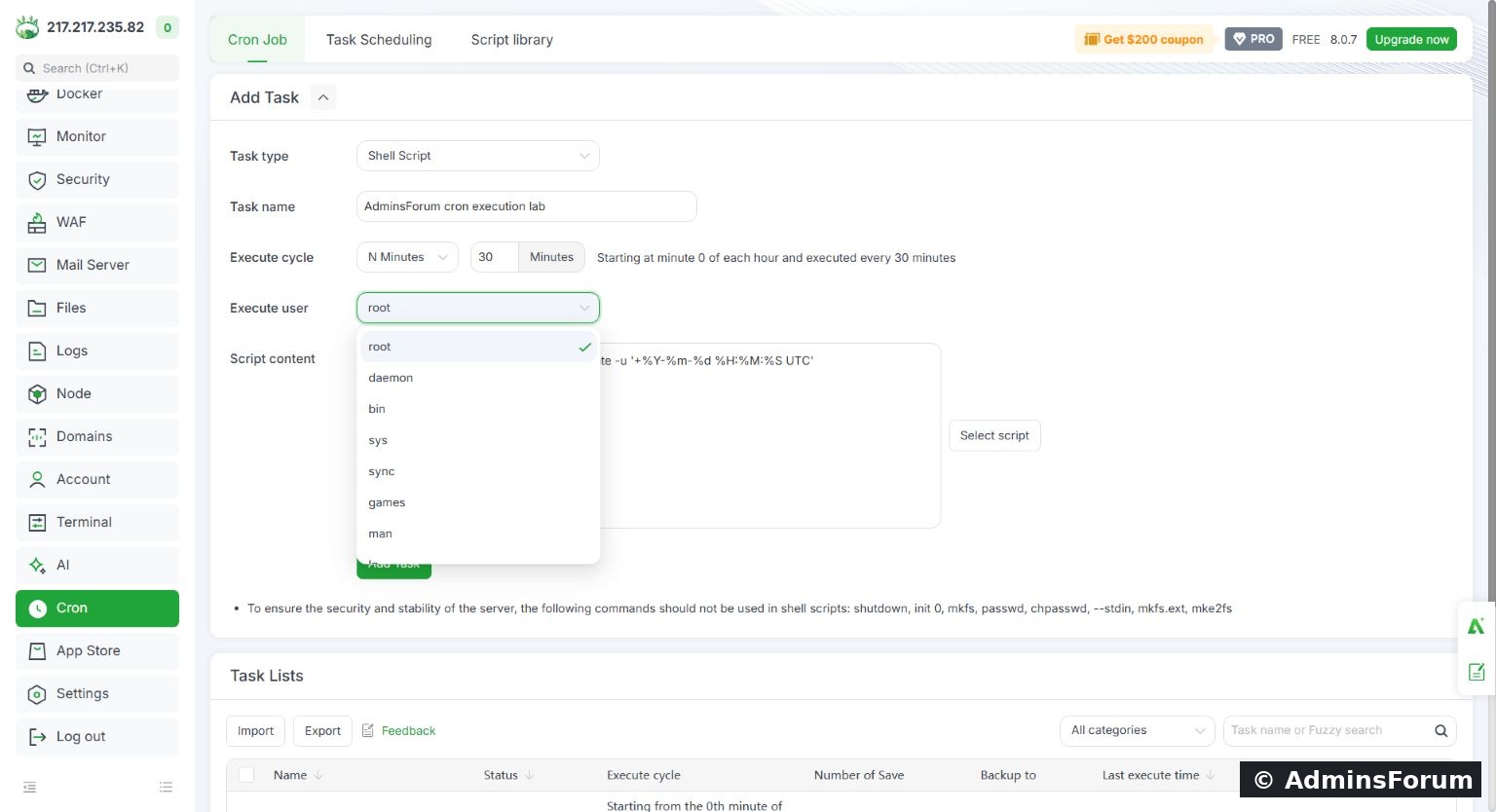
Create a clearly named Shell Script task with a one-minute test interval and harmless timestamp output.
4. Add the task and verify its row
Click Add Task. In Task Lists, find the exact name and confirm its status is Running and its execution cycle is correct. Check the intended task rather than using a batch action against every row.
A running status means the schedule is enabled. It does not prove the script has successfully completed.
5. Test manual execution first
In that task's row, click Execute. Review the confirmation and click Confirm for this harmless script. After execution, click Log. Our first entry showed:
Check that the log contains the expected output as well as a success marker. A generic success message alone does not prove a backup archive is usable or a maintenance operation achieved its goal.
6. Verify the automatic run separately
Keep the task enabled and wait for its next schedule boundary. Do not click Execute again during this check. In the log window, use Refresh log. Our next entry appeared automatically:
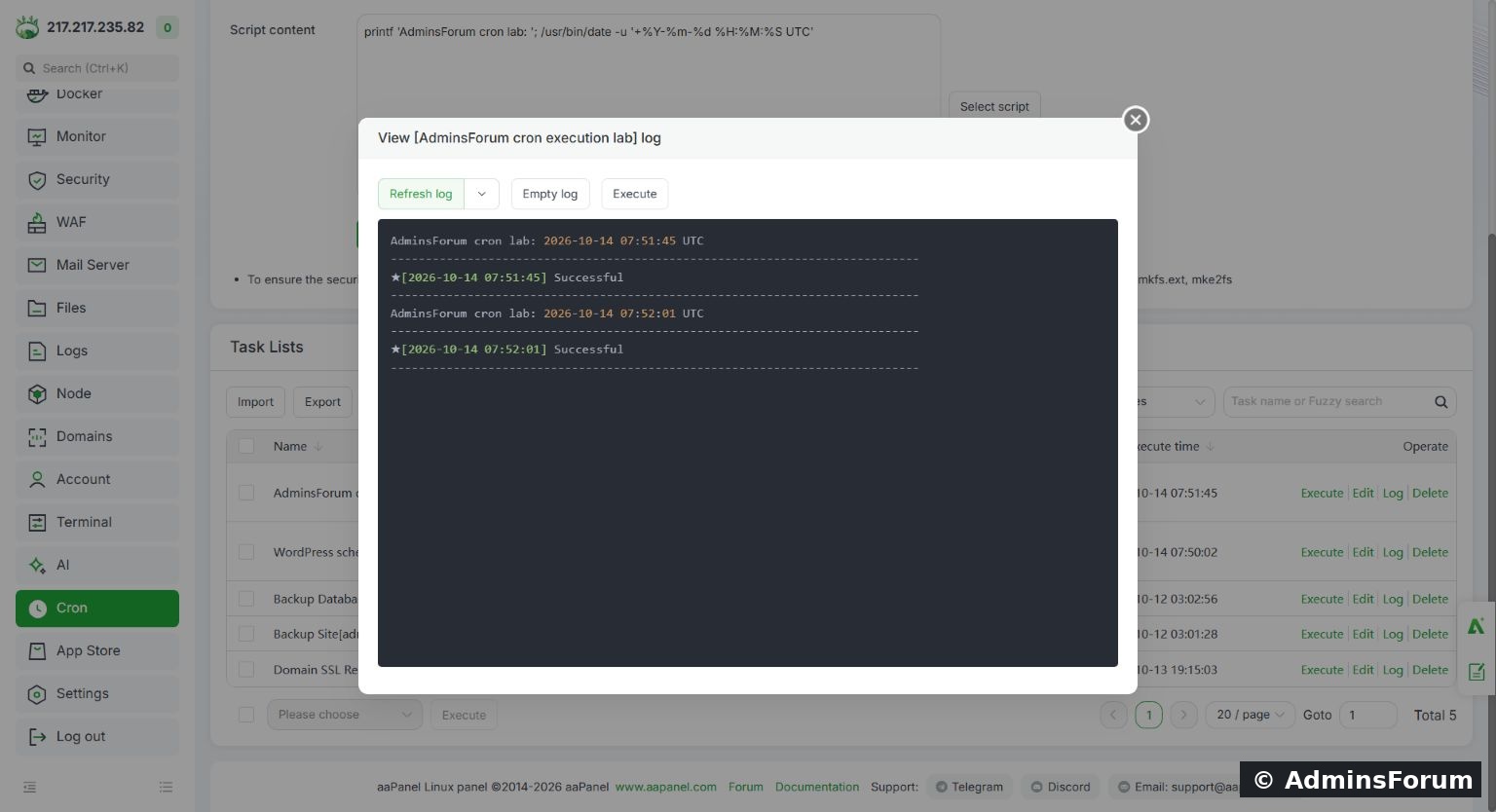
The log shows the manual execution followed by an automatic execution at the next minute boundary.
This proves the scheduler executed the timestamp script without another manual click. The panel's Last execute time column can lag behind the latest log entry, so use the refreshed log and actual task result when verifying execution.
7. Stop the lab schedule
Close the log window. Click Running in this task's Status cell. The panel asks whether to deactivate the scheduled task; confirm. The row should change to Stopped.
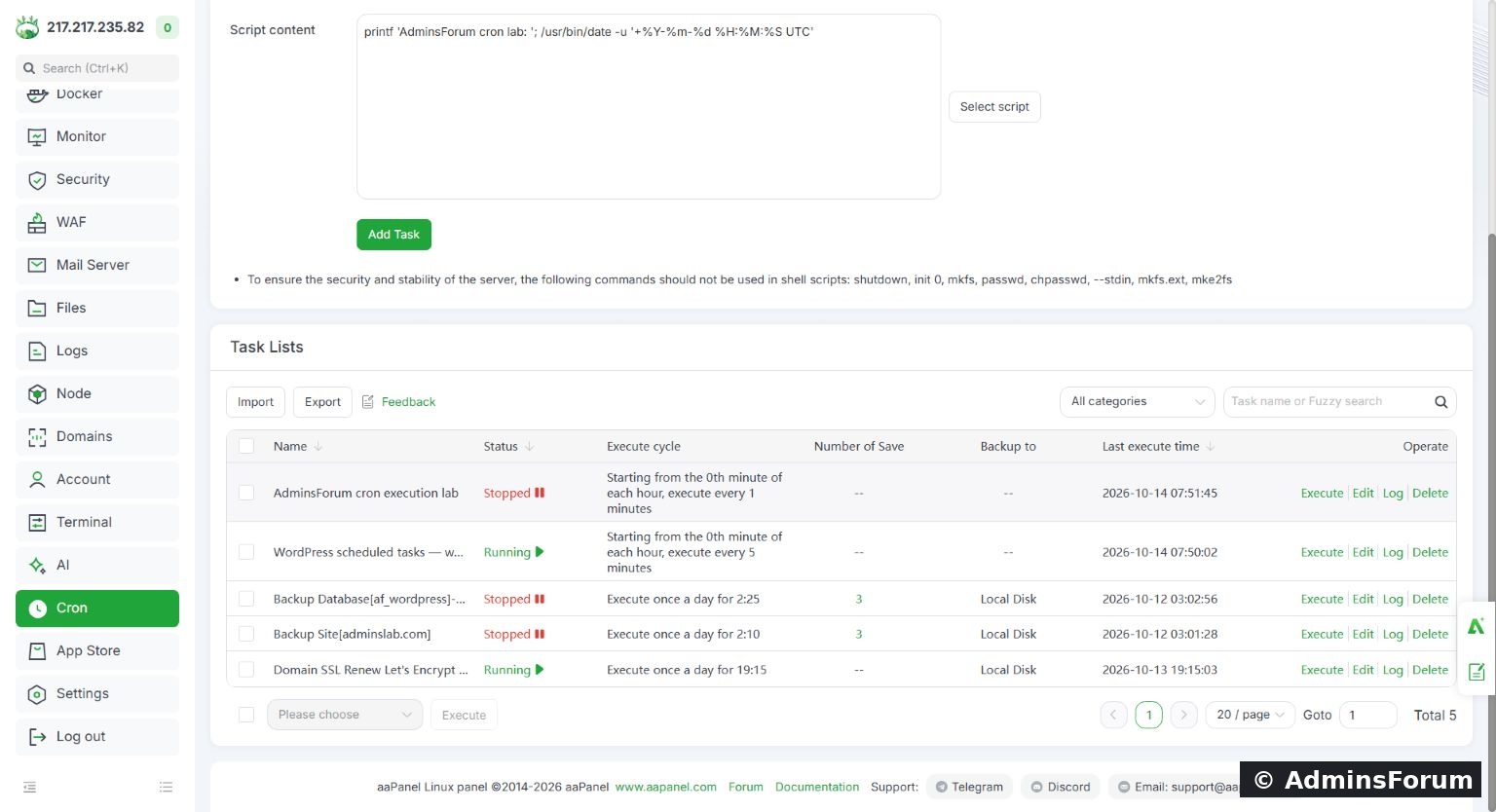
The completed test task is stopped, so its one-minute schedule no longer keeps running.
We kept the disabled task and its log for reference instead of deleting them. For a real production job, leave it enabled only when its script, frequency and required permissions have been verified. A manual Execute action is a separate action from enabling automatic scheduling.
If the task does not run
What we verified
AdminsForum lab-tested guide. This lesson establishes basic scheduling and log verification; website/database backup schedules and retention belong in their own tutorials.
Tested: aaPanel Free 8.0.7 on Ubuntu 22.04.5. We created a one-minute Shell Script task, executed it manually, observed its automatic run and then stopped the test schedule. Existing renewal, WordPress and backup tasks were left as configured.
1. Open Cron and choose the task type
Sign in to aaPanel and choose Cron in the left menu. In Add Task, choose Shell Script. Give it a clear name; our task is AdminsForum cron execution lab. A useful task name tells you what the job does when you return to the list later.
2. Choose a short test interval
Open Execute cycle, select N Minutes and set the interval to 1. In our version the summary states that execution starts at minute 0 of each hour and runs every minute. This short interval is for verification, not a recommendation to run backups every minute.
Other displayed cycle choices include Daily, N Days, Hourly, N Hours, Weekly, Monthly, N Second and Once. Read the resulting schedule summary and confirm the server's timezone before planning a real job. The lab logs use UTC; your local clock may differ.
3. Enter a harmless script
Paste this into Script content:
Code:
printf 'AdminsForum cron lab: '; /usr/bin/date -u '+%Y-%m-%d %H:%M:%S UTC'Our disposable lab used the form's default root execution user for this timestamp-only script. For a real application job, select an existing user with only the permissions it needs, and verify file ownership and access. Do not assume a script that works in your own terminal will work under a different user.
Create a clearly named Shell Script task with a one-minute test interval and harmless timestamp output.
4. Add the task and verify its row
Click Add Task. In Task Lists, find the exact name and confirm its status is Running and its execution cycle is correct. Check the intended task rather than using a batch action against every row.
A running status means the schedule is enabled. It does not prove the script has successfully completed.
5. Test manual execution first
In that task's row, click Execute. Review the confirmation and click Confirm for this harmless script. After execution, click Log. Our first entry showed:
Code:
AdminsForum cron lab: 2026-10-14 07:51:45 UTC
Successful6. Verify the automatic run separately
Keep the task enabled and wait for its next schedule boundary. Do not click Execute again during this check. In the log window, use Refresh log. Our next entry appeared automatically:
Code:
AdminsForum cron lab: 2026-10-14 07:52:01 UTC
Successful
The log shows the manual execution followed by an automatic execution at the next minute boundary.
This proves the scheduler executed the timestamp script without another manual click. The panel's Last execute time column can lag behind the latest log entry, so use the refreshed log and actual task result when verifying execution.
7. Stop the lab schedule
Close the log window. Click Running in this task's Status cell. The panel asks whether to deactivate the scheduled task; confirm. The row should change to Stopped.
The completed test task is stopped, so its one-minute schedule no longer keeps running.
We kept the disabled task and its log for reference instead of deleting them. For a real production job, leave it enabled only when its script, frequency and required permissions have been verified. A manual Execute action is a separate action from enabling automatic scheduling.
If the task does not run
- No log output: confirm the task is enabled and that its schedule has actually become due in the server's timezone.
- Manual run works, scheduled run fails: compare user permissions, absolute paths and required environment variables. Scheduled jobs do not necessarily load your interactive shell configuration.
- Permission denied: inspect the specific file and execution user; do not grant broad permissions to the whole website tree.
- Command not found: use the correct executable path and confirm that software is installed.
- Long-running task: allow a realistic interval and use suitable locking if overlapping runs could cause problems.
- Success marker but wrong result: make the script check its own result and return a nonzero exit status on failure. Verify the output artifact or application behavior separately.
What we verified
- The task was added with the intended one-minute cycle.
- Manual execution printed the expected timestamp.
- Automatic execution produced a later log entry without another Execute click.
- The test schedule was stopped after verification.
AdminsForum lab-tested guide. This lesson establishes basic scheduling and log verification; website/database backup schedules and retention belong in their own tutorials.