



10-12-2026, 04:32 PM
Quick answer
An OPcache result from command-line PHP does not necessarily describe your website. Check the PHP version assigned to the site, confirm Zend OPcache is available, and inspect that version's PHP-FPM configuration separately. In our lab, CLI opcode caching was disabled while the PHP-FPM configuration reported it enabled.
Tested on 12 October 2026 with aaPanel 8.0.6 and PHP 8.5.11. OPcache was already available; no extension installation or performance-setting change was needed.
What OPcache does
OPcache keeps compiled PHP bytecode so PHP does not need to parse and compile the same scripts on every request. It is separate from a full-page cache or a Redis-backed WordPress object cache. Finding OPcache does not prove those other caches are configured.
1. Check the PHP version your website uses
Open the website's PHP version setting in aaPanel. For a WP Toolkit site, use WP Toolkit → Modify → PHP version. Our WordPress site uses PHP 8.5, so the commands below deliberately use the 85 installation directory.
Open App Store → Installed → PHP-8.5 → Setting → Service. The panel shows the executable for that version:
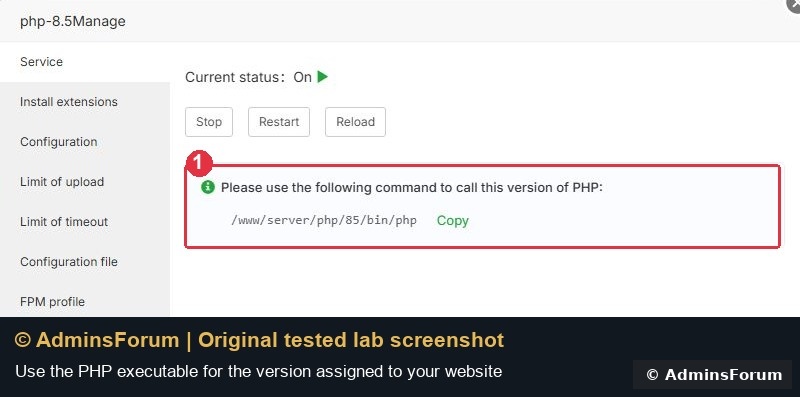
Do not rely on a bare php command unless you know which version it points to. A website using PHP 8.4 can have different extensions and settings from a PHP 8.5 command-line installation. Replace 85 with your actual aaPanel version directory when following this guide.
2. Check extension availability in the PHP manager
Click phpinfo in the same PHP manager. In our panel, the Basic Information section showed version 8.5.11 and the Buffer section showed Zend OPcache → Yes.
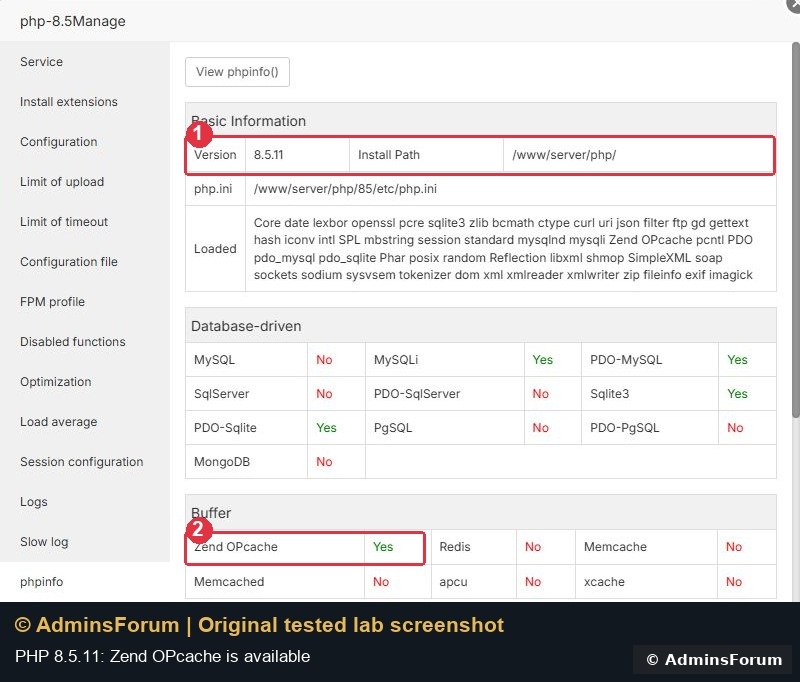
This confirms availability in that PHP installation. It is not a measurement of cache hit rate on your live website. Our Install extensions list did not offer a separate OPcache Install row, so there was no reason to search for another package or reinstall PHP.
3. Compare CLI and PHP-FPM settings
In the aaPanel Terminal, these read-only commands show selected configuration fields. They do not save settings or restart services. They use awk to filter the otherwise lengthy PHP information output.
Command-line PHP:
Look for Server API, Loaded Configuration File, Opcode Caching, opcache.enable and opcache.enable_cli.
PHP-FPM configuration:
The php-fpm -i command inspects the FPM executable and its loaded configuration. It does not send a web request to your site's running worker pool. Per-pool overrides or application restrictions may still affect that site, so this is a configuration check rather than live traffic monitoring.
Our results: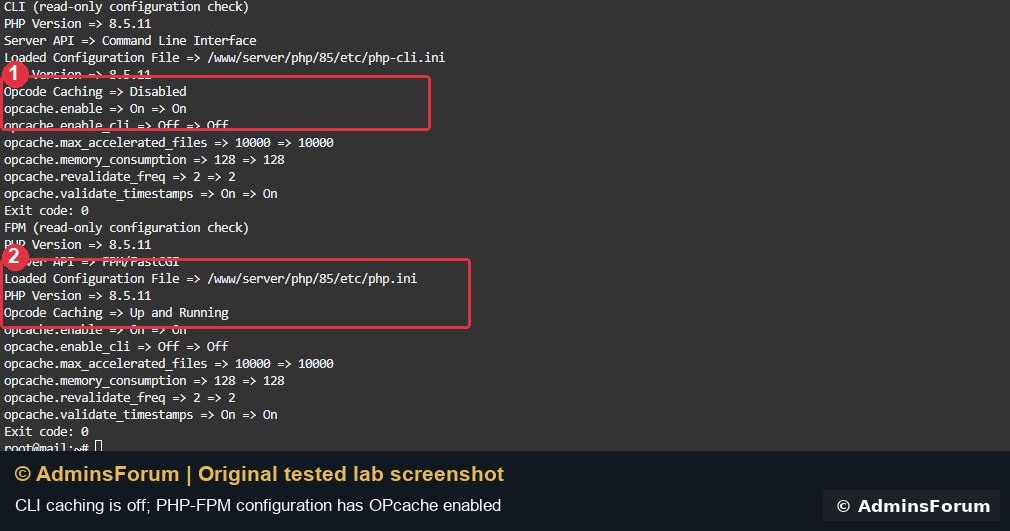
The screenshot uses an equivalent filtered read-only check; we also ran the exact command examples above. These numbers describe our lab, not a tuning prescription for every server.
4. Interpret the result before changing anything
Why we did not increase the cache memory
The lab already had OPcache enabled, and we had no workload evidence of a full cache. A larger memory allocation consumes server memory and is not automatically faster. Measure actual application workload before tuning.
Keep timestamp validation appropriate to your deployment process. Turning it off without a reliable cache reset/reload process can leave old PHP code in use after an update. Do not copy old options such as opcache.fast_shutdown into modern PHP settings; PHP removed that directive in 7.2.
Do not leave a public phpinfo page behind
The authenticated panel summary and filtered terminal checks were enough for this guide. We did not publish a phpinfo.php file or install a public cache dashboard. Detailed diagnostics can expose configuration information, so use an authenticated method for ongoing monitoring.
What was verified
The panel reported Zend OPcache available, CLI and FPM loaded different configuration files, and the FPM configuration reported caching enabled. We did not benchmark speed, measure the live worker pool's hit rate or test disabling/re-enabling OPcache.
References: PHP OPcache installation and PHP OPcache configuration. Screenshots are original AdminsForum lab captures.
An OPcache result from command-line PHP does not necessarily describe your website. Check the PHP version assigned to the site, confirm Zend OPcache is available, and inspect that version's PHP-FPM configuration separately. In our lab, CLI opcode caching was disabled while the PHP-FPM configuration reported it enabled.
Tested on 12 October 2026 with aaPanel 8.0.6 and PHP 8.5.11. OPcache was already available; no extension installation or performance-setting change was needed.
What OPcache does
OPcache keeps compiled PHP bytecode so PHP does not need to parse and compile the same scripts on every request. It is separate from a full-page cache or a Redis-backed WordPress object cache. Finding OPcache does not prove those other caches are configured.
1. Check the PHP version your website uses
Open the website's PHP version setting in aaPanel. For a WP Toolkit site, use WP Toolkit → Modify → PHP version. Our WordPress site uses PHP 8.5, so the commands below deliberately use the 85 installation directory.
Open App Store → Installed → PHP-8.5 → Setting → Service. The panel shows the executable for that version:
Code:
/www/server/php/85/bin/phpDo not rely on a bare php command unless you know which version it points to. A website using PHP 8.4 can have different extensions and settings from a PHP 8.5 command-line installation. Replace 85 with your actual aaPanel version directory when following this guide.
2. Check extension availability in the PHP manager
Click phpinfo in the same PHP manager. In our panel, the Basic Information section showed version 8.5.11 and the Buffer section showed Zend OPcache → Yes.
This confirms availability in that PHP installation. It is not a measurement of cache hit rate on your live website. Our Install extensions list did not offer a separate OPcache Install row, so there was no reason to search for another package or reinstall PHP.
3. Compare CLI and PHP-FPM settings
In the aaPanel Terminal, these read-only commands show selected configuration fields. They do not save settings or restart services. They use awk to filter the otherwise lengthy PHP information output.
Command-line PHP:
Code:
/www/server/php/85/bin/php -i | awk '/^(PHP Version =>|Server API =>|Loaded Configuration File =>|Opcode Caching =>|opcache.enable =>|opcache.enable_cli =>)/ {print}'PHP-FPM configuration:
Code:
/www/server/php/85/sbin/php-fpm -i | awk '/^(PHP Version =>|Server API =>|Loaded Configuration File =>|Opcode Caching =>|opcache.enable =>|opcache.enable_cli =>|opcache.memory_consumption =>|opcache.validate_timestamps =>|opcache.revalidate_freq =>|opcache.max_accelerated_files =>)/ {print}'Our results:
- CLI used /www/server/php/85/etc/php-cli.ini. Opcode Caching was Disabled, with opcache.enable_cli Off.
- FPM used /www/server/php/85/etc/php.ini. Opcode Caching was Up and Running, with opcache.enable On.
- The FPM settings reported 128 MB for OPcache memory, 10,000 maximum accelerated files, timestamp validation On and a 2-second revalidation interval.
The screenshot uses an equivalent filtered read-only check; we also ran the exact command examples above. These numbers describe our lab, not a tuning prescription for every server.
4. Interpret the result before changing anything
- Zend OPcache Yes, CLI caching Disabled: this can be normal when opcache.enable_cli is Off. It does not by itself mean website caching is off.
- FPM configuration shows opcache.enable On: OPcache is enabled in that configuration. Check the actual application through an authenticated monitoring method if you need hit-rate or memory-usage data.
- Wrong PHP version or configuration file: return to the site's PHP version setting and use the matching binary.
- OPcache unavailable: inspect the extension/build options for your PHP version. Do not paste an opcache.so path copied from a different server or PHP version.
Why we did not increase the cache memory
The lab already had OPcache enabled, and we had no workload evidence of a full cache. A larger memory allocation consumes server memory and is not automatically faster. Measure actual application workload before tuning.
Keep timestamp validation appropriate to your deployment process. Turning it off without a reliable cache reset/reload process can leave old PHP code in use after an update. Do not copy old options such as opcache.fast_shutdown into modern PHP settings; PHP removed that directive in 7.2.
Do not leave a public phpinfo page behind
The authenticated panel summary and filtered terminal checks were enough for this guide. We did not publish a phpinfo.php file or install a public cache dashboard. Detailed diagnostics can expose configuration information, so use an authenticated method for ongoing monitoring.
What was verified
The panel reported Zend OPcache available, CLI and FPM loaded different configuration files, and the FPM configuration reported caching enabled. We did not benchmark speed, measure the live worker pool's hit rate or test disabling/re-enabling OPcache.
References: PHP OPcache installation and PHP OPcache configuration. Screenshots are original AdminsForum lab captures.