



10-12-2026, 06:25 PM
Quick answer
For OpenLiteSpeed, inspect App Store → Installed → Openlitespeed → Setting → PHP Info. Select the PHP version you intend to use. OpenLiteSpeed uses a separate lsphp installation, so an extension installed through the normal PHP-8.5 manager is not proof that lsphp has it.
This guide was tested on our isolated aaPanel 8.0.6 / Ubuntu 22.04 lab on 12 October 2026. The OpenLiteSpeed manager reported version 1.8.5, and both PHP installations reported PHP 8.5.11. We also checked the actual WordPress runtime after switching that test site to Nginx + OpenLiteSpeed.
1. Identify the website's engine and PHP version
Open the website's configuration and check Web Server and PHP version. For our WP Toolkit site, those controls were under WP Toolkit → Modify. Do not assume that the server's default engine or a bare php command describes this particular website.
If you still need to enable multiple services, see the tested multi-webserver installation guide. Changing engines is a separate operation from checking PHP information.
2. Open the correct PHP manager
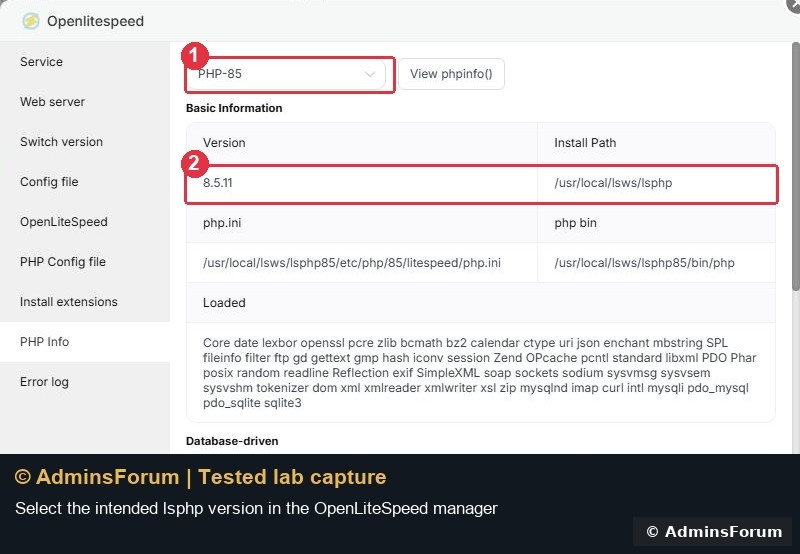
In App Store → Installed, open the Openlitespeed row's Setting link, then choose PHP Info. We selected PHP-85. Wait for the data to finish loading: temporary empty cells or default No values are not a reliable result while the request is pending.
The Basic Information section reported PHP 8.5.11 and the lsphp binary under /usr/local/lsws. Our initial capture is below.
3. Distinguish the two installations
Our lab had:
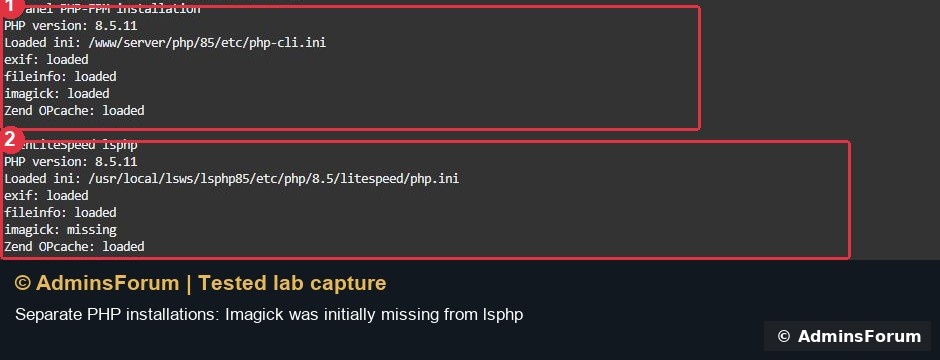
These comparison commands were run in CLI mode; the first label in the screenshot identifies the aaPanel PHP installation used with PHP-FPM, not an active FPM worker request. CLI settings and website settings can differ.
4. Verify the configuration file with the intended binary
In the aaPanel Terminal, this read-only check prints the PHP version, loaded configuration file and selected extension availability:
Replace 85 with the version directory that actually exists on your server. Do not copy a path from another PHP version and do not create a public phpinfo.php file just to run this check.
One detail mattered in our test: the panel displayed an ini path containing /php/85/litespeed/, while the lsphp binary reported the actual loaded path as:
Check the loaded path before editing configuration. A path label in a panel is not a reason to create a second configuration file that the runtime never reads. We did not change a php.ini setting in this walkthrough.
5. Check the extensions required by your application
Scroll through PHP Info and look at the database, image-processing and file-handling sections. WordPress needs its database connection and the image/file features used by your site. Install extensions for actual application requirements rather than enabling every optional item.
After our lsphp setup, the panel showed EXIF, GD, ImageMagick and Fileinfo available. Imagick was installed during a separate tested setup step; this screenshot is the resulting configuration, not a promise that every fresh lsphp installation has it by default.
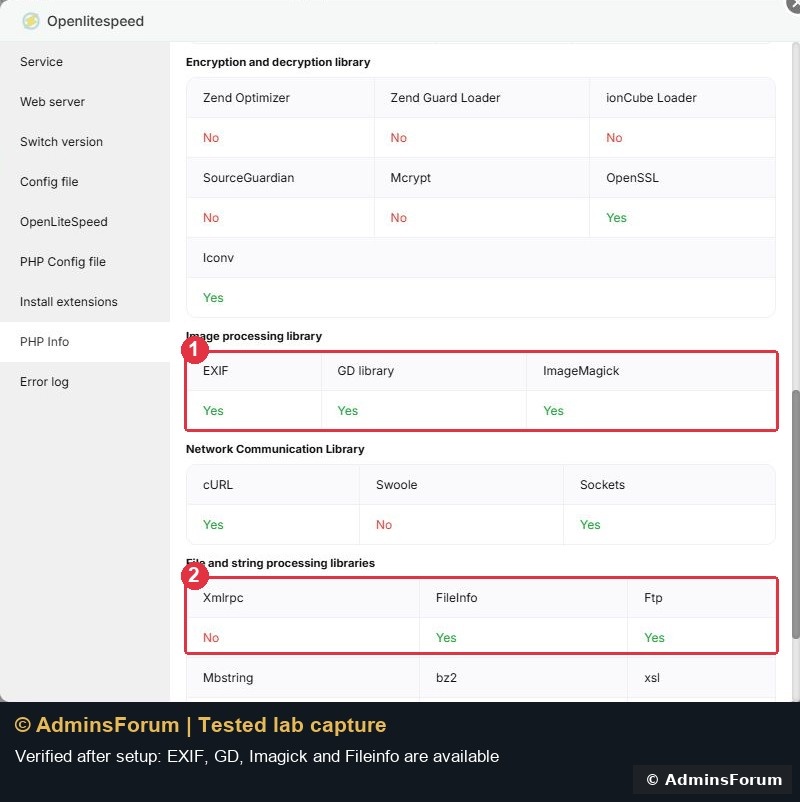
To install a missing lsphp extension through aaPanel, use Openlitespeed → Install extensions for the selected version. Using the normal PHP-8.5 extension manager can affect the other installation instead.
6. Confirm what a real website request uses
For WordPress, open Tools → Site Health → Info → Server. After the engine switch, our WordPress page reported: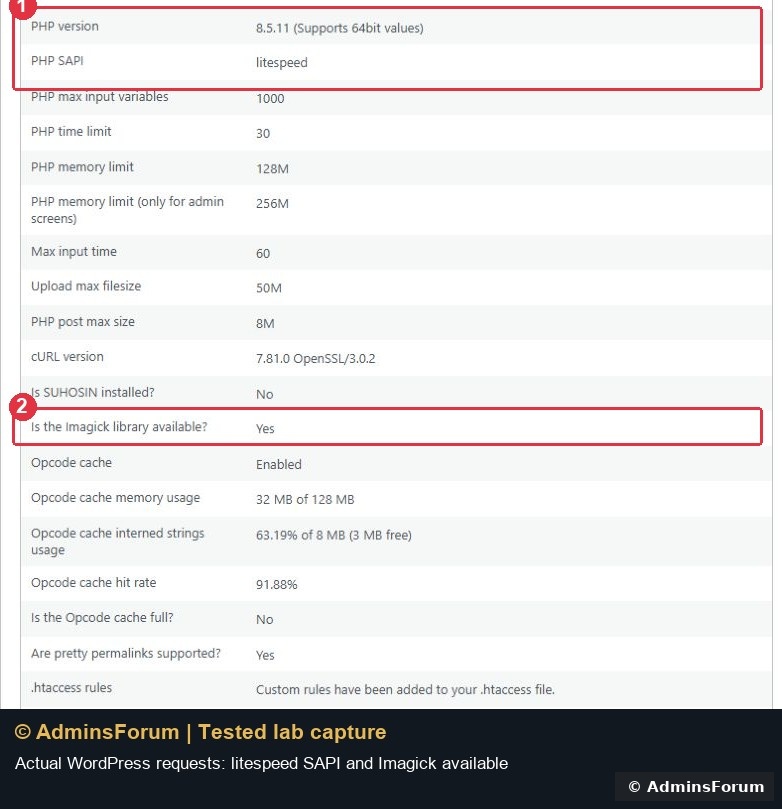
This application-side result is stronger evidence of the active website runtime than a command-line PHP version alone. The opcode-cache statistics visible in the capture are a momentary lab snapshot, not a speed benchmark or a recommended target.
If the results do not match
Our verified result
We identified separate aaPanel and lsphp installations, verified their loaded ini files and extension lists, and confirmed WordPress requests used litespeed SAPI. We did not use this guide to tune performance or change PHP limits.
References: aaPanel multi-webserver PHP management and OpenLiteSpeed PHP documentation. All screenshots are original AdminsForum lab captures.
For OpenLiteSpeed, inspect App Store → Installed → Openlitespeed → Setting → PHP Info. Select the PHP version you intend to use. OpenLiteSpeed uses a separate lsphp installation, so an extension installed through the normal PHP-8.5 manager is not proof that lsphp has it.
This guide was tested on our isolated aaPanel 8.0.6 / Ubuntu 22.04 lab on 12 October 2026. The OpenLiteSpeed manager reported version 1.8.5, and both PHP installations reported PHP 8.5.11. We also checked the actual WordPress runtime after switching that test site to Nginx + OpenLiteSpeed.
1. Identify the website's engine and PHP version
Open the website's configuration and check Web Server and PHP version. For our WP Toolkit site, those controls were under WP Toolkit → Modify. Do not assume that the server's default engine or a bare php command describes this particular website.
If you still need to enable multiple services, see the tested multi-webserver installation guide. Changing engines is a separate operation from checking PHP information.
2. Open the correct PHP manager
In App Store → Installed, open the Openlitespeed row's Setting link, then choose PHP Info. We selected PHP-85. Wait for the data to finish loading: temporary empty cells or default No values are not a reliable result while the request is pending.
The Basic Information section reported PHP 8.5.11 and the lsphp binary under /usr/local/lsws. Our initial capture is below.
3. Distinguish the two installations
Our lab had:
- Normal aaPanel PHP binary:
Code:/www/server/php/85/bin/php - OpenLiteSpeed PHP binary:
Code:/usr/local/lsws/lsphp85/bin/php
These comparison commands were run in CLI mode; the first label in the screenshot identifies the aaPanel PHP installation used with PHP-FPM, not an active FPM worker request. CLI settings and website settings can differ.
4. Verify the configuration file with the intended binary
In the aaPanel Terminal, this read-only check prints the PHP version, loaded configuration file and selected extension availability:
Code:
/usr/local/lsws/lsphp85/bin/php -r 'echo "PHP version: ".PHP_VERSION.PHP_EOL;echo "Loaded ini: ".php_ini_loaded_file().PHP_EOL;foreach(["exif","fileinfo","imagick","Zend OPcache"] as $e)echo $e.": ".(extension_loaded($e)?"loaded":"missing").PHP_EOL;'One detail mattered in our test: the panel displayed an ini path containing /php/85/litespeed/, while the lsphp binary reported the actual loaded path as:
Code:
/usr/local/lsws/lsphp85/etc/php/8.5/litespeed/php.ini5. Check the extensions required by your application
Scroll through PHP Info and look at the database, image-processing and file-handling sections. WordPress needs its database connection and the image/file features used by your site. Install extensions for actual application requirements rather than enabling every optional item.
After our lsphp setup, the panel showed EXIF, GD, ImageMagick and Fileinfo available. Imagick was installed during a separate tested setup step; this screenshot is the resulting configuration, not a promise that every fresh lsphp installation has it by default.
To install a missing lsphp extension through aaPanel, use Openlitespeed → Install extensions for the selected version. Using the normal PHP-8.5 extension manager can affect the other installation instead.
6. Confirm what a real website request uses
For WordPress, open Tools → Site Health → Info → Server. After the engine switch, our WordPress page reported:
- Web server: LiteSpeed.
- PHP version: 8.5.11.
- PHP SAPI: litespeed.
- Imagick available: Yes.
- Opcode cache: Enabled.
This application-side result is stronger evidence of the active website runtime than a command-line PHP version alone. The opcode-cache statistics visible in the capture are a momentary lab snapshot, not a speed benchmark or a recommended target.
If the results do not match
- Check the saved website engine and selected PHP version again.
- Verify which binary and configuration file you inspected.
- After an extension/configuration change, follow the appropriate service/PHP-worker reload process and recheck a fresh application request.
- Check application errors before changing more settings; different runtimes can have different upload and memory limits as well as extensions.
Our verified result
We identified separate aaPanel and lsphp installations, verified their loaded ini files and extension lists, and confirmed WordPress requests used litespeed SAPI. We did not use this guide to tune performance or change PHP limits.
References: aaPanel multi-webserver PHP management and OpenLiteSpeed PHP documentation. All screenshots are original AdminsForum lab captures.