



10-17-2026, 08:59 AM
Quick answer
To check Cloudflare DNS, compare the record in DNS > Records with the public answer for the same hostname and record type. First confirm which nameservers answer for the domain. Then check A, MX or TXT records. For an orange-cloud website, a Cloudflare IP in the public answer can be correct; do not expect the origin IP in every result.
This read-only walkthrough uses our own adminslab.com lab on 17 October 2026. We inspected the Cloudflare dashboard and ran the commands below from an Ubuntu lab server. We did not change a DNS record, registrar setting or proxy status. The checks apply regardless of your hosting panel.
1. Open the correct domain and find the record
Sign into Cloudflare, select your domain, then open DNS > Records. Confirm the domain name above the table before working. Use the search field to narrow a long list: searching mail in our lab returned the mail-related hostnames and records. Search is a filter, not an edit operation.
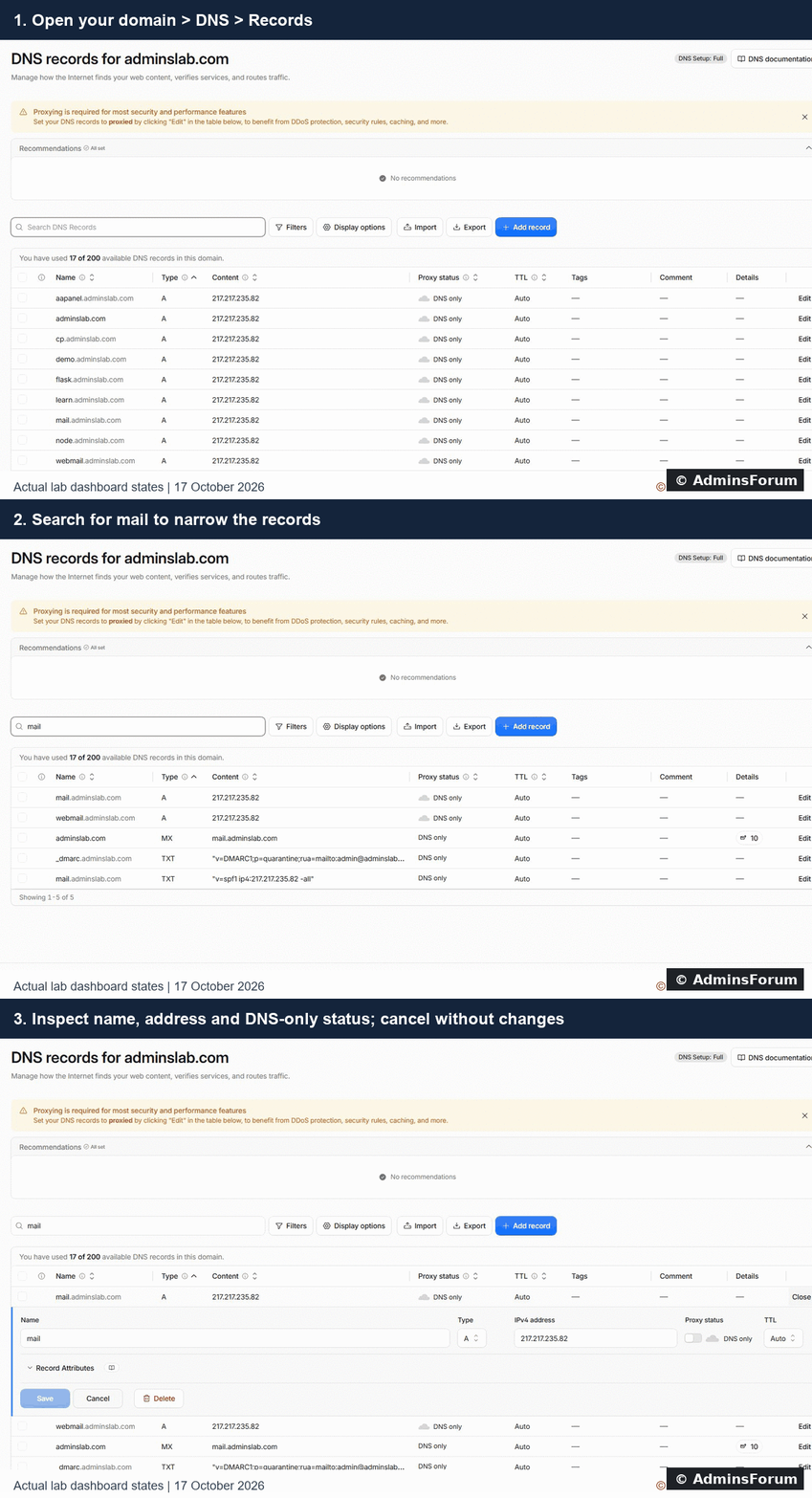
The animated walkthrough shows actual dashboard states with added captions. It is a step sequence, not a continuous screen recording. We show the lab only; no customer domain or private API token is included.
Read the Type, Name, Content, Proxy status and TTL together. An A record answers an IPv4 question. An MX record identifies the mail exchanger and priority. A TXT record carries text used by a service, such as domain verification or SPF. A successful A lookup cannot establish that MX or TXT is correct.
2. Check the nameservers
These commands require dig. On a Linux machine where dig is already available, run:
Replace the domain with your own. Our result was:
Compare the pair with the nameservers assigned to your own domain. Do not copy our pair to your registrar. This recursive lookup is a useful first check, but alone does not prove a fresh registrar delegation update has reached every resolver. Investigate the parent delegation separately if activation is pending.
If you have not connected your domain yet, start with Add a Domain to Cloudflare: DNS and Nameservers.
3. Check an A record and read its fields
Our lab returned:
The hostname is adminslab.com, the displayed remaining TTL is 300 seconds, IN is the Internet class, A is the requested record type, and the final value is the IPv4 answer. A cached resolver's TTL can count down, so a different TTL alone is not evidence of a wrong address.
The lab apex was DNS only, and its public answer matched the server address saved in the dashboard. For a proxied hostname, public A/AAAA answers can be Cloudflare addresses instead. Check the dashboard proxy status before diagnosing an origin-IP mismatch. Do not switch a mail hostname to proxied merely to hide its IP.
4. Compare two public resolvers
The @ argument selects the DNS resolver to ask. In this test, both returned 217.217.235.82 with a 300-second TTL. Agreement between these two answers is a useful observation at that time; it does not prove every network worldwide has identical cache contents.
If answers differ, record the hostname, type, resolver, returned value and UTC time. Recheck the configured record and caching before repeatedly editing it. An empty answer section needs the full response to distinguish a missing record from an alias, an error or a query problem:
Replace your-domain.example with the actual hostname. Read the status and answer/authority sections; do not treat an empty +short result as a complete diagnosis.
5. Check mail records separately
Our observed MX answer named mail.adminslab.com at priority 10. Its A record resolved to the lab server. The apex TXT lookup returned our published SPF policy. These are existing lab values, not a template for another provider. Obtain your own required records from your mail provider. DNS checks do not establish that a mailbox exists, a password works or a message reached an inbox.
Windows alternative
Without dig, you can use Windows nslookup:
These are equivalent query examples for readers; our recorded test above used dig on Ubuntu, not a separate Windows execution test.
Before making a fix
Save the current record values. Identify one incorrect hostname and record type, determine the correct value from the owning service, then plan a specific change. This article makes no configuration changes, so there is no rollback operation to perform. Do not delete a zone, replace nameservers or remove email records just because a website lookup fails.
References
Cloudflare DNS FAQ, proxy status and DNS record types. The results and dashboard images are from our own lab.
To check Cloudflare DNS, compare the record in DNS > Records with the public answer for the same hostname and record type. First confirm which nameservers answer for the domain. Then check A, MX or TXT records. For an orange-cloud website, a Cloudflare IP in the public answer can be correct; do not expect the origin IP in every result.
This read-only walkthrough uses our own adminslab.com lab on 17 October 2026. We inspected the Cloudflare dashboard and ran the commands below from an Ubuntu lab server. We did not change a DNS record, registrar setting or proxy status. The checks apply regardless of your hosting panel.
1. Open the correct domain and find the record
Sign into Cloudflare, select your domain, then open DNS > Records. Confirm the domain name above the table before working. Use the search field to narrow a long list: searching mail in our lab returned the mail-related hostnames and records. Search is a filter, not an edit operation.
The animated walkthrough shows actual dashboard states with added captions. It is a step sequence, not a continuous screen recording. We show the lab only; no customer domain or private API token is included.
Read the Type, Name, Content, Proxy status and TTL together. An A record answers an IPv4 question. An MX record identifies the mail exchanger and priority. A TXT record carries text used by a service, such as domain verification or SPF. A successful A lookup cannot establish that MX or TXT is correct.
2. Check the nameservers
These commands require dig. On a Linux machine where dig is already available, run:
Code:
dig +short NS adminslab.comCode:
sam.ns.cloudflare.com.
blair.ns.cloudflare.com.If you have not connected your domain yet, start with Add a Domain to Cloudflare: DNS and Nameservers.
3. Check an A record and read its fields
Code:
dig +noall +answer adminslab.com ACode:
adminslab.com. 300 IN A 217.217.235.82The lab apex was DNS only, and its public answer matched the server address saved in the dashboard. For a proxied hostname, public A/AAAA answers can be Cloudflare addresses instead. Check the dashboard proxy status before diagnosing an origin-IP mismatch. Do not switch a mail hostname to proxied merely to hide its IP.
4. Compare two public resolvers
Code:
dig @1.1.1.1 adminslab.com A +noall +answer
dig @8.8.8.8 adminslab.com A +noall +answerIf answers differ, record the hostname, type, resolver, returned value and UTC time. Recheck the configured record and caching before repeatedly editing it. An empty answer section needs the full response to distinguish a missing record from an alias, an error or a query problem:
Code:
dig @1.1.1.1 your-domain.example A5. Check mail records separately
Code:
dig +noall +answer adminslab.com MX
dig +noall +answer mail.adminslab.com A
dig +noall +answer adminslab.com TXTWindows alternative
Without dig, you can use Windows nslookup:
Code:
nslookup -type=NS your-domain.example
nslookup -type=A your-domain.example 1.1.1.1
nslookup -type=MX your-domain.example
nslookup -type=TXT your-domain.exampleBefore making a fix
Save the current record values. Identify one incorrect hostname and record type, determine the correct value from the owning service, then plan a specific change. This article makes no configuration changes, so there is no rollback operation to perform. Do not delete a zone, replace nameservers or remove email records just because a website lookup fails.
References
Cloudflare DNS FAQ, proxy status and DNS record types. The results and dashboard images are from our own lab.