



If aaPanel sends email but does not receive it, trace an incoming message from public DNS to the mailbox. Successful sending does not prove that other mail servers can reach your server on TCP port 25.
This documentation-based diagnostic guide applies to aaPanel Mail Server installations. Menu names and log locations vary by plugin release and operating system. It does not claim a newly reproduced lab incident. Use a mailbox you control and replace example.com with your domain.
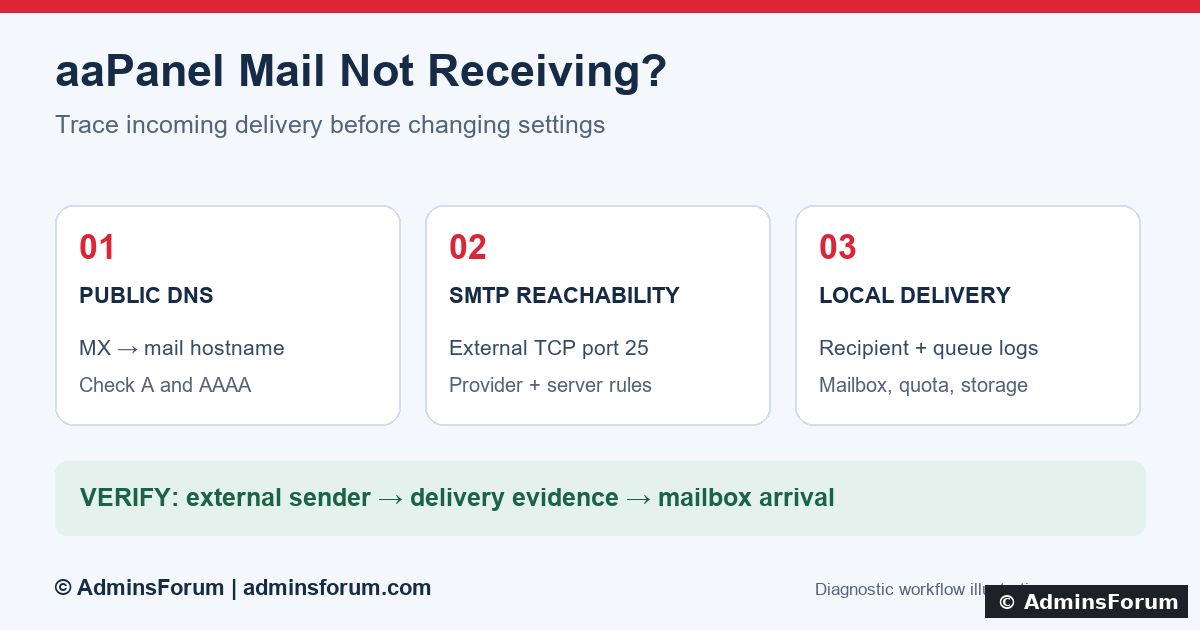
Incoming mail checklist: DNS → reachable SMTP service → accepted recipient → local delivery → mailbox view. Original AdminsForum workflow illustration.
Verified on our aaPanel lab VPS — 16 October 2026
We ran read-only checks on Ubuntu 22.04.5 LTS with Postfix 3.6.4. Postfix and Dovecot were active; TCP 25 listened on IPv4 and IPv6 interfaces. The public MX lookup returned 10 mail.adminslab.com, and its A record resolved to the lab server; the AAAA lookup returned no address. A separate external connection reached port 25 and received this actual server response:
The root filesystem reported 30% disk use and 11% inode use. These observations verify service health, DNS routing and external SMTP reachability at the check time. They do not establish delivery into a mailbox or reproduce every failure below. No firewall, DNS, service or mailbox settings were changed. An external message-to-Inbox test remains to be recorded.
1. Capture one failed delivery
Send a short message from an unrelated working provider to an existing local mailbox. Use a unique subject such as INBOUND-CHECK-20261016-01. Record the sender, recipient, time and timezone. Ask the sender for any delivery-status notification, including its SMTP error and destination server. A temporary delay can produce no immediate bounce.
Decide which case you have: all external senders fail; one sender fails; only one recipient fails; or webmail receives the message but a desktop client does not. Each points to a different layer. A message sent between two local mailboxes does not test public delivery.
2. Check where public DNS sends mail
From a machine with dig available, run these read-only checks:
The first command lists mail exchangers and their preferences; lower numbers are preferred. The other commands show IPv4 and IPv6 destinations for the actual MX hostname. Substitute the hostname returned by your MX lookup rather than assuming it is mail.example.com.
If you intend direct delivery to this server, the MX must name its mail hostname and that hostname must resolve to the intended reachable server. Check every advertised MX target. An old hosted-mail MX can route messages elsewhere; a published IPv6 address also needs a working IPv6 mail path. A public resolver showing an old answer may still be caching the previous records until their TTL expires. Compare the authoritative DNS zone and public results before changing more records.
For Cloudflare-managed DNS, the mail hostname should use DNS-only addressing for ordinary SMTP; the standard web proxy does not proxy this mail traffic. Do not remove working provider MX records unless you are deliberately migrating that domain's mail. See our aaPanel mail DNS guide.
3. Separate port 25 delivery from mailbox access
Internet mail servers normally deliver to the MX server on TCP 25. SMTP submission on 587 or 465 serves authenticated clients; changing the receiving listener to 587 does not make ordinary external senders follow it. IMAP 993 lets a client read an already delivered mailbox and cannot replace inbound SMTP.
From a separate network, Windows PowerShell can test the public endpoint:
Look for TcpTestSucceeded: True. On a Linux machine with nc installed:
A successful TCP connection is only a reachability check; it does not prove recipient acceptance or message delivery. If it fails, distinguish refusal from timeout and check provider restrictions, provider firewall rules, the server firewall and the service listener. Ask the VPS provider specifically about inbound TCP 25. An outbound port-25 test answers a different question. Do not disable the firewall as a diagnostic shortcut.
4. Confirm the receiving service is listening
In aaPanel, open Mail Server and inspect its service status. On a typical systemd/Postfix installation, an administrator can read:
ss shows the listening address and process. systemctl reports service health; journalctl shows messages recorded for that unit. Commands require the corresponding tools and service name. An active unit alone is insufficient: confirm a suitable listening address, not only loopback. Logs can instead be routed to files on some systems. Consult the panel's Log view and the next guide if the journal is empty.
If the service failed, read its startup error before restarting it. Preserve the relevant evidence; avoid reinstalling Mail Server or replacing its configuration blindly.
5. Follow the message in the mail logs
Keep the server log view open while repeating the uniquely labelled external test. Search the recipient and time, then follow any queue ID through subsequent entries. See Check Mail Logs and Queue in aaPanel.
6. Check the mailbox and local storage
Open the correct mail domain and mailbox in aaPanel. Confirm the recipient spelling, mailbox status, quota and any forwarding rule. A website domain added to the hosting panel is not automatically a created email recipient. Use Create a User Mailbox if the address is absent.
Check disk space and inode availability without removing files:
The first shows filesystem space; the second shows inode use. Look at the filesystem that actually stores mail. If delivery logs report a quota or storage failure, correct that specific limit and retest. Review Spam/Junk and the intended mailbox in webmail. Catch-all or forwarding rules can change where mail appears; they are not required to receive a normal explicitly created mailbox.
7. If webmail receives it, troubleshoot the client separately
When the test appears in webmail but not a desktop or mobile client, the inbound SMTP path has worked for that message. Check the client's full mailbox username, server hostname, supported IMAP settings, certificate name, subscribed folders and synchronization errors. Avoid changing public MX records to fix one client's login or sync failure. Start with Configure IMAP and SMTP.
8. Verify the repair end to end
Repeat delivery from two independent external providers to the specific mailbox. Match each message to server delivery evidence and its visible mailbox arrival, including Spam/Junk checks. Reply and confirm that the external sender receives the answer. If you changed DNS, verify the public records again after the relevant caches expire. Record the cause and the one change that corrected it.
Will SPF, DKIM, DMARC or reverse DNS fix inbound port 25?
These records have important authentication and reputation roles, but they do not make an unreachable SMTP listener reachable. Investigate a policy rejection using its actual error. An outbound spam-test score also does not verify that your mailbox can receive mail. After inbound delivery works, use our reverse DNS and delivery-testing guide to check outgoing delivery separately.
What should I include in a support request?
Share the aaPanel and Mail Server versions, OS, whether all recipients fail, test time/timezone, public MX result and a redacted SMTP error or log excerpt. Remove passwords, tokens and private message bodies. Keep timestamps and anonymized queue-ID relationships useful. Post in aaPanel Support & Troubleshooting.
References
aaPanel: Mail Server Basics (MX and mail protocol roles).
aaPanel: Mail Server documentation (domain and mailbox management).
Continue with aaPanel Mail Server Guides.
This documentation-based diagnostic guide applies to aaPanel Mail Server installations. Menu names and log locations vary by plugin release and operating system. It does not claim a newly reproduced lab incident. Use a mailbox you control and replace example.com with your domain.
Incoming mail checklist: DNS → reachable SMTP service → accepted recipient → local delivery → mailbox view. Original AdminsForum workflow illustration.
Verified on our aaPanel lab VPS — 16 October 2026
We ran read-only checks on Ubuntu 22.04.5 LTS with Postfix 3.6.4. Postfix and Dovecot were active; TCP 25 listened on IPv4 and IPv6 interfaces. The public MX lookup returned 10 mail.adminslab.com, and its A record resolved to the lab server; the AAAA lookup returned no address. A separate external connection reached port 25 and received this actual server response:
Code:
220 mail.adminslab.com ESMTP Postfix (Ubuntu)1. Capture one failed delivery
Send a short message from an unrelated working provider to an existing local mailbox. Use a unique subject such as INBOUND-CHECK-20261016-01. Record the sender, recipient, time and timezone. Ask the sender for any delivery-status notification, including its SMTP error and destination server. A temporary delay can produce no immediate bounce.
Decide which case you have: all external senders fail; one sender fails; only one recipient fails; or webmail receives the message but a desktop client does not. Each points to a different layer. A message sent between two local mailboxes does not test public delivery.
2. Check where public DNS sends mail
From a machine with dig available, run these read-only checks:
Code:
dig +short MX example.com
dig +short A mail.example.com
dig +short AAAA mail.example.comIf you intend direct delivery to this server, the MX must name its mail hostname and that hostname must resolve to the intended reachable server. Check every advertised MX target. An old hosted-mail MX can route messages elsewhere; a published IPv6 address also needs a working IPv6 mail path. A public resolver showing an old answer may still be caching the previous records until their TTL expires. Compare the authoritative DNS zone and public results before changing more records.
For Cloudflare-managed DNS, the mail hostname should use DNS-only addressing for ordinary SMTP; the standard web proxy does not proxy this mail traffic. Do not remove working provider MX records unless you are deliberately migrating that domain's mail. See our aaPanel mail DNS guide.
3. Separate port 25 delivery from mailbox access
Internet mail servers normally deliver to the MX server on TCP 25. SMTP submission on 587 or 465 serves authenticated clients; changing the receiving listener to 587 does not make ordinary external senders follow it. IMAP 993 lets a client read an already delivered mailbox and cannot replace inbound SMTP.
From a separate network, Windows PowerShell can test the public endpoint:
Code:
Test-NetConnection mail.example.com -Port 25Code:
nc -vz -w 10 mail.example.com 254. Confirm the receiving service is listening
In aaPanel, open Mail Server and inspect its service status. On a typical systemd/Postfix installation, an administrator can read:
Code:
sudo ss -ltnp 'sport = :25'
sudo systemctl status postfix --no-pager
sudo journalctl -u postfix --since "30 minutes ago" --no-pagerIf the service failed, read its startup error before restarting it. Preserve the relevant evidence; avoid reinstalling Mail Server or replacing its configuration blindly.
5. Follow the message in the mail logs
Keep the server log view open while repeating the uniquely labelled external test. Search the recipient and time, then follow any queue ID through subsequent entries. See Check Mail Logs and Queue in aaPanel.
- No corresponding connection: recheck the destination and network path; also verify that you are looking at the correct server and log.
- Recipient rejected: inspect the exact reason and recipient address. Check that the domain and mailbox exist locally.
- Temporary 4xx response: the sending system normally retries. Investigate the stated resource, policy or service issue.
- Permanent 5xx response: fix the stated failure; the sender may need to submit a fresh message afterward.
- Message accepted into a queue: follow local delivery or deferred entries. SMTP acceptance alone is not proof that the message reached the Inbox.
6. Check the mailbox and local storage
Open the correct mail domain and mailbox in aaPanel. Confirm the recipient spelling, mailbox status, quota and any forwarding rule. A website domain added to the hosting panel is not automatically a created email recipient. Use Create a User Mailbox if the address is absent.
Check disk space and inode availability without removing files:
Code:
df -h
df -i7. If webmail receives it, troubleshoot the client separately
When the test appears in webmail but not a desktop or mobile client, the inbound SMTP path has worked for that message. Check the client's full mailbox username, server hostname, supported IMAP settings, certificate name, subscribed folders and synchronization errors. Avoid changing public MX records to fix one client's login or sync failure. Start with Configure IMAP and SMTP.
8. Verify the repair end to end
Repeat delivery from two independent external providers to the specific mailbox. Match each message to server delivery evidence and its visible mailbox arrival, including Spam/Junk checks. Reply and confirm that the external sender receives the answer. If you changed DNS, verify the public records again after the relevant caches expire. Record the cause and the one change that corrected it.
Will SPF, DKIM, DMARC or reverse DNS fix inbound port 25?
These records have important authentication and reputation roles, but they do not make an unreachable SMTP listener reachable. Investigate a policy rejection using its actual error. An outbound spam-test score also does not verify that your mailbox can receive mail. After inbound delivery works, use our reverse DNS and delivery-testing guide to check outgoing delivery separately.
What should I include in a support request?
Share the aaPanel and Mail Server versions, OS, whether all recipients fail, test time/timezone, public MX result and a redacted SMTP error or log excerpt. Remove passwords, tokens and private message bodies. Keep timestamps and anonymized queue-ID relationships useful. Post in aaPanel Support & Troubleshooting.
References
aaPanel: Mail Server Basics (MX and mail protocol roles).
aaPanel: Mail Server documentation (domain and mailbox management).
Continue with aaPanel Mail Server Guides.