



Fail2ban watches configured logs and applies a ban action when failures reach a jail's threshold. Installing a plugin is only the first step: the service, log source, filter and ban action must all match your server. This guide follows an actual Ubuntu 22.04 aaPanel lab installation.
1. Prepare before installation
Keep your existing panel and SSH connections open, and confirm that the VPS provider console works. Record the actual SSH port. Review backups and firewall rules. Do not intentionally fail your own SSH login repeatedly to test a rule: you can block your management address. A firewall and strong authentication remain necessary.
2. Install the official manager
Open App Store → Official App → ALL. Search for Fail2ban. Confirm the row says Fail2ban Manager, developer official, and review the displayed price. Our catalog listed it as Free. Click Install, inspect the version dialog and choose Install Now. Wait until the row changes to Setting / Uninstall. Our installation produced Manager version 2.2.5. Panel/plugin versions and availability can change.
3. Open the controls and check the service
Choose Setting → Service status. The lab showed Current status: On. The manager also contains WebSite protection, Server protection, Black IP, White IP, Alarm Settings and CDN Provide. Installing this version produced SSH and FTP jail rows automatically; inspect the resulting rules immediately rather than assuming installation creates no active protection.
4. Understand a server-protection rule
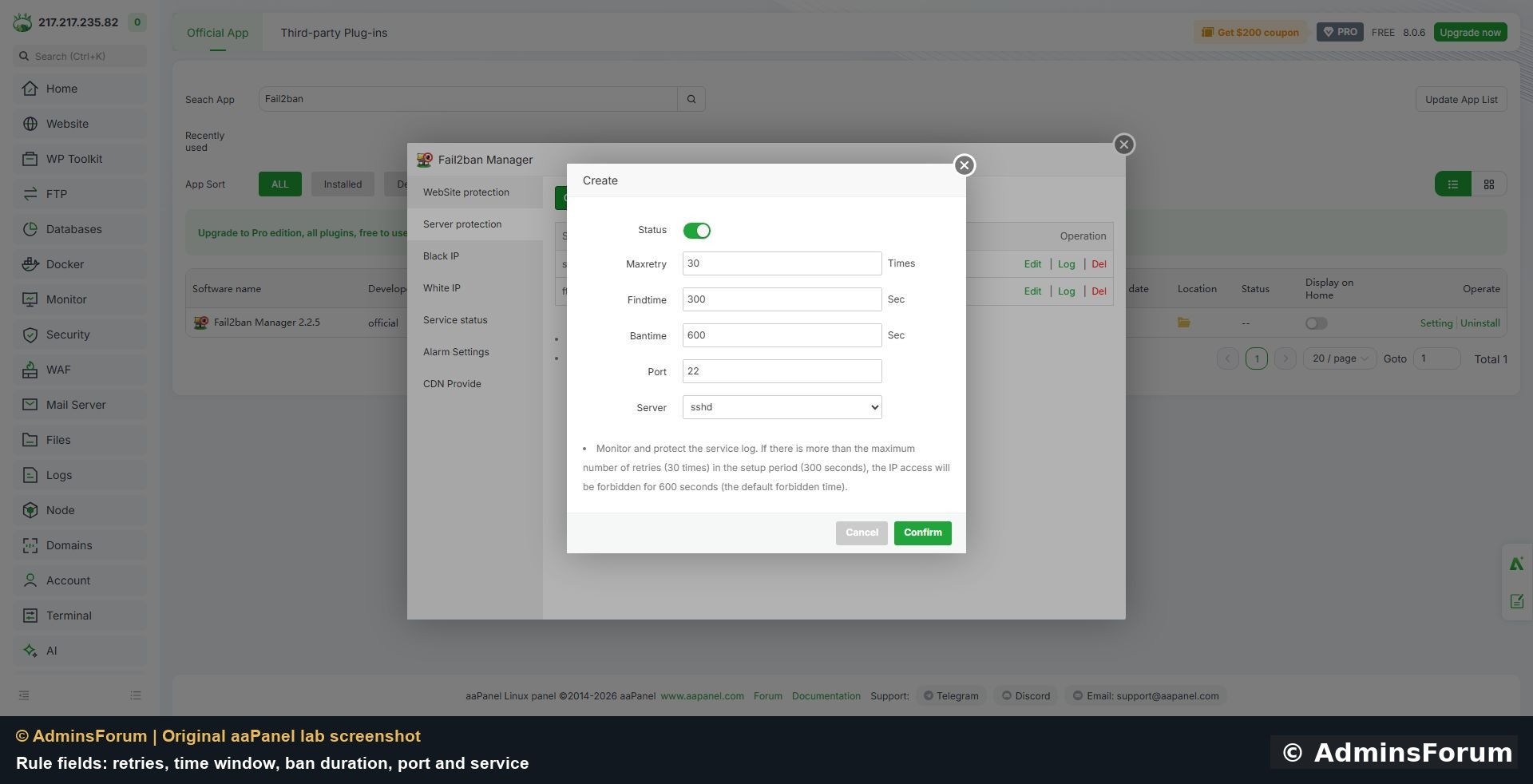
Open Server protection. Existing services offer Edit and Log. The Create dialog offers these fields:
5. Verify the backend, not just the plugin row
Use aaPanel Terminal or your authorized SSH session for these read-only checks:
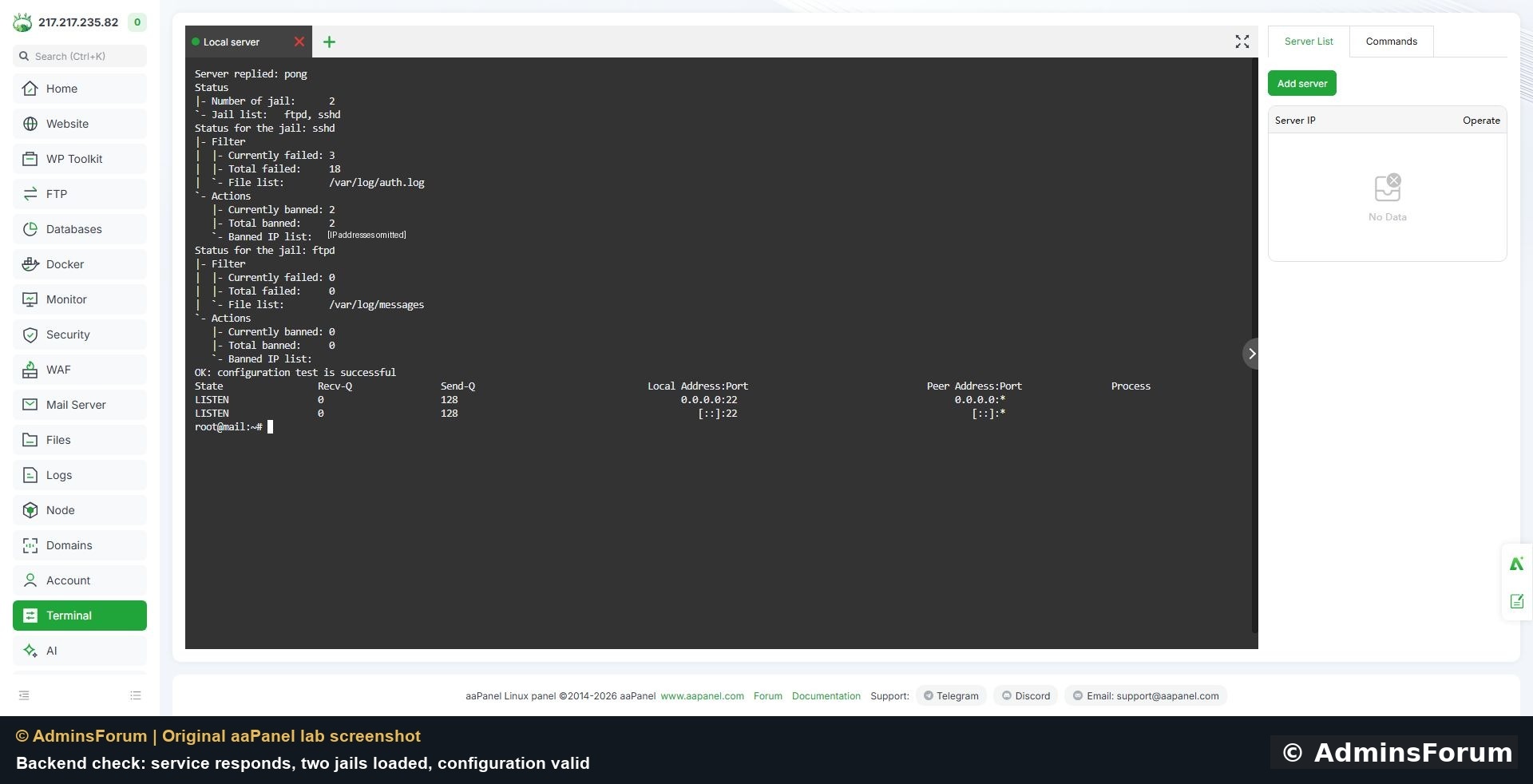
Original lab checks: service responded, sshd and ftpd jails were listed, and the configuration test passed. IP addresses are omitted from the illustration.
Our SSH jail used /var/log/auth.log and reported detected failures and two bans during observation. Those were service observations, not a deliberate controlled login test. The SSH listener remained available. This does not prove every rule blocks traffic correctly from every network.
6. Check the log path for each service
The lab FTP jail reported /var/log/messages. Our follow-up test deliberately supplied an invalid password to the existing lab FTP account over trusted TLS. Pure-FTPd returned 530 and wrote the expected authentication failure to /var/log/messages. Localhost is excluded by the jail, so that local check did not ban the administrator. We then sent distinct synthetic failure records for documentation address 203.0.113.123: Fail2ban detected them, created a UFW REJECT rule, and removed it when the test address was unbanned. Other bans were preserved. This verifies real log placement plus synthetic detection/firewall enforcement; it does not prove external packet reachability. Repeated identical log messages can be collapsed by syslog, so use distinguishable records in a synthetic test.
For SSH, confirm the backend fits your system's logging arrangement. Some installations use files; others use the system journal. If the expected events are missing, inspect the service logging and jail configuration before changing thresholds.
7. Review bans and recovery
Use the relevant rule's Log control and the Black IP/White IP sections to inspect the manager's view. Check the exact IP and jail before unbanning a legitimate user. If you lose management access, use the provider console and investigate the specific ban. Avoid disabling all protection simply because one legitimate client was affected. Only add trusted addresses to exclusions; large or public ranges can undermine protection.
8. Website and CDN rules require a separate test
Website protection depends on the correct web-server logs. The manager warns that rules need to be recreated after changing the web server or log path. A reverse proxy/CDN can alter which IP reaches the origin; verify real-client-IP handling before using IP-based bans. Do not ban a shared proxy address based on unverified logging. This guide does not configure website/CDN rules or notification accounts.
Installation result
Manager 2.2.5 installed; service responded; two jails loaded; configuration test succeeded. SSH failures and bans were observed. FTP log placement, synthetic detection and the UFW ban/unban action subsequently passed. An external network ban test remains unverified. No new public port was opened for this plugin.
Continue with aaPanel firewall rules.
References: aaPanel App Store documentation and Fail2ban project documentation. Screenshots and lab observations: © AdminsForum.
1. Prepare before installation
Keep your existing panel and SSH connections open, and confirm that the VPS provider console works. Record the actual SSH port. Review backups and firewall rules. Do not intentionally fail your own SSH login repeatedly to test a rule: you can block your management address. A firewall and strong authentication remain necessary.
2. Install the official manager
Open App Store → Official App → ALL. Search for Fail2ban. Confirm the row says Fail2ban Manager, developer official, and review the displayed price. Our catalog listed it as Free. Click Install, inspect the version dialog and choose Install Now. Wait until the row changes to Setting / Uninstall. Our installation produced Manager version 2.2.5. Panel/plugin versions and availability can change.
3. Open the controls and check the service
Choose Setting → Service status. The lab showed Current status: On. The manager also contains WebSite protection, Server protection, Black IP, White IP, Alarm Settings and CDN Provide. Installing this version produced SSH and FTP jail rows automatically; inspect the resulting rules immediately rather than assuming installation creates no active protection.
4. Understand a server-protection rule
Open Server protection. Existing services offer Edit and Log. The Create dialog offers these fields:
- Status: whether the rule is enabled.
- Maxretry: the failure threshold used by that rule.
- Findtime: the period in which failures are counted, in seconds.
- Bantime: how long the ban lasts, in seconds.
- Port: the service's actual port; the default 22 is not correct for every SSH setup.
- Server: the selected service/filter family. This dialog listed sshd, mysql, dovecot, postfix and ftpd.
5. Verify the backend, not just the plugin row
Use aaPanel Terminal or your authorized SSH session for these read-only checks:
Code:
fail2ban-client ping
fail2ban-client status
fail2ban-client status sshd
fail2ban-client status ftpd
fail2ban-client -t
Original lab checks: service responded, sshd and ftpd jails were listed, and the configuration test passed. IP addresses are omitted from the illustration.
Our SSH jail used /var/log/auth.log and reported detected failures and two bans during observation. Those were service observations, not a deliberate controlled login test. The SSH listener remained available. This does not prove every rule blocks traffic correctly from every network.
6. Check the log path for each service
The lab FTP jail reported /var/log/messages. Our follow-up test deliberately supplied an invalid password to the existing lab FTP account over trusted TLS. Pure-FTPd returned 530 and wrote the expected authentication failure to /var/log/messages. Localhost is excluded by the jail, so that local check did not ban the administrator. We then sent distinct synthetic failure records for documentation address 203.0.113.123: Fail2ban detected them, created a UFW REJECT rule, and removed it when the test address was unbanned. Other bans were preserved. This verifies real log placement plus synthetic detection/firewall enforcement; it does not prove external packet reachability. Repeated identical log messages can be collapsed by syslog, so use distinguishable records in a synthetic test.
For SSH, confirm the backend fits your system's logging arrangement. Some installations use files; others use the system journal. If the expected events are missing, inspect the service logging and jail configuration before changing thresholds.
7. Review bans and recovery
Use the relevant rule's Log control and the Black IP/White IP sections to inspect the manager's view. Check the exact IP and jail before unbanning a legitimate user. If you lose management access, use the provider console and investigate the specific ban. Avoid disabling all protection simply because one legitimate client was affected. Only add trusted addresses to exclusions; large or public ranges can undermine protection.
8. Website and CDN rules require a separate test
Website protection depends on the correct web-server logs. The manager warns that rules need to be recreated after changing the web server or log path. A reverse proxy/CDN can alter which IP reaches the origin; verify real-client-IP handling before using IP-based bans. Do not ban a shared proxy address based on unverified logging. This guide does not configure website/CDN rules or notification accounts.
Installation result
Manager 2.2.5 installed; service responded; two jails loaded; configuration test succeeded. SSH failures and bans were observed. FTP log placement, synthetic detection and the UFW ban/unban action subsequently passed. An external network ban test remains unverified. No new public port was opened for this plugin.
Continue with aaPanel firewall rules.
References: aaPanel App Store documentation and Fail2ban project documentation. Screenshots and lab observations: © AdminsForum.