



10-12-2026, 03:10 AM
Quick answer
Open Cron → Backup Database, choose the MySQL database type and your specific database, then set a daily time, destination and retention count. Click Add Task, use Execute for the first test, and read the Log. Check the resulting SQL archive before trusting future runs.
Tested result
On the AdminsForum lab with aaPanel 8.0.6 and MariaDB 10.11, we created Backup Database[af_wordpress]--mysql. The daily schedule was 02:25 on the server's clock, with Local Disk and three retained copies. The first manual run exported a 2.11 MB database and produced a 193.33 KB .sql.gz file. The log reported Successful, and gzip integrity checking passed. We paused this tutorial-only task after testing. The next unattended daily trigger and restoration of this particular dump were not tested.
1. Find the correct database
Open Databases and identify the database used by your application. Do not assume its name matches the domain. For WordPress, the DB_NAME value in its configuration identifies the database, but keep that file private because it also contains credentials.
If your application uses more than one database, include each required database in the backup plan. Our example selects af_wordpress only. It does not back up the other databases on the server.
2. Open the backup task form
Click Cron in the left-hand menu. Under Add Task, set Task type to Backup Database. In Backup database, select MySQL for this MySQL/MariaDB example. The lab runs MariaDB but aaPanel presents this engine family as MySQL in the task form.
Use Database to select the required database instead of leaving ALL selected unless every listed database should be included. The task name is generated from your selection.
3. Choose a time and destination
Set Execute cycle to Daily and enter the hour and minute. We used 02:25 so it did not start at the same time as the website-file job. Check the server clock and time zone first. Staggering jobs helps avoid simultaneous compression and database activity, but does not guarantee that file and database backups represent the same instant.
For this first test we selected Local Disk and kept the latest three copies. Choose a retention count based on available space and how far back you need to recover. Repeated manual executions can also create copies; retention is not automatically equivalent to a number of days.
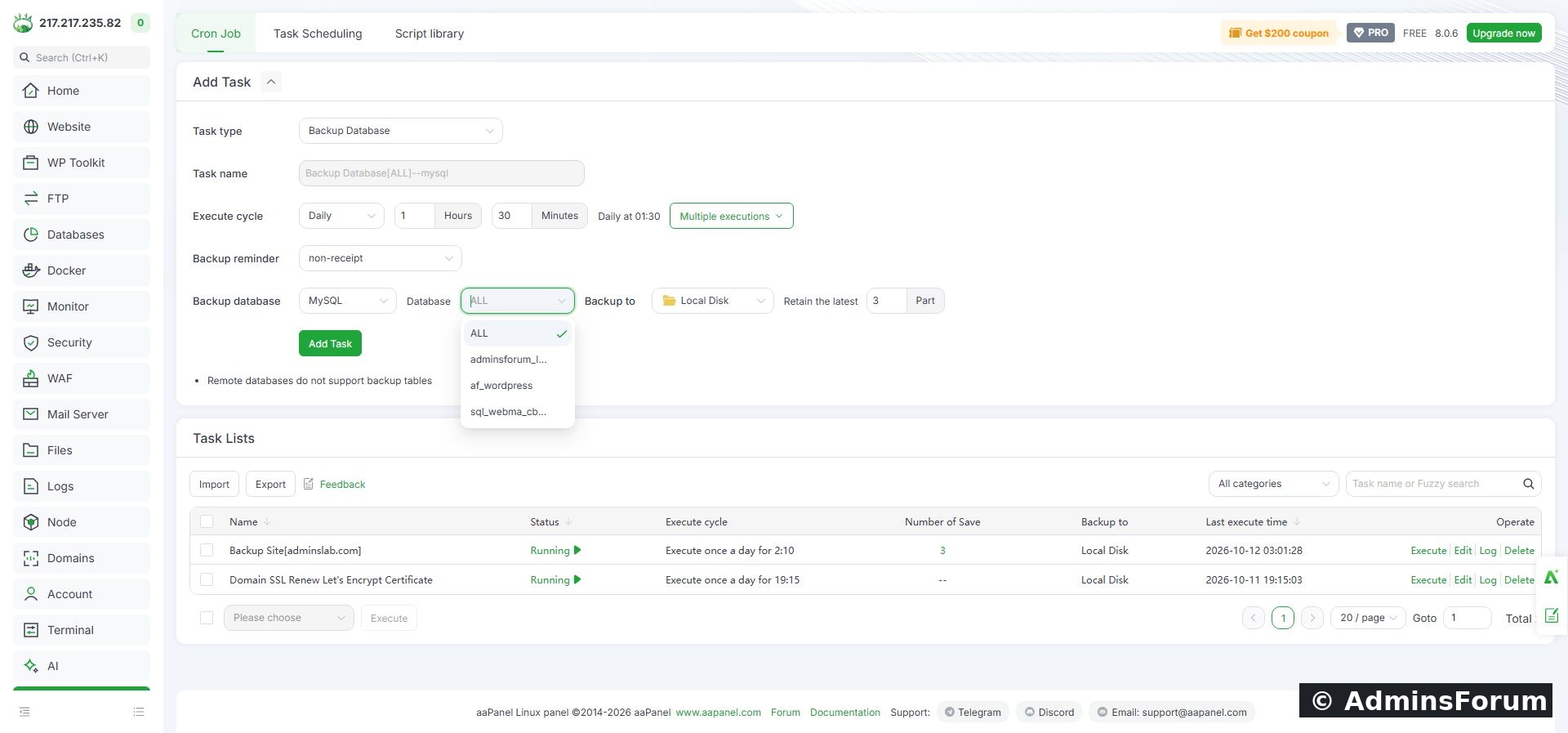
AdminsForum lab: the selected WordPress database, daily schedule, local destination and copy count.
The Backup reminder setting was left at non-receipt. No notification delivery was tested. If you enable alerts later, test the notification channel rather than assuming it works.
4. Create the task and run it once
Click Add Task. Check the new row's database name, Running status, time and destination. Click Execute in that exact row and confirm the prompt. Wait for the export and compression to finish, then read Log or use Refresh log.
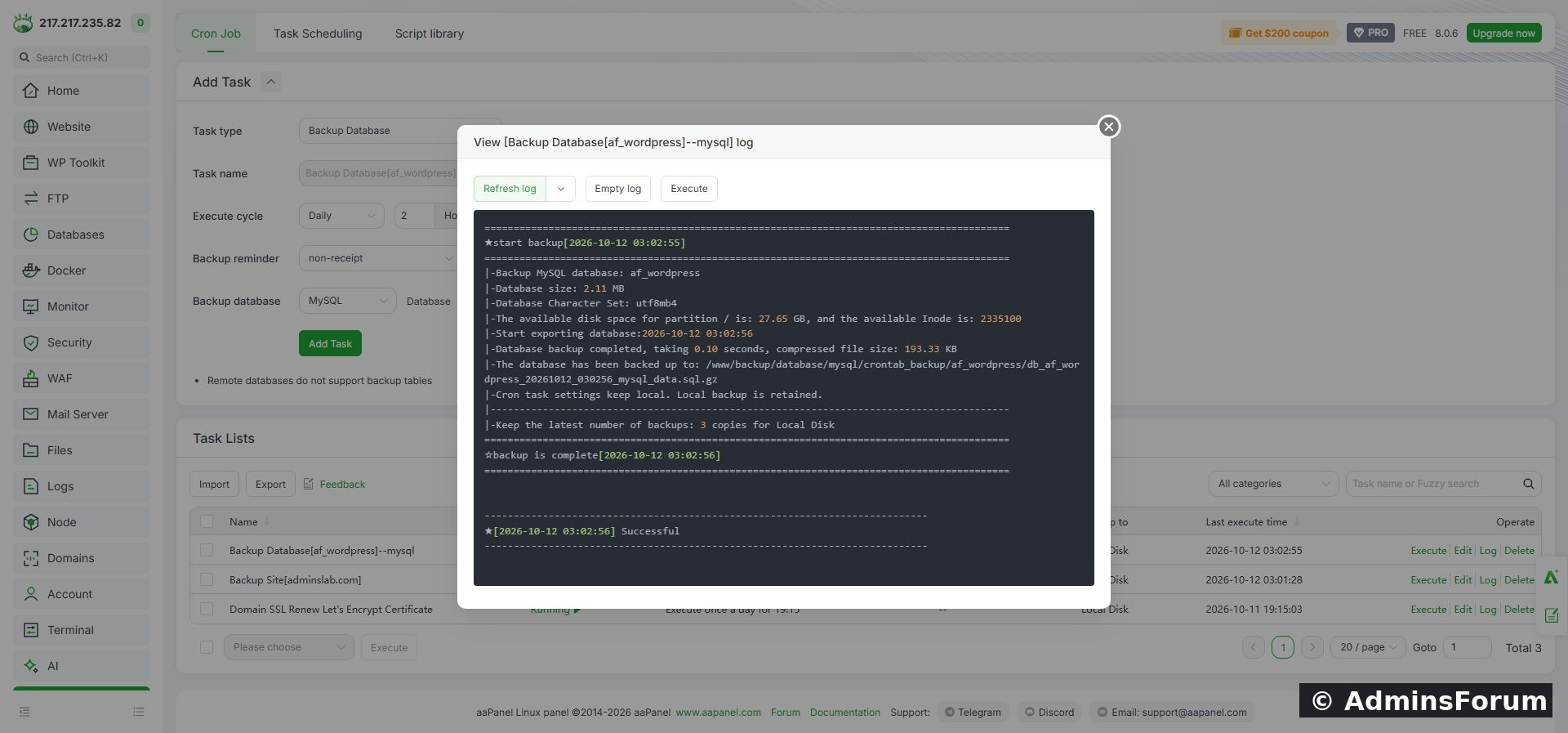
AdminsForum lab: successful database export, compressed size, output path and retention result.
A successful result should identify the database you intended and the location of a non-empty archive. A task being present in the list does not prove a backup was produced.
Our archive was placed under:
The log provided its exact timestamped filename. Your version or storage configuration may use a different path; follow your own log.
5. Verify the compressed SQL file
Find the file using aaPanel Files or your normal secure server-access method. Keep it outside public website directories. A database dump can contain member information, application settings and other private data.
If you use the terminal, verify gzip integrity without extracting the dump:
Replace the example path with the real file from your log. We ran this successfully on the lab dump. It confirms that the compressed stream is intact; it does not prove the SQL will import successfully or that every application component can be restored.
A much smaller compressed file can be normal. Compare with the logged database size and inspect its structure privately when needed. Do not publish SQL contents in a support thread.
6. Plan an isolated restore test
The strongest check is to import a copy into a separate test database and confirm the expected tables and application content. Avoid overwriting the live database just to test a backup. Record the original application configuration and use a separate test site if you need to point an application at the restored database.
The database backup and restore guide covers the separate restore workflow. This article tests creation and archive integrity, rather than claiming a restore of the new cron archive.
7. Keep website files and database backups together
A database dump does not include WordPress uploads, themes, plugins or website configuration files. Pair it with a scheduled website-file backup.
For a busy store or other frequently changing application, consider application-supported consistent backups or a brief maintenance period. Two independently timed backup jobs do not automatically guarantee a consistent recovery point.
8. Keep an off-server copy and check the next run
Transfer a copy to protected off-server storage and confirm it can be retrieved. A same-server copy is not enough if the VPS disk or account is lost. Limit who can access the dump and avoid public download links.
After the first scheduled time passes, inspect Last execute time and Log and confirm a fresh archive exists. A manual Execute test verifies the backup operation, while the scheduled trigger still needs its own check.
After the lab test, we selected the task checkbox, chose Stop task in the list action menu, clicked Execute and confirmed. The task now shows Stopped. The dump remains available. Enable your real schedule when you intend to keep it operating, and review the results regularly.
Troubleshooting
Completion checklist
Reference: aaPanel official Cron documentation.
Open Cron → Backup Database, choose the MySQL database type and your specific database, then set a daily time, destination and retention count. Click Add Task, use Execute for the first test, and read the Log. Check the resulting SQL archive before trusting future runs.
Tested result
On the AdminsForum lab with aaPanel 8.0.6 and MariaDB 10.11, we created Backup Database[af_wordpress]--mysql. The daily schedule was 02:25 on the server's clock, with Local Disk and three retained copies. The first manual run exported a 2.11 MB database and produced a 193.33 KB .sql.gz file. The log reported Successful, and gzip integrity checking passed. We paused this tutorial-only task after testing. The next unattended daily trigger and restoration of this particular dump were not tested.
1. Find the correct database
Open Databases and identify the database used by your application. Do not assume its name matches the domain. For WordPress, the DB_NAME value in its configuration identifies the database, but keep that file private because it also contains credentials.
If your application uses more than one database, include each required database in the backup plan. Our example selects af_wordpress only. It does not back up the other databases on the server.
2. Open the backup task form
Click Cron in the left-hand menu. Under Add Task, set Task type to Backup Database. In Backup database, select MySQL for this MySQL/MariaDB example. The lab runs MariaDB but aaPanel presents this engine family as MySQL in the task form.
Use Database to select the required database instead of leaving ALL selected unless every listed database should be included. The task name is generated from your selection.
3. Choose a time and destination
Set Execute cycle to Daily and enter the hour and minute. We used 02:25 so it did not start at the same time as the website-file job. Check the server clock and time zone first. Staggering jobs helps avoid simultaneous compression and database activity, but does not guarantee that file and database backups represent the same instant.
For this first test we selected Local Disk and kept the latest three copies. Choose a retention count based on available space and how far back you need to recover. Repeated manual executions can also create copies; retention is not automatically equivalent to a number of days.
AdminsForum lab: the selected WordPress database, daily schedule, local destination and copy count.
The Backup reminder setting was left at non-receipt. No notification delivery was tested. If you enable alerts later, test the notification channel rather than assuming it works.
4. Create the task and run it once
Click Add Task. Check the new row's database name, Running status, time and destination. Click Execute in that exact row and confirm the prompt. Wait for the export and compression to finish, then read Log or use Refresh log.
AdminsForum lab: successful database export, compressed size, output path and retention result.
A successful result should identify the database you intended and the location of a non-empty archive. A task being present in the list does not prove a backup was produced.
Our archive was placed under:
Code:
/www/backup/database/mysql/crontab_backup/af_wordpress/5. Verify the compressed SQL file
Find the file using aaPanel Files or your normal secure server-access method. Keep it outside public website directories. A database dump can contain member information, application settings and other private data.
If you use the terminal, verify gzip integrity without extracting the dump:
Code:
gzip -t /path/to/your-database.sql.gz && echo 'Compressed backup integrity OK'A much smaller compressed file can be normal. Compare with the logged database size and inspect its structure privately when needed. Do not publish SQL contents in a support thread.
6. Plan an isolated restore test
The strongest check is to import a copy into a separate test database and confirm the expected tables and application content. Avoid overwriting the live database just to test a backup. Record the original application configuration and use a separate test site if you need to point an application at the restored database.
The database backup and restore guide covers the separate restore workflow. This article tests creation and archive integrity, rather than claiming a restore of the new cron archive.
7. Keep website files and database backups together
A database dump does not include WordPress uploads, themes, plugins or website configuration files. Pair it with a scheduled website-file backup.
For a busy store or other frequently changing application, consider application-supported consistent backups or a brief maintenance period. Two independently timed backup jobs do not automatically guarantee a consistent recovery point.
8. Keep an off-server copy and check the next run
Transfer a copy to protected off-server storage and confirm it can be retrieved. A same-server copy is not enough if the VPS disk or account is lost. Limit who can access the dump and avoid public download links.
After the first scheduled time passes, inspect Last execute time and Log and confirm a fresh archive exists. A manual Execute test verifies the backup operation, while the scheduled trigger still needs its own check.
After the lab test, we selected the task checkbox, chose Stop task in the list action menu, clicked Execute and confirmed. The task now shows Stopped. The dump remains available. Enable your real schedule when you intend to keep it operating, and review the results regularly.
Troubleshooting
- Access denied during export: check the database connection and the relevant task log. Do not paste passwords into a forum post.
- No database in the selector: confirm it is managed by the appropriate aaPanel database connection and review support for that connection type.
- Empty or missing archive: inspect the export/compression error and available disk space; a last-execution timestamp alone is insufficient.
- Remote database: verify the actual capabilities shown by your aaPanel version. The lab UI warns that remote databases do not support backup tables; our test used a local database.
- Scheduled run missed: check Running status, server time, cron service and task logs.
Completion checklist
- Correct application database selected.
- Schedule, destination and retention reviewed.
- First manual export completed with a successful log.
- Compressed SQL archive exists and passed integrity checking.
- Website-file coverage and protected off-server storage included.
- Isolated restore and first unattended run planned and checked.
Reference: aaPanel official Cron documentation.