



Yesterday, 10:02 AM
Linux's immutable file attribute can prevent a selected file from being modified while the attribute is set. On an aaPanel server, you can test this through SSH using chattr and lsattr, then remove the attribute before legitimate updates.
Scope: This is a Linux SSH method tested on our Ubuntu 22.04.5 VPS with aaPanel Free 8.0.7. It is not a walkthrough of aaPanel Pro's File Protection feature. In this Free installation, clicking a file's Unprotected control opened a Pro upgrade screen; we did not purchase or activate Pro and did not test its protection settings.
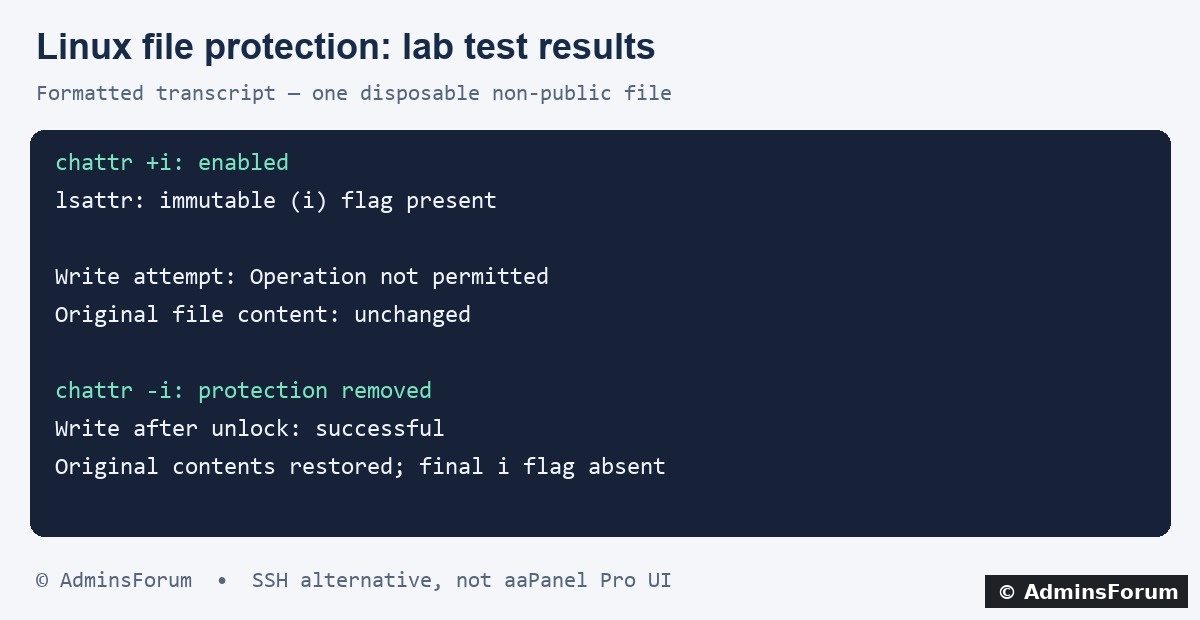
Formatted transcript of our disposable file test: protected write blocked, unlock succeeded, and original contents restored.
What this method protects
The immutable i attribute prevents normal modification of the protected file while set. It is separate from ordinary chmod read/write permissions. An authorized administrator with the relevant capability can remove it, so it is not protection against a fully privileged attacker and does not replace updates, least-privilege access or backups.
Do not apply it recursively across a running website. Uploads, cache files, databases, logs, certificate renewals and application updates need to write files. Start with one disposable file outside a public website root.
1. Choose a disposable file and confirm its path
Our test file was:
It contained only the text AdminsForum disposable file protection lab. It was owned by www with mode 644 and was not served as a public website file. The surrounding directory already existed; we did not change its application files.
Create your own harmless test file in a private lab directory. Verify its contents before proceeding:
The examples below use a placeholder path. Replace it with the exact file you intend to test, not a directory or wildcard.
2. Apply the immutable flag
From an authorized administrator terminal:
In our lab, chattr returned exit 0 and lsattr displayed the i flag. Other letters such as e may already be present; the significant change for this test is i.
If the command reports Operation not supported, investigate the filesystem and hosting environment. Containers, filesystem types and available capabilities can affect support. Do not claim protection is active without checking the result.
3. Verify a write is blocked
Attempt a harmless append only on that disposable file:
Our administrator-side write attempt failed with Operation not permitted, and the original file content remained unchanged. Read it again to confirm the attempted text was not added. This test verifies one file's behavior; it does not establish protection for every path on the VPS.
If the append succeeds, stop and investigate the attribute and actual target path. Do not treat a successful chattr message alone as proof.
4. Remove protection before legitimate maintenance
Confirm the i flag is absent. On the disposable file, test the append again and read its contents. Our second write succeeded after unlocking. We then restored the original harmless text and checked that the final contents matched the original and the i flag remained absent.
For a real protected configuration file, plan the maintenance process: unlock only the intended file, perform the reviewed change, verify the application and then reapply protection if it is still appropriate. Keep a record of protected paths so future updates do not fail unexpectedly.
5. Understand the aaPanel UI boundary
The Files page in our panel has a Protected column and Unprotected controls. In this Free lab, using that control opened a Pro upgrade prompt rather than a protection dialog. That observation does not establish the internal mechanism or capabilities of the Pro implementation.
Do not assume an SSH chattr change will be fully managed or accurately represented by every panel protection screen. Use lsattr and an actual disposable write test for this method. A separate Pro tutorial should test the native UI, enable/disable behavior and compatibility with application updates on a licensed test server.
Troubleshooting
What our lab verified
AdminsForum lab-tested SSH tutorial. The illustration is a formatted result transcript; native aaPanel Pro File Protection remains a separate test.
Scope: This is a Linux SSH method tested on our Ubuntu 22.04.5 VPS with aaPanel Free 8.0.7. It is not a walkthrough of aaPanel Pro's File Protection feature. In this Free installation, clicking a file's Unprotected control opened a Pro upgrade screen; we did not purchase or activate Pro and did not test its protection settings.
Formatted transcript of our disposable file test: protected write blocked, unlock succeeded, and original contents restored.
What this method protects
The immutable i attribute prevents normal modification of the protected file while set. It is separate from ordinary chmod read/write permissions. An authorized administrator with the relevant capability can remove it, so it is not protection against a fully privileged attacker and does not replace updates, least-privilege access or backups.
Do not apply it recursively across a running website. Uploads, cache files, databases, logs, certificate renewals and application updates need to write files. Start with one disposable file outside a public website root.
1. Choose a disposable file and confirm its path
Our test file was:
Code:
/www/af-composer-lab/af-protection-lab.txtCreate your own harmless test file in a private lab directory. Verify its contents before proceeding:
Code:
cat /absolute/path/to/test-file.txt
ls -l /absolute/path/to/test-file.txt
lsattr /absolute/path/to/test-file.txt2. Apply the immutable flag
From an authorized administrator terminal:
Code:
sudo chattr +i /absolute/path/to/test-file.txt
lsattr /absolute/path/to/test-file.txtIf the command reports Operation not supported, investigate the filesystem and hosting environment. Containers, filesystem types and available capabilities can affect support. Do not claim protection is active without checking the result.
3. Verify a write is blocked
Attempt a harmless append only on that disposable file:
Code:
printf 'disposable write test
' >> /absolute/path/to/test-file.txtIf the append succeeds, stop and investigate the attribute and actual target path. Do not treat a successful chattr message alone as proof.
4. Remove protection before legitimate maintenance
Code:
sudo chattr -i /absolute/path/to/test-file.txt
lsattr /absolute/path/to/test-file.txtFor a real protected configuration file, plan the maintenance process: unlock only the intended file, perform the reviewed change, verify the application and then reapply protection if it is still appropriate. Keep a record of protected paths so future updates do not fail unexpectedly.
5. Understand the aaPanel UI boundary
The Files page in our panel has a Protected column and Unprotected controls. In this Free lab, using that control opened a Pro upgrade prompt rather than a protection dialog. That observation does not establish the internal mechanism or capabilities of the Pro implementation.
Do not assume an SSH chattr change will be fully managed or accurately represented by every panel protection screen. Use lsattr and an actual disposable write test for this method. A separate Pro tutorial should test the native UI, enable/disable behavior and compatibility with application updates on a licensed test server.
Troubleshooting
- chmod does not make the file writable: check lsattr; ordinary permission changes do not remove immutable protection.
- File editor or deployment cannot save: confirm whether the exact target is intentionally protected, then use the planned unlock process.
- Operation not supported: check filesystem support and virtualization restrictions rather than repeatedly changing permissions.
- Operation not permitted when changing attributes: check your administrative privileges and relevant capabilities.
- Application updates fail: review whether protection was applied to files that must change; avoid bulk protection of a live app.
What our lab verified
- One disposable non-public file was created with harmless contents.
- chattr +i succeeded and lsattr showed i.
- A write was blocked and original contents stayed unchanged.
- chattr -i succeeded and a subsequent write worked.
- Original contents were restored and the file was left unlocked.
AdminsForum lab-tested SSH tutorial. The illustration is a formatted result transcript; native aaPanel Pro File Protection remains a separate test.